
Bose 838309-4100
Bose TV Speaker User Manual
Model: 838309-4100
Introduction
The Bose TV Speaker is a compact soundbar designed to significantly enhance your television's audio, providing clearer dialogue and a wider soundstage. Its streamlined design ensures easy integration into any home entertainment setup. This manual provides comprehensive instructions for setup, operation, maintenance, and troubleshooting to ensure optimal performance of your Bose TV Speaker.

Figure 1: Front view of the Bose TV Speaker. This compact soundbar is designed to fit seamlessly below most televisions.
Setup
What's in the Box
- Bose TV Speaker
- Remote Control
- Optical Audio Cable
- Power Cord
Connecting Your Speaker
The Bose TV Speaker offers a simple, one-connection setup to your television. You can choose between an optical audio cable (included) or an HDMI cable (sold separately).
- Power Connection: Connect the power cord to the speaker and then to a power outlet.
- Audio Connection (Choose ONE):
- Optical Cable (Recommended): Connect one end of the optical cable to the OPTICAL OUT port on your TV and the other end to the OPTICAL IN port on the Bose TV Speaker.
- HDMI Cable (ARC/eARC): Connect one end of an HDMI cable (sold separately) to the HDMI ARC/eARC port on your TV and the other end to the HDMI (ARC) port on the Bose TV Speaker. This allows for control of the soundbar volume using your TV remote.

Figure 2: Rear view of the Bose TV Speaker, highlighting the various connection ports including HDMI (ARC) and Optical In.
Placement
Place the soundbar directly in front of your TV, centered. Ensure no objects block the front of the speaker. The compact design allows for easy placement without obstructing the TV screen.

Figure 3: The Bose TV Speaker positioned neatly in front of a television, demonstrating its compact size and ideal placement.

Figure 4: A wider view of the Bose TV Speaker in a living room setting, showcasing its discreet presence.
Operating Instructions
Using the Remote Control
The included remote control provides full command over your Bose TV Speaker's functions.
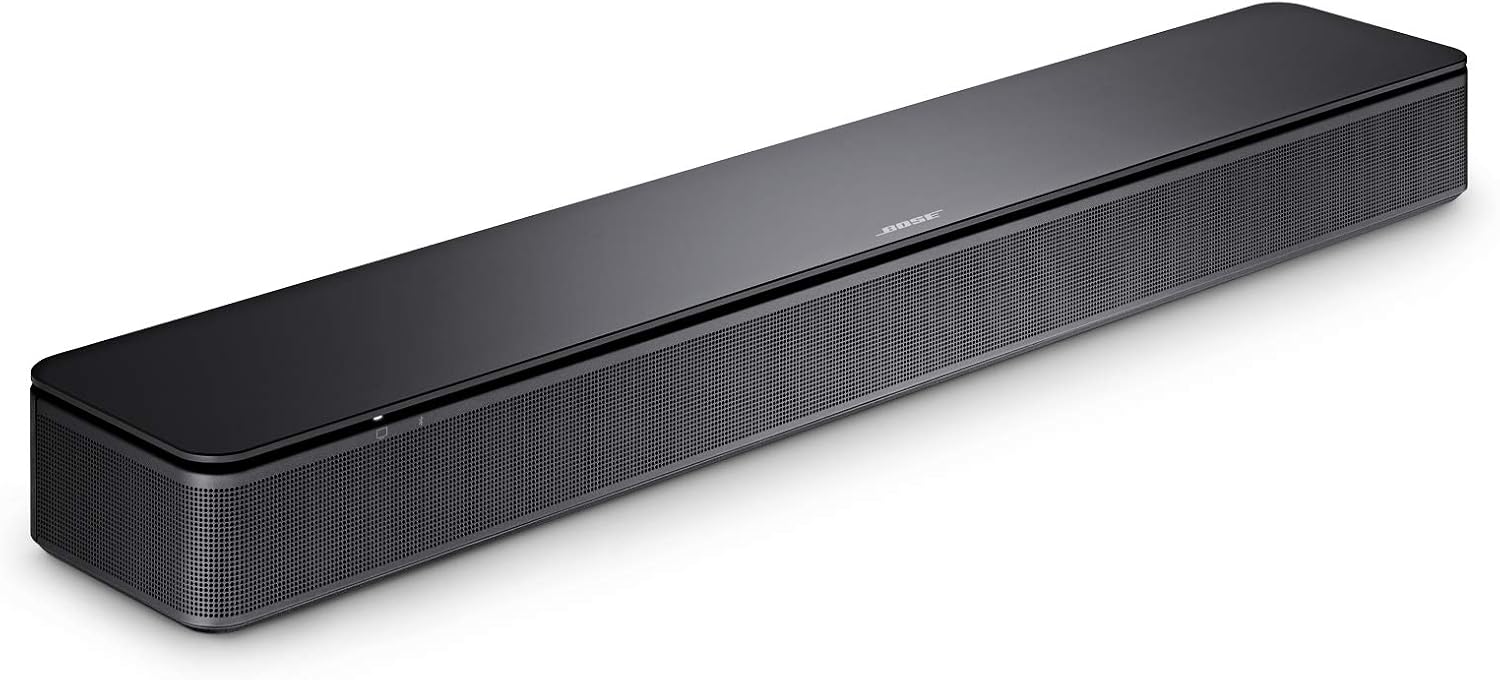
Figure 5: The compact remote control for the Bose TV Speaker, featuring dedicated buttons for various audio enhancements.
- Power Button: Turns the speaker on or off.
- Volume Up/Down: Adjusts the overall volume.
- Mute Button: Mutes or unmutes the sound.
- Dialogue Mode: Press the Dialogue Mode button to enhance speech clarity, making conversations easier to understand.
- Bass Boost: Press the Bass Boost button to add more depth to the audio.
- Bluetooth Button: Initiates Bluetooth pairing mode.
Bluetooth Connectivity
You can wirelessly stream music and podcasts from your mobile devices to the Bose TV Speaker via Bluetooth.
- Press the Bluetooth button on the remote control. The Bluetooth indicator on the speaker will blink blue.
- On your mobile device, enable Bluetooth and select "Bose TV Speaker" from the list of available devices.
- Once connected, the Bluetooth indicator will glow solid blue. You can now play audio from your device through the speaker.
Product Feature Overview
Video 1: A brief overview of the Bose TV Speaker's key features, including its compact design, Bluetooth connectivity, and simple setup.
Maintenance
To ensure the longevity and optimal performance of your Bose TV Speaker, follow these maintenance guidelines:
- Cleaning: Use a soft, dry cloth to clean the surface of the speaker. Do not use any liquids, sprays, or chemical cleaners.
- Ventilation: Ensure the speaker's vents are not blocked to prevent overheating.
- Storage: If storing the speaker for an extended period, disconnect it from power and store it in a cool, dry place.
Troubleshooting
This section addresses common issues you might encounter with your Bose TV Speaker.
| Problem | Possible Cause | Solution |
|---|---|---|
| No sound from speaker |
|
|
| Dialogue is unclear | Dialogue Mode is not active. | Press the Dialogue Mode button on the remote control. |
| No bass or insufficient bass | Bass Boost is not active. | Press the Bass Boost button on the remote control. |
| Bluetooth device won't pair |
|
|
Specifications
| Feature | Detail |
|---|---|
| Brand | Bose |
| Model Number | 838309-4100 |
| Product Dimensions | 68.5 x 16.6 x 18.2 cm; 1.95 kg |
| Connectivity Technology | Bluetooth |
| Audio Output Mode | Surround |
| Mounting Type | Wall Mount (brackets sold separately) |
| First Available | 6 June 2020 |

Figure 6: Diagram showing the dimensions of the Bose TV Speaker for placement reference.
Warranty and Support
Bose products are designed for durability and performance. For specific warranty details, please refer to the warranty card included with your product or visit the official Bose website.
Extended warranty options may be available from third-party providers:
- 1-Year Extended Warranty by Salama Care
- 2-Year Extended Warranty by Salama Care
For technical support, product registration, or further assistance, please visit the official Bose support page or contact their customer service.
You can find more information and support resources at the Bose Store on Amazon.
Related documents838309-4100


Ask a question about this manual
Ask about setup, troubleshooting, compatibility, parts, safety, or missing instructions. Manuals+ will review the question and use this page’s manual context to help answer it.