
NETGEAR RBK752-100NAS
Contents
NETGEAR Orbi Whole Home Tri-band Mesh WiFi 6 System (RBK752) User Manual
Model: RBK752-100NAS
Introduction
The NETGEAR Orbi RBK752 is a Tri-Band WiFi System designed to provide extensive and reliable WiFi coverage throughout your home. Utilizing the latest WiFi 6 technology, it ensures strong connections and sufficient bandwidth for numerous devices, supporting activities like 4K/8K UHD streaming, online gaming, and smart home device integration. This system also incorporates NETGEAR Armor for enhanced cybersecurity.
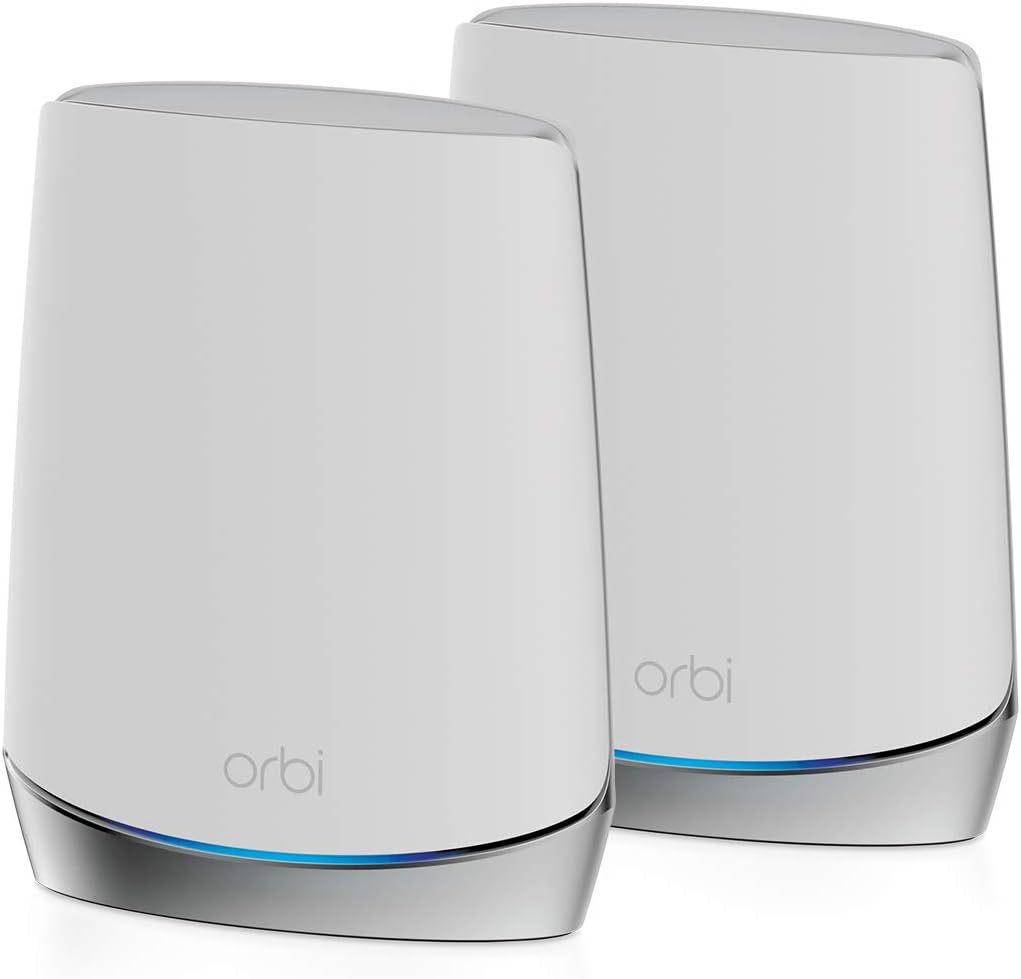
Image: The Orbi RBK752 system, featuring one router and one satellite unit, designed for whole-home mesh WiFi coverage.
What's in the Box
- One (1) Orbi Router (RBR750)
- One (1) Orbi Satellite (RBS750)
- One (1) 2m Ethernet cable
- Two (2) 12V/2.5A power adapters
- Quick start guide
Setup Guide
Follow these steps to set up your NETGEAR Orbi WiFi 6 System:
- Unpack the System: Carefully remove the Orbi Router and Satellite, power adapters, and Ethernet cable from the box.
- Position the Orbi Router: Place the Orbi Router (RBR750) in a central location in your home, preferably near your existing modem.
- Connect the Router:
- Connect one end of the provided Ethernet cable to the yellow Internet port on your Orbi Router.
- Connect the other end of the Ethernet cable to your modem's Ethernet port.
- Connect the power adapter to the Orbi Router and plug it into a power outlet. The LED on the router will light up.
- Position the Orbi Satellite: Place the Orbi Satellite (RBS750) in an area where you need extended WiFi coverage, ensuring it is within range of the Orbi Router. Avoid placing it in enclosed spaces or near large metal objects.
- Connect the Satellite: Connect the power adapter to the Orbi Satellite and plug it into a power outlet. The LED on the satellite will light up.
- Wait for Synchronization: Allow a few minutes for the router and satellite to power on and synchronize. The LED on the Orbi Satellite will turn blue when it has a good connection to the router, then turn off. If it turns magenta, it indicates a poor connection and the satellite should be moved closer to the router.
- Download the Orbi App: For easiest setup and management, download the NETGEAR Orbi app from your mobile device's app store (Apple App Store or Google Play Store).
- Complete Setup via App: Open the Orbi app and follow the on-screen instructions to create your Orbi WiFi network name (SSID) and password. The app will guide you through connecting your devices and configuring advanced settings.

Image: The Orbi App simplifies setup, monitoring, and protection of your home network, offering features like device management, security activation, and parental controls.
Operating Instructions
Connecting Devices
Once your Orbi system is set up, you can connect your devices to the WiFi network using the SSID and password you created during setup. The Orbi system provides a single network name for both 2.4 GHz and 5 GHz bands, allowing your devices to automatically connect to the optimal band.
- Wireless Devices: On your smartphone, tablet, laptop, or smart home device, select your Orbi WiFi network from the list of available networks and enter the password.
- Wired Devices: For devices requiring a wired connection (e.g., desktop computers, gaming consoles, smart TVs), use an Ethernet cable to connect them to any of the Gigabit Ethernet ports on the Orbi Router or Satellite.
Using the Orbi App
The Orbi app provides comprehensive control over your network:
- Network Monitoring: View connected devices, check network status, and monitor internet speed.
- Parental Controls: Manage internet access for individual devices or profiles, set time limits, and filter content.
- Guest WiFi: Create a separate, secure network for guests without sharing your main network password.
- Security (NETGEAR Armor): Activate and manage advanced cybersecurity features to protect all connected devices from online threats. A 30-day trial is typically included.
Features
- Extensive Coverage: Provides WiFi coverage up to 5,000 sq. ft. and supports up to 40 devices. Coverage can be extended further with additional satellites (sold separately).
- High Speed WiFi 6: Delivers fast AX4200 Gigabit speeds (up to 4.2Gbps) for seamless streaming, HD video gaming, and web conferencing, leveraging WiFi 6 technology.
- Broad Compatibility: Connects to your existing cable modem and replaces your WiFi router. Compatible with any internet service provider up to 2Gbps, including cable, satellite, fiber, and DSL.
- Multiple Ethernet Ports: Features 3 Gigabit Ethernet ports on the router and 2 Gigabit Ethernet ports on the satellite for wired connections to computers, game consoles, streaming players, and more.
- Advanced Cybersecurity: Includes NETGEAR Armor software, offering an automatic shield of security for your WiFi and connected devices, providing real-time protection against hackers and enhanced privacy with VPN capabilities (30-day trial included).
- Built-in Security: NETGEAR routers come with security features enabled by default, including automatic firmware updates and industry-leading safety features to protect your network and family.
- Easy Management: Simple setup and management through the intuitive Orbi app.
- Regional Compatibility: Designed for use in the U.S. only.

Image: Key performance metrics of the Orbi RBK752 system, highlighting its WiFi 6 capabilities, speed, device capacity, and coverage area.

Image: Visual representation of the 5,000 sq. ft. WiFi coverage provided by the Orbi system, extending through various obstacles within a home.

Image: An illustration demonstrating how the Orbi system creates an expandable whole-home mesh network, with the option to add more satellites for increased coverage.

Image: A comparison table illustrating the differences in coverage, top speed, and supported devices across various Orbi models, including the RBK752.
Technical Specifications
| Category | Specification |
|---|---|
| Model Name | Orbi 750 (RBK752-100NAS) |
| WiFi Speed | AX4200 Tri-Band WiFi 6 (up to 4.2Gbps) |
| WiFi Coverage | Up to 5,000 sq. ft. |
| Connected Devices | Up to 40 devices |
| Internet Plans Supported | Up to 2Gbps (compatible with cable, satellite, fiber, DSL) |
| Wireless Communication Standard | 802.11ax, 802.11ac (backward compatible with 802.11a/b/g/n) |
| Frequency Band Class | Tri-Band (2.4 GHz, 5 GHz) |
| Ethernet Ports (Router) | 3 Gigabit Ethernet LAN ports, 1 Gigabit Ethernet WAN port |
| Ethernet Ports (Satellite) | 2 Gigabit Ethernet LAN ports |
| Processor & Memory | Quad-core 1.4GHz processor, 1GB RAM |
| Security Features | NETGEAR Armor (all-in-one internet security), NETGEAR Smart Parental Controls |
| Product Dimensions | 9.75 x 9.25 x 7.75 inches |
| Item Weight | 0.01 ounces |

Image: The Orbi RBK752 router and satellite units seamlessly integrated into a modern home office environment.
Maintenance
To ensure optimal performance and longevity of your NETGEAR Orbi system, consider the following maintenance tips:
- Firmware Updates: Keep your Orbi firmware updated. NETGEAR provides automatic firmware updates, but you can also check for and manually install updates via the Orbi app or web interface (routerlogin.net). Updates often include performance improvements, new features, and security patches.
- Placement: Ensure the router and satellites are placed in open areas, away from obstructions like large furniture, metal objects, or other electronic devices that might cause interference.
- Cleaning: Periodically clean the exterior of the Orbi units with a soft, dry cloth. Avoid using liquid cleaners or abrasive materials. Ensure ventilation openings are clear of dust.
- Rebooting: If you experience network issues, a simple reboot of the Orbi Router and Satellites can often resolve them. Unplug the power adapters, wait 10-15 seconds, and then plug them back in.
- Network Security: Regularly review your network security settings in the Orbi app. Ensure NETGEAR Armor is active and consider strong, unique passwords for your WiFi network and admin access.
Troubleshooting
Here are some common issues and their solutions for your Orbi system:
| Problem | Possible Solution |
|---|---|
| No Internet Connection |
|
| Orbi Satellite LED is Magenta |
|
| Slow WiFi Speeds |
|
| Cannot Access Orbi App or Web Interface |
|
| Forgotten WiFi Password or Admin Password |
|
Warranty and Support
NETGEAR products typically come with a limited hardware warranty. For specific warranty details, including duration and coverage, please refer to the warranty card included with your product or visit the official NETGEAR support website.
For technical support, product registration, and additional resources, please visit the NETGEAR Support website. You can also find FAQs, troubleshooting guides, and community forums there.
For direct assistance, contact NETGEAR customer support through their official channels. Keep your product model number (RBK752-100NAS) and serial number handy when contacting support.
Additional documentation, including the full user manual and installation guides, can often be found on the NETGEAR support website or through the links provided in your product packaging.
Documents and downloads
Ask a question about this manual
Ask about setup, troubleshooting, compatibility, parts, safety, or missing instructions. Manuals+ will review the question and use this page’s manual context to help answer it.