
DEWENWILS B086DMMPXS
Contents
DEWENWILS Energy Cost Meter User Manual
Model: B086DMMPXS
1. Introduction
The DEWENWILS Energy Cost Meter is a practical device designed to monitor the electricity consumption and associated costs of household appliances. This user manual provides detailed instructions on how to set up, operate, maintain, and troubleshoot your energy cost meter, ensuring accurate readings and safe usage.
This meter features a clear LCD display with backlight, multiple measurement modes, overload protection, and a child fuse for enhanced safety. Its power backup function ensures that settings and data are retained even during power outages.
2. Safety Information
Please read all safety instructions carefully before using the DEWENWILS Energy Cost Meter. Failure to follow these instructions may result in electric shock, fire, or damage to the device or connected appliances.
- Overload Protection: The meter is designed to handle a maximum load of 3680W. If the connected load exceeds this limit, the screen will display "OVERLOAD" and flash to alert the user. Immediately disconnect the appliance causing the overload.
- Child Fuse: The device is equipped with a child fuse for added safety, preventing accidental access to live parts.
- Material Safety: Constructed from ABS plastic, which is resistant to chemical corrosion and heat, ensuring strong surface hardness and durability.
- Indoor Use Only: This device is intended for indoor use in dry conditions. Do not expose to moisture or extreme temperatures.
- Proper Connection: Ensure the meter is securely plugged into a properly grounded wall outlet. Do not use with damaged cords or plugs.
- Maintenance: Do not attempt to open or repair the device. Refer all servicing to qualified personnel.
3. Product Overview
The DEWENWILS Energy Cost Meter features a user-friendly design with a large LCD display and intuitive control buttons.

Figure 3.1: Front view of the DEWENWILS Energy Cost Meter, showing the large LCD display at the top, control buttons (FVNC, COST, UP, DOWN) in the middle, and the power outlet at the bottom. The display shows '09:20', '5.0 W', and '0.68 COST'.
Components:
- LCD Display: Shows time, power consumption (Watts), energy consumption (kWh), cost, voltage, current, frequency, power factor, minimum/maximum power, and cost per kWh.
- FVNC (Function) Button: Cycles through the different display modes.
- COST Button: Used to enter cost setting mode and confirm selections.
- UP Button: Increases values during setting or navigates options.
- DOWN Button: Decreases values during setting or navigates options.
- Power Outlet: Where the appliance to be monitored is plugged in.
- Power Plug: Connects the meter to the wall outlet.
4. Setup
The DEWENWILS Energy Cost Meter is designed for simple Plug & Play operation.
- Initial Battery Charge: The meter contains an internal NiMH battery (1 LR44 included) for data backup. Upon first use or after prolonged storage, plug the meter into a live wall outlet for approximately 4 hours to fully charge the internal battery. This ensures data retention for up to 3 months during power outages.
- Plug In: Insert the DEWENWILS Energy Cost Meter firmly into a standard wall power outlet.
- Connect Appliance: Plug the appliance you wish to monitor into the power outlet on the front of the energy cost meter.
- Activate Backlight: The LCD display has a backlight feature. Pressing any button will illuminate the screen, making readings visible in dark environments. The backlight will turn off automatically after a short period of inactivity to conserve power.

Figure 4.1: An image demonstrating the backlight feature of the DEWENWILS Energy Cost Meter. The meter is plugged into a wall socket in a kitchen, and its LCD screen is brightly lit, making the readings visible in a dimly lit environment. A text bubble indicates that pressing any button activates the backlight.

Figure 4.2: An image explaining the data hold function of the DEWENWILS Energy Cost Meter. It shows the meter plugged into a wall, with an arrow pointing to a brain icon, symbolizing the built-in battery that allows automatic saving of the last data and settings even during a power outage.
5. Operating Instructions
The DEWENWILS Energy Cost Meter offers 7 distinct display modes to monitor various electrical parameters. Use the FVNC button to cycle through these modes.

Figure 5.1: A composite image showing the seven different display modes of the DEWENWILS Energy Cost Meter, including Time/Watt/Cost, Time/kWh/Days, Time/Voltage/Frequency, Time/Current/Power Factor, Time/Minimum Power, Time/Maximum Power, Time/Price, and an Overload display showing '3680 OVERLOAD'. This illustrates the meter's versatility in monitoring various electrical parameters.
5.1. Display Modes:
- Mode 1: Time / Watt / Cost
Displays the current time, real-time power consumption in Watts (W), and the accumulated cost. - Mode 2: Time / Kilowatt-hour (kWh) / Days
Shows the current time, total accumulated energy consumption in kilowatt-hours (kWh), and the number of days the measurement has been running. - Mode 3: Time / Voltage / Frequency
Displays the current time, the current line voltage in Volts (V), and the frequency in Hertz (Hz). - Mode 4: Time / Current / Power Factor
Shows the current time, the current drawn by the appliance in Amperes (A), and the power factor. - Mode 5: Time / Minimum Power
Displays the current time and the lowest recorded power consumption (W) since the last reset. - Mode 6: Time / Maximum Power
Shows the current time and the highest recorded power consumption (W) since the last reset. - Mode 7: Time / Price (Cost/kWh Setting)
Allows you to view and set the cost per kilowatt-hour.
5.2. Setting Cost per kWh:
To accurately calculate energy costs, you need to input your local electricity rate.
- Press the FVNC button repeatedly until you reach Mode 7 (Time / Price). The display will show "0.00 COST/KWH".
- Press the COST button. The first digit of the cost will start flashing.
- Use the UP and DOWN buttons to adjust the flashing digit.
- Press the COST button again to move to the next digit. Repeat steps 3 and 4 until all digits are set to your desired cost per kWh.
- Once the cost is set, press the FVNC button to exit the setting mode and return to normal operation.
5.3. Resetting Data:
To clear all accumulated data (kWh, cost, min/max power, days), press and hold the FVNC button for approximately 5 seconds until the display resets to zero.
5.4. Overload Warning:
If the connected appliance draws more than 3680W, the meter will display "OVERLOAD" and flash to warn you. Disconnect the appliance immediately to prevent damage to the meter or the appliance.
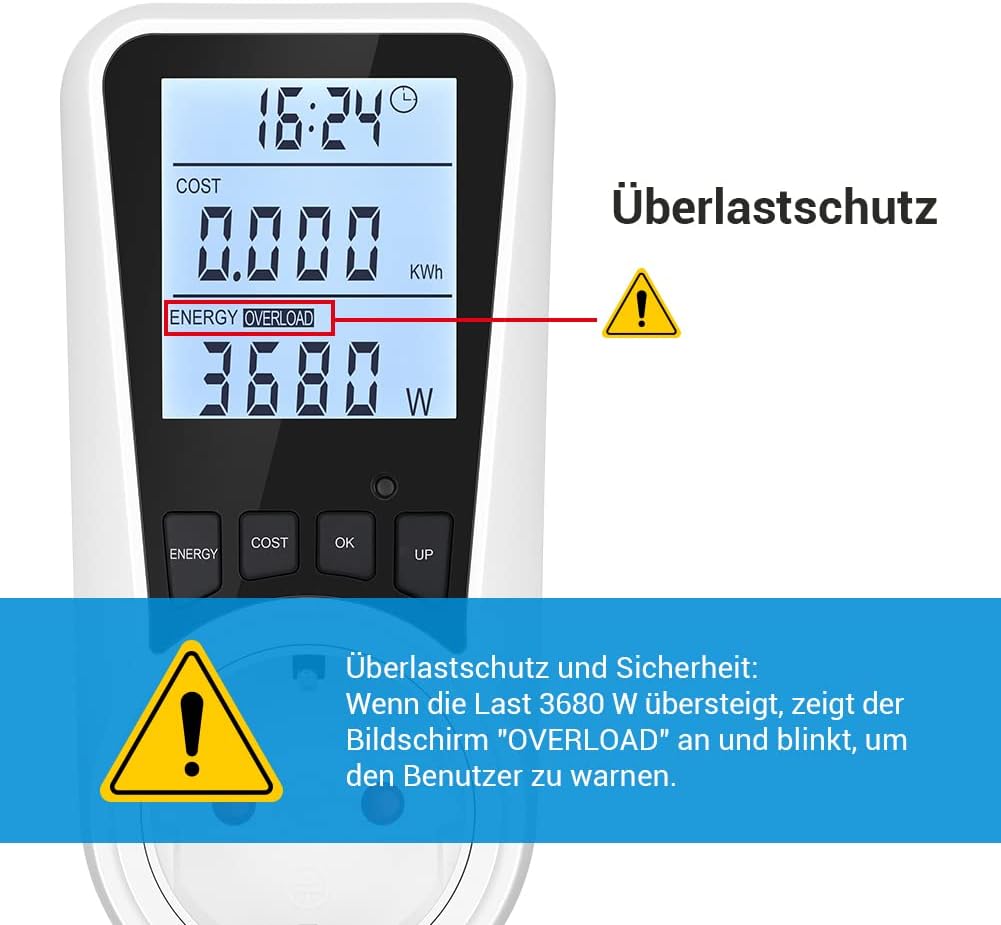
Figure 5.2: An image highlighting the overload protection feature of the DEWENWILS Energy Cost Meter. The display shows 'ENERGY OVERLOAD' and '3680 W', indicating that the connected load has exceeded the maximum safe limit of 3680W. A warning triangle emphasizes the alert.
5.5. Wide Application:
The DEWENWILS Energy Cost Meter is suitable for monitoring a wide range of household appliances, helping you identify energy-intensive devices.

Figure 5.3: An image showcasing the wide application of the DEWENWILS Energy Cost Meter, demonstrating its use with a dishwasher, refrigerator, microwave, computer, washing machine, and air conditioning unit. The meter is shown plugged into a wall socket, ready to monitor the energy consumption of these devices.
6. Maintenance
Proper maintenance ensures the longevity and accuracy of your energy cost meter.
- Cleaning: Disconnect the meter from the power outlet before cleaning. Wipe the surface with a soft, dry cloth. Do not use abrasive cleaners or solvents.
- Storage: When not in use for extended periods, store the meter in a cool, dry place away from direct sunlight and extreme temperatures. Ensure the internal battery is charged periodically (every 3 months) to maintain its data backup capability.
- Inspection: Periodically inspect the meter for any signs of damage, such as cracks in the casing or frayed wires. Do not use if damaged.
7. Troubleshooting
If you encounter issues with your DEWENWILS Energy Cost Meter, refer to the following common problems and solutions:
| Problem | Possible Cause | Solution |
|---|---|---|
| Display is blank or not turning on. | No power to the outlet; internal battery depleted. | Check if the wall outlet is live. Plug the meter into a live outlet for at least 4 hours to charge the internal battery. |
| Readings seem inaccurate. | Incorrect cost per kWh setting; device malfunction. | Verify your cost per kWh setting (refer to Section 5.2). Ensure the appliance is fully plugged in. If issues persist, contact customer support. |
| "OVERLOAD" warning displayed. | Connected appliance exceeds 3680W. | Immediately disconnect the appliance. Do not use the meter with appliances exceeding its maximum load capacity. |
| Data not retained after power outage. | Internal battery not sufficiently charged or depleted. | Ensure the meter is plugged in for at least 4 hours to fully charge the internal battery. If the issue persists, the internal battery may need replacement (contact support). |
8. Specifications
Detailed technical specifications for the DEWENWILS Energy Cost Meter:
| Feature | Specification |
|---|---|
| Manufacturer | Dewenwils |
| Model | B086DMMPXS |
| Color | White |
| Style | Circuit Tester |
| Power Source Type | Corded Electric |
| Maximum Operating Voltage | 230 Volts |
| Minimum Operating Voltage | 0.01 Volts |
| Maximum Load Capacity | 16A / 3680W |
| Measurement Types | Ampere, Voltmeter, Ohmmeter (indirectly via power/voltage), Watt, kWh, Frequency, Power Factor, Cost |
| Display | LCD with Backlight |
| Power Backup | Internal NiMH battery (1 LR44 included) for data retention up to 3 months |
| Dimensions (L x W x H) | Approx. 12.9 cm x 6.2 cm x 7.8 cm (including plug) |
| Weight | Approx. 180 g |

Figure 8.1: A technical drawing showing the dimensions of the DEWENWILS Energy Cost Meter. The front view indicates a width of 6.2 cm and a height of 12.9 cm. The side view shows a depth of 7.8 cm, providing a clear understanding of the product's physical size.
9. Warranty and Support
For warranty information, technical support, or any inquiries regarding your DEWENWILS Energy Cost Meter, please refer to the official DEWENWILS website or contact their customer service directly. Keep your purchase receipt as proof of purchase for warranty claims.
DEWENWILS Official Website: www.dewenwils.com
Ask a question about this manual
Ask about setup, troubleshooting, compatibility, parts, safety, or missing instructions. Manuals+ will review the question and use this page’s manual context to help answer it.