
RockJam RJPS150-PK
RockJam SingCube Karaoke Machine User Manual
Model: RJPS150-PK
Introduction
Thank you for choosing the RockJam SingCube Karaoke Machine. This versatile and portable system is designed to provide hours of entertainment for all ages. Featuring Bluetooth connectivity, dual microphones, and dynamic lighting, it's perfect for parties, family gatherings, or just practicing your singing skills. This manual provides essential information for setting up, operating, and maintaining your karaoke machine.
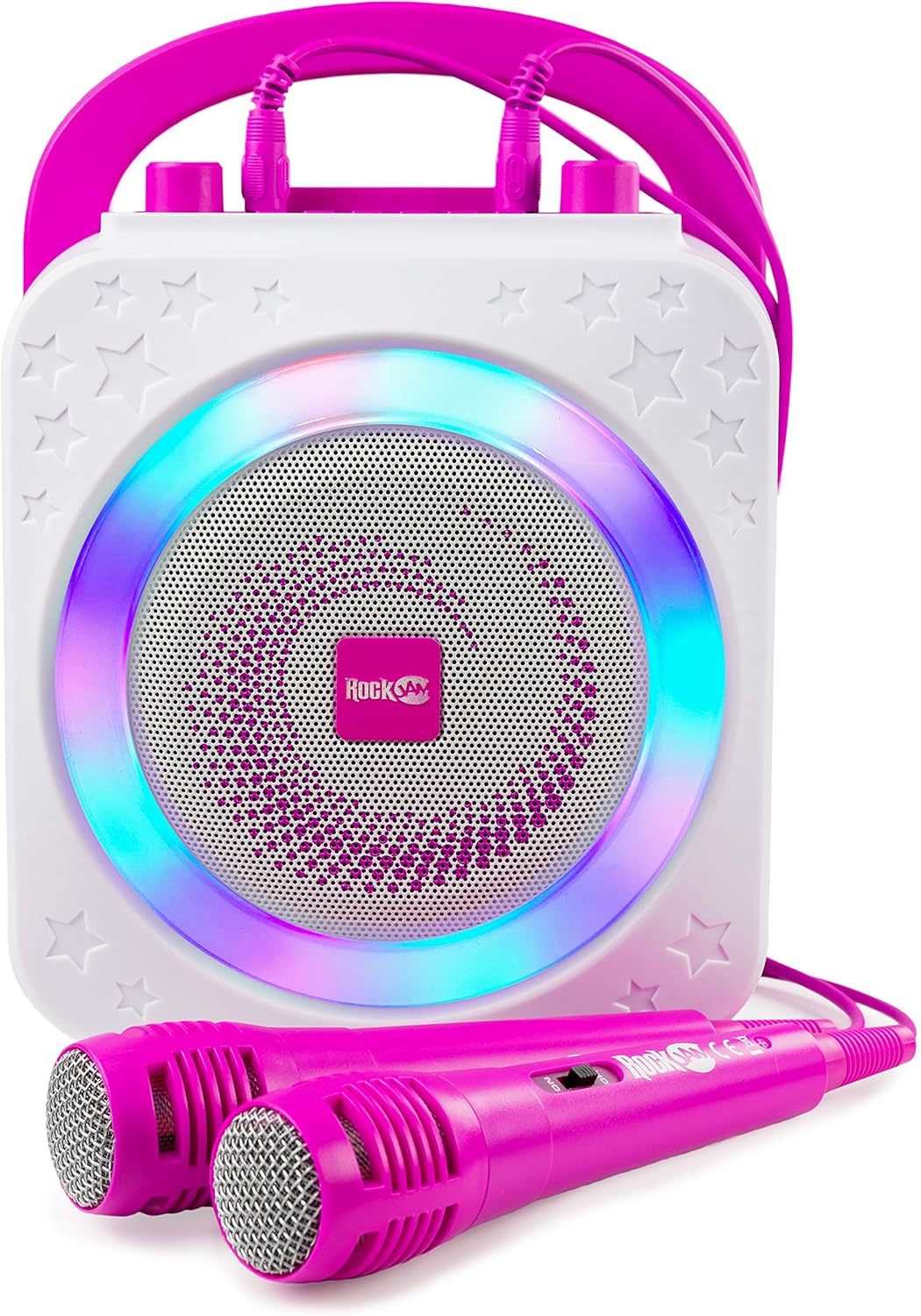
Image: Front view of the RockJam SingCube Karaoke Machine in pink, showcasing its main speaker and two wired microphones.
What's in the Box
- RockJam SingCube Karaoke Machine
- Two Wired Microphones
- USB Charging Cable
- Auxiliary Cable

Image: Close-up of the two pink wired microphones included with the karaoke machine.

Image: The USB charging cable with a standard USB-A connector on one end and a barrel connector on the other.

Image: A white auxiliary audio cable with 3.5mm jacks on both ends.
Features Overview
- 10 Watt Output: Powerful sound for clear audio.
- Rechargeable Battery: Enjoy portable entertainment without constant power connection.
- Bluetooth Connectivity: Wirelessly stream music from your smartphone, tablet, or other Bluetooth-enabled devices.
- Dual Microphone Inputs: Sing duets with the two included wired microphones.
- Dynamic Disco Lights: Integrated LED lights sync with the music for an immersive experience.
- Voice Changer Effects: Experiment with different vocal effects for added fun.
- Multiple Playback Options: Supports Bluetooth, USB, and Auxiliary (AUX) input.
- Smartphone Holder: Convenient slot for displaying lyrics from your device.

Image: The RockJam SingCube Karaoke Machine with a smartphone placed in its integrated holder, displaying lyrics.
Setup
1. Charging the Unit
Before first use, fully charge the karaoke machine. Connect the provided USB charging cable to the DC 5V port on the unit and the other end to a USB power adapter (not included) or a computer USB port. The LED indicator will show charging status.
2. Connecting Microphones
Plug the wired microphones into the MIC1 and MIC2 input jacks on the top panel of the karaoke machine.
3. Powering On
Turn the POWER/VOL knob clockwise to power on the unit. The disco lights will illuminate, and you will hear an audible prompt indicating it's ready for use.

Image: Close-up of the top control panel, showing the microphone inputs, USB port, AUX input, LED indicator, and control buttons/knobs.
Operating Instructions
1. Adjusting Volume and Echo
- Master Volume: Use the POWER/VOL knob to adjust the overall volume of the music and microphones.
- Microphone Volume: Use the MIC.VOL knob to adjust the volume of the microphones independently.
- Echo Effect: Use the ECHO knob to add or reduce echo to your vocals.
2. Changing Playback Modes
Press the MODE button to switch between different input sources: Bluetooth, USB, and AUX.
3. Bluetooth Connection
- Ensure the karaoke machine is in Bluetooth mode (indicated by an audible prompt).
- On your smartphone, tablet, or other Bluetooth device, enable Bluetooth and search for "RockJam SingCube" (or similar name).
- Select the device to pair. Once connected, you will hear a confirmation sound.
- You can now stream music wirelessly from your device.
4. USB Playback
Insert a USB flash drive containing MP3 audio files into the USB port. The unit will automatically detect and begin playing the music. Use the Previous/Next and Play/Pause buttons to control playback.
5. AUX Input
Connect an external audio device (e.g., MP3 player, computer) to the AUX input jack using the provided auxiliary cable. Switch the unit to AUX mode using the MODE button. Audio will play through the karaoke machine's speaker.
6. Voice Changer Effects
Press the VOICE button to cycle through different voice changer effects. Experiment to find your favorite!
7. Disco Lights
The integrated disco lights automatically sync with the music. Press the LIGHTS button to turn the lights on or off.
Video: An official product video demonstrating the features of the RockJam Party Karaoke Machine, including Bluetooth connectivity, dual microphones, portability, USB compatibility, and use with tablets and smart TVs.
Maintenance
- Cleaning: Wipe the unit with a soft, dry cloth. Do not use abrasive cleaners or solvents.
- Storage: Store the karaoke machine in a cool, dry place away from direct sunlight and extreme temperatures.
- Battery Care: To prolong battery life, avoid fully discharging the battery frequently. Charge the unit regularly, even if not in use for extended periods.
- Microphones: Handle microphones with care. Avoid dropping them or exposing them to moisture.
Troubleshooting
| Problem | Solution |
|---|---|
| Unit does not power on. | Ensure the unit is charged. Connect the USB charging cable and allow it to charge for a few hours. Check the power knob is turned on. |
| No sound from speaker. | Check the master volume (POWER/VOL knob) and microphone volume (MIC.VOL knob). Ensure the correct input mode (Bluetooth, USB, AUX) is selected. |
| Microphone not working. | Ensure the microphone is securely plugged into the MIC input jack. Check the microphone's ON/OFF switch (if applicable). Adjust the MIC.VOL knob. |
| Bluetooth device won't pair. | Ensure the karaoke machine is in Bluetooth mode. Make sure Bluetooth is enabled on your device and it's within range. Try unpairing and re-pairing the device. |
| USB playback not working. | Ensure the USB drive is inserted correctly and contains compatible MP3 audio files. Switch the unit to USB mode. |
Specifications
- Model: RJPS150-PK
- Output Power: 10 Watts
- Connectivity: Bluetooth, USB, AUX
- Power Source: Rechargeable Battery, DC 5V via USB
- Product Dimensions: 5.51 x 8.07 x 10.24 inches
- Item Weight: 2.76 pounds
- Color: Pink
- Special Features: Portable, Light Up Speaker, PA System, Voice Changer, Rechargeable
Warranty and Support
For warranty information or technical support, please refer to the official RockJam website or contact their customer service. A digital version of the user guide is also available for download:
For further assistance, please visit the RockJam Store on Amazon.
Related documentsRJPS150-PK


Ask a question about this manual
Ask about setup, troubleshooting, compatibility, parts, safety, or missing instructions. Manuals+ will review the question and use this page’s manual context to help answer it.