
MERCUSYS MW300UH
User Manual: MERCUSYS MW300UH N300Mbps High Gain Wireless USB Adapter
Model: MW300UH
1. Product Overview
The MERCUSYS MW300UH is a powerful N300Mbps Wireless USB Adapter designed to provide stable and high-speed Wi-Fi connections. It features two high-gain external antennas for enhanced signal transmission and reception, making it ideal for homes requiring reliable wireless connectivity.
Key features include:
- Two 5dBi high gain antennas for enhanced WiFi performance.
- Provides fast 300Mbps Wi-Fi connections for wired devices.
- With 2x2 MIMO technology, users can easily access high-speed wireless connections.
- Supports Windows 10 / 8.1 / 8 / 7 / XP (32 / 64bit) operating systems.
- Compatible with all desktop computers.

Image: The MERCUSYS MW300UH Wireless USB Adapter with its two external antennas.
2. Setup Guide
2.1. Hardware Installation
- Unpack the MW300UH Wireless USB Adapter from its packaging.
- Connect the USB cable from the MW300UH to an available USB port on your desktop computer. Ensure the connection is secure.
- Position the adapter on your desk or a flat surface. The desktop design allows for optimal placement to receive stronger signals.

Image: The MW300UH adapter shown with its product packaging, indicating its form factor.
2.2. Driver Installation
The MW300UH requires a driver for proper operation. The adapter supports a wide range of Windows operating systems.
- Windows 10 / 8.1 / 8 / 7 / XP (32/64-bit): Insert the provided driver CD into your computer's CD-ROM drive. Follow the on-screen instructions to install the driver. If you do not have a CD-ROM drive, download the latest driver from the official MERCUSYS website.
- After installation, restart your computer if prompted.

Image: Visual representation of the MW300UH's compatibility with various Windows operating systems, including Windows 10, 8.1, 8, 7, and XP.
3. Operating Instructions
3.1. Connecting to a Wi-Fi Network
- Once the driver is installed, your computer should detect the MW300UH adapter.
- Click on the Wi-Fi icon in your system tray (usually in the bottom-right corner of your screen).
- Select your desired Wi-Fi network from the list of available networks.
- Enter the network security key (password) if prompted, then click "Connect".
- Your computer should now be connected to the Wi-Fi network via the MW300UH adapter.
3.2. Optimizing Performance
The MW300UH's two high-gain 5dBi antennas are designed to maximize your wireless range and signal strength. For optimal performance:
- Position the adapter in an open area, away from obstructions like large metal objects or walls.
- Adjust the antennas to point towards your wireless router or access point for improved signal reception.
- The 300Mbps speed and 2x2 MIMO technology ensure smooth performance for various online activities.

Image: Diagram illustrating the extended wireless range achieved by the MW300UH's high-gain antennas compared to a regular adapter.
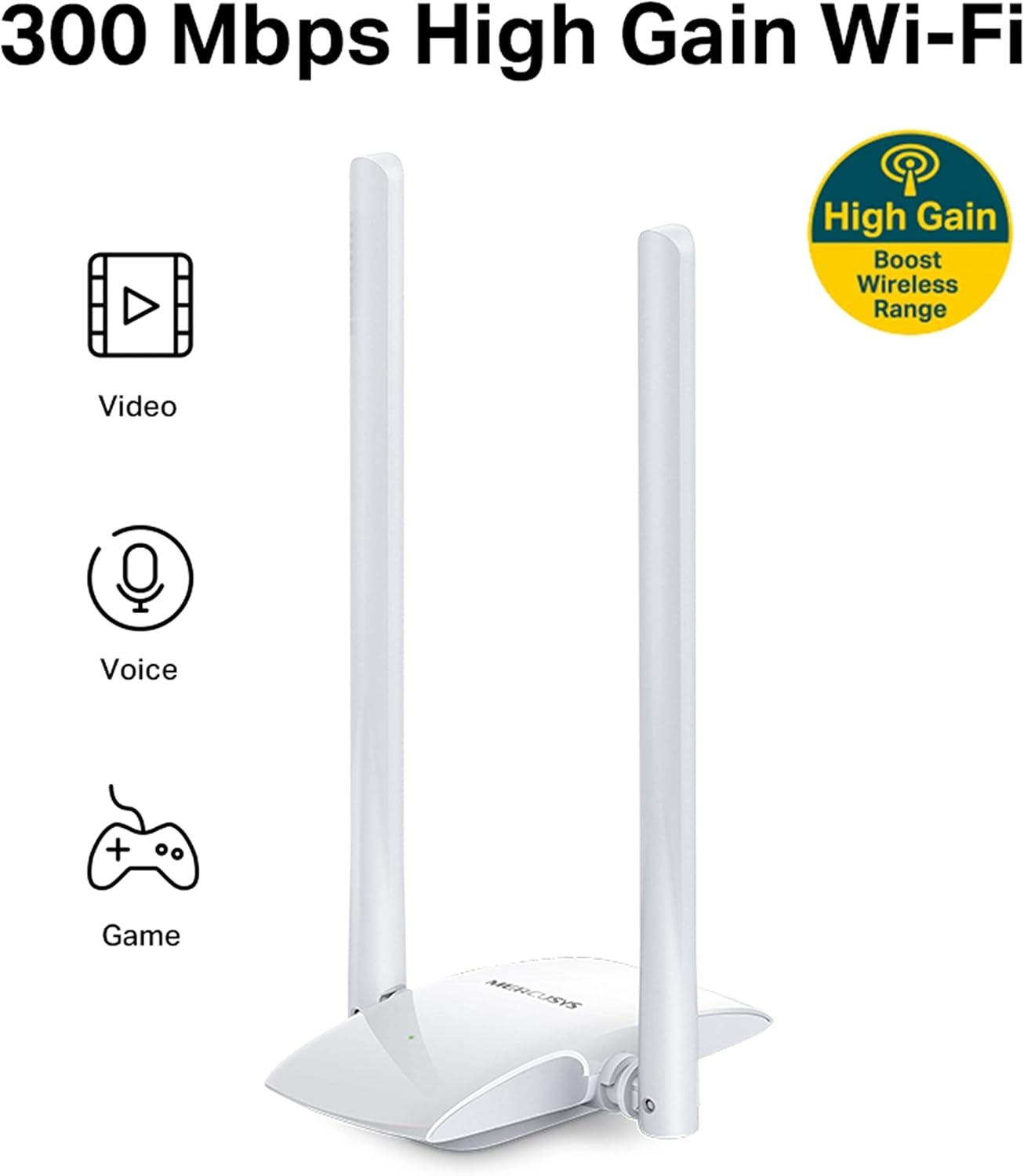
Image: The MW300UH adapter highlighting its suitability for various high-bandwidth applications such as video streaming, voice communication, and online gaming, due to its 300 Mbps high-gain Wi-Fi capabilities.
4. Maintenance
To ensure the longevity and optimal performance of your MW300UH adapter:
- Keep the device clean and free from dust. Use a soft, dry cloth for cleaning.
- Avoid exposing the adapter to extreme temperatures, direct sunlight, or high humidity.
- Do not attempt to disassemble or repair the device yourself. Refer to qualified service personnel if issues arise.
- Ensure the antennas are not bent or damaged, as this can affect signal quality.
5. Troubleshooting
5.1. No Wi-Fi Connection
- Check USB Connection: Ensure the adapter is securely plugged into a working USB port. Try a different USB port.
- Driver Installation: Verify that the correct driver for your operating system is installed. Reinstall the driver if necessary.
- Enable Wi-Fi: Make sure Wi-Fi is enabled on your computer.
- Router Status: Check if your wireless router is powered on and broadcasting a Wi-Fi signal.
5.2. Slow Wi-Fi Speed
- Adapter Placement: Reposition the adapter and its antennas for better signal reception. Avoid obstructions.
- Network Congestion: Too many devices on the same network can slow down speeds.
- Interference: Other electronic devices (microwaves, cordless phones) can cause interference. Move the adapter away from such devices.
- Router Distance: While the MW300UH has high-gain antennas, extreme distances from the router can still impact speed.
6. Specifications
| Feature | Detail |
|---|---|
| Product Dimensions | 3.98 x 4.45 x 7.91 inches |
| Item Weight | 7.1 ounces |
| ASIN | B0865J4VP3 |
| Item model number | MW300UH |
| Date First Available | August 19, 2022 |
| Manufacturer | Mercusys |
| Language | English, English, English, English, English |
| Brand | MERCUSYS |
| Hardware Interface | USB, PCI Express x16 |
| Color | white |
| Compatible Devices | Desktop |
| Data Link Protocol | USB |
| Data Transfer Rate | 300 Megabytes Per Second |
| Item Weight | 200 Grams |
7. Warranty and Support
Your MERCUSYS MW300UH Wireless USB Adapter comes with a manufacturer's warranty. Please refer to the "Proof of Warranty" document included in the product packaging for detailed terms and conditions.
For technical support, driver downloads, or further assistance, please visit the official MERCUSYS website or contact their customer support.
Manufacturer: Mercusys
Ask a question about this manual
Ask about setup, troubleshooting, compatibility, parts, safety, or missing instructions. Manuals+ will review the question and use this page’s manual context to help answer it.