
1. Introduction
The Amcrest ASH21-B is a 1080P WiFi Pan/Tilt Indoor Security Camera designed for comprehensive indoor surveillance. It offers live streaming, remote pan, tilt, and digital zoom capabilities, human detection with smart tracking, two-way audio, night vision, and flexible storage options. This manual provides detailed instructions for setting up, operating, and maintaining your camera.

Figure 1: Amcrest ASH21-B 1080P WiFi Pan/Tilt Indoor Camera.
2. What's in the Box
- Amcrest ASH21-B 1080P WiFi Pan/Tilt Indoor Camera
- Power Adapter (Corded Electric)
- Mounting Screws and Bracket
- Quick Setup Guide
- Warranty Information
3. Setup
3.1 Powering On the Camera
Connect the provided power adapter to the camera's power port and plug it into a standard electrical outlet. The camera will power on and initiate its startup sequence.

Figure 2: Rear view of the camera showing power port, Ethernet port, and microSD card slot.
3.2 App Download and Installation
Download the Amcrest Smart Home app from the Apple App Store or Google Play Store. Follow the on-screen instructions to create an account or log in.

Figure 3: Amcrest SmartHome app interface for mobile devices.
3.3 Connecting to Wi-Fi
- Open the Amcrest Smart Home app and tap the '+' icon to add a new device.
- Select your camera model (ASH21-B).
- Scan the QR code located on the bottom of the camera.
- Follow the app's prompts to connect the camera to your 2.4GHz Wi-Fi network. Note: This camera is only compatible with 2.4GHz networks and does not work with 5GHz networks.
- Set a strong password for your device.
3.4 Mounting the Camera
The camera can be placed on a flat surface or mounted to a wall or ceiling. Use the provided mounting screws and bracket for secure installation. If mounting on the ceiling, ensure to adjust the image orientation in the app settings.

Figure 4: Amcrest ASH21-B camera dimensions and features.
4. Operating Instructions
4.1 Pan, Tilt, and Digital Zoom
From the Amcrest Smart Home app, you can remotely control the camera's pan (355°) and tilt (80°) movements to adjust the viewing angle. The camera also supports digital zoom for closer inspection of details.
4.2 Two-Way Talk
The camera features a built-in microphone and speaker, enabling two-way audio communication. Use the 'Talk' and 'Listen' functions in the app to communicate with individuals near the camera.

Figure 5: Camera with microphone and speaker locations.
4.3 Human Detection and Smart Tracking
The ASH21-B utilizes a hardware-based AI chipset for human detection, reducing false alerts. When enabled, the Smart Tracking feature allows the camera to automatically record and follow moving objects, specifically humans.

Figure 6: Smart Tracking in action, showing camera movement.

Figure 7: Human Detection feature with on-screen notification.
4.4 Baby Monitor Sound Alarm Mode
Transform your camera into an adjustable VOX monitor. This mode allows you to view and receive notifications based on adjustable sound thresholds, such as a baby crying or a dog barking. This feature can be enabled directly from the live-view screen of the app.
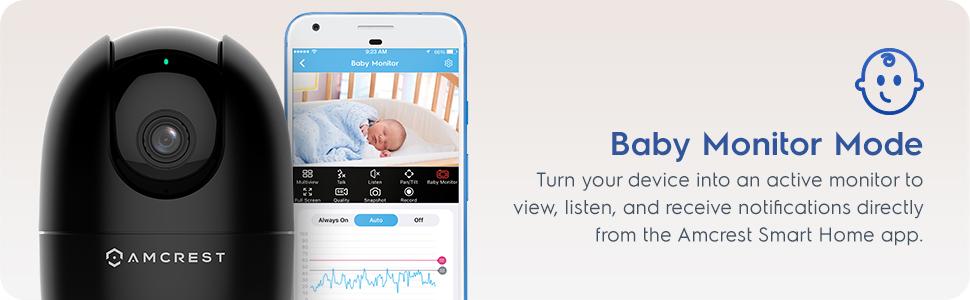
Figure 8: Baby Monitor Mode interface in the Amcrest Smart Home app.
4.5 Night Vision
The camera provides night vision capability up to 33 feet in absolute darkness, ensuring clear monitoring even in low-light conditions.
4.6 Storage Options
Recordings can be stored locally on a Class 10 MicroSD card (up to 256GB) or remotely on the Amcrest Smart Home Cloud (1-Year Free Cloud Storage plan included). The camera is also compatible with Amcrest NVRs and third-party software through SDK integration.
5. Maintenance
5.1 Cleaning
To clean the camera lens and body, use a soft, dry cloth. Avoid using harsh chemicals or abrasive cleaners that could damage the device.
5.2 Firmware Updates
Regularly check for and install firmware updates through the Amcrest Smart Home app to ensure optimal performance, security, and access to the latest features.
6. Troubleshooting
- Connectivity Issues: Ensure your camera is connected to a 2.4GHz Wi-Fi network. Verify your Wi-Fi password and router settings.
- Poor Video Quality: Check your internet connection speed. Ensure the camera lens is clean and free from obstructions. Adjust video quality settings in the app if necessary.
- Night Vision Not Working: Confirm that the camera is in a dark environment for night vision to activate. Check app settings for night vision mode.
- False Motion Alerts: Adjust the sensitivity of motion detection in the app settings. Utilize human detection filtering to reduce alerts from non-human movements.
- Two-Way Audio Feedback: If experiencing feedback during two-way talk, ensure your mobile device is not too close to the camera or reduce the volume.
7. Specifications
| Feature | Specification |
|---|---|
| Model Number | ASH21-B |
| Video Resolution | 1080P (1920x1080) at 30fps |
| Connectivity | 2.4GHz Wi-Fi, Ethernet |
| Pan/Tilt Range | Pan 355°, Tilt 80° |
| Viewing Angle | 93° |
| Night Vision Range | Up to 33 feet |
| Storage | MicroSD (up to 256GB), Amcrest Smart Home Cloud, Amcrest NVR |
| Audio | Two-Way Audio (Built-in Mic & Speaker) |
| Dimensions | 4.17 x 3.04 x 3.04 inches |
| Weight | 8.5 ounces |
| Power Source | Corded Electric (5V DC, 5W) |
| Indoor/Outdoor Usage | Indoor Use Only |
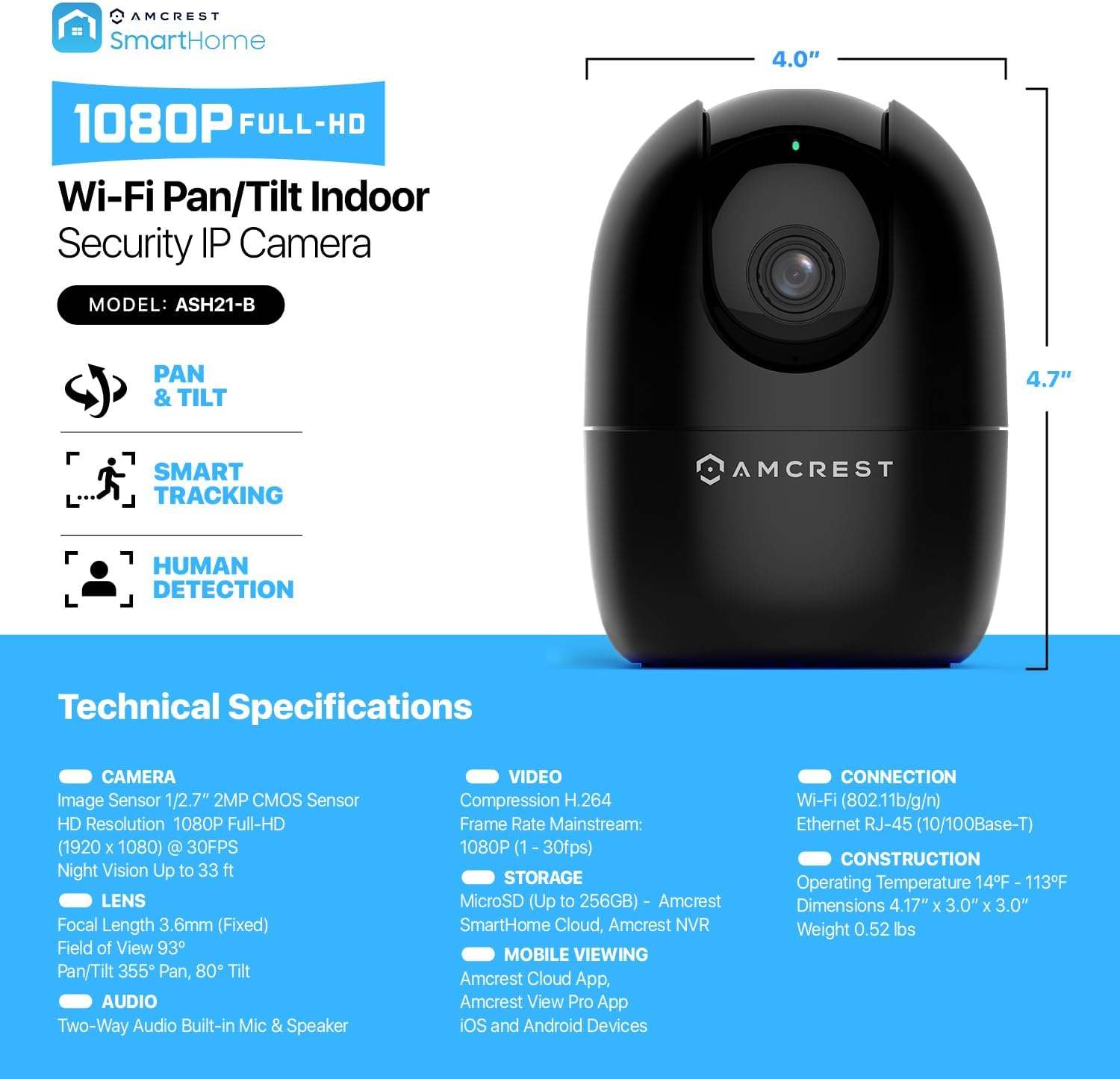
Figure 9: Detailed technical specifications of the Amcrest ASH21-B.
8. Official Product Video
Video 1: Amcrest - Simple. Reliable. Secure. This video highlights the ease of use and reliability of Amcrest security products.
9. Warranty and Support
The Amcrest ASH21-B camera includes a 1-Year Free SmartHome Cloud Subscription and a 1-Year US Warranty with Lifetime Support provided directly from Amcrest. For technical assistance or warranty claims, please visit the official Amcrest website or contact their customer support.


