
Walfront PZEM-003
Walfront PZEM-003 DC Power Meter User Manual
Model: PZEM-003
1. Introduction
This manual provides detailed instructions for the installation, operation, and maintenance of the Walfront PZEM-003 DC Voltage, Current, Power Consumption, and Power Meter, including its USB to RS485 Communication Module. This device is designed for precise measurement and communication of DC electrical parameters.
2. Product Overview
The PZEM-003 is a versatile DC power measurement module capable of measuring voltage, current, and power consumption. It comes bundled with a USB to RS485 module, enabling communication with a computer for data logging and analysis. The main unit features clear input and output terminals for easy integration into DC circuits.
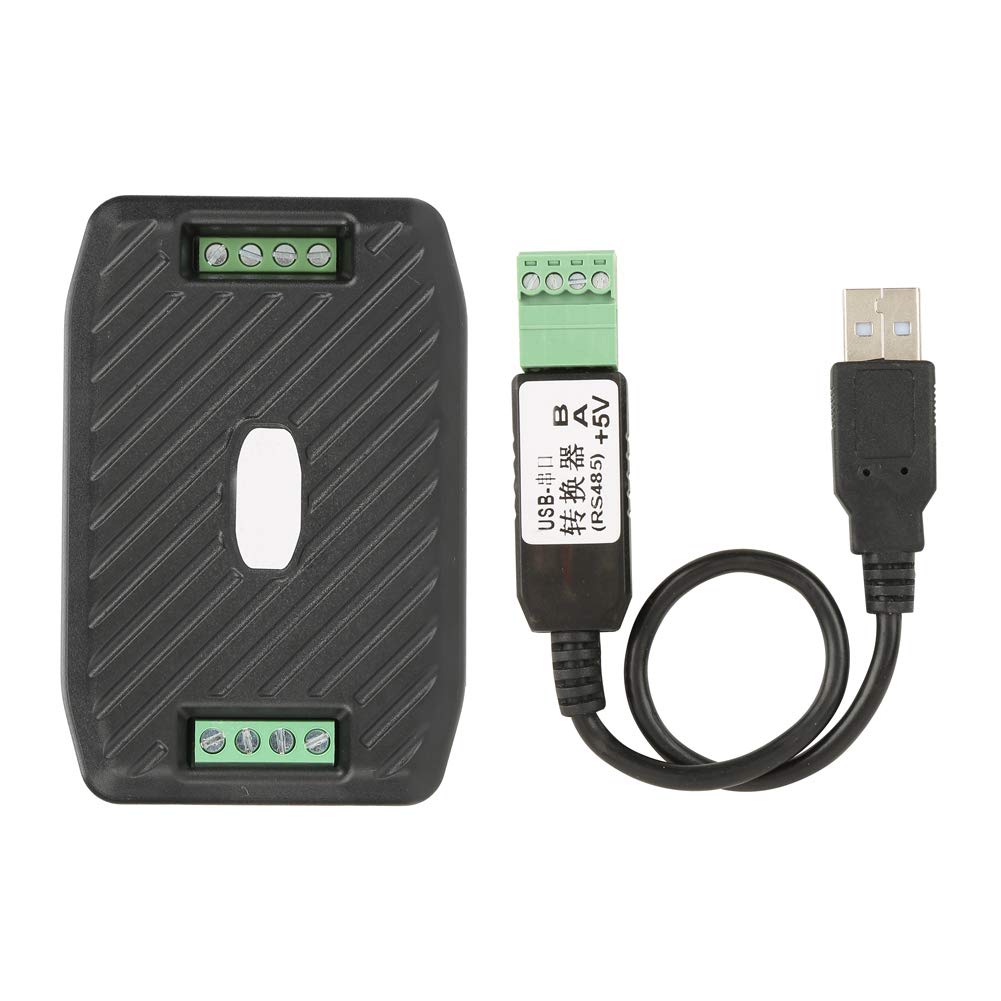
Figure 2.1: Walfront PZEM-003 DC Power Meter and accompanying USB to RS485 Communication Module.
3. Features
- Measures DC Voltage, Current, and Power Consumption.
- Wide voltage measurement range (DC 0-300V).
- Current measurement up to 10A.
- Equipped with RS485 communication interface.
- Includes USB to RS485 module for PC connectivity.
- Compact and easy to integrate design.
4. Specifications
| Parameter | Value |
|---|---|
| Model | PZEM-003 |
| Measurement Type | Voltmeter, Ammeter, Power Consumption |
| Voltage Range | DC 0-300V |
| Current Range | 0-10A |
| Communication Interface | RS485 |
| Dimensions (L x W x H) | 3.54 x 2.4 x 0.98 inches (approx.) |
| Weight | 3.88 ounces (approx.) |
| Manufacturer | Walfront |
| Country of Origin | China |
5. Safety Information
Please read and understand all safety warnings before operating the device. Failure to do so may result in injury or damage to the product or connected equipment.
- Ensure all power is disconnected before making any wiring connections.
- Do not exceed the maximum rated voltage (300V DC) or current (10A).
- Avoid using the PC's USB port as the power supply for the meter if the input test voltage is less than 7V, as this may damage the PC. Use an external 5V power supply for the meter in such cases.
- This device is intended for indoor use in a dry environment.
- Only qualified personnel should perform installation and maintenance.
6. Setup and Wiring
The PZEM-003 module requires careful wiring to ensure proper operation and safety. Refer to the diagrams below for connection details.
6.1. Module Terminals Overview

Figure 6.1: Top view of the PZEM-003 module, detailing the DC input, load terminals, and RS485 communication port. Note the warning regarding PC USB power for low input voltages.
The module has two sets of terminals: one for DC power input and load connection, and another for RS485 communication and 5V power supply.
6.2. Connection Diagram
Connect the PZEM-003 in series with the DC load for current measurement, and in parallel for voltage measurement. The RS485 module connects to the RS485 port on the meter and then to a computer's USB port.
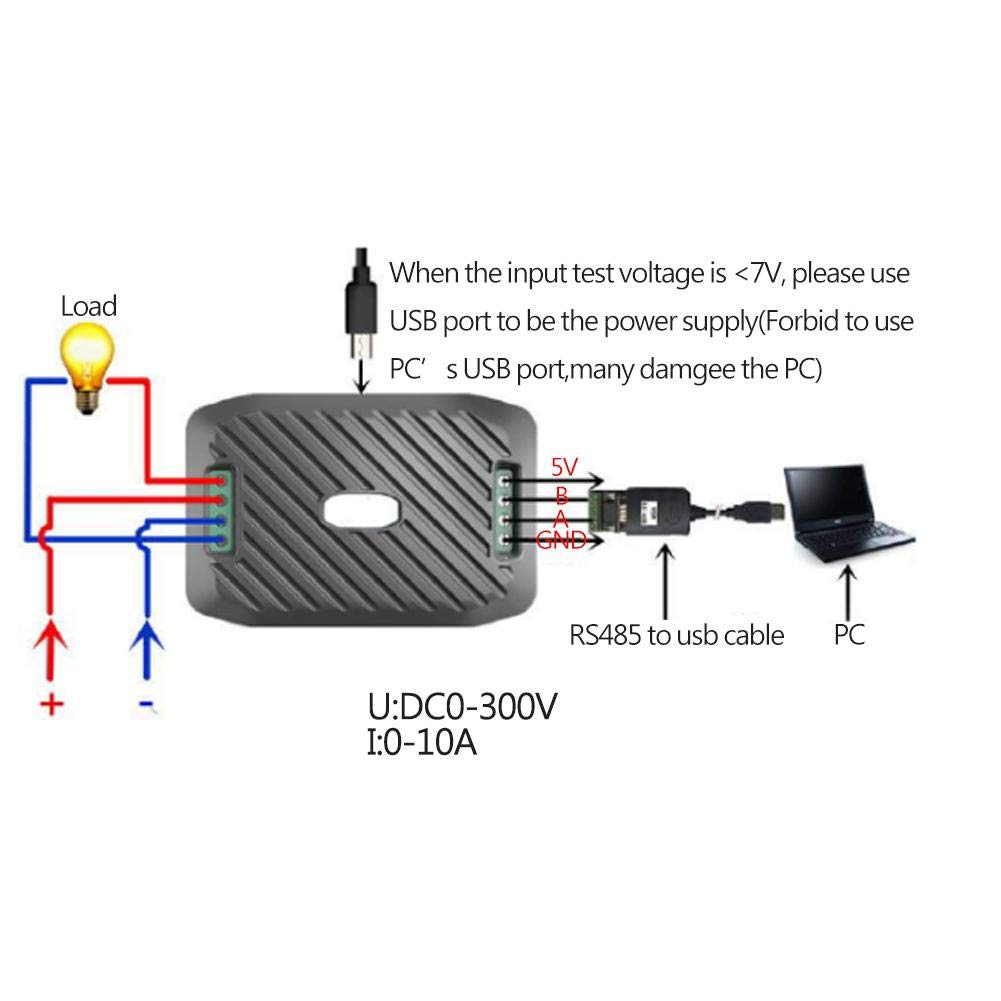
Figure 6.2: Detailed wiring diagram for the PZEM-003. The meter is connected to a DC power source (U: DC 0-300V) and a load (I: 0-10A). The RS485 to USB cable connects the meter to a PC. A separate 5V power supply is recommended for the meter if the input test voltage is below 7V to prevent PC damage.
Important Note: If the input test voltage is less than 7V, use an external 5V power supply for the meter's operation. Do not rely solely on the PC's USB port for power in this scenario, as it may cause damage to the PC.
6.3. USB to RS485 Module Connection
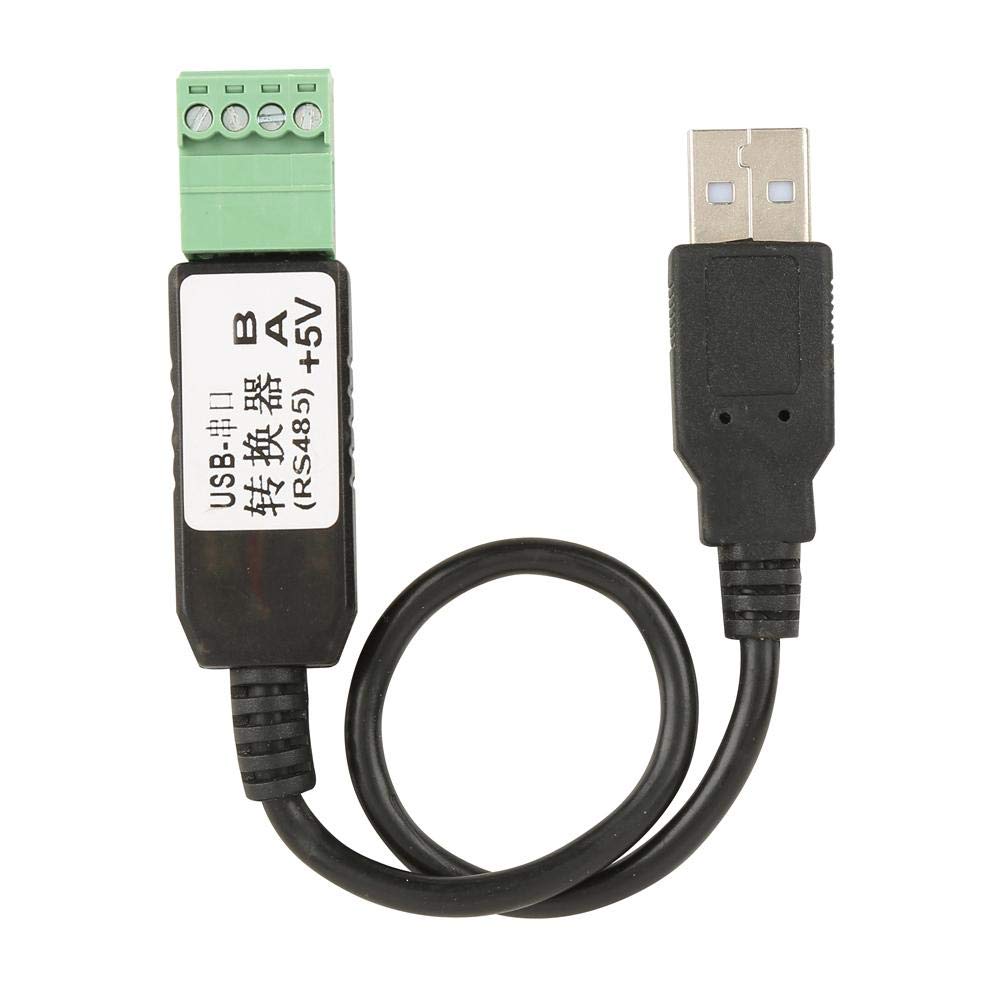
Figure 6.3: The USB to RS485 communication module. This module facilitates data transfer between the PZEM-003 meter and a computer.
Connect the A and B terminals of the USB to RS485 module to the A and B terminals of the PZEM-003 meter's RS485 port, respectively. The +5V and GND terminals on the RS485 port of the meter are for providing power to the meter itself, especially when the measured voltage is low.
7. Operating Instructions
Once correctly wired and powered, the PZEM-003 will begin measuring and displaying the DC voltage, current, and power consumption of the connected circuit. Data can be accessed via the RS485 communication interface.
7.1. Data Acquisition via RS485
To read data from the PZEM-003, you will need appropriate software on your computer that can communicate via a serial port (COM port) using the RS485 protocol. The USB to RS485 module will create a virtual COM port on your PC.
- Install necessary drivers for the USB to RS485 module (usually automatically detected by modern OS).
- Identify the COM port assigned to the USB to RS485 module in your computer's Device Manager.
- Use a serial communication program (e.g., Modbus Poll, custom software) to send commands and receive data from the PZEM-003. Refer to the PZEM-003 communication protocol documentation (not included in this manual, typically provided separately by manufacturer) for specific Modbus RTU commands.

Figure 7.1: Block diagram illustrating the internal components and data flow of the PZEM-003, including the optocoupler isolation for the RS485 interface.
8. Maintenance
The PZEM-003 is designed for long-term, reliable operation with minimal maintenance.
- Keep the device clean and free from dust and moisture.
- Ensure all connections remain secure. Periodically check terminal screws for tightness.
- Do not expose the device to extreme temperatures or direct sunlight.
- Avoid dropping or subjecting the device to strong impacts.
9. Troubleshooting
If you encounter issues with your PZEM-003, consider the following common problems and solutions:
| Problem | Possible Cause | Solution |
|---|---|---|
| No readings/Device not powering on. | Incorrect wiring; insufficient power supply. | Verify all wiring connections according to Section 6. Ensure the meter is receiving adequate power (5V via RS485 port or from measured circuit if >7V). |
| Incorrect readings. | Improper connection (e.g., current not in series); faulty wiring. | Double-check wiring against Figure 6.2. Ensure current path is correctly routed through the meter. |
| Communication issues with PC. | Incorrect COM port selected; missing/corrupt drivers; incorrect communication settings (baud rate, parity, etc.). | Verify USB to RS485 module drivers are installed. Check Device Manager for correct COM port. Ensure software communication settings match the PZEM-003's protocol (refer to separate protocol documentation). |
10. Warranty and Support
Walfront products are manufactured to high-quality standards. For specific warranty information, please refer to the product packaging or contact Walfront customer support directly. Keep your purchase receipt for warranty claims.
For technical support or further inquiries, please visit the Walfront store on Amazon or their official website. Links to the Walfront store can often be found on the product's Amazon listing page.
Note: This manual is for informational purposes only. Specifications and features are subject to change without notice.
Related documentsPZEM-003

Ask a question about this manual
Ask about setup, troubleshooting, compatibility, parts, safety, or missing instructions. Manuals+ will review the question and use this page’s manual context to help answer it.