
1. Introduction
This manual provides comprehensive instructions for the installation, operation, maintenance, and troubleshooting of your Intel SSD DC S3700 Series 200GB 2.5-inch MLC NAND SATA Solid State Drive (Model: SSDSC2BA200G3). Please read this manual thoroughly before using the product to ensure proper functionality and to prevent damage.
2. Safety Information
- Always handle the SSD with care to avoid physical damage.
- Ensure your system is powered off and disconnected from the power source before installation or removal.
- Wear an anti-static wrist strap or discharge static electricity by touching a grounded metal object before handling the SSD.
- Do not attempt to open the SSD enclosure. Doing so will void the warranty.
- Keep the SSD away from liquids and extreme temperatures.
- Disclaimer: WARRANTY VOID IF ANY LABEL/SCREW IS REMOVED OR BROKEN.
3. Package Contents
Verify that your package contains the following items:
- Intel SSD DC S3700 Series 200GB Solid State Drive
- Documentation (e.g., Quick Start Guide, Warranty Information - if applicable)
Note: SATA data cables, power cables, and mounting screws are typically not included and must be purchased separately if needed.
4. Setup and Installation
This section outlines the general steps for installing the Intel SSD into a desktop or laptop computer. Specific steps may vary depending on your system's chassis design.
4.1 Physical Installation
- Prepare Your System: Power off your computer and disconnect all cables (power, peripherals). Open the computer case.
- Locate a Drive Bay: Identify an available 2.5-inch drive bay. If your system only has 3.5-inch bays, you may need a 2.5-inch to 3.5-inch adapter bracket (not included).
- Mount the SSD: Slide the SSD into the drive bay and secure it with screws. Ensure it is firmly seated.
- Connect Cables:
- Connect one end of a SATA data cable to the SATA port on the SSD and the other end to an available SATA port on your motherboard.
- Connect a SATA power cable from your power supply unit (PSU) to the power connector on the SSD.
- Close Case and Reconnect: Close your computer case and reconnect all cables.
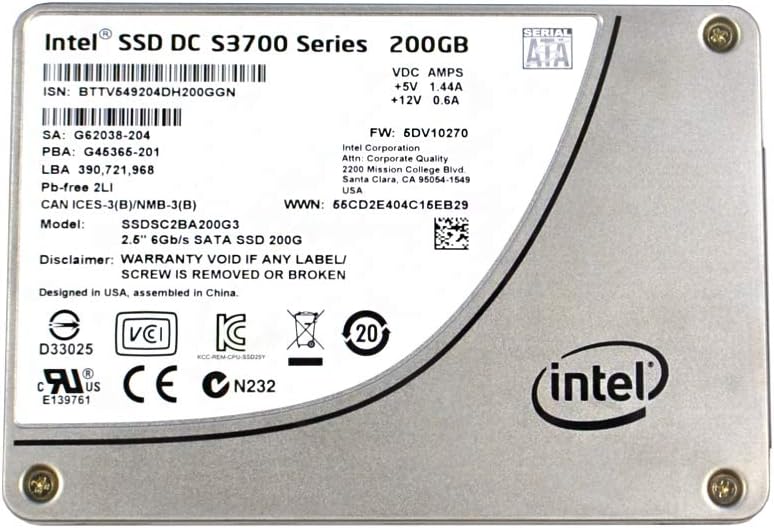
Image 1: Top view of the Intel SSD DC S3700 Series 200GB Solid State Drive. The label displays model number SSDSC2BA200G3, capacity 200GB, SATA interface, and various regulatory marks. The Intel logo is prominently featured on the bottom right.
4.2 Initial System Configuration
- BIOS/UEFI Settings: Power on your computer and enter the BIOS/UEFI setup. Verify that the SSD is detected. Ensure the SATA controller mode is set to AHCI for optimal SSD performance.
- Operating System Installation: If this is a new installation, proceed with installing your operating system onto the SSD.
- Data Migration (Optional): If you are replacing an existing drive, use a data migration tool (often provided by Intel or third-party software) to transfer your operating system and data to the new SSD.
- Initialization and Formatting: For a secondary drive, after booting into your operating system, open Disk Management (Windows) or Disk Utility (macOS/Linux) to initialize and format the SSD before use.
5. Operating the SSD
The Intel SSD DC S3700 Series operates as a standard storage device within your computer system. Once installed and configured, it functions like any other hard drive, providing fast data access and storage.
- Data Storage: Store your operating system, applications, and files on the SSD for improved system responsiveness and faster loading times.
- Performance: The SSD leverages SATA 6Gb/s interface for high-speed data transfer. Performance will vary based on system configuration and workload.
- TRIM Command: Ensure your operating system supports and enables the TRIM command. TRIM helps maintain the performance and longevity of the SSD by allowing the operating system to inform the SSD which data blocks are no longer in use and can be internally erased.
6. Maintenance
Proper maintenance ensures the longevity and optimal performance of your SSD.
- Firmware Updates: Periodically check the Intel support website for firmware updates for your SSD model. Firmware updates can improve performance, stability, and address known issues. Follow Intel's instructions carefully when performing firmware updates.
- Data Backup: Regularly back up important data from your SSD to another storage device. While SSDs are reliable, data loss can occur due to various factors.
- Avoid Defragmentation: Unlike traditional hard drives, SSDs do not benefit from defragmentation. Defragmenting an SSD can reduce its lifespan without improving performance. Ensure your operating system's defragmentation utility is set to skip SSDs.
- Monitor Health: Use S.M.A.R.T. (Self-Monitoring, Analysis, and Reporting Technology) tools to monitor the health and lifespan of your SSD. Many operating systems and third-party utilities offer this functionality.
7. Troubleshooting
If you encounter issues with your Intel SSD, refer to the following common troubleshooting steps:
- SSD Not Detected:
- Check all SATA data and power cable connections. Ensure they are securely seated.
- Verify that the SATA port on the motherboard is enabled in BIOS/UEFI.
- Try connecting the SSD to a different SATA port or with different cables.
- Ensure the SATA controller mode is set to AHCI in BIOS/UEFI.
- Slow Performance:
- Confirm that TRIM is enabled and functioning correctly in your operating system.
- Check for background processes or applications consuming excessive resources.
- Ensure your motherboard's SATA ports are operating at SATA 6Gb/s (SATA III) speeds.
- Update SSD firmware if available.
- Operating System Errors/Crashes:
- Run a diagnostic tool (e.g., Intel SSD Toolbox, if available) to check the SSD's health.
- Perform a clean installation of the operating system if data corruption is suspected.
If these steps do not resolve your issue, please contact Intel customer support.
8. Specifications
| Model Number | SSDSC2BA200G3 |
| Series | DC S3700 Series |
| Capacity | 200 GB |
| Form Factor | 2.5 Inches |
| Interface | SATA 6Gb/s (SATA III) |
| NAND Type | MLC (Multi-Level Cell) |
| Voltage / Amperage | +5V 1.44A, +12V 0.6A |
| Firmware Version | 5DV10270 |
| WWN | 56CD2E404C15EB29 |
| ISN | BTTV549204DH200GGN |
| SA | G62038-204 |
| PBA | G45366-201 |
| LBA | 390,721,968 |
| Certifications | D33025, VCI, KCC, CE, cURus E139761, CN232 |
| Designed In | USA |
| Assembled In | China |
9. Warranty and Support
Intel provides a limited warranty for its SSD products. The specific terms and duration of the warranty may vary by region and product. Please refer to the official Intel warranty documentation included with your product or visit the Intel support website for detailed information.
Important Warranty Note: As stated on the product label, the warranty is void if any label or screw is removed or broken. This is crucial for maintaining warranty coverage.
For technical support, driver downloads, firmware updates, and additional resources, please visit the official Intel support website: