
havit HV-KB486
Contents
Havit Mechanical Keyboard and Mouse Combo User Manual
Model: HV-KB486
1. Product Overview
The Havit Mechanical Keyboard and Mouse Combo is designed for PC gamers and computer users, offering a responsive and customizable experience. This combo includes an 89-key backlit mechanical keyboard with red switches, a 6-button RGB gaming mouse, and a non-slip gaming mouse pad.
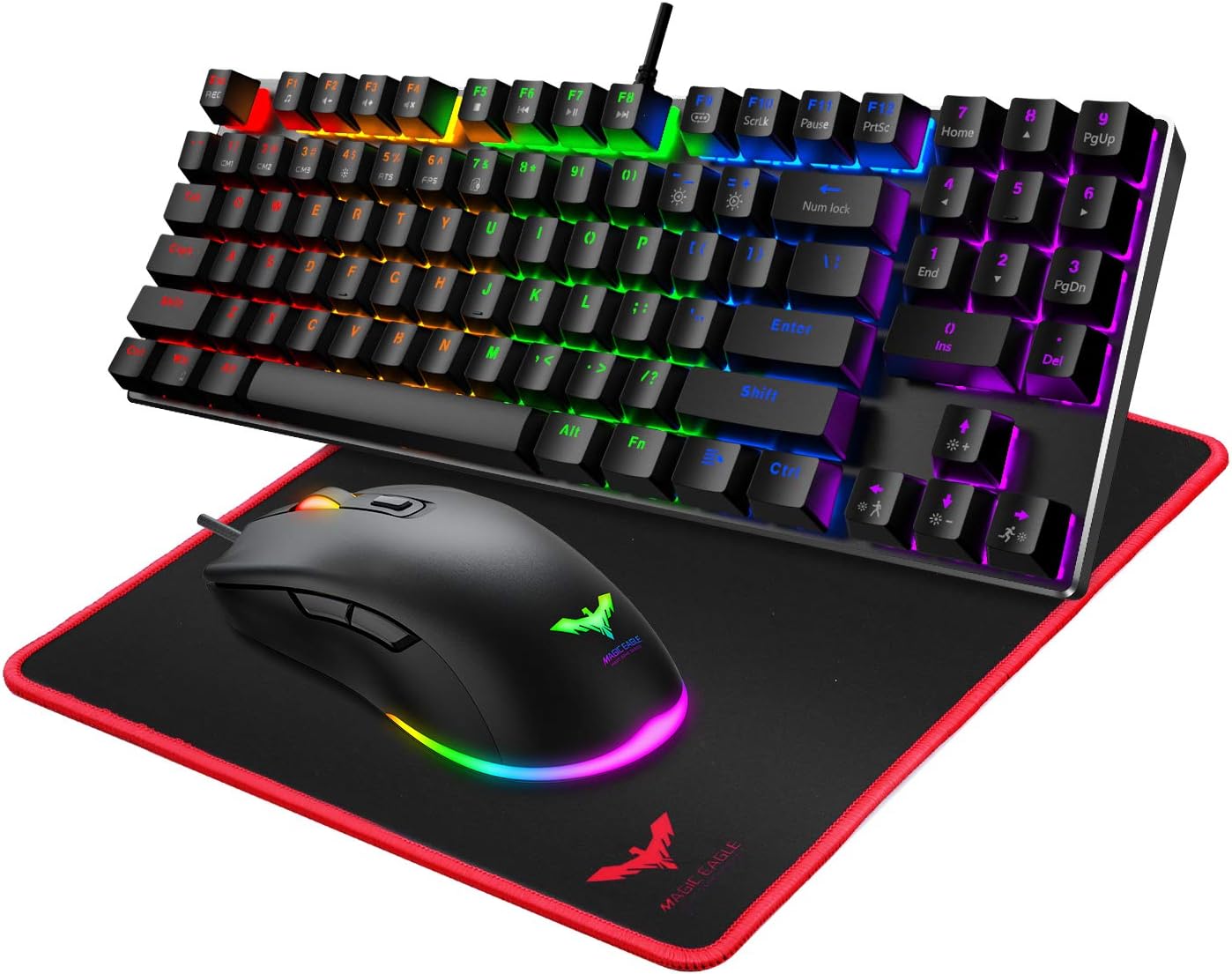
Figure 1.1: Havit Mechanical Keyboard, Mouse, and Mouse Pad Combo
2. Setup Guide
Follow these steps to set up your Havit Mechanical Keyboard and Mouse Combo:
- Connect the Keyboard: Plug the USB connector of the keyboard into an available USB port on your computer.
- Connect the Mouse: Plug the USB connector of the mouse into another available USB port on your computer.
- Position the Mouse Pad: Place the gaming mouse pad on a flat, stable surface where you intend to use your mouse.
- Driver Installation: The keyboard and mouse are plug-and-play devices. Your operating system should automatically detect and install the necessary drivers. No additional software installation is required for basic functionality.
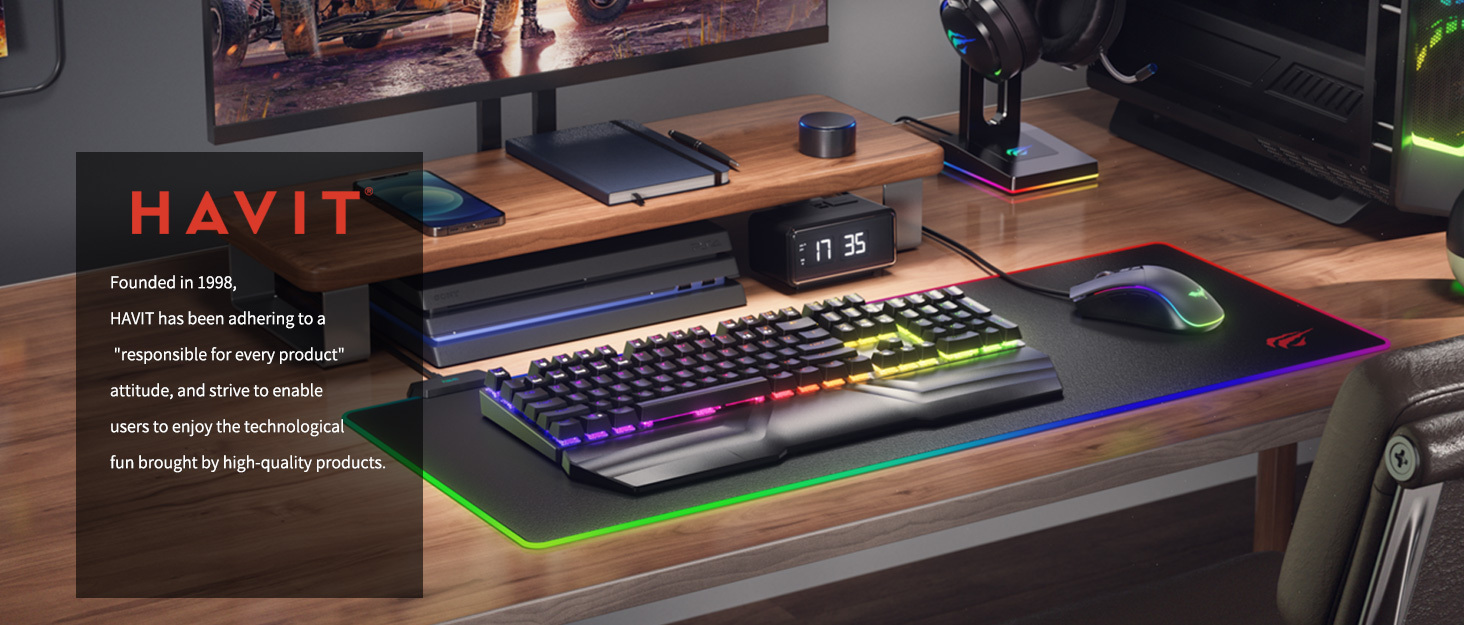
Figure 2.1: Example setup of the Havit keyboard and mouse on a desk.
3. Operating Instructions
3.1 Keyboard Operation
The Havit mechanical keyboard features an 89-key layout with quiet red switches, designed for accurate and responsive key commands during typing and gaming.

Figure 3.1: Compact 89-key design for space-saving without sacrificing performance.
Backlight Control
The keyboard offers 21 different backlight effects. Use the following key combinations to adjust the lighting:
- Change Light Modes: Press Fn + F9 to cycle through the 21 backlight effects.
- Adjust Brightness: Press Fn + ↑ (Up Arrow) to increase brightness (0%-25%-50%-75%-100%). Press Fn + ↓ (Down Arrow) to decrease brightness.
- Adjust Dimming Speed: Press Fn + ← (Left Arrow) to decrease dimming speed. Press Fn + → (Right Arrow) to increase dimming speed.

Figure 3.2: Visual guide for backlight adjustments using Fn key combinations.
Numeric Keypad and Function Keys
The keyboard includes a special 9-key numeric pad. To toggle between numeric keypad and function keys (Home, End, Del, etc.):
- Activate Num Lock: Press Fn + Backspace. The key's backlight will turn on, indicating the number pad is active.
- Deactivate Num Lock: Press Fn + Backspace again. The key's backlight will turn off, and the number pad will be locked, allowing Home, Del, End, and other function keys to work.

Figure 3.3: Detailed view of the numeric keypad and its dual functionality.
Floating Keys Design
The keyboard features a floating key design, which makes cleaning and maintenance easier by providing access beneath the keycaps.

Figure 3.4: Close-up of the floating key design, highlighting the elevated keycaps.
3.2 Mouse Operation
The Havit gaming mouse features 6 buttons and customizable RGB lighting, offering precise control for various applications.
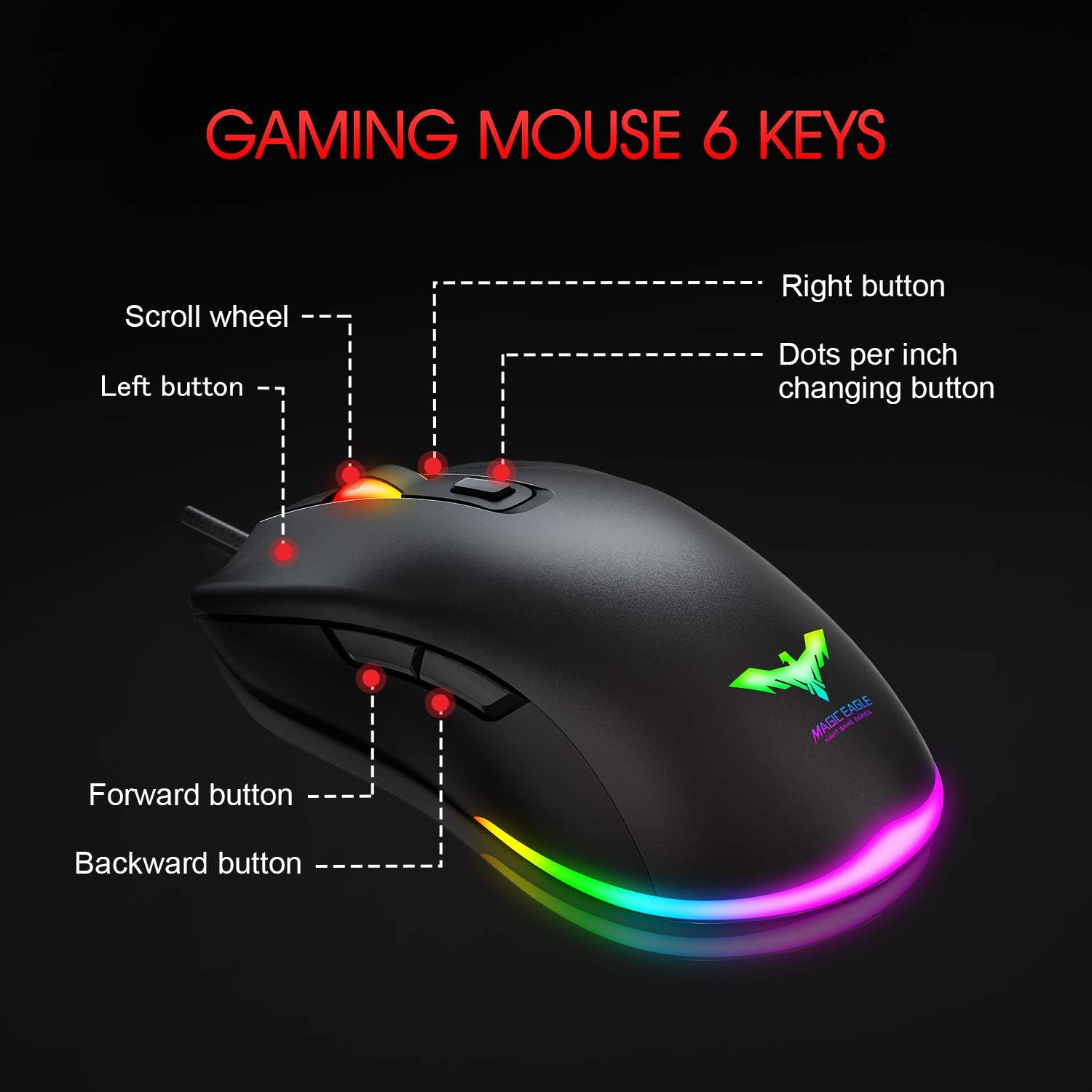
Figure 3.5: Diagram of the gaming mouse with its 6 buttons labeled for easy identification.
- Buttons: Includes Left Button, Right Button, Scroll Wheel, Dots Per Inch (DPI) Changing Button, Forward Button, and Backward Button.
- RGB Lighting: The mouse features 7 kinds of RGB light effects that cycle automatically.
- DPI Adjustment: Cycle through 6 Dots Per Inch (DPI) settings: 800 / 1600 / 2400 / 3200 / 4000 / 4800. Use the DPI changing button (located behind the scroll wheel) to adjust sensitivity.
3.3 Mouse Pad Features
The included gaming mouse pad is designed to complement the mouse, providing a stable and smooth surface for optimal performance.
- Non-slip Surface: Ensures the mouse pad stays firmly in place during intense use.
- High-quality Mesh Surface: Provides a smooth tracking surface for the mouse.
- Soft & Not Easy to Deform: Durable construction for long-lasting use and comfort.
3.4 Official Product Video
Video 3.1: An official product video from HavitDirect showcasing the Havit 60% Mechanical Keyboard, Mouse, and Mouse Pad Combo, demonstrating its features and functionality.
4. Maintenance and Care
To ensure the longevity and optimal performance of your Havit combo, follow these maintenance guidelines:
- Cleaning the Keyboard: Use a soft, dry cloth to wipe down the keyboard surface. For dust and debris under the keys, utilize the floating key design to easily clean with compressed air or a small brush. Avoid using harsh chemicals or abrasive materials.
- Cleaning the Mouse: Wipe the mouse with a soft, slightly damp cloth. Ensure no liquid enters the internal components. Clean the optical sensor regularly to maintain tracking accuracy.
- Cleaning the Mouse Pad: The mesh surface can be gently wiped with a damp cloth and mild soap if necessary. Allow it to air dry completely before use.
- Storage: When not in use for extended periods, store the combo in a cool, dry place away from direct sunlight and extreme temperatures.
5. Troubleshooting
If you encounter issues with your Havit Mechanical Keyboard and Mouse Combo, refer to the following common solutions:
- Keyboard/Mouse Not Responding:
- Ensure both USB cables are securely plugged into your computer's USB ports.
- Try plugging the devices into different USB ports.
- Restart your computer.
- Check your computer's Device Manager (Windows) or System Information (macOS) to see if the devices are recognized.
- Backlight Not Working/Adjusting:
- Verify that the keyboard is properly connected.
- Ensure you are using the correct Fn key combinations (Fn + F9 for modes, Fn + Up/Down for brightness, Fn + Left/Right for speed).
- Mouse Tracking Issues:
- Clean the mouse's optical sensor and the mouse pad surface.
- Ensure the mouse pad is on a flat, even surface.
- Adjust the DPI setting using the DPI button on the mouse.
- Numeric Keypad Not Working:
- Press Fn + Backspace to toggle the Num Lock function. The Num Lock indicator light on the keyboard should confirm its status.
If these steps do not resolve the issue, please contact Havit customer support for further assistance.
6. Specifications
| Feature | Specification |
|---|---|
| Brand | havit |
| Model | HV-KB486 |
| Connectivity Technology | Wired |
| Keyboard Keys | 89 Keys |
| Keyboard Switches | Red Mechanical Switches |
| Keyboard Backlight | 21 Kinds of Backlight Effect |
| Mouse Buttons | 6 Buttons |
| Mouse DPI Settings | 800 / 1600 / 2400 / 3200 / 4000 / 4800 |
| Mouse Light | 7 Kinds of RGB Light |
| Mouse Pad Surface | Non-slip, High-quality Mesh |
| Color | Black |
| Item Weight | 3.03 pounds |
| Package Dimensions | 17.6 x 9.33 x 2.24 inches |
| Compatible Devices | Laptop, Personal Computer |
7. Warranty and Support
Havit products come with a standard manufacturer's warranty. For specific warranty details, registration, or technical support, please visit the official Havit website or contact their customer service directly. Keep your purchase receipt for warranty claims.
Ask a question about this manual
Ask about setup, troubleshooting, compatibility, parts, safety, or missing instructions. Manuals+ will review the question and use this page’s manual context to help answer it.