
1. Introduction
This manual provides essential information for the proper installation, operation, and maintenance of the Sick ICR620S-T16503 Image-Based Code Reader. Please read this manual thoroughly before using the device to ensure safe and efficient operation.
The Sick ICR620S-T16503 is a professional 2D vision image-based code reader designed for industrial applications. It features a CMOS matrix sensor and advanced image processing capabilities for reliable code identification.
2. Product Overview
The ICR620S-T16503 is equipped with the following key features:
- Auto-Focus Function: Enables automatic adjustment of focus for varying reading distances.
- CMOS Matrix Sensor: High-resolution sensor for capturing detailed images.
- Infrared Illumination: Invisible infrared light (λ = 850 ± 25 nm) for robust reading in various conditions.
- Visible Feedback Point: Green light (λ = 525 ± 15 nm) for operational status indication.
- Aiming Laser: Red visible light (λ = 630 ... 680 nm) for precise targeting.
- Wide Reading Distance: Capable of reading codes from 40 mm to 1500 mm.

Figure 2.1: The Sick ICR620S-T16503 Image-Based Code Reader in its original packaging. The box displays the model number and SICK branding.

Figure 2.2: A close-up view of the product label on the Sick ICR620S-T16503 packaging, showing the model number, part number (1 058 623), CE mark, and software version V2.10.
3. Setup and Installation
This section details the steps required to set up and install your Sick ICR620S-T16503 code reader.
3.1 Unpacking
Carefully remove the device from its packaging. Inspect the contents for any signs of damage. The package should contain the ICR620S-T16503 unit and any accompanying documentation.
3.2 Mounting
The device can be mounted using the M5 blind tapped holes (5 mm deep, 4x) on the sensor. Refer to the dimensional drawing for precise mounting hole locations.
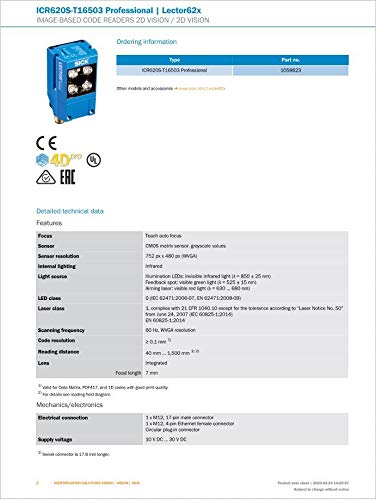
Figure 3.1: Technical data sheet for the Sick ICR620S-T16503, showing ordering information, features, and detailed technical data including focus, sensor resolution, and internal lighting specifications.
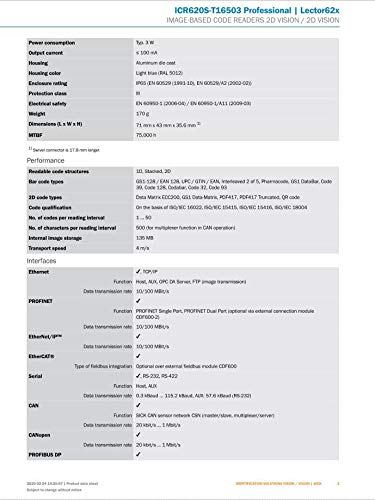
Figure 3.2: Continuation of the technical data sheet, detailing performance characteristics such as power consumption, output current, housing material, and readable code structures (1D, 2D, and 3D codes).
3.3 Electrical Connection
The ICR620S-T16503 offers various connection options:
- 3 x M12, 17-pin male connector
- 3 x M12, 4-pin Ethernet female connector
- Circular plug-in connector
Supply voltage: 10 V DC ... 30 V DC.
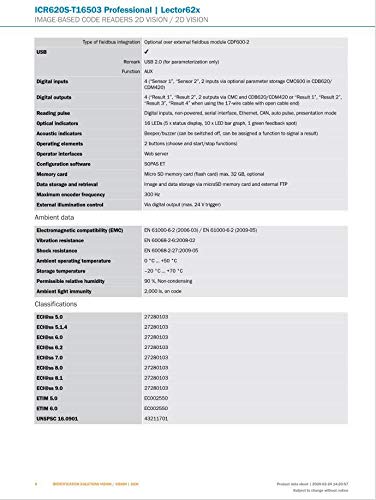
Figure 3.3: Further technical data, including USB integration, digital inputs/outputs, optical indicators, operating elements, configuration software, memory card details, and ambient data specifications.
3.4 Software Configuration
The device is configured using SOPAS ET software. A Micro SD memory card (flash card) with max. 32 GB is supported for data storage and retrieval.
4. Operating Instructions
This section outlines the basic operation of the Sick ICR620S-T16503.
4.1 Power On/Off
Connect the device to a compatible power supply (10 V DC ... 30 V DC). The device will power on automatically. Use the configured operating elements or software to initiate or stop functions.
4.2 Code Reading
Position the code reader within the specified reading distance of 40 mm to 1500 mm from the target code. The auto-focus function will adjust the lens for optimal reading. The aiming laser assists in precise targeting.
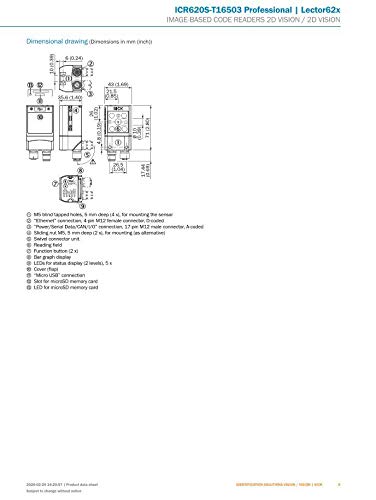
Figure 4.1: Dimensional drawing of the Sick ICR620S-T16503, showing various views and measurements in millimeters and inches, along with connection points and indicator locations.
4.3 Feedback and Indicators
The device provides visual feedback:
- Green Feedback Point: Indicates successful operation or status.
- Optical Indicators: 14 LEDs (5 x status display, 10 x LED bar graph, 1 green feedback spot) provide detailed status information.
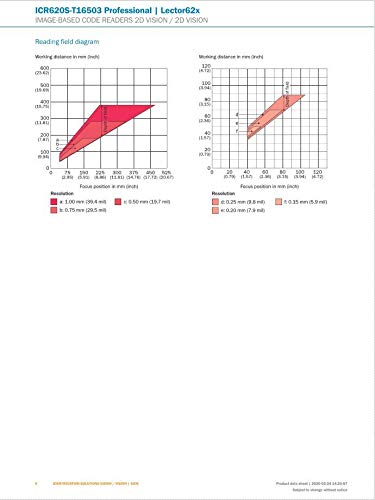
Figure 4.2: Reading field diagrams for the Sick ICR620S-T16503, illustrating the working distance in millimeters and inches relative to focus position and code resolution.
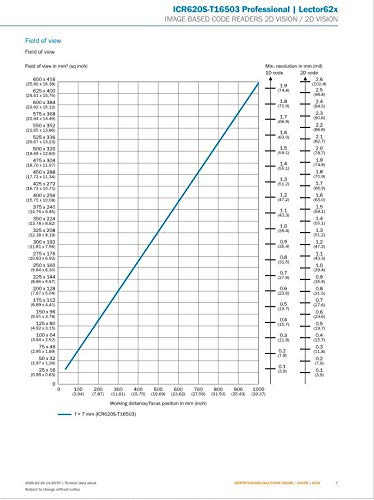
Figure 4.3: Field of view diagram for the Sick ICR620S-T16503, showing the relationship between working distance/focus position and the field of view in square millimeters (square inches) and minimum resolution.
5. Maintenance
Regular maintenance ensures the longevity and optimal performance of your ICR620S-T16503.
5.1 Cleaning
Keep the lens and housing clean. Use a soft, lint-free cloth for cleaning. For stubborn dirt, a mild cleaning solution suitable for optical surfaces may be used. Avoid abrasive materials or harsh chemicals.
5.2 Firmware Updates
Periodically check the manufacturer's website for firmware updates. Updates can improve performance, add features, or resolve issues. Follow the instructions provided with the firmware update package carefully.
6. Troubleshooting
This section provides solutions to common issues you might encounter.
6.1 Device Not Powering On
- Check Power Connection: Ensure the power cable is securely connected and the power supply is active and within the specified voltage range (10 V DC ... 30 V DC).
- Inspect Cables: Look for any visible damage to the power cable or connectors.
6.2 Unable to Read Codes
- Verify Reading Distance: Ensure the code is within the 40 mm to 1500 mm reading range.
- Check Code Quality: Ensure the code is clear, undamaged, and has sufficient contrast.
- Clean Lens: A dirty lens can impair reading performance. Refer to the cleaning instructions in Section 5.1.
- Software Configuration: Confirm that the device is correctly configured for the type of code being read using SOPAS ET software.
6.3 Communication Issues
- Check Network Cables: Ensure Ethernet or other communication cables are properly connected.
- Network Settings: Verify network settings in SOPAS ET software match your network configuration.
7. Technical Specifications
| Feature | Specification |
|---|---|
| Model Number | ICR620S-T16503 |
| Sensor | CMOS Matrix Sensor, grayscale values |
| Sensor Resolution | 752 px x 480 px (WVGA) |
| Internal Illumination | Infrared (λ = 850 ± 25 nm) |
| Feedback Point | Visible green light (λ = 525 ± 15 nm) |
| Aiming Laser | Visible red light (λ = 630 ... 680 nm) |
| Laser Class | 1 (IEC 60825-1:2014) |
| Scanning Frequency | 60 Hz (WVGA resolution) |
| Code Resolution | ≥ 0.1 mm |
| Reading Distance | 40 mm ... 1500 mm |
| Lens | Integrated, Focal length: 7 mm |
| Supply Voltage | 10 V DC ... 30 V DC |
| Power Consumption | Typ. 3 W |
| Weight | 170 g |
| Dimensions (L x W x H) | 71 mm x 43 mm x 35.6 mm³ |
| Enclosure Rating | IP65 (EN 60529 (1991), EN 60529/A2 (2002-02)) |
| Operating Temperature | 0 °C ... +50 °C |
| Storage Temperature | -20 °C ... +70 °C |
8. Warranty Information
For detailed warranty terms and conditions, please refer to the official Sick website or contact your local Sick representative. The product is typically covered by a manufacturer's warranty against defects in materials and workmanship under normal use.
Note: The product was listed as new and unused in factory packaging. Packaging may show traces of storage.
9. Support and Contact
If you require technical assistance, have questions about the product, or need to report an issue, please contact Sick customer support through their official website or the contact information provided with your purchase.
Manufacturer: Sick
Model Number: ICR620S-T16503
ASIN: B085XC3JZJ
For additional resources, visit the Official Sick Website.