
Logitech C920x
Logitech C920x HD Pro Webcam User Manual
Model: C920x (P/N: 960-001335)
Brand: Logitech
1. Introduction
This manual provides detailed instructions for setting up, operating, and maintaining your Logitech C920x HD Pro Webcam. Designed for crisp, clear Full HD 1080p video calls and recordings, this webcam features HD autofocus, light correction, and dual microphones for superior audio quality. Please read this manual thoroughly to ensure optimal performance and longevity of your device.
2. What's in the Box
- C920x Webcam
- 5ft USB Cable
- User Documentation

Figure 2.1: Logitech C920x HD Pro Webcam with its included USB cable.
3. Setup
3.1. Physical Placement
The C920x webcam features a versatile mounting clip that allows for secure placement on various devices:
- On a Monitor/Laptop Screen: Open the clip and place the webcam on top of your monitor or laptop screen, ensuring the front lip rests securely on the top edge and the adjustable arm supports the back.
- On a Tripod: The webcam's base includes a standard tripod thread for mounting on a tripod (not included).
- On a Flat Surface: The clip can also be folded to create a stable base for placement on a desk or shelf.

Figure 3.1: Webcam securely mounted on a laptop screen.

Figure 3.2: The adjustable clip allows for various mounting options.
3.2. Connecting to Your Computer
Connect the integrated 5ft USB cable from the webcam to an available USB port on your computer. The webcam is plug-and-play and should be automatically recognized by most operating systems (Windows, macOS, Chrome OS).

Figure 3.3: USB connection for easy setup.
4. Operating Instructions
4.1. Video Calls and Recording
The C920x delivers Full HD 1080p video at 30 frames per second, ensuring crisp and clear visuals for your video conferences and content creation. It is compatible with popular video calling applications like Skype, Zoom, and FaceTime.

Figure 4.1: High-quality video for professional communication.
4.2. Audio Features
Equipped with dual stereo microphones, the C920x captures natural sound, making your voice clear during calls and recordings. The microphones are positioned on either side of the lens for optimal sound pickup.

Figure 4.2: Dual microphones for clear stereo audio.
4.3. Automatic Light Correction and Autofocus
The webcam automatically fine-tunes lighting conditions and features HD autofocus to produce bright, razor-sharp images even in low-light settings. This ensures consistent high-definition quality without manual adjustments.

Figure 4.3: Automatic adjustments for optimal image quality.
4.4. Logitech Capture Software
For advanced control and content creation, download and install the Logitech Capture software. This software allows you to easily create and share video content, offering features like background removal, replacement, and blurring (with included XSplit VCam license).
Figure 4.4: Logitech Capture App for enhanced control.
4.5. Compatibility
The Logitech C920x is broadly compatible with various operating systems and platforms, including Windows, macOS, Chrome OS, and popular video conferencing applications.
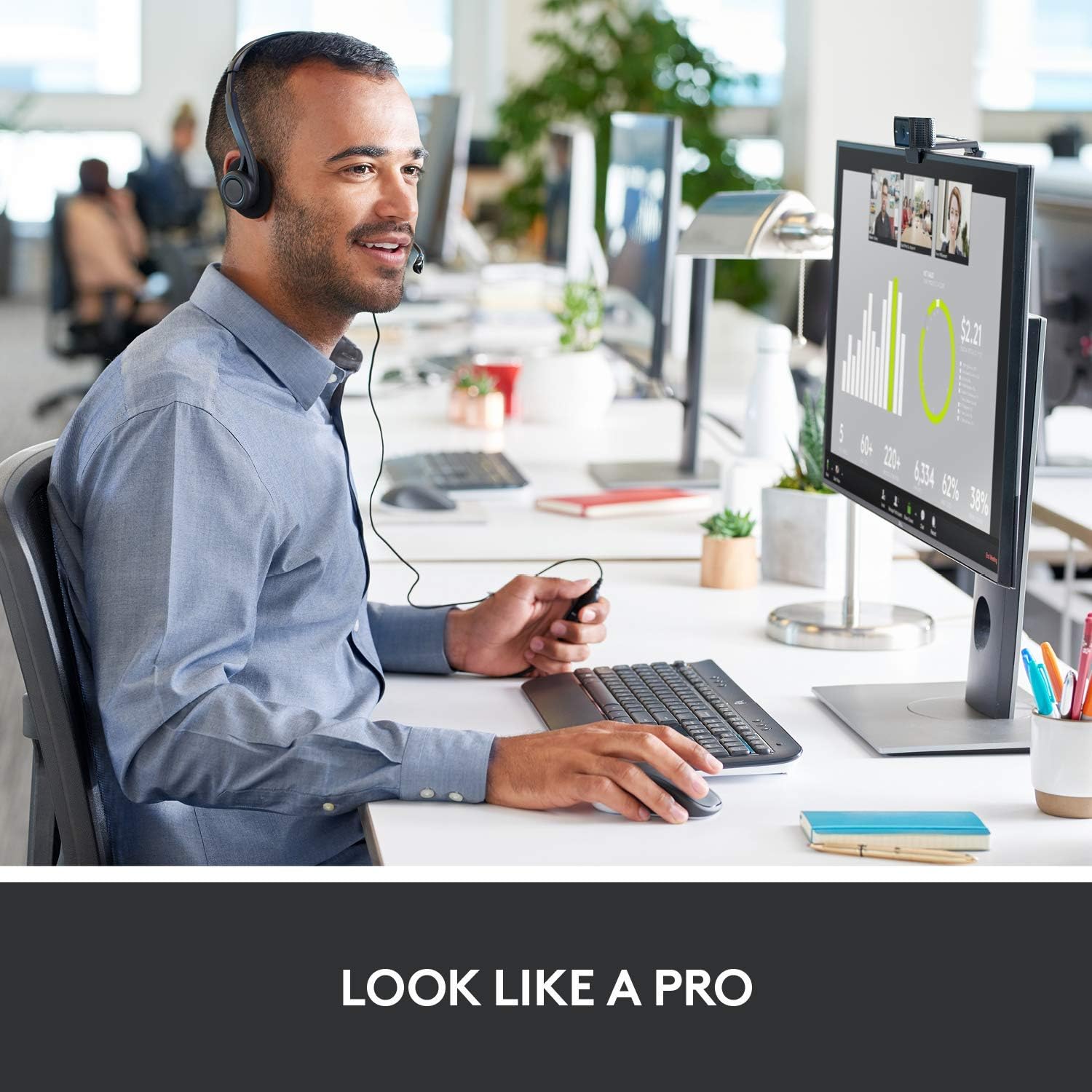
Figure 4.5: Broad compatibility with various platforms.
5. Maintenance
To ensure the longevity and optimal performance of your Logitech C920x HD Pro Webcam, follow these simple maintenance guidelines:
- Cleaning the Lens: Gently wipe the lens with a soft, lint-free cloth. Avoid using abrasive materials or harsh chemicals that could scratch the lens.
- Cleaning the Body: Use a soft, damp cloth to clean the body of the webcam. Do not submerge the webcam in water or use excessive moisture.
- Storage: When not in use, store the webcam in a cool, dry place away from direct sunlight and extreme temperatures.
- Cable Care: Avoid bending or kinking the USB cable excessively to prevent internal damage.
6. Troubleshooting
If you encounter issues with your Logitech C920x HD Pro Webcam, try the following troubleshooting steps:
| Problem | Possible Solution |
|---|---|
| Webcam not detected by computer. |
|
| Poor video quality (blurry, dark, grainy). |
|
| No audio or poor audio quality. |
|
For further assistance, refer to the official Logitech support website or the full user manual PDF.
7. Specifications
| Feature | Detail |
|---|---|
| Product Dimensions | 2.8 x 1.7 x 3.7 inches |
| Item Weight | 5.7 ounces |
| Item Model Number | 960-001335 |
| Video Capture Resolution | 1080p (Full HD) |
| Frame Rate | 30 fps |
| Photo Sensor Technology | CMOS |
| Maximum Aperture | 1.8 f |
| Connectivity Technology | USB |
| Microphone | Dual Stereo Microphones |
| Autofocus | HD Autofocus |
| Light Correction | Automatic HD Light Correction |
| Manufacturer | Logitech |
| Country of Origin | Vietnam |
8. Warranty and Support
Logitech products typically come with a limited hardware warranty. For specific warranty details, registration, and technical support, please visit the official Logitech support website or refer to the user documentation included with your product.
You can also find the official User Manual (PDF) here.
Protection plans are available for purchase separately to extend coverage:
- 2-Year Protection Plan
- 3-Year Protection Plan
- Complete Protect (monthly plan)
Related documentsC920x


Ask a question about this manual
Ask about setup, troubleshooting, compatibility, parts, safety, or missing instructions. Manuals+ will review the question and use this page’s manual context to help answer it.