1. Introduction
This manual provides essential instructions for the setup, operation, and maintenance of your Zebra ZD220 or ZD220d Direct Thermal USB Barcode Label Printer. Please read this manual thoroughly before using the printer to ensure proper function and longevity.

Image 1.1: The Zebra ZD220 Direct Thermal USB Barcode Label Printer, shown from a top-front angle. The printer is dark gray with a yellow feed button on the side and control panel on top.
2. Setup
2.1 Unpacking and Placement
Carefully remove the printer and all accessories from the packaging. Place the printer on a stable, flat surface with adequate ventilation. Ensure easy access to power outlets and the computer.
2.2 Connecting Power and USB
- Connect the power cord to the printer's power port and then to a grounded electrical outlet.
- Connect the USB cable to the printer's USB port and then to an available USB port on your computer.

Image 2.1: Rear view of the Zebra ZD220 printer, highlighting the USB port on the left and the power input port on the right.
2.3 Loading Media (Labels)
- Open the printer's top cover by pulling the yellow latches on both sides.
- Place the roll of labels onto the media supply hangers. Ensure the labels feed from the bottom of the roll.
- Feed the leading edge of the labels through the media guides and under the printhead assembly. Adjust the media guides to fit the width of your labels.
- Close the top cover securely.

Image 2.2: The Zebra ZD220 printer with its top cover open, revealing the internal mechanism for loading label rolls. The yellow components are visible, indicating the media path.
2.4 Driver Installation and Calibration
Install the appropriate printer drivers from the Zebra Technologies website (www.zebra.com/us/en/support-downloads.html). Follow the on-screen instructions for installation. After driver installation, perform a media calibration to ensure accurate label sensing. Refer to the driver's utility or the printer's advanced settings for calibration options.
3. Operating Instructions
3.1 Basic Printing
Once the printer is set up and drivers are installed, you can print labels from your application. Ensure the correct printer is selected in your software's print dialog. The printer will automatically feed and print labels.
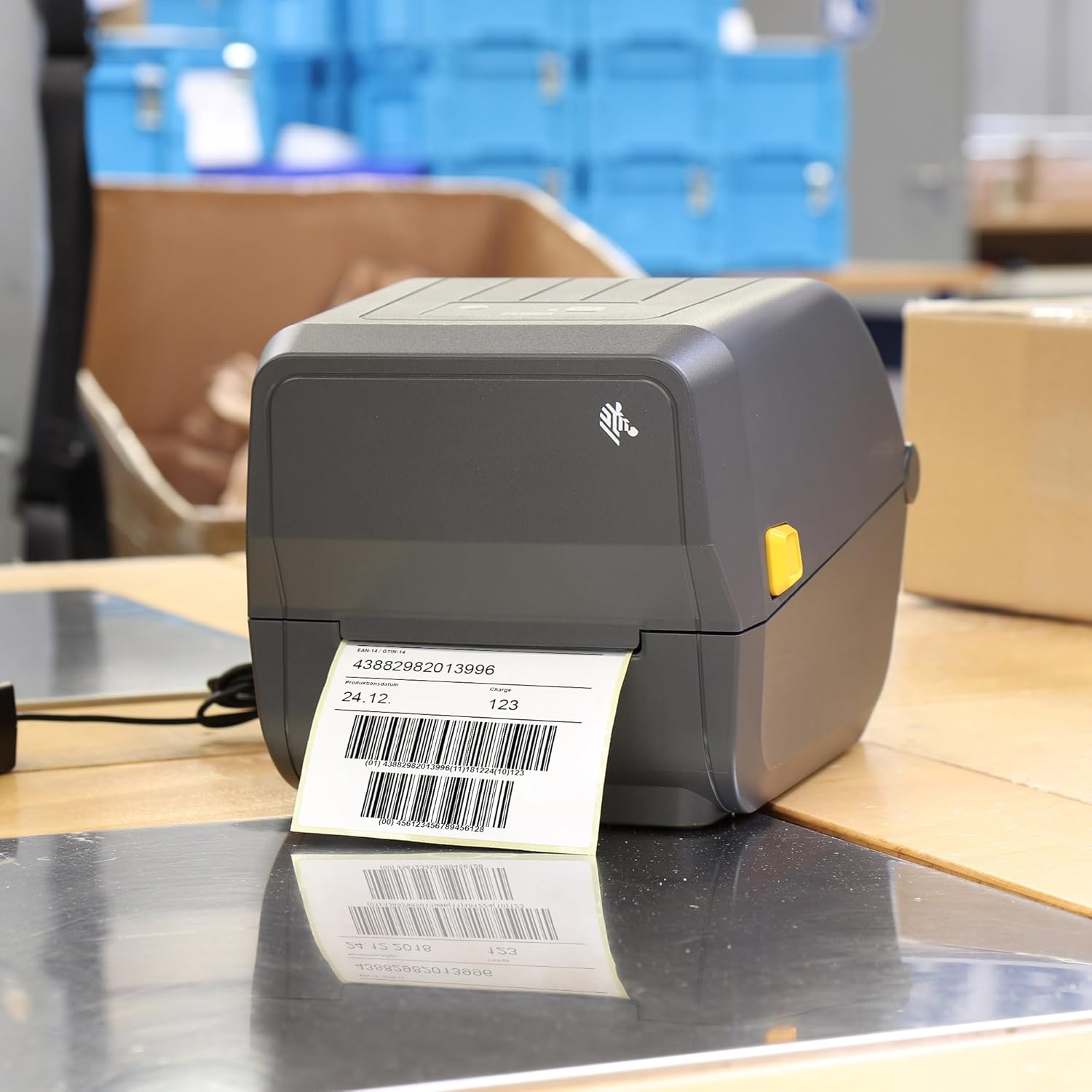
Image 3.1: The Zebra ZD220 printer in operation, with a barcode label partially ejected from the front slot. The label displays a barcode and numerical information.
3.2 Control Panel and Status Indicators
The printer features a single feed/pause button and an LED indicator on the top panel. The LED provides visual feedback on the printer's status:
- Solid Green: Printer is ready.
- Flashing Green: Printer is paused or processing data.
- Solid Red: Error condition (e.g., out of media, printhead open).
- Flashing Red: Specific error condition, refer to troubleshooting section.
Press the feed button to feed a blank label or to resume printing if paused.
4. Maintenance
Regular maintenance ensures optimal print quality and extends the life of your printer.
4.1 Cleaning the Printhead
The printhead should be cleaned regularly, especially if print quality degrades. Use a Zebra printhead cleaning pen or a cotton swab lightly moistened with 99.9% isopropyl alcohol. Gently wipe across the printhead surface from center to edge. Allow the printhead to dry completely before closing the cover and resuming operation.
4.2 Cleaning the Platen Roller
The platen roller can accumulate adhesive or debris. Rotate the platen roller while wiping its surface with a lint-free cloth lightly moistened with 99.9% isopropyl alcohol. Ensure the roller is dry before use.
4.3 General Cleaning
Wipe the exterior of the printer with a soft, damp cloth. Do not use harsh chemicals or abrasive cleaners.
5. Troubleshooting
This section addresses common issues you might encounter.
- No Power: Ensure the power cord is securely connected to both the printer and a working electrical outlet. Check the power adapter.
- No Print: Verify the printer is powered on and the USB cable is connected. Check if the printer driver is installed correctly and selected in your application. Ensure there is media loaded and the printhead is closed.
- Poor Print Quality: Clean the printhead. Ensure the correct media type is selected in the driver settings. Adjust print darkness and speed settings.
- Media Out Error (Solid Red LED): Open the top cover, ensure labels are loaded correctly, and close the cover. Perform a media calibration if necessary.
- Labels Skipping or Misfeeding: Ensure media guides are properly adjusted to the label width. Perform a media calibration. Check for debris in the media path.
For more detailed troubleshooting, refer to the comprehensive support resources on the Zebra Technologies website.
6. Specifications
| Feature | Specification |
|---|---|
| Model Series | ZD220 |
| Printing Technology | Direct Thermal |
| Print Resolution | 203 x 203 DPI (Max Black and White) |
| Connectivity Technology | USB |
| Maximum Media Size | 4 x 6 inches |
| Print Media | Labels |
| Memory Storage Capacity | 16 MB |
| Item Weight | 5.24 pounds |
| Compatible Devices | Laptops |
7. Warranty and Support
7.1 Limited Warranty
This Zebra printer comes with a Limited Warranty. For specific terms and conditions, please refer to the warranty documentation included with your product or visit the official Zebra Technologies website.
7.2 Technical Support
For technical assistance, driver downloads, or further product information, please visit the official Zebra Technologies support website: www.zebra.com/us/en/support-downloads.html. You may also contact Zebra customer service directly through the contact information provided on their website.


