
Introduction
The Logitech G915 TKL is a high-performance tenkeyless mechanical gaming keyboard designed for advanced wireless connectivity and customizable RGB lighting. Featuring low-profile GL mechanical switches, it offers a responsive and comfortable typing experience. This manual provides essential information for setting up, operating, maintaining, and troubleshooting your keyboard.
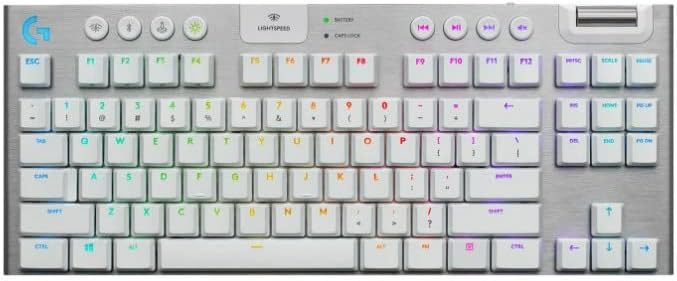
Image: Angled view of the Logitech G915 TKL White Gaming Keyboard with RGB lighting.
Key features include pro-grade 1 ms LIGHTSPEED wireless technology, LIGHTSYNC RGB lighting customizable per-key, and a durable aircraft-grade aluminum alloy design. It also offers dedicated media controls and multi-device connectivity via LIGHTSPEED or Bluetooth.
Setup
To begin using your Logitech G915 TKL keyboard, follow these steps for initial setup and connectivity.
1. Charging the Keyboard
Before first use, ensure the keyboard is fully charged using the included USB cable. Connect the micro-USB end to the keyboard and the USB-A end to a power source or your computer. A full charge provides approximately 40 hours of gaming with full brightness.
2. Connecting via LIGHTSPEED Wireless
Insert the LIGHTSPEED USB receiver into an available USB port on your computer. The keyboard will automatically connect. The receiver can be stored in a compartment on the back of the keyboard for portability.

Image: The underside of the Logitech G915 TKL keyboard, highlighting the storage compartment for the LIGHTSPEED USB receiver.
3. Connecting via Bluetooth
To connect via Bluetooth, press and hold the Bluetooth button on the keyboard until the indicator light flashes. On your device, navigate to Bluetooth settings and select 'G915 TKL' from the list of available devices.
4. Installing Logitech G HUB Software
For full customization of RGB lighting, G-keys, and profiles, download and install the Logitech G HUB software from the official Logitech G website. This software allows you to personalize your keyboard experience.
Video: A review of the Logitech G915 TKL, demonstrating its features and design, including customization options via G HUB software.
Operating the Keyboard
The G915 TKL offers a range of features to enhance your gaming and typing experience.
1. Mechanical Switch Options
The keyboard is equipped with low-profile GL mechanical switches, available in three types:
- GL Tactile: Provides a discernible bump for tactile feedback.
- GL Linear: Offers a completely smooth keystroke.
- GL Clicky: Delivers an audible click and tactile feedback.
2. LIGHTSYNC RGB Customization
Personalize your keyboard's lighting with LIGHTSYNC RGB. Use the G HUB software to choose from approximately 16.8 million colors, create custom animations, or synchronize lighting with in-game action, audio, and screen color.
Video: A demonstration of the Logitech G815 Keyboard's RGB lighting effects and key responsiveness.
3. Dedicated Media Controls
The keyboard features dedicated media keys and a precision-engineered volume wheel for quick and easy control over your audio and video playback. You can play, pause, skip tracks, and adjust volume without interrupting your activity.
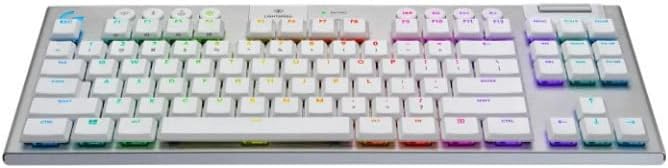
Image: Top-down view of the Logitech G915 TKL keyboard, highlighting the dedicated media controls and programmable G-keys on the left side.
4. Programmable G-Keys
Utilize the five programmable G-keys on the left side of the keyboard to assign custom macros and commands through the Logitech G HUB software, enhancing your efficiency in games and applications.
Maintenance
Proper care and maintenance will ensure the longevity and optimal performance of your G915 TKL keyboard.
1. Battery Life Management
The keyboard offers up to 40 hours of battery life on a single charge with full RGB brightness. Low battery warnings are indicated by an LED on the keyboard and a pop-up notification in the Logitech G HUB software. Recharging takes approximately 3 hours.
2. Cleaning
To clean your keyboard, use a soft, lint-free cloth. For deeper cleaning, a can of compressed air can be used to remove debris from between the keys. Avoid using harsh chemicals or abrasive materials.
3. Storage
When not in use, store the keyboard in a dry, cool place. The tenkeyless design and integrated USB receiver storage make it convenient for transport.
Troubleshooting
If you encounter issues with your G915 TKL, try the following troubleshooting steps:
- Connectivity Issues: Ensure the keyboard is charged and the LIGHTSPEED receiver is securely plugged in. For Bluetooth, re-pair the device.
- RGB Lighting Not Working: Check settings in Logitech G HUB. Ensure the brightness is not set to minimum.
- Key Responsiveness: If specific keys are not responding, ensure no debris is lodged beneath them.
- Software Problems: Reinstall Logitech G HUB if software-related issues persist.
Video: An accountant's perspective on the Logitech G915 keyboard, highlighting its suitability for both gaming and professional use, and demonstrating key features.
Specifications
| Brand | Logitech G |
| Model Number | 920-009660 |
| Connectivity Technology | Bluetooth, USB (LIGHTSPEED Wireless) |
| Keyboard Description | Gaming, Mechanical, Tenkeyless |
| Switch Type | Low Profile GL Tactile |
| Backlighting | LIGHTSYNC RGB (Per-key customizable) |
| Battery Life | Up to 40 hours (with full brightness) |
| Charging Time | Approximately 3 hours |
| Dimensions (LxWxH) | 14.48 x 5.9 x 0.87 inches |
| Item Weight | 5.3 ounces |
| Compatible Devices | Laptop, PC, Gaming Console |
| Operating System | Windows 7 or later (64-bit) or macOS X 10.11 or later |
Warranty and Support
Logitech G products are backed by a manufacturer's warranty. For specific warranty details, please refer to the warranty information included with your product packaging or visit the official Logitech G support website.
Logitech G is known for its responsive customer service. If you experience any issues or require assistance, their support team is available to help. For example, customers have reported receiving replacement keycaps promptly for wear and tear issues.
For further assistance, visit the Logitech G Support website or contact their customer service directly.


