1. Product Overview
The Arteck HB193 Universal Bluetooth Keyboard is a full-size wireless keyboard designed for multi-device compatibility across various operating systems. Its ergonomic design and durable construction provide a comfortable and efficient typing experience.
- Multi-Device Connectivity: Connects to up to 3 devices simultaneously, allowing for seamless switching with a single click.
- Ergonomic Design: Features a stainless steel build for a premium feel, low-profile keys for quiet and comfortable typing, and includes a full-size number pad and convenient shortcuts.
- Broad Compatibility: Fully functional with major operating systems including iOS, Android, Mac OS, and Windows. Compatible with computers, desktops, PCs, laptops, iPads (Pro, Air, Mini), iPhones, smartphones, and Android tablets (e.g., Samsung Galaxy, Surface).
- Long Battery Life: Equipped with a high-capacity rechargeable lithium battery, providing up to 6 months of use on a single charge (based on 2 hours of non-stop use per day).
- Package Contents: Includes the Arteck Stainless Bluetooth Keyboard, a USB charging cable, and a welcome guide.

Figure 1.1: Top-down view of the Arteck HB193 Universal Bluetooth Keyboard, showcasing its full-size layout and dedicated multi-device keys.
2. Setup and Pairing
2.1 Charging the Keyboard
Before initial use, fully charge the keyboard using the provided USB charging cable. Connect the micro-USB end of the cable to the keyboard's charging port and the USB-A end to a compatible USB power source (e.g., computer USB port, USB wall adapter).

Figure 2.1: The Arteck HB193 keyboard illustrating its long battery life and the USB charging port location.
2.2 Powering On/Off
Locate the ON/OFF switch on the top-right side of the keyboard. Slide the switch to the "ON" position to power on the device. Slide it to "OFF" when not in use to conserve battery.
2.3 Pairing with Devices
The Arteck HB193 keyboard supports pairing with up to three Bluetooth-enabled devices. Follow these steps for initial pairing:
- Ensure the keyboard is powered on.
- On the keyboard, press and hold one of the Bluetooth keys (BT1, BT2, or BT3) for approximately 3-5 seconds until the corresponding indicator light above the key starts flashing. This indicates the keyboard is in pairing mode.
- On your device (computer, tablet, smartphone), navigate to the Bluetooth settings.
- Search for available Bluetooth devices. The keyboard should appear as "Bluetooth 3.0 Keyboard" or "Arteck HB193".
- Select the keyboard from the list to initiate the pairing process. Your device may prompt you to enter a pairing code displayed on the screen. Type this code on the Arteck keyboard and press Enter.
- Once successfully paired, the indicator light on the keyboard will stop flashing and remain solid for a few seconds, then turn off.
Repeat these steps for up to two additional devices using the remaining Bluetooth keys (BT2 and BT3).

Figure 2.2: The Arteck HB193 keyboard highlighting the dedicated Bluetooth keys (BT1, BT2, BT3) for connecting to multiple devices.
3. Operating the Keyboard
3.1 Switching Between Devices
After pairing with multiple devices, you can switch between them instantly by simply pressing the corresponding Bluetooth key (BT1, BT2, or BT3) once. The keyboard will automatically connect to the selected device.
3.2 Function Keys and Shortcuts
The keyboard features a row of function keys (F1-F12) that double as multimedia and shortcut keys. To activate the secondary function (blue icons), press and hold the Fn key located on the bottom-left, then press the desired function key.
| Key Combination | Function |
|---|---|
| Fn + F1 | Home Screen |
| Fn + F2 | Search |
| Fn + F3 | Select All |
| Fn + F4 | Copy |
| Fn + F5 | Paste |
| Fn + F6 | Cut |
| Fn + F7 | Previous Track |
| Fn + F8 | Play/Pause |
| Fn + F9 | Next Track |
| Fn + F10 | Mute Volume |
| Fn + F11 | Volume Down |
| Fn + F12 | Volume Up |
The keyboard also features system-specific function keys for iOS, Android, and Windows, indicated by blue text on the Q, W, and E keys respectively. To switch the keyboard's layout to match your operating system, press Fn + Q (iOS), Fn + W (Android), or Fn + E (Windows).
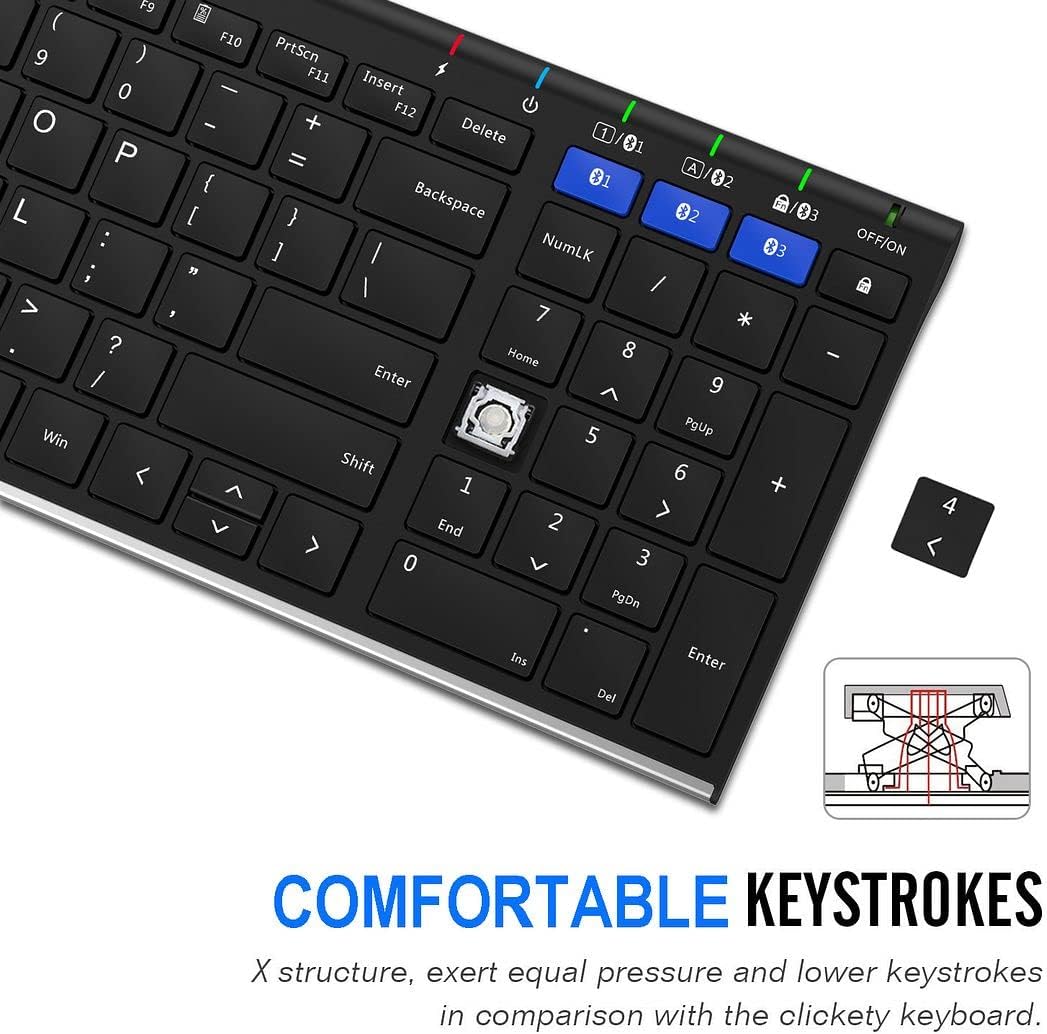
Figure 3.1: Detail of the keyboard's low-profile keys, featuring an X-structure for comfortable and quiet typing.
4. Maintenance
4.1 Battery Care
- To maximize battery life, fully charge the keyboard before first use.
- Avoid exposing the keyboard to extreme temperatures.
- If the keyboard will not be used for an extended period, turn it off to prevent battery drain.
- Recharge the keyboard when the battery indicator light (usually near the ON/OFF switch) turns red or starts flashing, indicating low power.
4.2 Cleaning
- Turn off the keyboard before cleaning.
- Use a soft, lint-free cloth slightly dampened with water or a mild cleaning solution to wipe the surface.
- Avoid using harsh chemicals, abrasives, or solvents, as these may damage the keyboard's finish.
- For dust and debris between keys, use compressed air.

Figure 4.1: The underside of the Arteck HB193 keyboard, highlighting its brushed stainless steel back and silicone non-slip pads.
5. Troubleshooting
- Keyboard not connecting:
- Ensure the keyboard is powered on and fully charged.
- Make sure Bluetooth is enabled on your device.
- Put the keyboard into pairing mode by pressing and holding the desired BT key until the indicator flashes.
- If previously paired, try "forgetting" or "removing" the keyboard from your device's Bluetooth list and then re-pairing.
- Ensure the keyboard is within the effective Bluetooth range (typically up to 10 meters/33 feet).
- Keys not responding or typing incorrectly:
- Check the battery level and recharge if necessary.
- Ensure the keyboard is connected to the correct device (check the active BT indicator light).
- Verify that the correct operating system mode is selected (Fn + Q/W/E).
- Clean the keyboard to remove any debris that might be obstructing the keys.
- Intermittent connection:
- Move the keyboard closer to your device.
- Avoid placing the keyboard near other wireless devices (e.g., Wi-Fi routers, cordless phones) that might cause interference.
- Ensure your device's Bluetooth drivers are up to date.
6. Specifications
| Feature | Detail |
|---|---|
| Product Dimensions | 14.5 x 4.9 x 0.6 inches (36.8 x 12.5 x 1.5 cm) |
| Item Weight | 1.04 pounds (471.7 g) |
| Manufacturer | Arteck |
| ASIN | B085RGMMV4 |
| Country of Origin | China |
| Compatible Devices | Laptop, PC, Tablet, Smartphone (iOS, Android, Mac OS, Windows) |
| Connectivity Technology | Bluetooth |
| Keyboard Description | Multi-device Bluetooth (3 channels) |
| Special Feature | Hotkeys and Media Keys, Multi-Device, Rechargeable |
| Color | Black |
| Number of Keys | 100 |
| Style | Modern |
| Material | Stainless Steel |
| Battery Life | Up to 6 months (based on 2 hours non-stop use per day) |

Figure 6.1: Physical dimensions and weight of the Arteck HB193 keyboard.
7. Warranty and Support
The Arteck HB193 Universal Bluetooth Keyboard comes with a 24-month warranty from the date of purchase.
For technical assistance, troubleshooting, or warranty claims, please contact Arteck customer service. Refer to the included welcome guide for specific contact information or visit the official Arteck website.
Arteck is committed to providing friendly and responsive customer service to ensure your satisfaction.


