
1. Introduction
Thank you for choosing the LaView 1080P HD Pet Camera Mini Indoor Security Camera (Model LV-PWF1). This manual provides detailed instructions for setting up, operating, and maintaining your camera to ensure optimal performance and security for your home. This camera is designed to keep you connected to your home and loved ones with its advanced features.

Figure 1: Front view of the LaView 1080P HD Pet Camera.
2. What's in the Box
Please verify that all components are present and in good condition upon unboxing.
- 1 x LaView 1080P HD Pet Camera (LV-PWF1)
- 1 x Instruction Manual
- 1 x Charger (USB cable and power adapter)

Figure 2: Included components: camera, instruction manual, and charger.
3. Setup Guide
3.1. Camera Overview
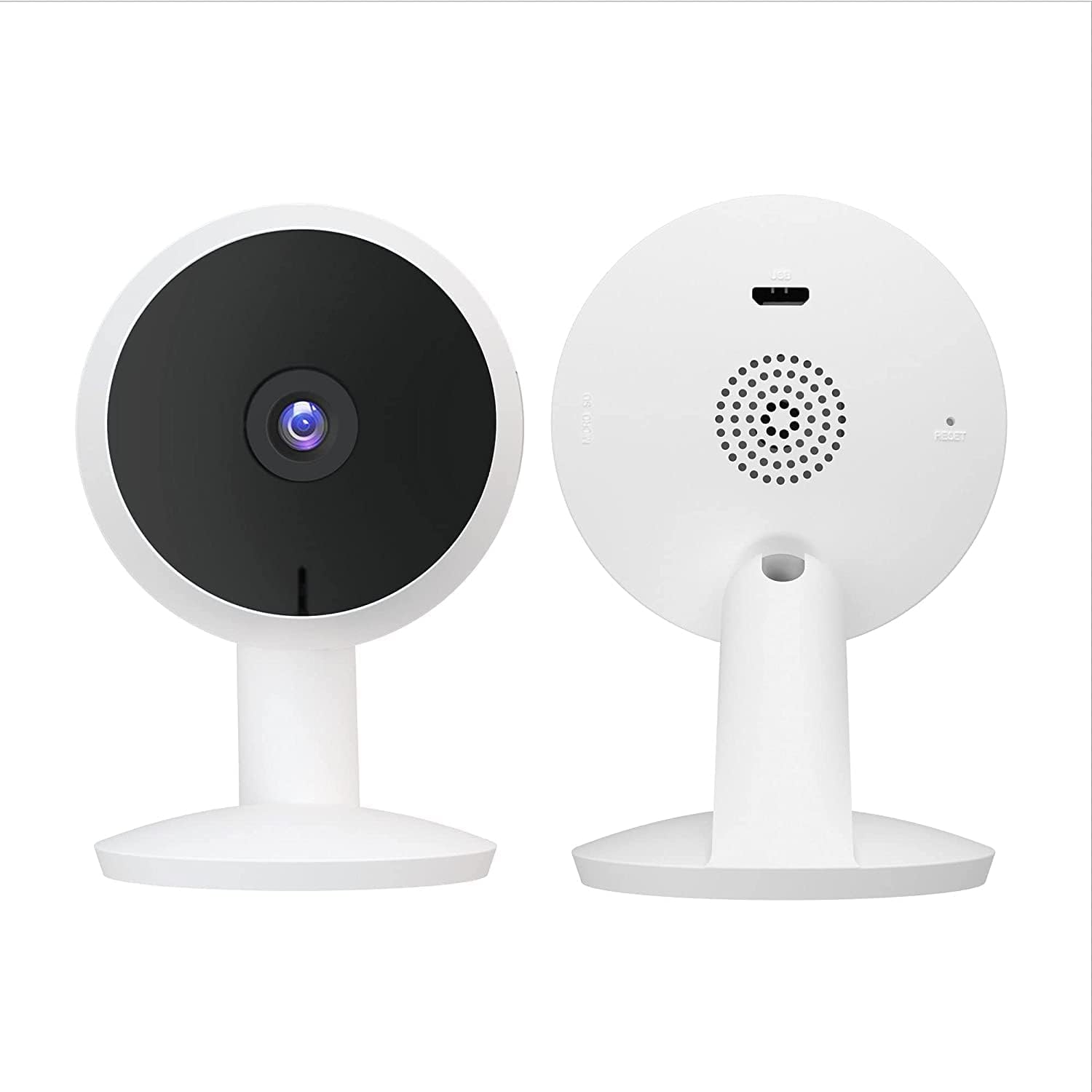
Figure 3: Front and back view of the camera, highlighting the lens, speaker, and ports.
3.2. Initial Setup Steps
- Download the LaView App: Search for "LaView" in your mobile device's app store (Google Play Store for Android or Apple App Store for iOS) and download the official LaView app.
- Create an Account: Open the LaView app and follow the on-screen instructions to create a new user account.
- Power On the Camera: Connect the camera to a power outlet using the provided USB cable and charger. The camera's indicator light will illuminate.
- Add Device: In the LaView app, tap the "+" icon to add a new device. Select your camera model (LV-PWF1) from the list.
- Connect to Wi-Fi: Follow the app's instructions to connect your camera to your 2.4GHz Wi-Fi network. Note: This camera does not support 5GHz Wi-Fi networks.
- Scan QR Code: The app will display a QR code. Position your camera to scan this QR code from your phone screen. Once scanned, the camera will connect to your Wi-Fi network.
- Name Your Camera: Assign a name to your camera (e.g., "Living Room Camera", "Pet Cam") for easy identification.
Your LaView camera is now set up and ready for use.
4. Operating Your Camera
4.1. Live View and Monitoring
Access 24/7 live streams directly from the LaView app on your mobile device or via a web browser. The camera provides clear 1080P HD video quality.
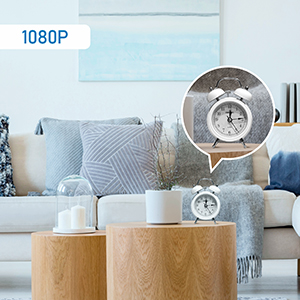
Figure 4: Example of 1080P HD video clarity.
4.2. Motion Detection and Alerts
The camera features instant motion detection. When motion is detected, you will receive smart alerts (push notifications) on your mobile device. You can customize sensitivity and detection zones within the app to reduce false alarms.
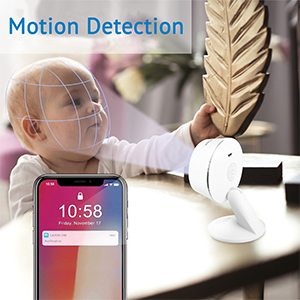
Figure 5: Motion detection feature, capable of identifying movement within defined zones.

Figure 6: Motion detection in a home environment, highlighting the monitored area.
4.3. Night Vision
Equipped with advanced IR night vision, the camera provides clear visibility up to 33 feet (10 meters) in low-light or complete darkness, ensuring continuous monitoring.
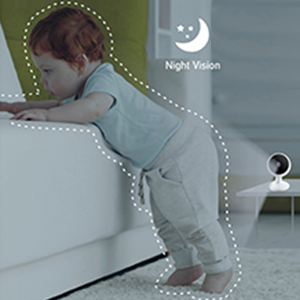
Figure 7: Night vision in action, providing clear images in dark conditions.
4.4. Two-Way Audio
Communicate with family members or pets through the camera using the clear two-way audio feature with noise cancellation. Simply tap the microphone icon in the app to speak.
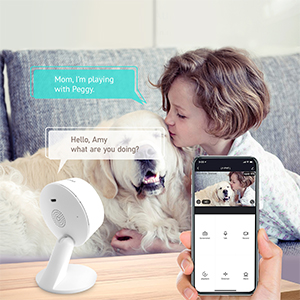
Figure 8: Two-way audio allows for real-time communication.
4.5. Storage Options
The camera supports two storage methods for recorded footage:
- MicroSD Card: Insert a microSD card (up to 128GB, not included) into the camera's slot for local storage.
- Cloud Storage: A 30-day free trial of US-based cloud storage is included. This service encrypts your data on AWS servers for enhanced security and accessibility.
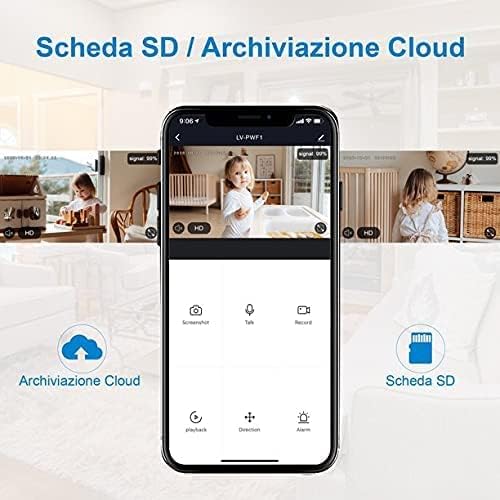
Figure 9: App interface displaying cloud and microSD storage options.

Figure 10: 24/7 video history and playback from cloud or microSD card.
4.6. Multi-Camera and Sharing
Monitor up to 9 cameras simultaneously from a single LaView account. You can also share camera access with up to 20 other users, allowing family and trusted individuals to view the live feed.
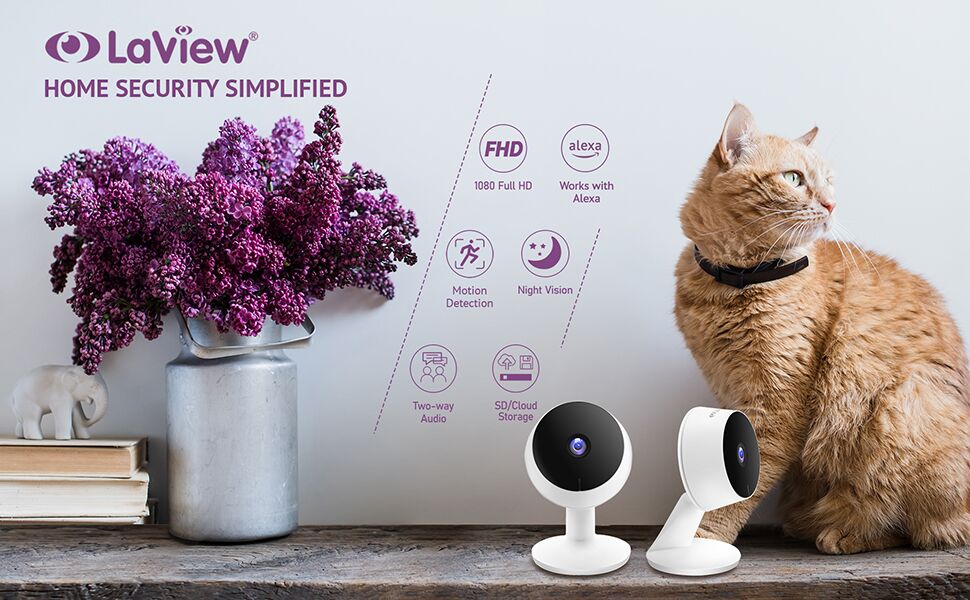
Figure 11: View up to 9 cameras simultaneously on a single screen.
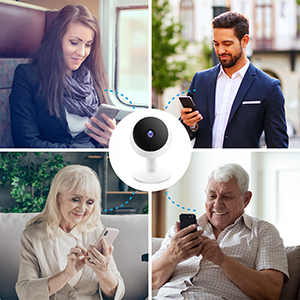
Figure 12: Share camera access with multiple users.
5. Maintenance
- Cleaning: Gently wipe the camera lens and body with a soft, dry cloth. Avoid using harsh chemicals or abrasive materials.
- Firmware Updates: Regularly check the LaView app for available firmware updates. Keeping your camera's firmware up-to-date ensures optimal performance, security, and access to new features.
- Power Supply: Always use the original power adapter and USB cable provided with the camera to prevent damage.
6. Troubleshooting
6.1. Common Issues and Solutions
- Camera Offline:
- Ensure the camera is powered on and connected to a stable 2.4GHz Wi-Fi network.
- Check your Wi-Fi router for internet connectivity.
- Restart the camera by unplugging and re-plugging it.
- If the issue persists, try re-pairing the camera with the app.
- Poor Video Quality:
- Ensure your Wi-Fi signal strength is strong at the camera's location.
- Clean the camera lens with a soft cloth.
- Check your internet speed. A stable connection is crucial for HD streaming.
- Motion Alerts Not Received:
- Verify that motion detection is enabled in the LaView app settings.
- Check your phone's notification settings to ensure the LaView app has permission to send notifications.
- Adjust the motion detection sensitivity and detection zones.
- Two-Way Audio Issues:
- Ensure your phone's microphone is enabled for the LaView app.
- Check the volume settings on both your phone and within the app.
- Minimize background noise for clearer communication.
7. Specifications
| Feature | Detail |
|---|---|
| Model Name | LV-PWF1 |
| Indoor/Outdoor Usage | Indoor |
| Video Capture Resolution | 1080p (2.1MP) |
| Night Vision Range | 33 Feet |
| Connectivity Technology | Wired (Wi-Fi) |
| Wi-Fi Frequency | 2.4GHz (5GHz not supported) |
| Power Source | Corded Electric (5 Volts, 5 Watts) |
| Two-Way Audio | Yes |
| Motion Detection | Yes (Push Notifications) |
| Storage Options | MicroSD (up to 128GB), Cloud Storage |
| Compatible Devices | Alexa, iOS, Android |
| Mounting Type | Wall Mount (also tabletop) |
| Product Dimensions | 5 x 4 x 3 inches |
| Item Weight | 5.3 ounces |
| UPC | 192728011403 |
8. Warranty and Support
For detailed warranty information, please refer to the warranty card included with your product or visit the official LaView website. For technical support, frequently asked questions, or to download the latest user guides, please visit the LaView support page or contact their customer service.
You can also find additional resources, including the User Guide and User Manual PDFs, via the following links:


