
1. Introduction
This manual provides detailed instructions for the installation, operation, maintenance, and troubleshooting of your Aigital 1200Mbps Dual Band WiFi Adapter. This device is designed to provide high-speed wireless connectivity for your desktop PC or laptop, supporting both 5GHz and 2.4GHz bands with USB 3.0 interface.

Figure 1: Aigital 1200Mbps Dual Band WiFi Adapter
2. Package Contents
Please verify that all items are present in your package:
- 1x Aigital 1200Mbps USB 3.0 WiFi Adapter
- 1x CD Driver
- 1x User Manual (this document)
3. Product Overview and Features
The Aigital WiFi Adapter is designed for optimal wireless performance. Key features include:
- Dual Band Connectivity: Supports both 5GHz (up to 867Mbps) and 2.4GHz (up to 300Mbps) for flexible and high-speed connections.
- USB 3.0 Interface: Provides faster data transfer speeds compared to USB 2.0, ensuring maximum wireless throughput.
- High Gain Antennas: Equipped with two 3dBi adjustable antennas to enhance signal reception and transmission.
- MU-MIMO Technology: Improves network efficiency by allowing the adapter to communicate with multiple devices simultaneously.
- Wide Compatibility: Compatible with Windows 10/8/7/XP/Vista and Mac OS X systems.
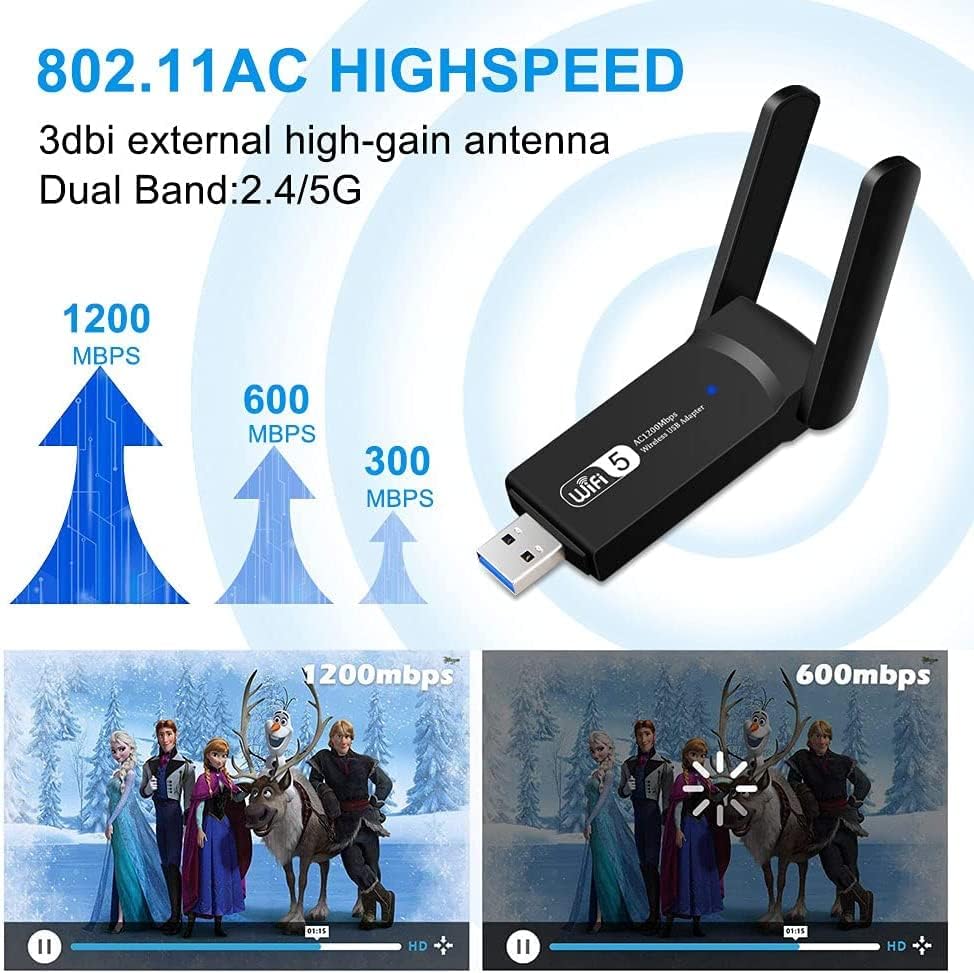
Figure 2: High-Speed Dual Band Capabilities

Figure 3: High Gain Dual Band Performance

Figure 4: USB 3.0 Connectivity

Figure 5: MU-MIMO Technology Explained
Product Video Overview
Video 1: An overview of the Aigital 1200Mbps Dual Band USB WiFi Adapter, demonstrating its features and ease of use for connecting to a computer.
4. Setup Guide
Follow these steps to set up your Aigital WiFi Adapter:
- Step 1: Install the Driver
For Windows 10 users, the adapter is typically plug-and-play and may not require driver installation. For other operating systems (Windows 7/8/XP/Vista, Mac OS X), you need to install the driver first. Insert the provided CD driver into your computer's CD-ROM drive and follow the on-screen instructions. If your computer does not have a CD-ROM drive, please download the latest driver from the official Aigital support website or contact customer support for a download link.
- Step 2: Connect the WiFi Adapter
Once the driver is installed (or if you are on Windows 10), plug the Aigital USB WiFi Adapter into an available USB 3.0 port on your desktop or laptop. For optimal performance, use a USB 3.0 port if available, though it is backward compatible with USB 2.0 ports.
- Step 3: Connect to a Wireless Network
After plugging in the adapter, your computer should detect it. Open your network settings (e.g., WiFi icon in the system tray on Windows, or Network Preferences on Mac), find your desired wireless network (SSID), and connect by entering the network password if required.

Figure 6: Installation Steps
5. Operating Modes
The Aigital WiFi Adapter supports two primary operating modes:
- Client/Station Mode (Signal Receiver):
In this mode, the adapter acts as a receiver, allowing your desktop computer or laptop to connect to an existing wireless network (router). This is the most common mode for users to access the internet wirelessly.
- AP Mode (Signal Transmitter - SoftAP Function):
The adapter can function as a wireless access point (hotspot) if your computer is connected to the internet via a wired connection. This allows other wireless devices (smartphones, tablets, other laptops) to connect to your computer's internet connection wirelessly. This feature typically requires specific software or operating system settings to enable.

Figure 7: Client/Station Mode and AP Mode
6. Maintenance
To ensure the longevity and optimal performance of your WiFi adapter, consider the following:
- Keep Clean: Periodically clean the adapter with a soft, dry cloth. Avoid using liquid cleaners.
- Proper Placement: Ensure the adapter is not obstructed and has adequate ventilation. The ventilation holes are designed for effective heat dissipation.
- Antenna Adjustment: Adjust the antennas for the best signal reception. Experiment with different angles to find the optimal position.
- Driver Updates: Regularly check the Aigital website for updated drivers to ensure compatibility and performance improvements.
- Safe Removal: When removing the adapter, especially from a laptop, ensure it is safely ejected through your operating system to prevent data corruption or hardware issues.

Figure 8: Heat Dissipation Design
7. Troubleshooting
If you encounter issues with your WiFi adapter, refer to the following common problems and solutions:
| Problem | Possible Cause | Solution |
|---|---|---|
| Adapter not detected / Not working | Driver not installed or corrupted; Loose USB connection; Incompatible USB port. | Ensure driver is correctly installed (reinstall if necessary). Try a different USB port (preferably USB 3.0). Restart your computer. |
| Slow connection speed | Interference; Distance from router; Connected to 2.4GHz band instead of 5GHz; Outdated router firmware. | Reduce distance to router. Ensure you are connected to the 5GHz band if your router supports it. Minimize interference from other electronic devices. Update router firmware. |
| Frequent disconnections | Weak signal; Driver issues; Power management settings. | Move closer to the router or adjust antenna position. Reinstall or update the driver. Check power management settings for the USB port and disable "Allow the computer to turn off this device to save power." |
| Cannot find 5GHz networks | Router not broadcasting 5GHz; Adapter driver issue; Router settings. | Verify your router supports and is broadcasting a 5GHz network. Ensure the adapter's driver is up-to-date. Check router settings to ensure 5GHz is enabled and has a unique SSID. |
If the problem persists, please contact Aigital customer support for further assistance.
8. Specifications
| Feature | Detail |
|---|---|
| Model Number | US4605A |
| Interface | USB 3.0 (backward compatible with USB 2.0) |
| Wireless Standard | IEEE 802.11ac / b / g / n |
| Frequency Range | 2.4GHz (300Mbps) or 5GHz (867Mbps) |
| Data Transfer Rate | Up to 1200Mbps (867Mbps on 5GHz, 300Mbps on 2.4GHz) |
| Antennas | 2 x 3dBi, 180° adjustable |
| Security Encryption | WEP / WPA2 / WPA / 802.1X / WMM |
| Compatible Operating Systems | Windows 10/8/7/XP/Vista, Mac OS X |
| Product Dimensions | 3.15 x 1.5 x 0.59 inches (6.5 x 4 x 1.5 cm) |
| Antenna Length | 2.36 inches (6 cm) |
| Item Weight | 0.705 ounces (20 Grams) |
9. Warranty and Support
Aigital provides comprehensive support for its products.
- Warranty Service: The product comes with a warranty. Please refer to the product packaging or the official Aigital website for specific warranty terms and conditions.
- Technical Support: For any technical issues, questions, or assistance with driver downloads, please contact Aigital's professional technical service team.
- Contact Information: Refer to the contact details provided on the product packaging or the official Aigital website for the most up-to-date support information.