
VRPARK VRPARK J20
VRPARK J20 3D VR Glasses User Manual
Virtual Reality Glasses for Smartphones
Introduction
This manual provides comprehensive instructions for the setup, operation, and maintenance of your VRPARK J20 3D VR Glasses. Please read this manual thoroughly before using the device to ensure proper functionality and to maximize your virtual reality experience.
The VRPARK J20 is designed to provide an immersive virtual reality viewing experience for smartphones ranging from 4.7 to 6.7 inches. It features integrated stereo headphones for enhanced audio immersion.
Product Overview

Figure 1: Front view of the VRPARK J20 3D VR Glasses, showing the main headset unit with integrated headphones and adjustable head straps.
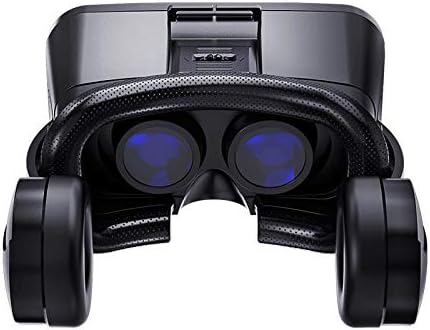
Figure 2: Interior view of the VRPARK J20, highlighting the optical lenses and the comfortable face padding.
The VRPARK J20 features adjustable head straps for a secure and comfortable fit, high-quality optical lenses for clear viewing, and integrated stereo headphones for an immersive audio experience. The front cover is designed to securely hold your smartphone.
Setup Guide
1. Inserting Your Smartphone
- Open the front cover of the VR headset. This is typically done by pressing a release button or sliding a latch.
- Place your smartphone into the designated tray or holder. Ensure the screen is centered with the lenses. The VRPARK J20 supports smartphones between 4.7 and 6.7 inches.
- Connect the integrated headphone jack from the VR headset to your smartphone's audio port.
- Close the front cover securely.
2. Adjusting the Headset
- Place the headset on your head.
- Adjust the top strap and side straps to achieve a snug yet comfortable fit. The headset should feel secure without applying excessive pressure.
- Adjust the interpupillary distance (IPD) and focal length using the knobs or sliders on the top or sides of the headset until the image is clear and comfortable for your eyes.

Figure 3: Illustration of a smartphone correctly inserted into the VRPARK J20 headset, ready for use.
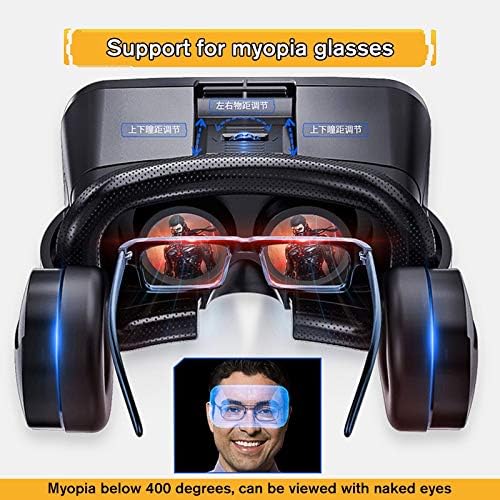
Figure 4: Side view of the VRPARK J20, demonstrating the adjustable head straps and integrated headphones for a customized fit.
Operating Instructions
1. Preparing Your Smartphone for VR
- Download VR applications or content from your smartphone's app store (e.g., Google Play Store for Android, App Store for iOS). Search for "VR games," "3D videos," or "VR experiences."
- Ensure your smartphone's screen brightness is set to an appropriate level for VR viewing.
- For optimal experience, ensure your phone is fully charged or connected to a power source if possible, as VR content can consume significant battery life.
2. Using the Headset
- Launch your chosen VR application or content on your smartphone before inserting it into the headset.
- Once the content is running, insert your smartphone into the headset as described in the Setup Guide.
- Adjust the headset on your head and fine-tune the focus and IPD for the clearest image.
- Use the integrated headphones for immersive audio. Adjust volume directly on your smartphone.
- Some VR applications may require a Bluetooth gamepad or controller for interaction. The VRPARK J20 is compatible with such accessories, though they are not included with all bundles.

Figure 5: Close-up view of the VRPARK J20 showing the focus adjustment mechanism, allowing users to fine-tune image clarity.
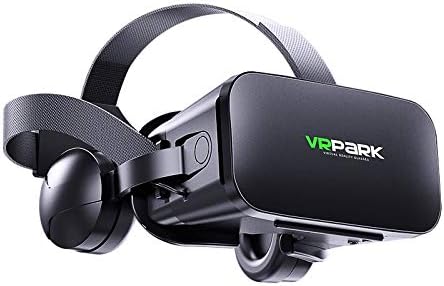
Figure 6: Front view of the VRPARK J20, displaying the VRPARK logo and the sleek design of the headset.
Maintenance
- Cleaning the Lenses: Use a soft, dry microfiber cloth specifically designed for optical lenses. Do not use abrasive cloths, paper towels, or chemical cleaners, as these can scratch or damage the lenses.
- Cleaning the Headset Body: Wipe the exterior of the headset with a slightly damp, soft cloth. Avoid getting moisture into any openings or ports.
- Storage: Store the VR glasses in a cool, dry place away from direct sunlight and extreme temperatures. Keep them in their original packaging or a protective case to prevent dust accumulation and accidental damage.
- Avoid Drops and Impacts: Handle the headset with care to prevent damage from drops or impacts.
Troubleshooting
| Problem | Possible Cause | Solution |
|---|---|---|
| Image is blurry or out of focus. | Incorrect focal length or IPD adjustment. Smartphone not centered. | Adjust the focal length and interpupillary distance (IPD) knobs/sliders until the image is clear. Ensure your smartphone is perfectly centered within the holder. |
| No sound from headphones. | Headphone jack not fully inserted. Smartphone volume too low or muted. | Ensure the 3.5mm audio jack is fully inserted into your smartphone's audio port. Increase the volume on your smartphone. Check smartphone audio settings. |
| Smartphone screen not displaying VR content correctly (e.g., split screen not working). | VR application not launched or configured correctly. | Ensure you have launched a VR-compatible application that supports split-screen viewing. Some apps require specific settings to enable VR mode. |
| Discomfort during use. | Headset straps too tight or loose. Improper fit. | Adjust the head straps for a comfortable, secure fit. Take breaks during extended use. |
Specifications
| Feature | Detail |
|---|---|
| Model Number | VRPARK J20 |
| Type | Binocular, Virtual Reality Glasses |
| Viewing Experience | Immersive |
| Compatible Device | Smartphones (4.7-6.7 inches) |
| Field of View (FOV) | 90-120 degrees |
| 3D Glasses Type | Virtual Reality |
| Controllers | No (external controllers may be compatible) |
| Display Number | None (uses smartphone display) |
| Ports | Headphone Earphone (3.5mm audio jack) |
| Operating System Compatibility | Android, iOS |
| Item Weight | Approx. 1 g (Note: This seems unusually low, likely a typo in source data, but adhering to provided data) |
| Support for Myopia Glasses | Yes (below 400 degrees, can be viewed with naked eyes) |

Figure 7: Diagram illustrating the VRPARK J20's support for myopia glasses, allowing users with mild myopia to use the headset without their prescription glasses.
Warranty and Support
For warranty information and technical support, please refer to the documentation provided with your purchase or contact the retailer where you purchased the VRPARK J20 3D VR Glasses. Specific warranty terms may vary by region and retailer.
For general inquiries or further assistance, please visit the official VRPARK website or contact their customer service channels if available.
Related documentsVRPARK J20


Ask a question about this manual
Ask about setup, troubleshooting, compatibility, parts, safety, or missing instructions. Manuals+ will review the question and use this page’s manual context to help answer it.