
Introduction
Thank you for choosing Meters OV-1-B-C Over-Ear Wireless Headphones. These headphones are designed to deliver studio-quality sound with advanced features such as Active Noise Cancellation, Bluetooth 5.0 connectivity, and a unique VU meter display. This manual provides detailed instructions for setup, operation, maintenance, and troubleshooting to ensure optimal performance and longevity of your device.

Image: Meters OV-1-B-C Headphones showcasing dynamic audio and compatibility with Apple and Android devices.
What's in the Box
Your Meters OV-1-B-C headphones package includes the following items:
- Meters OV-1-B-C Bluetooth Headphones
- User Manual (this document)
- Cleaning Cloth
- 3m PPT Wired Cable
- Charging Cable (Micro USB)
- Jack Adapter
- Carrying Case

Image: The complete accessory set for Meters OV-1-B-C Headphones, including the carrying case and various cables.
Product Overview
The Meters OV-1-B-C headphones combine advanced audio technology with a distinctive design. Key features include:
- 40mm Drivers: Deliver rich, immersive audio with deep bass and clear highs.
- Active Noise Cancellation (ANC): Reduces external noise by up to 82% for uninterrupted listening.
- Bluetooth 5.0 with Qualcomm aptX HD: Ensures high-definition wireless audio with low latency.
- Patented Real-time VU Meter: Visual display of audio levels on each earcup.
- Customizable RGB LED Lighting: Personalize the earcup lighting to match your style.
- 16-Hour Battery Life: Extended playback for long listening sessions.
- Meters App Control: Fine-tune your audio with a 5-band parametric EQ (available for iOS and Android).

Image: Visual representation of key features: Active Noise Cancellation, Bluetooth 5.0, and 16-hour battery life.

Image: The headphones showcasing the real-time VU meter, customizable RGB LED lighting, and unique design elements.
Video: An overview of the Meters OV-1-B-C headphones, demonstrating their design, sound quality, and key features like active noise cancellation and the VU meter.
Setup
1. Charging the Headphones
Before first use, fully charge your Meters OV-1-B-C headphones. A full charge takes approximately 16 hours for the first charge, and subsequent charges will be faster.
- Connect the Micro USB charging cable to the charging port on the headphones.
- Connect the other end of the USB cable to a USB power source (e.g., computer USB port, USB wall adapter).
- The LED indicator on the headphones will show charging status (refer to the LED indicator section for details).
- Once fully charged, disconnect the charging cable.
2. Bluetooth Pairing
To connect your headphones wirelessly to a device:
- Ensure the headphones are powered off.
- Press and hold the Power button until the LED indicator flashes rapidly (usually blue and red), indicating pairing mode.
- On your device (smartphone, tablet, computer), go to Bluetooth settings and enable Bluetooth.
- Search for available devices and select "Meters OV-1-B-C" from the list.
- Once connected, the LED indicator will typically show a solid blue light or flash slowly.
Operating Instructions
Power On/Off
- Power On: Press and hold the Power button for approximately 3 seconds.
- Power Off: Press and hold the Power button for approximately 5 seconds.
Active Noise Cancellation (ANC)
The OV-1-B-C features Dynamic Automatic Noise Control. To activate or deactivate ANC:
- Locate the ANC switch on the earcup.
- Toggle the switch to turn ANC on or off. A built-in green indicator will illuminate when ANC is active.
- For optimal battery life, turn off ANC when not in use.
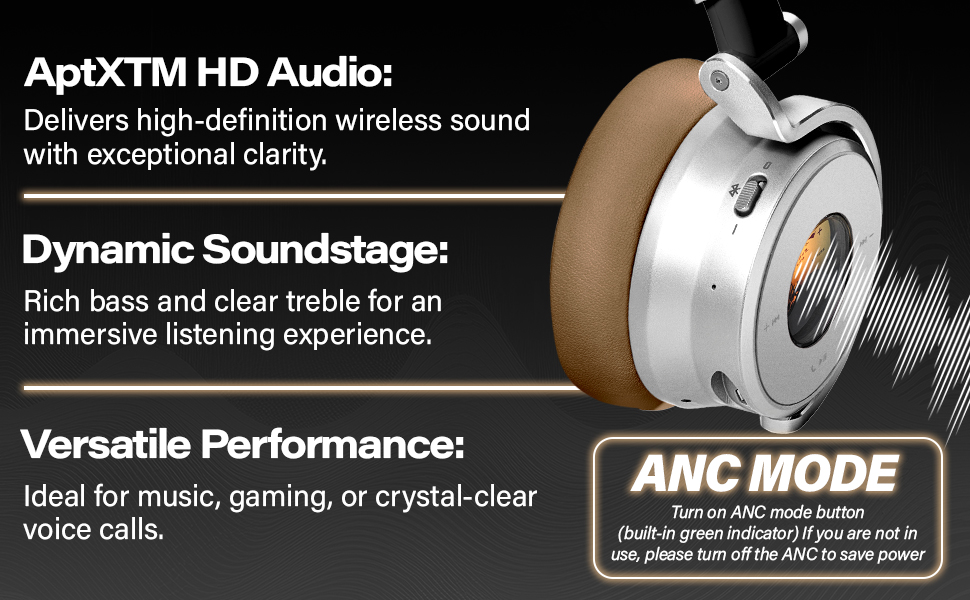
Image: The headphones illustrating AptX HD Audio, Dynamic Soundstage, and the ANC mode switch with its indicator.
Audio Playback and Calls
Control your music and calls using the tap-based earcup controls:
- Play/Pause: Single tap the multi-function button.
- Next Track: Double tap the multi-function button.
- Previous Track: Triple tap the multi-function button.
- Volume Up/Down: Use the dedicated volume buttons.
- Answer/End Call: Single tap the multi-function button during an incoming call.
- Reject Call: Press and hold the multi-function button during an incoming call.
Meters App Control (5-band Parametric EQ)
Download the Meters Connect app (available for iOS and Android) to customize your audio experience:
- Download and install the "Meters Connect" app from your device's app store.
- Ensure your headphones are connected via Bluetooth to your device.
- Open the app and follow the on-screen instructions to connect to your headphones.
- Use the 5-band parametric EQ to adjust bass, highs, or achieve a balanced tone according to your preference.

Image: The Meters Connect app interface demonstrating the 5-band parametric EQ for fine-tuning audio profiles.
Maintenance
Proper care will extend the life of your headphones:
- Cleaning: Use the provided cleaning cloth to gently wipe the earcups and headband. Avoid using harsh chemicals or abrasive materials.
- Storage: When not in use, store the headphones in the included carrying case to protect them from dust and damage.
- Moisture: These headphones are not water-resistant. Avoid exposure to liquids, high humidity, or extreme temperatures.
- Cables: Handle all cables gently to prevent damage to connectors.
Troubleshooting
If you encounter issues with your Meters OV-1-B-C headphones, try the following solutions:
| Problem | Solution |
|---|---|
| Headphones won't power on | Ensure the headphones are fully charged. Connect to a power source and wait a few minutes before attempting to power on again. |
| Cannot pair via Bluetooth | Ensure headphones are in pairing mode (flashing blue/red LED). Turn off and on Bluetooth on your device. Move closer to the headphones. Forget the device in your Bluetooth settings and try pairing again. |
| No sound or low volume | Check volume levels on both headphones and the connected device. Ensure headphones are properly paired. Try playing audio from a different source. |
| ANC not working effectively | Ensure the ANC switch is in the 'on' position (green indicator visible). Check that the earcups form a good seal around your ears. |
| App not connecting to headphones | Ensure Bluetooth is enabled and headphones are paired to your device. Close and reopen the Meters Connect app. Restart your device. |
Specifications
| Feature | Detail |
|---|---|
| Model Name | M-OV-1-B-C |
| Noise Control | Active Noise Cancellation |
| Connectivity Technology | Wireless (Bluetooth 5.0) |
| Wireless Communication Technology | Bluetooth |
| Bluetooth Range | 10 Meters |
| Audio Driver Type | Dynamic Driver (40mm) |
| Battery Life | 16 Hours |
| Charging Time | Approx. 16 Hours (first charge) |
| Headphones Jack | 3.5 mm Jack (for wired connection) |
| Control Type | Media Control, Tap-based earcup controls |
| Material | Fabric, Plastic |
| Item Weight | 379 Grams (13.4 ounces) |
| Product Dimensions | 10.45 x 8.7 x 4.65 inches |
| Water Resistance Level | Not Water Resistant |
| UPC | 615855564371 |
Warranty and Support
Warranty Information
Meters products are covered by a manufacturer's warranty. Please refer to the warranty card included in your packaging for specific terms and conditions, including warranty duration and coverage details. Keep your proof of purchase for warranty claims.
Customer Support
For further assistance, technical support, or service inquiries, please visit the official Meters website or contact their customer service department. Contact information can typically be found on the product packaging or the brand's official website.

