Introduction
This manual provides detailed instructions for the installation, operation, and maintenance of your Yasorn eMylo Smart WiFi RF Switch Wireless Relay Module. This device allows for remote control of various appliances (up to 10A) using a mobile application, RF remote, or voice commands via smart assistants. Please read this manual thoroughly before use to ensure proper functionality and safety.
Product Overview
The Yasorn eMylo Smart WiFi RF Switch is a versatile relay module designed for home automation. It integrates WiFi and RF capabilities, offering multiple control options for your connected devices.

Image: The eMylo Smart WiFi RF Switch module shown with two accompanying RF remote controls. The module has input and output terminals clearly marked.
Key Features:
- Smart WiFi & RF Control: Remotely control connected appliances via the "Smart Life" mobile app and RF transmitters.
- Wide Voltage Compatibility: Supports input voltage DC 5-36V, suitable for various low-voltage applications.
- Voice Control: Compatible with Amazon Alexa Echo and Google Assistant for hands-free operation.
- Timer & Schedule Functions: Set countdown, scheduled, or loop timers for automated device operation.
- Strong Signal & Stability: Designed for reliable signal transmission through walls and floors.
- Device Sharing: Share control of the device with family members through the app.

Image: A visual summary of the smart switch's capabilities, including APP Control, RF Control, Voice Control, Timing function, Stable Performance, and Multiple Protection.
Specifications
| Brand | Yasorn |
| Model | 5-36V |
| Connector Type | Wireless |
| Input Voltage | DC 5-36V |
| Current Rating | 10 Amps |
| Maximum Switching Current | 10 Amps |
| Wattage | 1000 watts |
| Mounting Type | Wall Mount |
| Operation Mode | Automatic |
| Material | Copper |
| Item Weight | 4.8 ounces |
| Package Dimensions | 6.2 x 1.8 x 1.4 inches |
Setup
1. Wiring Instructions
Ensure power is disconnected before wiring. Connect the module according to the diagram below. The module requires a DC 5-36V power source. The output connects to your load (e.g., light).

Image: Wiring diagram illustrating the connection of the DC 5-36V power source to the input side of the eMylo Smart Switch, and the output side connected to the electrical load.
- Connect the Live line from your DC 5-36V power source to the Input Live terminal on the module.
- Connect the Null line from your DC 5-36V power source to the Input Null terminal on the module.
- Connect the Live line of your load (e.g., light) to the Output Live terminal on the module.
- Connect the Null line of your load to the Output Null terminal on the module.
- Important: Ensure all connections are secure and insulated. Verify that your power source is DC, not AC.
2. App Download and Pairing
The eMylo Smart Switch uses the "Smart Life" or "Tuya" app for WiFi control. Ensure your mobile device is connected to a 2.4GHz Wi-Fi network.
- Download the App: Scan the QR code below or visit http://smartapp.tuya.com/smartlife to download the "Smart Life" app from your device's app store (iOS or Android).
- Register/Log In: Open the app and register a new account or log in with an existing one.
- Add Device: Power on the eMylo Smart Switch. In the app, tap "+" or "Add Device".
- Select Device Type: Choose the appropriate device category (e.g., "Electrical" -> "Switch (Wi-Fi)").
- Confirm Indicator Status: Follow the in-app instructions to put the device into pairing mode. The indicator light on the module should be blinking rapidly.
- Enter Wi-Fi Details: Enter your 2.4GHz Wi-Fi network name and password.
- Pairing: The app will search for and connect to the device. Once connected, you can rename the device.

Image: A smartphone screen showing the "Smart Life" app, with a QR code and icons indicating availability for iOS and Android platforms. The eMylo module is visible in the foreground.
3. RF Remote Pairing
The RF remote controls are typically pre-calibrated. If re-pairing is needed, refer to the specific instructions provided with your RF remote or contact support.

Image: A hand operating an RF remote control, demonstrating its use to control a light fixture. The eMylo Smart Switch module is positioned in the lower right corner.
Operating Instructions
1. App Control
Once paired, you can control your device from anywhere using the "Smart Life" app, provided your phone has an internet connection.

Image: A smartphone screen showing the "Smart Life" app interface, used to remotely control home lighting. A modern house exterior is depicted in the background, emphasizing remote access.
- Open the "Smart Life" app.
- Select your eMylo Smart Switch from the device list.
- Tap the power icon to turn the connected appliance ON or OFF.
- Access additional features like timers and schedules within the device interface.
2. RF Remote Control
Use the provided RF remote control to switch the connected appliance ON or OFF within the effective range.
- Press the power button on the RF remote to toggle the appliance's power state.
3. Voice Control (Alexa/Google Assistant)
Integrate your eMylo Smart Switch with Amazon Alexa or Google Assistant for voice-activated control.
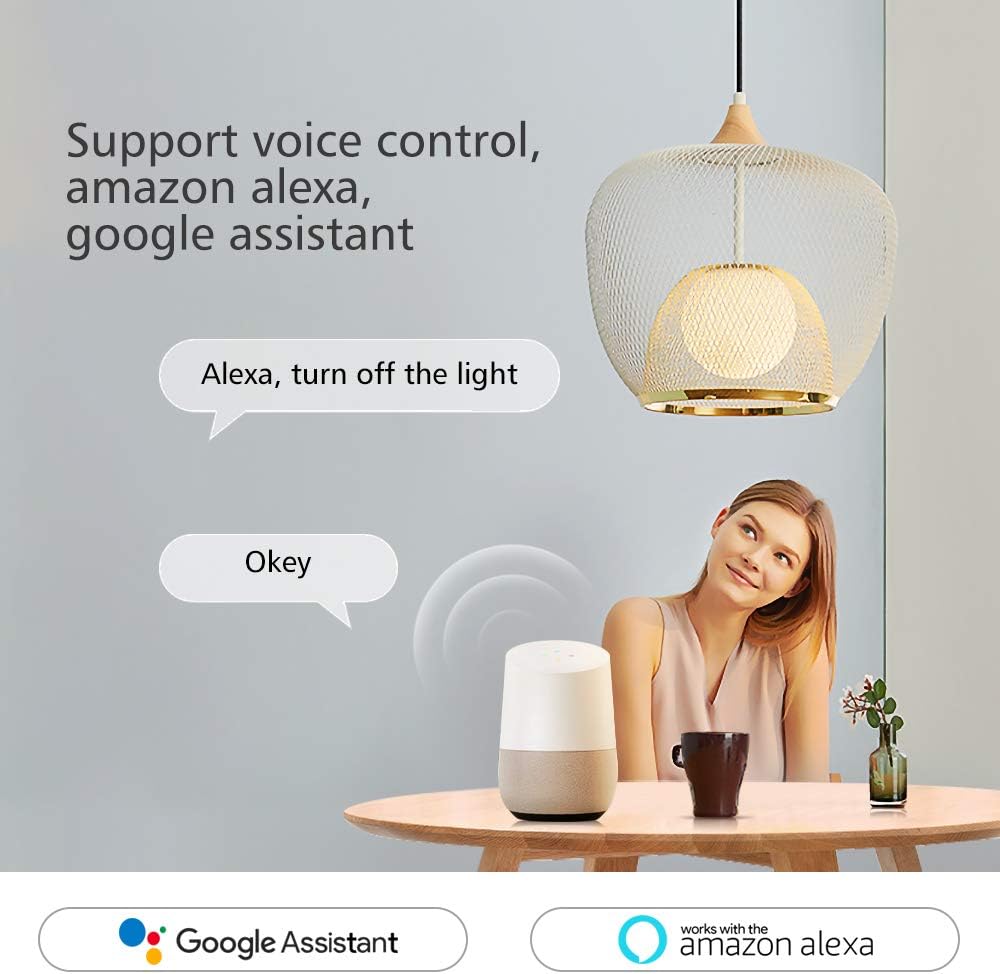
Image: A woman using voice commands with a smart speaker to control a light. Speech bubbles illustrate the interaction: "Alexa, turn off the light" and the response "Okay."
- Link Account: In your Alexa or Google Home app, enable the "Smart Life" skill/action and link your Smart Life account.
- Discover Devices: Ask your smart assistant to discover new devices.
- Voice Commands: Use commands such as:
- "Alexa, turn on [Device Name]"
- "Hey Google, turn off [Device Name]"
4. Timer Schedules
Automate your appliances by setting schedules and timers within the "Smart Life" app.

Image: A composite image demonstrating timer schedules. One panel shows a smartphone app with scheduled times (e.g., 22:30 turn off, 07:00 turn on). Other panels show a person sleeping and waking up, correlating with the lamp's scheduled operation.
- In the app, navigate to your device and select the "Timer" or "Schedule" option.
- Set specific times for the device to turn ON or OFF.
- Configure countdown timers for temporary automation.
- Utilize loop timers for repetitive actions.
5. Device Sharing
Share control of your smart switch with family members through the "Smart Life" app.

Image: Two individuals sharing a moment while looking at a smartphone, symbolizing the "One Button Share" feature for smart home device control among family members.
- In the app, go to the device settings and find the "Share Device" option.
- Enter the account details of the family member you wish to share control with.
Maintenance
To ensure the longevity and optimal performance of your eMylo Smart WiFi RF Switch, follow these general maintenance guidelines:
- Cleaning: Wipe the device with a soft, dry cloth. Do not use liquid cleaners or solvents.
- Environment: Keep the device away from excessive moisture, heat, and direct sunlight.
- Firmware Updates: Periodically check the "Smart Life" app for any available firmware updates for your device to ensure the latest features and security patches.
- Power Cycle: If the device becomes unresponsive, temporarily disconnect and reconnect its power supply.
Troubleshooting
| Problem | Possible Cause | Solution |
|---|---|---|
| Device not powering on. | Incorrect wiring; no power supply; incorrect voltage (AC instead of DC). | Verify wiring according to the diagram. Ensure the power source is DC 5-36V and connected correctly. Check power supply. |
| Unable to pair with app. | Incorrect Wi-Fi frequency (not 2.4GHz); incorrect Wi-Fi password; device not in pairing mode; weak Wi-Fi signal. | Ensure your phone and device are on a 2.4GHz Wi-Fi network. Double-check Wi-Fi password. Reset the device to enter pairing mode (refer to app instructions for reset procedure). Move closer to the Wi-Fi router. |
| RF remote not working. | Remote battery low/dead; remote not paired; out of range. | Replace remote battery. Re-pair the remote if necessary (refer to remote instructions). Ensure you are within the effective range of the module. |
| Voice control not responding. | "Smart Life" skill/action not enabled; device not discovered; incorrect device name. | Ensure the "Smart Life" skill/action is enabled in your Alexa/Google Home app. Ask your assistant to discover devices. Use the exact device name configured in the Smart Life app. |
| Device disconnects frequently. | Weak Wi-Fi signal; network interference. | Ensure the device is within good Wi-Fi range. Minimize interference from other 2.4GHz devices. Consider a Wi-Fi extender if necessary. |
Warranty and Support
For warranty information and technical support, please refer to the documentation included with your purchase or contact Yasorn customer service through their official channels. Keep your purchase receipt for warranty claims.


