
1. Introduction
Thank you for choosing the Master MA-8.1K Portable Amplified Bluetooth Speaker. This manual provides essential information for the safe and efficient operation of your device. Please read it thoroughly before use and retain it for future reference.
The Master MA-8.1K is designed to deliver powerful and clear audio, featuring versatile connectivity options including Bluetooth, USB, Micro SD, and auxiliary input. It also includes a microphone for karaoke or public address functions and TWS (True Wireless Stereo) technology for pairing with another compatible speaker.
2. Product Overview
2.1 Package Contents
Upon unboxing, ensure all items are present:
- Master MA-8.1K Portable Amplified Bluetooth Speaker
- Wired Microphone
- Remote Control
- Charging Adapter
- Auxiliary Cable

Figure 2.1: Master MA-8.1K speaker and included accessories.
2.2 Rear Panel Controls and Ports
Familiarize yourself with the controls and connection ports located on the rear panel of the speaker.

Figure 2.2: Detailed view of the rear control panel.
- Micro SD Slot: For playing audio files from a Micro SD card.
- USB Port: For playing audio files from a USB flash drive.
- Volume Knob: Adjusts the main speaker volume.
- Treble Knob: Adjusts the high-frequency audio output.
- Bass Knob: Adjusts the low-frequency audio output.
- Auxiliary Input (AUX IN): 3.5mm jack for connecting external audio devices.
- Microphone Input (MIC IN): 6.35mm jack for connecting the wired microphone.
- Microphone Volume Knob: Adjusts the microphone volume.
- Power Switch: Turns the speaker on or off.
- LED Light Switch: Controls the integrated LED lighting.
- Mode Button: Cycles through input modes (Bluetooth, USB, Micro SD, AUX).
- TWS Mode Button: Initiates True Wireless Stereo pairing.
- Record/Play Button: For recording microphone input or playing back recordings.
- Mic Priority Button: Lowers music volume when microphone is in use.

Figure 2.3: Key features highlighted on the rear panel.
3. Setup
3.1 Charging the Speaker
The speaker is equipped with a rechargeable battery. Before first use, fully charge the speaker for optimal performance.
- Connect the charging adapter to the DC 5V input port on the rear panel.
- Plug the adapter into a standard electrical outlet.
- The charging indicator light will illuminate. Once fully charged, the light may change color or turn off, depending on the model.
- A full charge provides approximately 5 hours of continuous music playback.
3.2 Powering On/Off
Locate the Power Switch on the rear panel.
- To turn on: Flip the Power Switch to the 'ON' position. The display will light up.
- To turn off: Flip the Power Switch to the 'OFF' position.
4. Operating Instructions
4.1 Bluetooth Connection
Connect your smartphone, tablet, or other Bluetooth-enabled device wirelessly.
- Turn on the speaker. It will automatically enter Bluetooth pairing mode, indicated by a flashing 'BLUE' on the display and an audible prompt.
- On your device, enable Bluetooth and search for available devices.
- Select 'MA-8.1K' from the list of devices.
- Once connected, the speaker will emit an audible confirmation, and the 'BLUE' indicator will stop flashing.
- You can now play audio from your device through the speaker.
4.2 TWS (True Wireless Stereo) Pairing
Pair two Master MA-8.1K speakers for a stereo sound experience.
- Ensure both MA-8.1K speakers are turned on and in Bluetooth mode, but not yet connected to any device.
- On one of the speakers (this will be the primary speaker), press and hold the 'TWS' button. The speaker will emit a pairing tone.
- The primary speaker will search for the secondary speaker. Once connected, both speakers will emit a confirmation tone.
- Now, connect your Bluetooth device to the primary speaker as described in Section 4.1. Audio will play in stereo through both speakers.
4.3 USB and Micro SD Playback
Play audio files directly from a USB flash drive or Micro SD card.
- Insert a USB flash drive into the USB port or a Micro SD card into the Micro SD slot on the rear panel.
- The speaker will automatically switch to USB or Micro SD mode and begin playing audio files. If it does not, press the 'Mode' button until the correct mode is selected.
- Use the playback controls (Play/Pause, Next/Previous Track) on the speaker or remote control to manage your music.
4.4 Auxiliary Input (AUX IN)
Connect external audio devices using the 3.5mm auxiliary cable.
- Connect one end of the 3.5mm auxiliary cable to the AUX IN port on the speaker.
- Connect the other end of the cable to the headphone jack or audio output of your external device.
- Press the 'Mode' button on the speaker until 'AUX' mode is selected.
- Play audio from your external device. Adjust volume on both the speaker and your device.
4.5 Microphone Usage
Use the included wired microphone for karaoke or public address.
- Plug the wired microphone into the MIC IN port on the rear panel.
- Adjust the 'Microphone Volume' knob to your desired level.
- To prioritize microphone audio over music, press the 'Mic Priority' button. This will temporarily lower the music volume when you speak into the microphone.

Figure 4.1: Wired microphone and remote control.
4.6 Remote Control Functions
The remote control provides convenient access to various speaker functions.
- Power: Turns the speaker on/off.
- Mode: Switches between input sources (Bluetooth, USB, Micro SD, AUX).
- Volume +/-: Adjusts the main volume.
- Play/Pause: Starts or pauses playback.
- Previous/Next: Skips to the previous or next track.
- EQ: Cycles through equalizer presets (if available).
- Mute: Mutes the audio output.
- Number Buttons: For direct track selection in USB/Micro SD mode.
4.7 LED Lighting
The speaker features integrated LED lights.
- Use the 'LED Light Switch' on the rear panel to turn the lights on or off.
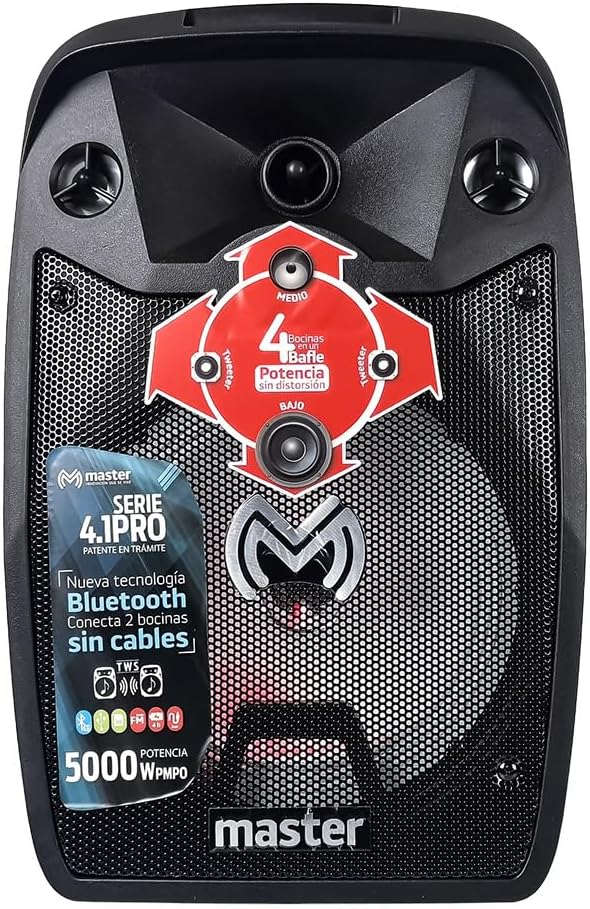
Figure 4.2: Front view with LED lighting.
5. Maintenance
Proper care ensures the longevity of your Master MA-8.1K speaker.
- Cleaning: Use a soft, dry cloth to clean the exterior of the speaker. Do not use abrasive cleaners or solvents.
- Storage: Store the speaker in a cool, dry place away from direct sunlight and extreme temperatures.
- Battery Care: If storing for extended periods, charge the battery every 3-6 months to maintain its health.
- Water Exposure: This speaker is not waterproof. Avoid exposure to water or excessive moisture.
6. Troubleshooting
Refer to this section for common issues and their solutions.
| Problem | Possible Cause | Solution |
|---|---|---|
| No power | Battery is depleted; Power switch is off. | Charge the speaker; Ensure the Power switch is in the 'ON' position. |
| No sound | Volume is too low; Incorrect input mode; Device not connected properly. | Increase speaker and device volume; Press 'Mode' button to select correct input; Reconnect device. |
| Bluetooth not connecting | Speaker not in pairing mode; Device Bluetooth off; Too far from speaker. | Ensure speaker is in Bluetooth mode (flashing 'BLUE'); Turn on device Bluetooth; Move device closer to speaker (within 10 meters). |
| Microphone not working | Microphone not plugged in; Microphone volume too low. | Ensure microphone is securely plugged into MIC IN; Adjust 'Microphone Volume' knob. |
| TWS pairing failed | Speakers not in Bluetooth mode; Already connected to a device. | Ensure both speakers are in Bluetooth mode and not connected to any device before initiating TWS pairing. |
7. Specifications
Detailed technical specifications for the Master MA-8.1K speaker.

Figure 7.1: Speaker dimensions.
| Feature | Specification |
|---|---|
| Model Number | MA-8.1K |
| Brand | Master |
| Output Wattage | 5000 Watts (PMPO) |
| Connectivity Technology | Bluetooth, USB, Micro SD, Auxiliary (3.5mm) |
| Power Source | Battery |
| Battery Life (Average) | 5 Hours |
| Special Features | Bluetooth, TWS (True Wireless Stereo), Microphone Input, Remote Control, LED Lights |
| Recommended Use | Music Players |
| Product Dimensions (L x W x H) | 28.5 x 27 x 46.5 cm |
| Product Weight | 5.5 kg |
| Compatible Devices | MP3 Player, Smartphones, Tablets |
| Mounting Type | Floor Mount |
8. Warranty and Support
For warranty information and customer support, please refer to the documentation included with your purchase or contact the retailer where the product was acquired. Keep your proof of purchase for any warranty claims.


