
TENMOS M16
TENMOS Wireless Bluetooth Mouse User Manual
Model: M16
Introduction
The TENMOS Wireless Bluetooth Mouse (Model M16) is a versatile and efficient input device designed for seamless connectivity across multiple platforms. Featuring dual-mode connectivity (Bluetooth 5.1/5.0 and 2.4GHz USB), silent click functionality, adjustable DPI settings, and colorful LED lighting, this rechargeable mouse offers a comfortable and productive user experience. It is compatible with Windows, Mac OS, iPadOS 13 and above, and Android 5.0 or above systems.
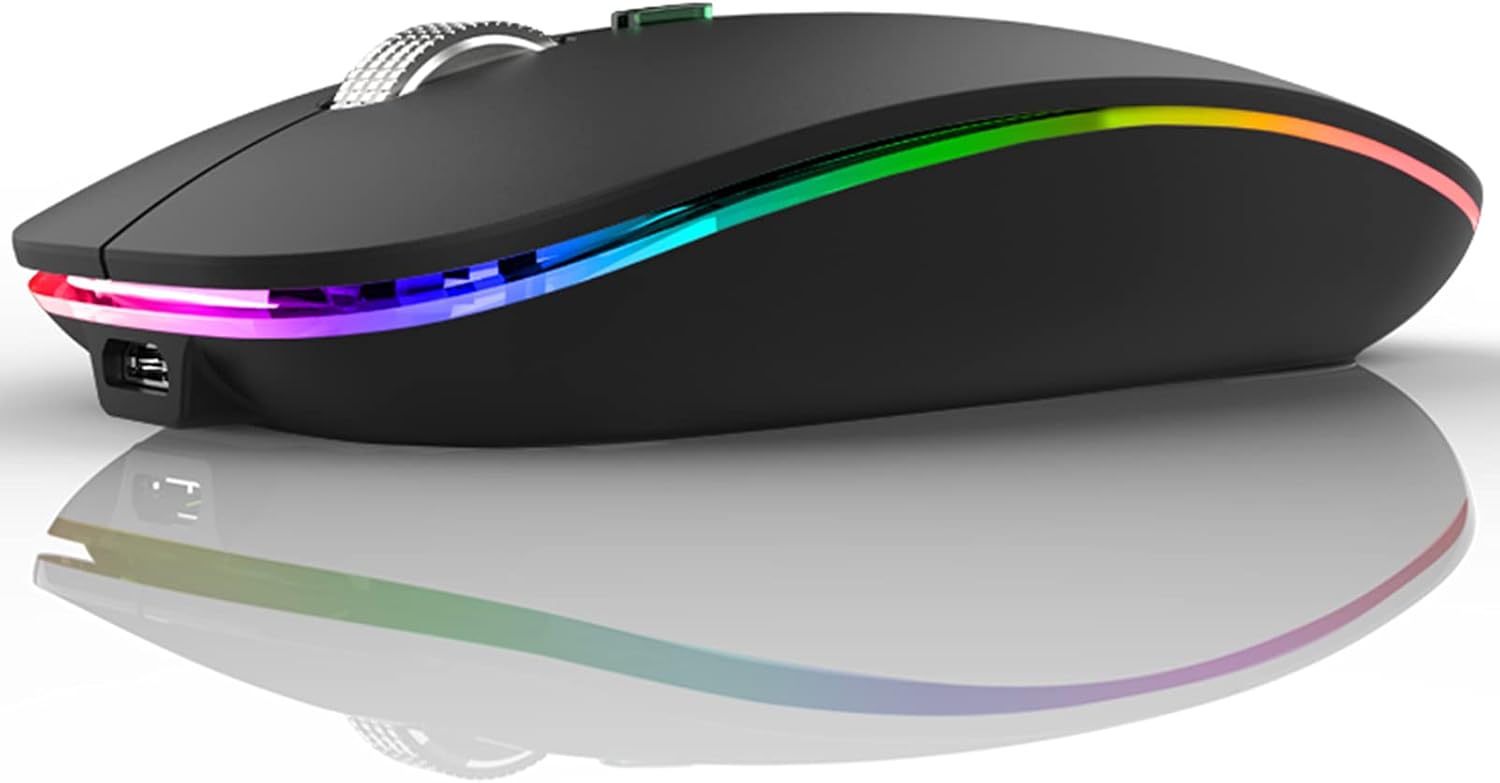
Figure 1: TENMOS Wireless Bluetooth Mouse (Matte Black)
What's in the Box
Upon opening the package, ensure all the following items are present:
- LED Bluetooth Mouse
- USB Receiver
- Type C Adapter
- Type-C Charging Cable
- User Manual
Setup
1. Charging the Mouse
The mouse features a built-in rechargeable battery. Before initial use, or when the battery indicator shows low power, connect the mouse to a power source using the provided Type-C charging cable. A full charge typically takes about two hours. The mouse can be used while charging.

Figure 2: Type-C Charging Port
2. Connectivity Options (Dual Mode)
The TENMOS mouse supports two connection modes: 2.4GHz Wireless (via USB receiver) and Bluetooth (BT1/BT2). A mode switch is located on the bottom of the mouse to select your preferred connection.

Figure 3: Mouse Bottom with Mode Switch and USB Receiver
2.1. 2.4GHz Wireless Connection
- Take out the USB receiver from the slot at the bottom of the mouse.
- If your device has a standard USB-A port, plug the USB receiver directly into it.
- If your device has a Type-C port, attach the provided Type-C adapter to the USB receiver, then plug the adapter into your device's Type-C port.
- Slide the mode switch on the bottom of the mouse to the "2.4G" position. The mouse should automatically connect.
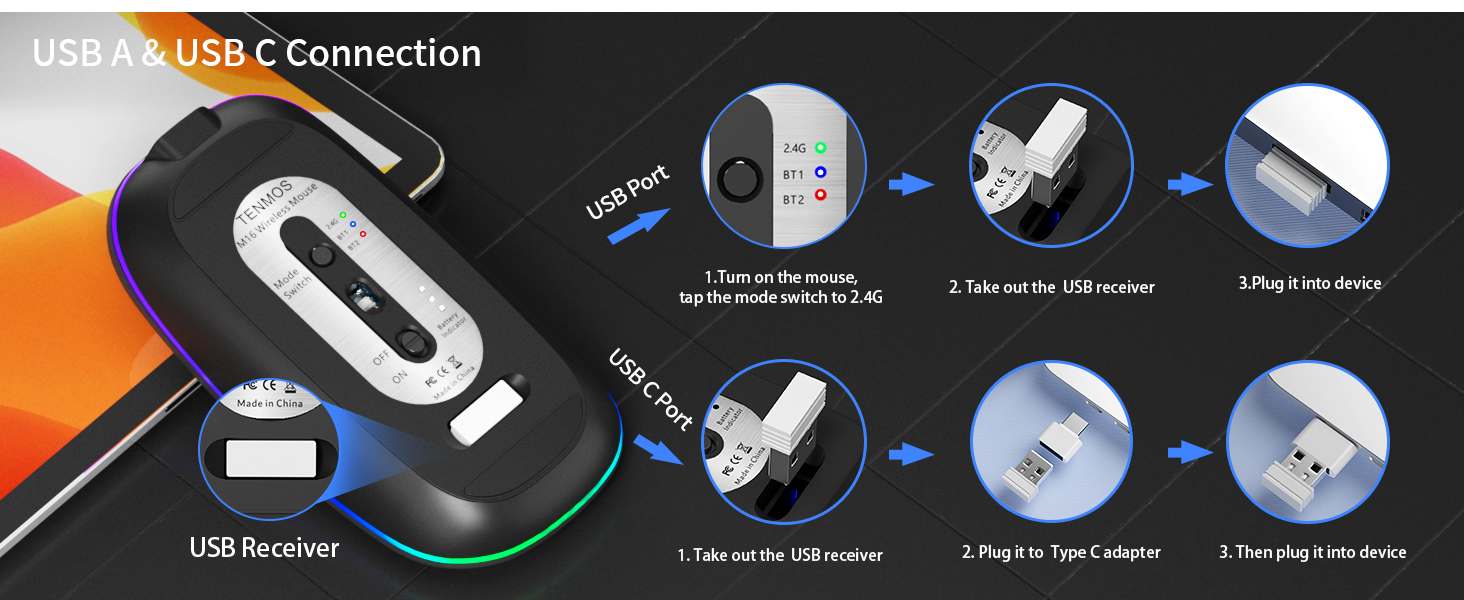
Figure 4: USB-A and USB-C Connection Steps
2.2. Bluetooth Connection (BT1 / BT2)
The mouse can connect to two different devices via Bluetooth. Use the mode switch to select between BT1 and BT2.
- Slide the mode switch on the bottom of the mouse to either "BT1" or "BT2" position.
- On your device (e.g., laptop, tablet, smartphone), go to Bluetooth settings.
- Search for "Bluetooth Mouse" in the list of available devices and click to pair.
- For iPad/iPhone (iOS 13 and above) usage, ensure "Assistive Touch" is enabled: Go to Settings > Accessibility > Touch > Assistive Touch.

Figure 5: Multi-Device Connectivity
Operating Instructions
1. DPI Adjustment
The mouse offers adjustable DPI (Dots Per Inch) levels to control cursor sensitivity. You can switch between 800, 1200, and 1600 DPI to suit different tasks, from precise graphic design to fast-paced browsing. Press the DPI button (usually located near the scroll wheel) to cycle through the settings.

Figure 6: DPI Settings
2. Silent Click Feature
The mouse is designed with silent click buttons, significantly reducing noise during use. This feature is ideal for quiet environments such as libraries, offices, or late-night work sessions, ensuring you do not disturb others.

Figure 7: Silent Click Operation
3. Colorful LED Lights
The mouse features dynamic LED lights that cycle through 7 different colors randomly. These lights provide a soothing visual effect and create an engaging atmosphere for both work and gaming. The lights are integrated into the mouse's design, enhancing its aesthetic appeal.

Figure 8: Colorful LED Lighting
4. Power Saving Mode
To conserve battery life, the mouse will automatically enter a sleep mode after 10 minutes of inactivity. To wake the mouse, simply click any button. This feature ensures long-term usage between charges.
Maintenance
- Keep the mouse clean by wiping it with a soft, dry cloth. Avoid using harsh chemicals or abrasive materials.
- Store the mouse in a cool, dry place away from direct sunlight and extreme temperatures.
- Avoid dropping the mouse or subjecting it to strong impacts, as this may damage internal components.
- Do not overcharge the mouse; disconnect the charging cable once the battery is full to prolong its lifespan.
Troubleshooting
| Problem | Possible Cause | Solution |
|---|---|---|
| Mouse not responding | Low battery; Incorrect mode selected; USB receiver not properly connected (for 2.4GHz); Bluetooth not paired (for Bluetooth mode). | Charge the mouse; Ensure the mode switch is set correctly (2.4G, BT1, or BT2); Re-insert the USB receiver; Re-pair the mouse via Bluetooth. |
| Cursor movement is erratic or slow | Low DPI setting; Dirty optical sensor; Uneven surface. | Adjust DPI to a higher setting; Clean the optical sensor with a soft cloth; Use the mouse on a smooth, flat surface or a mouse pad. |
| LED lights not working | Feature may be disabled (if applicable); Mouse is in sleep mode; Battery is critically low. | Check user manual for LED control (if any); Click any button to wake the mouse; Charge the mouse. |
| Difficulty pairing via Bluetooth on iPad | Assistive Touch is not enabled. | Go to Settings > Accessibility > Touch > Assistive Touch and enable it. |
Specifications
| Feature | Detail |
|---|---|
| Model | M16 |
| Connectivity Technology | Bluetooth 5.1/5.0, 2.4GHz USB |
| DPI Levels | 800, 1200, 1600 |
| Special Features | Wireless, Portable, Rechargeable, Silent Click, LED Lights |
| Power Source | Rechargeable Battery (included) |
| Product Dimensions | 4.4 x 2.2 x 0.8 inches |
| Item Weight | 4.2 ounces |
| Compatibility | Windows 8/10, iPad/iPhone iOS 13+, Mac OS 10.10+, Android 5.0+ |
Warranty and Support
For warranty information, technical support, or further inquiries, please refer to the official TENMOS website or the warranty card included in your product packaging. You may also visit the TENMOS Store on Amazon for additional resources.
Ask a question about this manual
Ask about setup, troubleshooting, compatibility, parts, safety, or missing instructions. Manuals+ will review the question and use this page’s manual context to help answer it.