
Introduction
Thank you for choosing the TENMOS M16 Wireless Bluetooth Mouse. This manual provides detailed instructions to help you set up, operate, and maintain your mouse for optimal performance. This mouse features triple-mode connectivity (Bluetooth 5.1/5.0 + 2.4GHz), silent clicks, adjustable DPI, and colorful LED lighting.
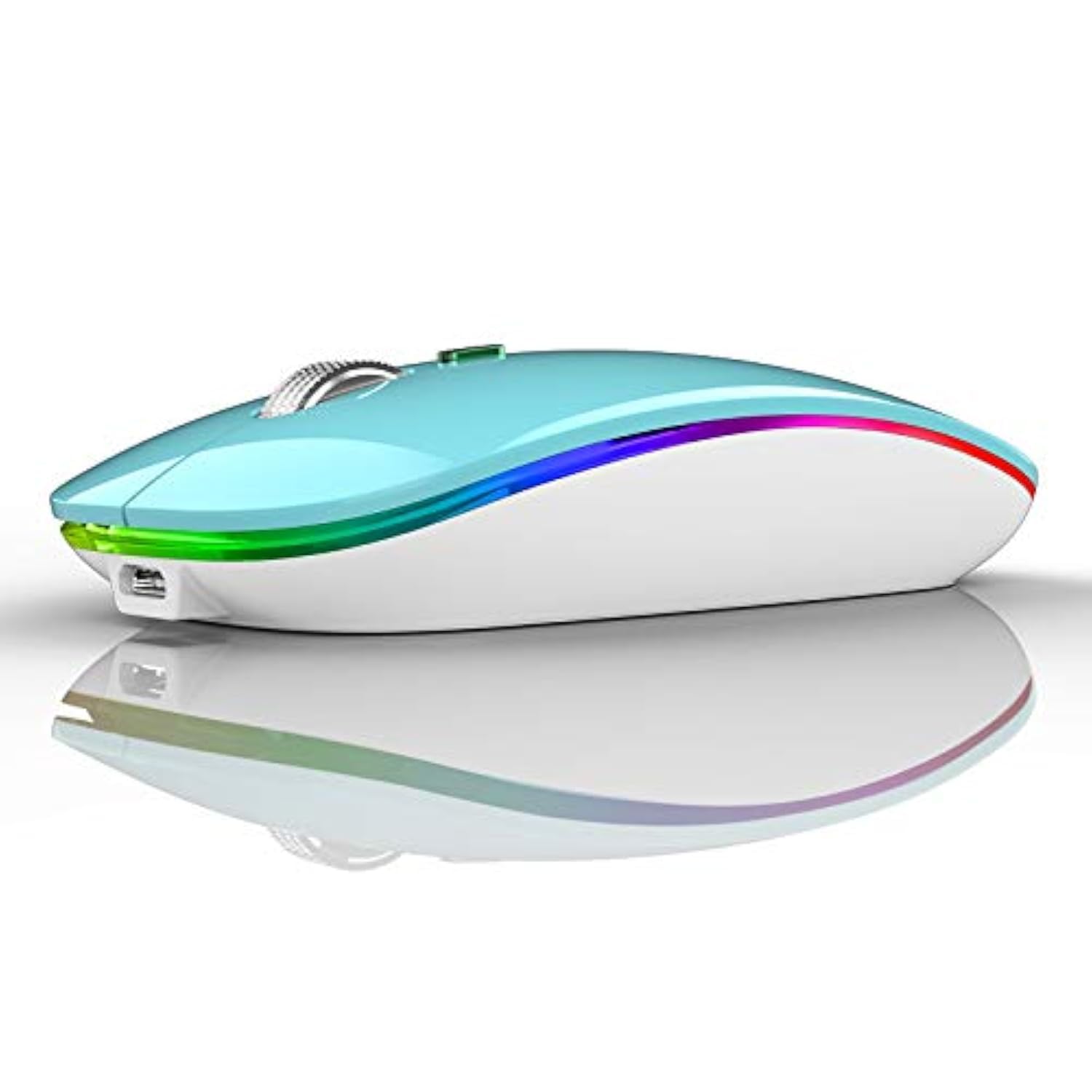
Image: The TENMOS M16 Wireless Bluetooth Mouse in blue, showcasing its sleek design and colorful LED lighting.
What's in the Box
- LED Bluetooth Mouse
- USB Receiver
- Type C Adapter
- Type-C Charging Cable
- User Manual
Setup Instructions
1. Charging the Mouse
Before first use, ensure the mouse is fully charged. Connect the provided Type-C charging cable to the mouse and a USB power source. A full charge typically takes 2-3 hours. The mouse can enter sleep mode after 10 minutes of inactivity to conserve power.

Image: The TENMOS M16 mouse connected via its Type-C charging cable, illustrating the charging process and indicating charging times.
Video: Important charging instruction from TENMOS, advising against using fast chargers and recommending computer USB ports for charging.
2. Connecting via 2.4GHz USB Receiver
- Turn on the mouse using the switch on the bottom.
- Tap the mode switch button on the bottom of the mouse to select the 2.4G mode (indicated by a green light).
- Take out the USB receiver from the mouse's bottom compartment.
- Plug the USB receiver into an available USB-A port on your computer. If your computer only has USB-C ports, use the provided Type-C adapter: plug the USB receiver into the adapter first, then plug the adapter into your device.
- The mouse should connect automatically.

Image: A visual guide demonstrating the connection process for both USB-A and USB-C ports using the included receiver and adapter.
3. Connecting via Bluetooth (BT1/BT2)
The mouse supports two Bluetooth connections (BT1 and BT2), allowing you to switch between two Bluetooth-enabled devices.
- Turn on the mouse using the switch on the bottom.
- Tap the mode switch button on the bottom of the mouse to select either BT1 (blue light) or BT2 (red light).
- Press and hold the mode switch button for 3-5 seconds until the corresponding indicator light (blue for BT1, red for BT2) starts flashing rapidly. This indicates the mouse is in pairing mode.
- On your device (laptop, tablet, smartphone), go to Bluetooth settings and search for new devices.
- Select "BT5.1 Mouse" or "BT5.0 Mouse" from the list of available devices to pair.
- Once paired, the indicator light will stop flashing and remain solid for a few seconds before turning off.
4. iPad Specific Setup
For iPad usage, you must enable "Assistive Touch" in your iPad settings:
- Go to Settings > Accessibility > Touch > Assistive Touch.
- Turn Assistive Touch ON.

Image: The TENMOS M16 mouse positioned next to an iPad, demonstrating its compatibility with tablet devices.
Operating Instructions
1. Switching Between Devices
The mouse can be connected to up to three devices simultaneously (one via 2.4GHz USB receiver, two via Bluetooth). To switch between connected devices, simply tap the mode switch button on the bottom of the mouse. The corresponding indicator light will briefly illuminate to show the active connection mode.

Image: An illustration demonstrating the mouse's ability to connect and switch between three different devices (laptop, tablet, smartphone) using 2.4G and two Bluetooth channels.
2. DPI Adjustment
The mouse features adjustable DPI (Dots Per Inch) settings to control cursor sensitivity. Press the DPI button (located on the top of the mouse, usually behind the scroll wheel) to cycle through the available DPI levels: 800, 1200, and 1600. Choose the sensitivity that best suits your needs.

Image: A detailed view of the mouse, highlighting the DPI settings (800, 1200, 1600) and the location of the mode switch and battery indicator on the underside.
3. Silent Click Feature
The mouse is designed with silent click buttons, providing a quiet working environment without disturbing others.

Image: An illustration emphasizing the quiet clicking feature of the TENMOS M16 mouse, ideal for environments where silence is preferred.
4. LED Lighting
The mouse features colorful LED lights that change randomly during use, creating a visually appealing atmosphere. These lights are integrated into the design for aesthetic enhancement.

Image: The TENMOS M16 mouse displaying its colorful LED lighting, enhancing the user's workspace.
Maintenance
- Cleaning: Use a soft, dry cloth to clean the mouse. Avoid using harsh chemicals or abrasive materials.
- Storage: Store the mouse in a cool, dry place when not in use.
- Battery Care: To prolong battery life, avoid fully discharging the mouse frequently. Charge it when the battery indicator is low.
- USB Receiver: Keep the USB receiver stored in its designated compartment at the bottom of the mouse when traveling to prevent loss.
Troubleshooting
Mouse Not Responding:
- Ensure the mouse is turned ON.
- Check the battery level and charge if necessary.
- For 2.4GHz connection: Ensure the USB receiver is securely plugged into the computer and the mouse is in 2.4G mode. Try a different USB port.
- For Bluetooth connection: Ensure the mouse is in the correct BT1 or BT2 mode and successfully paired with your device. Re-pair if necessary.
- Restart your computer or device.
Cursor Movement is Erratic:
- Clean the optical sensor on the bottom of the mouse.
- Ensure you are using the mouse on a suitable surface (non-reflective, opaque).
- Adjust the DPI setting to a lower sensitivity if the cursor is too fast.
Bluetooth Pairing Fails:
- Make sure the mouse is in pairing mode (indicator light flashing rapidly).
- Ensure your device's Bluetooth is enabled and discoverable.
- Remove any previous pairings of the mouse from your device's Bluetooth list and try pairing again.
- Ensure the mouse is not too far from the device.
Specifications
| Brand | TENMOS |
| Model Name | M16 |
| Connectivity Technology | Bluetooth (BT 5.1/5.0), 2.4GHz USB |
| Movement Detection Technology | Optical |
| DPI Levels | 800, 1200, 1600 |
| Special Features | LED Lights, Portable, Rechargeable, Silent Click, Wireless |
| Compatible Devices | Personal Computer, Smartphone, Tablet |
| Operating System | Mac OS, Windows 10, iPadOS, ChromeOS, Linux |
| Power Source | Battery Powered (1 product specific battery included) |
| Item Weight | 68 g |
| Dimensions (L x W) | 4.4" x 2.3" |
| Color | Blue |
Warranty and Support
TENMOS products are designed for reliability and performance. For specific warranty information, please refer to the warranty card included with your product or visit the official TENMOS website. If you encounter any issues or have questions regarding your TENMOS M16 Wireless Bluetooth Mouse, please contact TENMOS customer support through the following channels:
- Online Support: Visit the TENMOS Store on Amazon for FAQs and contact options.
- Email Support: Refer to your product packaging or the TENMOS website for the customer service email address.
Please have your model number (M16) and purchase details ready when contacting support.