
Introduction
This manual provides essential information for setting up, operating, and maintaining your LG 55NANO81ANA 55-inch Nano 8 Series Class 4K Smart UHD NanoCell TV with AI ThinQ (2020). Please read these instructions thoroughly before using your television to ensure proper and safe operation.
Setup
Unboxing and Initial Preparation
Carefully remove the TV and all components from the packaging. It is recommended to have at least two people for handling the television due to its size and weight. Place the TV face down on a soft, clean surface to prevent scratches during stand installation.

Image: The LG 55NANO81ANA TV with its dimensions and a list of included accessories such as the user manual, power cable, and LG Magic Remote.
The packaging includes the 55" TV with stand, user manual, power cable, and LG Magic Remote. Review the included quick start guide for specific unboxing instructions.
Video: This video demonstrates the unboxing process and initial setup steps for an LG NanoCell TV, including how to safely remove the TV from its packaging.
Stand Installation
Attach the included stand to the television using the provided screws. Ensure the stand is securely fastened before placing the TV upright. Refer to the quick start guide for detailed, model-specific instructions.
Wall Mounting
If you prefer to wall-mount your TV, ensure you purchase a VESA-compatible wall mount that can support the weight and size of your 55-inch television. Follow the mounting instructions provided with your wall mount. For specific VESA measurements for your model, consult LG.com or your TV's full user manual.
Connecting Devices
Connect your external devices such as cable boxes, Blu-ray players, gaming consoles, and sound systems to the TV's input ports. The LG 55NANO81ANA features 4 HDMI ports, USB ports, Ethernet, and supports Wi-Fi and Bluetooth connectivity.
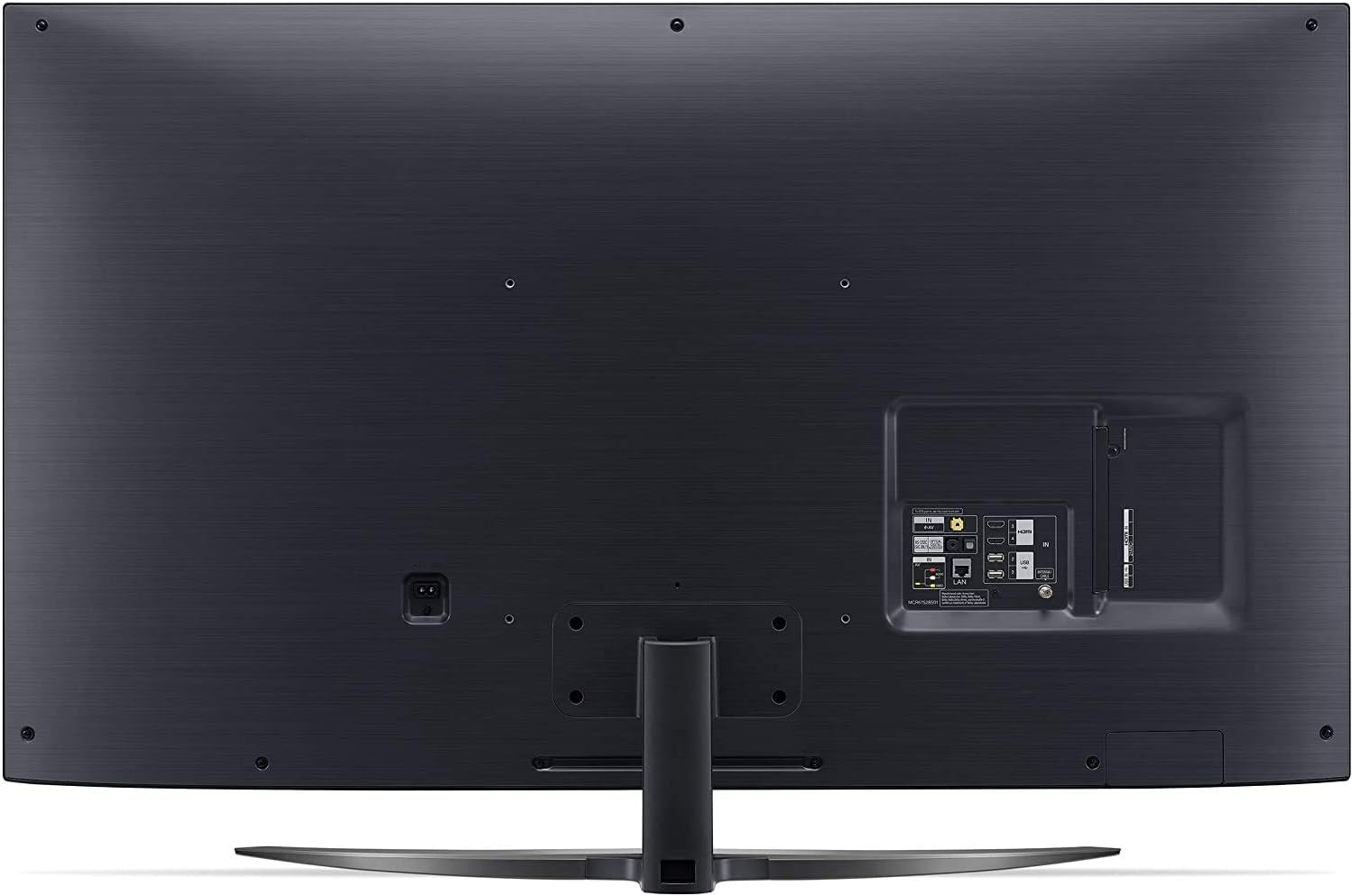
Image: A detailed view of the rear panel of the LG 55NANO81ANA TV, highlighting the location of HDMI, USB, LAN, and other input/output ports.

Image: A close-up view of the side-mounted HDMI and USB input ports on the LG 55NANO81ANA TV for easy access.
After connecting, plug the TV into a power outlet and power it on. Follow the on-screen instructions for initial setup, including network connection and device detection.
Operating Your LG NanoCell TV
LG webOS Smart TV Features
Your LG NanoCell TV runs on the intuitive webOS platform, providing access to a wide range of entertainment options. The webOS launcher, accessible via the Home button on your Magic Remote, displays your recently used apps and a Home Dashboard for managing connected devices.
Video: An overview of LG's webOS smart TV platform, demonstrating its user interface, app access, and smart features.
Magic Remote Overview
The LG Magic Remote simplifies navigation with its point-and-click functionality, similar to a mouse. It also features a click wheel for easy scrolling and dedicated buttons for popular streaming services like Netflix and Prime Video. You can even customize number keys for one-touch access to your favorite apps.
Video: A guide to mastering the LG Magic Remote, showcasing its pointer, click wheel, voice control, and quick access features.
Voice Control with AI ThinQ
Utilize the built-in microphone on your Magic Remote to issue voice commands. Your TV supports Google Assistant and Amazon Alexa, allowing you to search for content, ask for recommendations, control smart home devices, and get information hands-free.
Accessing Apps and Content
From the webOS launcher, you can quickly access streaming services like Netflix, Prime Video, Disney+, and Hulu. The LG Content Store offers a vast selection of apps, games, and premium content. Intelligent Edit can organize your apps based on usage frequency for added convenience.
LG Channels
Enjoy over 180 free LG channels streaming across various categories including news, sports, and comedy, directly through your TV's webOS platform.
Sports Alert
Never miss a game with Sports Alert. Select your favorite teams, and your LG TV will notify you before games start or when your team scores. You can set alerts for up to 20 teams.

Image: A visual representation of the Sports Alert feature on an LG TV, showing how users can track their favorite teams and receive notifications.
Gallery Mode
When not actively watching content, transform your TV into a piece of art with Gallery Mode. Choose from a variety of paintings, photographs, and other beautiful images to display, enhancing your home's ambiance.
Who Where What Feature
This feature allows you to get real-time information about what you're watching, including actors, locations, and even shop items featured in the scene, directly from your TV when available.
Picture and Sound Technologies
NanoCell Technology for Pure Colors
LG NanoCell technology uses nanoparticles to filter out impure colors from RGB wavelengths, delivering enhanced color purity and a wider viewing angle for consistent, accurate colors.

Image: A visual comparison illustrating how NanoCell technology filters out impure colors to achieve greater color purity compared to conventional displays.
Video: This video highlights the 'True Colors' capability of LG NanoCell TVs, demonstrating the vibrant and accurate color reproduction.
Real 4K Resolution
Experience stunning clarity and detail with Real 4K resolution, delivering four times the pixels of Full HD for an immersive viewing experience.

Image: An LG NanoCell TV showcasing a breathtaking 4K landscape, emphasizing the 'Real 4K' resolution achieved through pure colors.
Quad-Core Processor 4K
The powerful Quad-Core Processor 4K enhances picture and sound, reducing video noise, creating more vibrant color and contrast, and upscaling lower resolution images to near 4K quality.

Image: A graphic illustrating the Quad-Core Processor 4K, symbolizing its role in upgrading image and sound quality to be more realistic.
Filmmaker Mode
Filmmaker Mode disables motion smoothing and other post-processing effects, preserving the original aspect ratios, colors, and frame rates to deliver the director's original vision.

Image: An LG TV screen showing a movie scene, with the 'Filmmaker Mode' logo indicating that content is being viewed as intended by the creators.
HDR 10 Pro & HLG Pro
The TV supports major HDR formats, including HDR 10 Pro and HLG Pro, optimizing picture quality scene by scene for a more dynamic and immersive viewing experience.

Image: A scene from a movie displayed on an LG TV, highlighting the enhanced visual quality provided by HDR 10 Pro and HLG Pro for upgraded major HDR formats.
Bluetooth Surround Ready
Connect two compatible Bluetooth speakers for a true wireless surround sound experience, immersing you further into your favorite content.

Image: An illustration depicting the 'Bluetooth Surround Ready' feature, showing how two Bluetooth speakers can be connected to the LG TV for an immersive audio experience.
Maintenance
Cleaning the TV
To clean the screen, gently wipe it with a soft, dry microfiber cloth. For stubborn smudges, lightly dampen the cloth with water or a screen-specific cleaning solution (never spray directly onto the screen). Avoid using harsh chemicals, abrasive cleaners, or alcohol-based solutions.
For the TV's frame and stand, use a soft, dry cloth. Ensure the TV is unplugged before cleaning.
General Care
- Avoid placing the TV in direct sunlight or near heat sources.
- Ensure adequate ventilation around the TV.
- Do not block ventilation openings.
- Protect the power cord from being walked on or pinched.
Troubleshooting
If you encounter issues with your LG NanoCell TV, try the following basic troubleshooting steps:
- No Power: Check if the power cord is securely plugged into both the TV and the wall outlet. Try a different outlet.
- No Picture/Sound: Ensure the correct input source is selected. Check all cable connections (HDMI, AV, etc.) for looseness.
- Remote Not Working: Replace the batteries in the Magic Remote. Ensure there are no obstructions between the remote and the TV.
- Network Connection Issues: Verify your Wi-Fi router is working. Try restarting the TV and your router. For wired connections, ensure the Ethernet cable is properly connected.
- Picture Quality Issues: Adjust picture settings (brightness, contrast, color) in the TV's menu. Ensure the content source is high quality.
For more complex issues, refer to the comprehensive troubleshooting section in the full user manual or visit the LG support website.
Specifications
| Feature | Specification |
|---|---|
| Screen Size | 55 Inches |
| Brand | LG |
| Display Technology | LED |
| Resolution | 4K |
| Connectivity Technology | Bluetooth, Ethernet, HDMI, USB, Wi-Fi |
| Color | black |
| Operating System | WebOS |
| Total HDMI Ports | 4 |
| Hardware Interface | Bluetooth, Ethernet, HDMI, USB |
| Wireless Technology | Bluetooth, Radio Frequency, Wi-Fi |
| Model Number | 55NANO81ANA |
| UPC | 719192641747, 719192637009 |
| Number of Audio Channels | 2 |
| Controller Type | Remote Control, Voice Control |
Warranty Information
Your LG 55NANO81ANA TV comes with a limited manufacturer's warranty. Please refer to the warranty card included in your product packaging or visit the official LG website for detailed terms, conditions, and registration information. Keep your proof of purchase for warranty claims.
Support
For further assistance, technical support, or to download the full user manual, please visit the official LG support website at LG Support. You can also contact LG customer service directly through the contact information provided on their website.