
1. Introduction
This manual provides detailed instructions for the installation, operation, and maintenance of your Axis Communications M3064-V Mini Dome Camera. This camera is designed for indoor surveillance, offering HDTV 720p video quality, dust resistance, and IK08 impact protection. Please read this manual thoroughly before using the product to ensure proper functionality and safety.
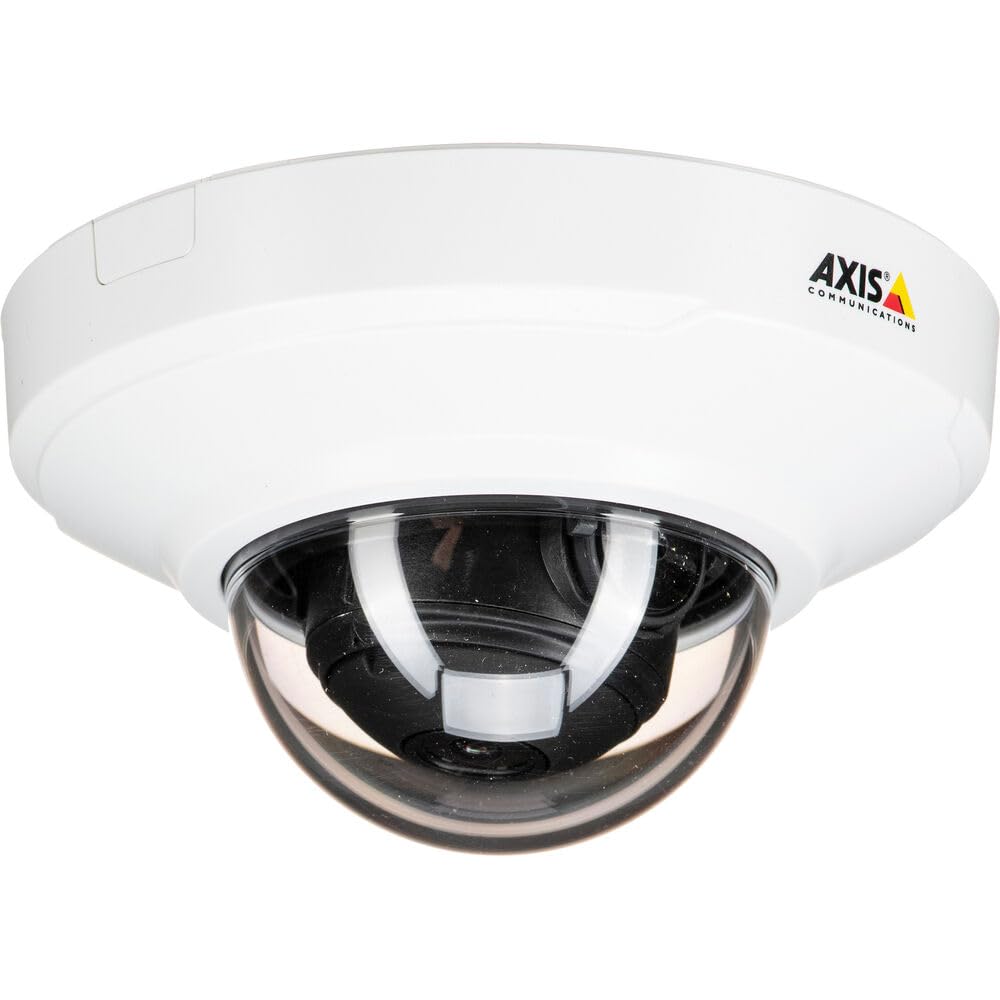
Figure 1: Front view of the Axis M3064-V Mini Dome Camera. This image shows the compact dome design suitable for discreet indoor surveillance.
2. Safety Information
- Power Supply: Use only the specified power supply (AC/DC, 220 Volts, 1.6 Watts) to prevent damage or fire.
- Installation: Installation should be performed by qualified personnel and comply with all local electrical codes. Ensure the mounting surface can support the camera's weight.
- Environment: This camera is designed for indoor use. While dust-resistant and IK08 rated, avoid exposing it to extreme temperatures, direct water spray, or corrosive substances.
- Cleaning: Disconnect power before cleaning. Use a soft, dry cloth. Do not use liquid or aerosol cleaners.
- Servicing: Do not attempt to service this product yourself. Refer all servicing to qualified service personnel.
3. Package Contents
Verify that all items are present in the package. If any items are missing or damaged, contact your supplier.
- Axis M3064-V Mini Dome Camera (1 unit)
- Installation Guide
- Mounting Bracket
- Mounting Screws and Wall Plugs
- Resistorx L-key
4. Setup and Installation
4.1 Mounting the Camera
The Axis M3064-V camera can be mounted on a ceiling or wall. Ensure the mounting surface is stable and can support the camera's weight.
- Prepare the Surface: Choose a suitable location. Use the mounting bracket as a template to mark drill holes.
- Drill Holes: Drill pilot holes for the mounting screws. Insert wall plugs if necessary.
- Attach Bracket: Secure the mounting bracket to the surface using the provided screws.
- Connect Cables: Route the network cable (wired connectivity) through the bracket and connect it to the camera's Ethernet port.
- Attach Camera: Secure the camera body to the mounting bracket. Ensure it clicks into place or is fastened according to the specific bracket design.

Figure 2: Illustrative diagram of the camera mounting process on a ceiling. This shows the steps from marking holes to securing the camera.
4.2 Powering On and Network Connection
- Wired Connection: Connect an Ethernet cable from your network switch or router to the camera's Ethernet port. The camera supports Power over Ethernet (PoE), simplifying power delivery.
- Wi-Fi Connection: The camera supports Wi-Fi connectivity. After initial wired setup, you can configure wireless settings via the camera's web interface.
- Power Supply: If not using PoE, connect a compatible AC/DC power adapter (220V, 1.6W) to the camera's power input.
- Initial Access: Once powered, the camera will obtain an IP address from your network (DHCP). Use an Axis IP Utility tool or your network router's client list to find the camera's IP address.
5. Operating Instructions
5.1 Accessing the Camera Interface
Open a web browser (e.g., Chrome, Firefox) and enter the camera's IP address in the address bar. You will be prompted to create a new password for the root user upon first access. Follow the on-screen instructions.
5.2 Live View and Video Settings
- Live View: The main interface provides a live video feed. You can adjust the viewing angle remotely if the camera supports pan/tilt/zoom (PTZ) functions, though this model features a fixed dome with 3x optical zoom.
- Resolution: The camera supports HDTV 720p video capture resolution. You can configure streaming profiles for different quality and frame rate needs.
- Night Vision: The camera includes Night Color functionality, providing enhanced visibility in low-light conditions. This feature can be configured in the image settings.
- Optical Zoom: Utilize the 3x optical zoom feature through the web interface to focus on specific areas within the 83-degree viewing angle.
5.3 Recording and Storage
The camera supports various recording options:
- Edge Storage: The camera has 128 GB of flash memory installed for local recording. Insert a compatible microSD card (not included) for additional storage.
- Network Video Recorder (NVR): Integrate the camera with an NVR or video management system (VMS) for centralized recording and management.
- Event-Based Recording: Configure motion detection or other event triggers to start recording, saving storage space.
6. Maintenance
6.1 Cleaning the Camera
Regular cleaning helps maintain optimal image quality.
- Power Off: Always disconnect the camera from its power source before cleaning.
- Lens: Gently wipe the lens cover with a soft, lint-free cloth. For stubborn dirt, slightly dampen the cloth with water or a mild lens cleaning solution. Avoid abrasive materials.
- Housing: Wipe the camera housing with a soft, dry cloth. Do not use strong detergents or solvents.
6.2 Firmware Updates
Periodically check the Axis Communications website for firmware updates. Keeping your camera's firmware up-to-date ensures optimal performance, security, and access to new features. Follow the instructions provided with the firmware update package.
7. Troubleshooting
| Problem | Possible Cause | Solution |
|---|---|---|
| Camera not powering on | No power supply; Faulty PoE switch/injector; Damaged cable. | Check power connection. Verify PoE functionality. Test with a different Ethernet cable or power adapter. |
| No video feed | Network connectivity issue; Incorrect IP address; Firewall blocking access; Camera not configured. | Verify network connection. Confirm camera's IP address. Check firewall settings. Ensure camera is properly configured via its web interface. |
| Poor image quality | Dirty lens; Incorrect focus; Low light conditions; Network bandwidth issues. | Clean the lens. Adjust focus settings in the web interface. Ensure adequate lighting or verify Night Color settings. Check network bandwidth. |
| Cannot access web interface | Incorrect IP address; Network issue; Browser compatibility. | Confirm IP address. Ping the camera's IP. Try a different web browser. Clear browser cache. |
8. Specifications
| Feature | Detail |
|---|---|
| Model Name | M3064-V |
| Model Number | 01716-001 |
| Brand | Axis Communications |
| Form Factor | Dome |
| Connectivity Technology | Wired, Wi-Fi |
| Video Capture Resolution | 720p (HDTV) |
| Effective Still Resolution | 64 MP (Note: This might refer to sensor resolution, actual video output is 720p) |
| Photo Sensor Resolution | 5 MP |
| Viewing Angle | 83 Degrees |
| Optical Zoom | 3x |
| Night Vision | Night Color |
| Waterproof Rating | IP42 (Dust-resistant) |
| Impact Protection | IK08 |
| Power Source | AC/DC, PoE |
| Voltage | 220 Volts |
| Wattage | 1.6 Watts |
| Flash Memory Installed Size | 128 GB |
| Item Dimensions (LxWxH) | 3.98 x 3.98 x 2.2 inches |
| Item Weight | 150 Grams |
| Color | Black / White |
9. Warranty and Support
9.1 Product Warranty
Axis Communications products typically come with a limited manufacturer's warranty. Please refer to the warranty card included with your product or visit the official Axis Communications website for detailed warranty terms and conditions specific to the M3064-V model. Keep your proof of purchase for warranty claims.
9.2 Technical Support
For technical assistance, troubleshooting beyond this manual, or service inquiries, please contact Axis Communications customer support. You can find contact information, FAQs, and additional resources on the official Axis Communications support website. When contacting support, please have your product model number (M3064-V or 01716-001) and serial number ready.
Online Resources: www.axis.com/support


