1. Introduction
This manual provides comprehensive instructions for the safe and efficient use of your Alcatel 8084 1T 10 Tablet with Keyboard. Please read this manual thoroughly before operating your device to ensure optimal performance and to prevent damage. Keep this manual for future reference.
2. Package Contents
Verify that all items are present in the package:
- Alcatel 8084 1T 10 Tablet
- Detachable Keyboard
- USB Charging Cable
- Power Adapter
- Quick Start Guide
- Safety and Warranty Information
3. Device Overview
Familiarize yourself with the physical features and components of your Alcatel 8084 1T 10 Tablet and its accompanying keyboard.
3.1 Tablet with Keyboard Attached

Figure 3.1: Alcatel 8084 1T 10 Tablet with Keyboard in a working position.
This image displays the tablet securely docked into its keyboard case, presenting a laptop-like setup. The tablet screen is active, showing the time and date, while the full QWERTY keyboard is visible and ready for use. This configuration is ideal for productivity tasks.
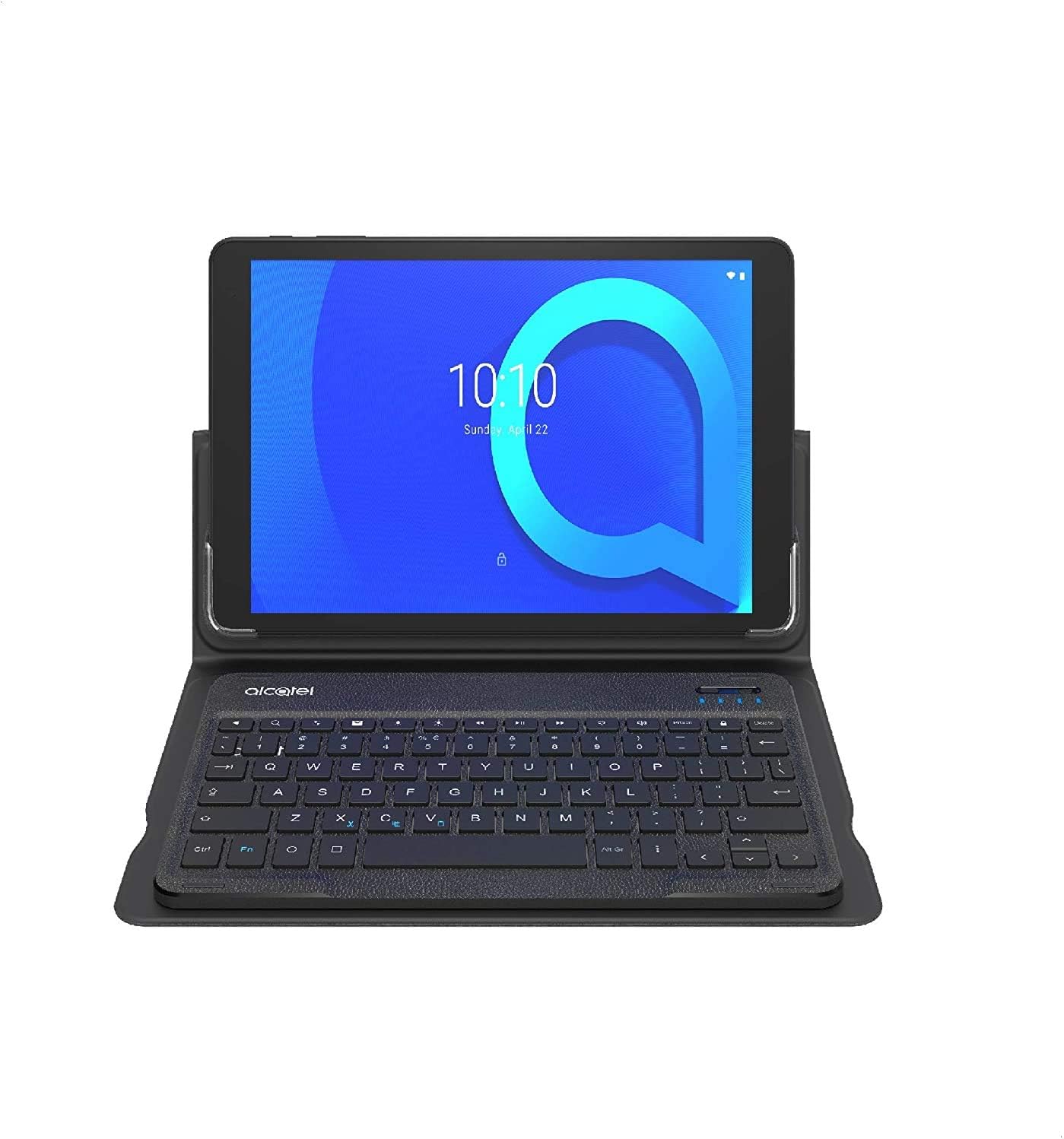
Figure 3.2: Front view of the Tablet with Keyboard.
This image provides a direct front view of the tablet and keyboard assembly. The tablet's display is centered, and the keyboard's layout is clearly visible, including function keys and the Alcatel branding below the screen. This perspective highlights the compact and integrated design.
3.2 Tablet Components

Figure 3.3: Front view of the Alcatel 8084 1T 10 Tablet.
This image focuses solely on the tablet's front, showcasing its 10.1-inch display. The screen is active, displaying the time and a lock icon. The front-facing camera is visible at the top center bezel, indicating its position for video calls and selfies.

Figure 3.4: Angled view of the Alcatel 8084 1T 10 Tablet.
This angled view of the tablet highlights its slim profile and the design of its bezels. The screen is visible, along with a glimpse of the side where ports or buttons might be located. This perspective gives an idea of the tablet's overall form factor.

Figure 3.5: Back view of the Alcatel 8084 1T 10 Tablet.
The rear of the tablet is shown in this image, featuring a bluish-black finish. The Alcatel logo is prominently displayed vertically in the center. The rear camera lens is visible in the upper left corner, indicating its position for photography and video recording.
3.3 Keyboard Components
The detachable keyboard features a standard QWERTY layout with additional function keys for quick access to tablet features. It connects physically to the tablet via a magnetic connector, providing a stable and reliable connection without the need for Bluetooth pairing or separate charging.
- Function Keys (Fn): Used in combination with other keys for shortcuts (e.g., volume, brightness, screenshot).
- Magnetic Connector: Ensures secure attachment and communication with the tablet.
- Protective Case: The keyboard doubles as a protective cover for the tablet when closed.
4. Setup
4.1 Charging the Tablet
- Connect the USB charging cable to the tablet's charging port.
- Connect the other end of the USB cable to the power adapter.
- Plug the power adapter into a wall outlet.
- Allow the tablet to charge until the battery indicator shows a full charge.
It is recommended to fully charge the tablet before first use.
4.2 Attaching the Keyboard
The keyboard attaches magnetically to the tablet. Align the tablet with the magnetic connector on the keyboard case until it snaps into place. Ensure the tablet is seated firmly.
4.3 Initial Power On and Setup Wizard
- Press and hold the Power button (located on the side of the tablet) until the Alcatel logo appears.
- Follow the on-screen instructions to complete the initial setup:
- Select your language.
- Connect to a Wi-Fi network.
- Accept the terms and conditions.
- Sign in with your Google account or create a new one.
- Set up screen lock (PIN, pattern, or password).
- Review and adjust other settings as prompted.
5. Operating the Device
5.1 Basic Tablet Navigation
- Touch: Tap an icon or option to select it.
- Touch and Hold: Press and hold an item to see available options.
- Swipe: Drag your finger across the screen to scroll or navigate between screens.
- Pinch: Use two fingers to zoom in or out on images and web pages.
- Home Screen: Access your apps, widgets, and notifications.
- Notifications Panel: Swipe down from the top of the screen to view notifications and quick settings.
5.2 Using the Keyboard
Once the keyboard is attached, it functions automatically. You can use it for typing, navigating menus, and executing shortcuts.
- Typing: Use the QWERTY keys for text input.
- Function Keys:
- Fn + Esc: Home
- Fn + F1: Brightness Down
- Fn + F2: Brightness Up
- Fn + F3: Screenshot
- Fn + F4: Search
- Fn + F5: Previous Track
- Fn + F6: Play/Pause
- Fn + F7: Next Track
- Fn + F8: Mute
- Fn + F9: Volume Down
- Fn + F10: Volume Up
- Fn + F11: Lock Screen
- Fn + F12: Settings
5.3 Connecting to Wi-Fi
- Go to Settings > Network & internet > Wi-Fi.
- Toggle Wi-Fi On.
- Select your desired network from the list.
- Enter the password if prompted and tap Connect.
5.4 Bluetooth Connectivity
- Go to Settings > Connected devices > Bluetooth.
- Toggle Bluetooth On.
- The tablet will scan for available devices. Select the device you wish to pair with and follow any on-screen prompts.
6. Maintenance
6.1 Cleaning the Device
- Use a soft, lint-free cloth to clean the screen and body of the tablet.
- For stubborn smudges, slightly dampen the cloth with water or a screen cleaner specifically designed for electronics.
- Avoid using harsh chemicals, abrasive cleaners, or aerosol sprays.
- Ensure all ports are free of dust and debris.
6.2 Battery Care
- Avoid exposing the tablet to extreme temperatures.
- Do not allow the battery to fully discharge frequently.
- Use only the provided charger or a certified compatible charger.
6.3 Software Updates
Regularly check for and install software updates to ensure your tablet has the latest features, security patches, and performance improvements.
- Go to Settings > System > System update.
- Follow the on-screen instructions to check for and install updates.
7. Troubleshooting
This section addresses common issues you might encounter with your tablet. If the problem persists, contact customer support.
| Problem | Possible Solution |
|---|---|
| Tablet does not power on. | Ensure the tablet is charged. Connect to the charger and wait a few minutes before attempting to power on again. |
| Wi-Fi connection issues. | Restart your Wi-Fi router. Go to Settings > Network & internet > Wi-Fi, turn Wi-Fi off and then on again. Forget the network and reconnect. |
| Keyboard not responding. | Ensure the tablet is correctly seated in the magnetic connector. Detach and reattach the keyboard. Restart the tablet. |
| Tablet is slow or unresponsive. | Close unused applications. Clear cache data. Restart the tablet. If issues persist, consider a factory reset (back up data first). |
| Screen is frozen. | Press and hold the Power button for approximately 10-15 seconds to force a restart. |
8. Specifications
Key technical specifications for the Alcatel 8084 1T 10 Tablet:
- Model Name: Alcatel 8084 1T 10
- Operating System: Android
- Screen Size: 10.1 Inches
- Processor: MediaTek
- RAM: 2 GB
- Internal Storage: 32 GB
- Connectivity: Wi-Fi, Bluetooth
- Front Camera: 2 MP
- Rear Camera: (Not explicitly listed, but typically present)
- Color: Bluish Black
- Special Features: Media Card Reader, Stereo Speakers, Supports USB OTG, USB Host
- Item Weight: 1.25 Kilograms (with keyboard)
9. Safety Information
Please observe the following safety guidelines to prevent injury or damage to your device:
- Do not expose the device to extreme temperatures, direct sunlight, or excessive moisture.
- Avoid dropping or subjecting the device to severe impact.
- Use only manufacturer-approved accessories.
- Do not attempt to disassemble or repair the device yourself. Refer to qualified service personnel.
- Keep the device away from medical devices and pacemakers.
- Dispose of the device and its battery responsibly according to local regulations.
10. Warranty and Support
Your Alcatel 8084 1T 10 Tablet with Keyboard is covered by a limited warranty. For detailed warranty terms and conditions, please refer to the warranty card included in your package or visit the official Alcatel website.
For technical support, troubleshooting assistance, or service inquiries, please contact Alcatel customer support through their official channels. Contact information can typically be found on the manufacturer's website or in the Quick Start Guide.


