
1. Introduction
The ATOTO S8 Ultra S8G2A78U is an advanced Android car stereo system designed to enhance your in-car entertainment and connectivity experience. Featuring an Intel Airmont X86 Architecture Spreadtrum SC9853i Octa-Core CPU, ARM Mali-T820 MP2 GPU, and ATOTO AICE UI 10.0 based on Android 8.1 Oreo, this unit offers a wide range of functionalities including dual Bluetooth, aptX HD support, gesture control, wireless phone link, and a built-in 4G cellular modem. This manual provides detailed instructions for installation, operation, and maintenance of your ATOTO S8 Ultra car stereo.
2. Safety Information
- Read all instructions carefully before installation and operation.
- Installation should be performed by a qualified professional to avoid damage to the unit or vehicle.
- Do not operate the device in a manner that distracts you from driving. Always prioritize road safety.
- Ensure all wiring connections are secure and properly insulated to prevent short circuits.
- Avoid exposing the unit to extreme temperatures, direct sunlight for prolonged periods, or excessive moisture.
- Do not attempt to disassemble or modify the unit. This may void the warranty and cause damage.
- Use only specified accessories and parts.
3. Package Contents
Verify that all items listed below are included in your package. If any items are missing or damaged, contact your retailer.
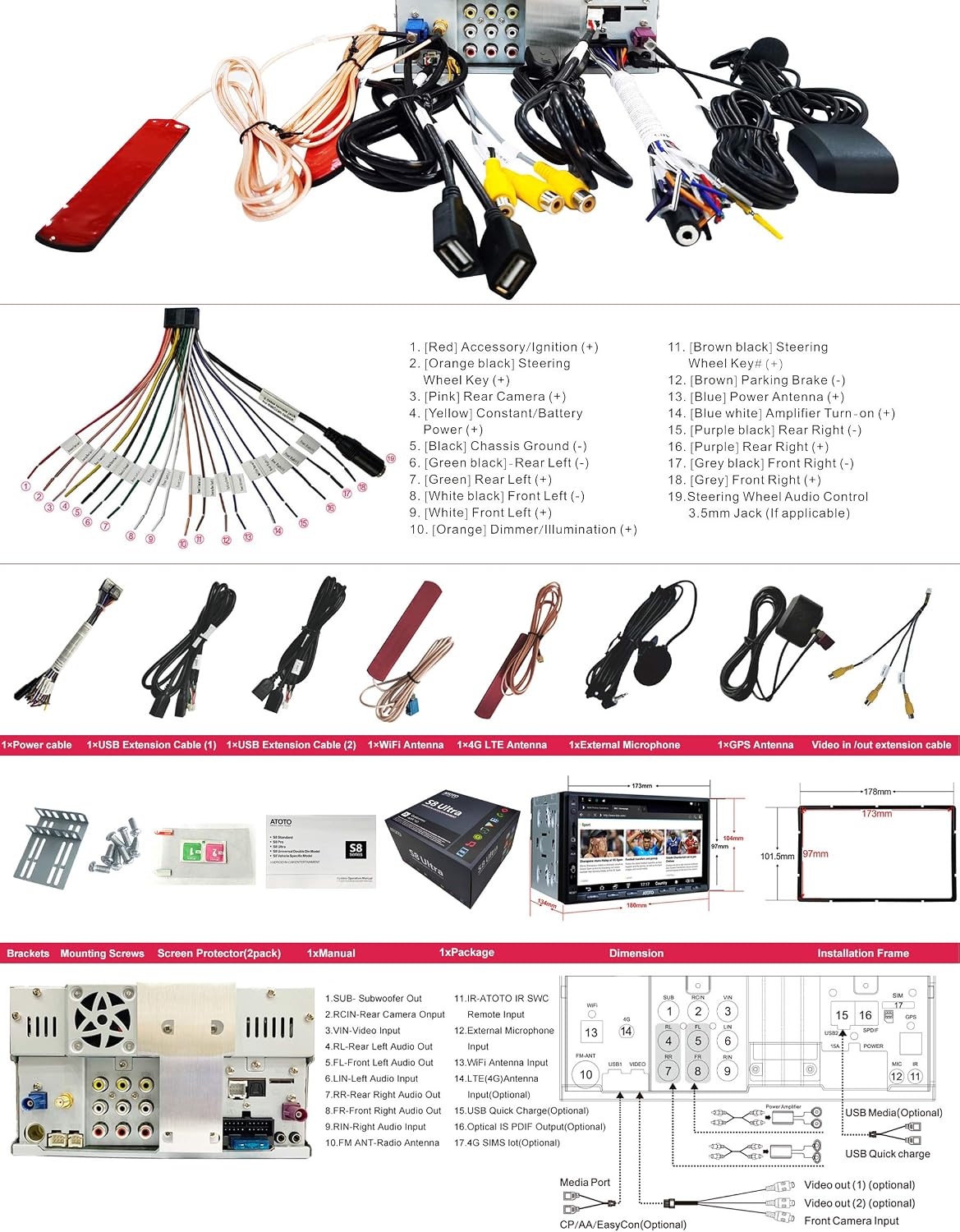
Image 3.1: Wiring harness and various connection cables for the ATOTO S8 Ultra car stereo. This includes power cables, USB extension cables, WiFi antenna, 4G LTE antenna, external microphone, and video input/output cables.

Image 3.2: The main ATOTO S8 Ultra head unit, mounting brackets, screen protector, user manual, and an extra frame adapter. The image also illustrates the unit's dimensions and installation frame details.
Typical package contents include:
- ATOTO S8 Ultra Head Unit
- Power Harness (with labeled wires for various connections)
- USB Extension Cables (x2)
- WiFi Antenna
- 4G LTE Antenna
- External Microphone
- GPS Antenna
- Video In/Out Cable
- Mounting Brackets
- Screws
- Screen Protector
- User Manual
- Extra Frame Adapter (178mm*101.5mm)
4. Installation
Proper installation is crucial for optimal performance and safety. It is recommended to have the unit installed by a professional.
4.1 Vehicle Fit and Dimensions
The ATOTO S8 Ultra is designed to fit most double DIN mounting frames with a 174mm x 97mm opening. An extra frame adapter is included to extend its size to 178mm x 101.5mm if required by your vehicle's dashboard.
Image 4.1: Detailed diagram showing the dimensions of the ATOTO S8 Ultra head unit and the included installation frame adapter, crucial for ensuring proper fit in various vehicle dashboards.
4.2 Wiring Connections
Refer to the wiring diagram below for correct connections. Ensure the vehicle's battery is disconnected before starting installation.
Image 4.2: Comprehensive wiring diagram for the ATOTO S8 Ultra, detailing connections for power, speakers, steering wheel controls, and various inputs/outputs. Each wire is color-coded and labeled for clarity.
Key Wiring Connections:
- Red: Accessory/Ignition (+)
- Yellow: Constant/Battery Power (+)
- Black: Chassis Ground (-)
- Orange: Dimmer/Illumination (+)
- Speaker Wires: Front Left (+/-), Front Right (+/-), Rear Left (+/-), Rear Right (+/-)
- Blue: Power Antenna (+)
- Brown: Parking Brake (-)
- Pink: Rear Camera (+)
- Green: Steering Wheel Key (+)
- White: Steering Wheel Audio Control
- Subwoofer Out: For connecting to an external subwoofer amplifier.
- RCA Audio Out: For connecting to an external amplifier.
- Video In/Out: For connecting external video sources or displays.
- USB Interfaces: For data communication, media files, and phone charging.
- GPS Antenna: Connect for navigation functionality.
- WiFi Antenna: Connect for wireless internet access.
- 4G LTE Antenna: Connect for cellular data access (requires SIM card).
5. Setup
5.1 Initial Power On and System Configuration
After successful installation, turn on your vehicle's ignition. The ATOTO S8 Ultra will boot up. Follow the on-screen prompts for initial setup, which may include:
- Language Selection: Choose your preferred system language (English, German, French, etc.).
- Time and Date: Set the correct time zone and synchronize time.
- Network Connection: Connect to a Wi-Fi network or insert a 4G SIM card for internet access.
- GPS Calibration: Ensure the GPS antenna is properly positioned for optimal signal reception.
5.2 Audio Settings (DSP)
The built-in Digital Signal Processor (DSP) allows for precise audio customization. Access the DSP settings to adjust:
- Equalization (EQ): Choose from 9 preset EQ modes or customize 32 adjustable frequency bands (16 for front, 16 for rear).
- Signal Delay: Optimize sound staging.
- Bass Boost: Enhance low-frequency output.
- Bass Filter: Adjust crossover frequencies for subwoofers.
6. Operating Instructions
6.1 Phone Integration Link (CarPlay & Android Auto)
The S8 Ultra seamlessly integrates your smartphone (iPhone or Android) with its display and controls via USB for wired connections, and wirelessly for CarPlay. This allows you to make calls, access music, send messages, and get directions while staying focused on the road.
- Wired USB Connection: Connect your smartphone via a USB cable to enable CarPlay or Android Auto.
- Wireless CarPlay: For iPhones, wireless CarPlay is available, allowing connection without a physical cable.
- EasyConnect App: Pre-installed for phone mirroring, supporting both iOS and Android devices via USB or WiFi.
6.2 Internet Access (4G Cellular Modem, Wi-Fi, Hotspot, Bluetooth Tethering)
The S8 Ultra offers multiple ways to stay connected to the internet.
- Built-in 4G Cellular Modem: Insert a micro SIM card into the designated slot for direct 4G LTE internet access. Supports various frequency bands (S8G2A78U-N: 4G LTE (B1, B2, B3, B4, B5, B7, B8, B12, B13, B17, B19, B20, B25, B26, B28, B34, B38, B39, B40, B41)).
- Wi-Fi Connection: Connect to available Wi-Fi networks.
- Personal Hotspot: Share your smartphone's data connection with the S8 Ultra.
- Bluetooth Tethering: Use your phone's Bluetooth to provide internet access to the S8 Ultra.
6.3 Gesture Control
The S8 Ultra features gesture recognition, allowing you to control certain functions with hand movements. It can recognize 9 types of hand gestures, and up to 24 options can be programmed for various actions.
To use gesture control, ensure your hand is within the recognized operating plane above the screen. Refer to the system settings to customize gesture assignments.
6.4 Steering Wheel Control
The S8 Ultra supports both original vehicle steering wheel controls (conditions may apply) and an optional ATOTO AC-44F5 Wireless IR Steering Wheel Remote Controller.
- Original Steering Wheel Control: Connect the appropriate wires from your vehicle's harness to the S8 Ultra's steering wheel control inputs. Configuration may be required in the system settings.
- ATOTO AC-44F5 Remote: This optional accessory provides convenient control over media playback and calls.
6.5 Bluetooth Connectivity
The S8 Ultra features Dual Bluetooth (BT1 5.0 & BT2 4.1). BT1 is Qualcomm Bluetooth 5.0 with aptX & aptX HD codec support, as well as SBC & AAC. It supports HFP/HSP/A2DP/AVRCP/PBAP protocols for hands-free calling, audio streaming, and phonebook access.
- Pairing: Go to Bluetooth settings on the S8 Ultra and your phone to pair devices.
- Hands-Free Calling: Make and receive calls directly from the head unit.
- Audio Streaming: Play music from your phone wirelessly.
6.6 Radio Tuner
The built-in high-sensitivity FM/AM radio tuner includes RDS/RBDS features, displaying radio station names if available.
- Scanning: Automatically scan and save available radio stations.
- Presets: Save your favorite stations for quick access.
6.7 Split Screen Display
The S8 Ultra supports split-screen functionality, allowing you to run two applications simultaneously. For example, you can view a navigation map on one side and a media player on the other.
- Activating Split Screen: Consult the system's user interface for instructions on how to activate and manage split-screen mode.
6.8 Digital Photo Frame
This option allows users to display memorable photos from a specified Gallery Folder on the S8 Ultra's 7-inch HD screen. Photos can autoplay with a tap or a programmed hand gesture.
7. Maintenance
- Cleaning the Screen: Use a soft, lint-free cloth to gently wipe the touchscreen. For stubborn smudges, slightly dampen the cloth with water or a screen-safe cleaner. Avoid harsh chemicals.
- Software Updates: Periodically check for system firmware updates from ATOTO to ensure optimal performance and access to new features. Updates can typically be downloaded via Wi-Fi or USB.
- General Care: Keep the unit free from dust and debris. Avoid placing heavy objects on the unit or exposing it to extreme temperatures.
8. Troubleshooting
If you encounter issues with your ATOTO S8 Ultra, refer to the following common solutions:
| Problem | Possible Cause / Solution |
|---|---|
| Unit does not power on. | Check power connections (Red, Yellow, Black wires). Ensure the vehicle's ignition is on. Check vehicle fuses. |
| No sound. | Check speaker wiring. Ensure volume is not muted or set to zero. Verify audio output settings. |
| Bluetooth connection issues. | Ensure Bluetooth is enabled on both devices. Delete previous pairings and re-pair. Move devices closer. |
| GPS signal weak or inaccurate. | Ensure GPS antenna is properly installed and has a clear view of the sky. Update GPS software/maps. |
| Touchscreen unresponsive. | Restart the unit. Ensure the screen is clean and free of debris. |
| Apps crashing or slow performance. | Close background applications. Clear app cache. Perform a system restart. Ensure sufficient storage. |
If the problem persists, contact ATOTO customer support for further assistance.
9. Specifications
| Feature | Detail |
|---|---|
| Model Number | S8G2A78U |
| SoC Chip | Intel Airmont X86 Architecture Spreadtrum SC9853i Octa-Core CPU (up to 1.872GHz) with ARM Mali-T820 MP2 GPU |
| System Version | ATOTO AICE UI 10.0 (based on Android 8.1 Oreo) |
| Display | Full HD 7-inch 1024*600 5-Touch Capacitive QLED Screen (600cd/m2, 178° viewing angle) |
| Bluetooth | Dual Bluetooth (BT1 5.0 & BT2 4.1), BT1 with aptX & aptX HD codec (SBC & AAC supported) |
| Connectivity Technology | Bluetooth, Cellular (4G), Wi-Fi |
| Built-in 4G Cellular Modem | Yes (Micro SIM slot, supports various LTE bands) |
| Pre-Amplifier | Built-in Max 4*49W BTL Amplifier with RMS 4*29W |
| DSP | Built-in Digital Signal Processor (9 EQ Modes, 32 adjustable frequency bands) |
| GPS/Navigation | Built-in GPS module, Google Maps pre-installed (supports offline maps and other navigation apps) |
| Phone Integration Link | Wireless CarPlay, Wired CarPlay & Android Auto via USB |
| Phone Mirroring | EasyConnect app (USB/WiFi for iOS & Android) |
| Gesture Control | 9 types of hand gestures, up to 24 programmable options |
| Split Screen Display | Yes |
| Micro SD Slot | 1 (supports up to 512GB) |
| USB Interfaces | 4 (3 for data/optional devices/phone link, 1 for QC 3.0 fast charge) |
| Inputs | AUX Audio(L/R)/Video, FCAM front camera video, Rearview camera (CVBS & 720P HD) |
| Outputs | 2 video outputs, 4-CH RCA Audio Out (2v), Separate Sub-woof Out (0.8v), Digital Optic SPDIF Out |
| Item Weight | 4.57 pounds |
| Package Dimensions | 10.12 x 9.06 x 6.3 inches |
10. Warranty and Support
ATOTO products come with a standard manufacturer's warranty. For specific warranty terms and conditions, please refer to the warranty card included in your package or visit the official ATOTO website.
For technical support, troubleshooting assistance, or inquiries regarding optional accessories, please contact ATOTO customer service through their official channels. Keep your purchase receipt and product model number (S8G2A78U) handy when contacting support.
Optional Accessories (Sold Separately):
- ATOTO AC-44P2 1080P On-dash DVR Camera
- ATOTO AC-44F5 Steering wheel IR Remote
- ATOTO AC-4450 Bluetooth OBD II scanner /Code Reader
- ATOTO AC-HD02 HD Rear-view Camera or AC-HD03 Wide-angle HD rear view camera
- ATOTO AC-UTP1 USB TPMS (Tire Pressure Monitoring Sensor)