
Introduction
This manual provides instructions for the Mobility Lab Ultra Slim Wired PC Keyboard, model ML311173. It covers setup, operation, maintenance, troubleshooting, and product specifications. Please read this manual carefully before using your new keyboard.
Setup
Connecting the Keyboard
- Locate an available USB port on your computer (desktop or laptop).
- Plug the USB connector of the keyboard cable into the USB port.
- The keyboard is plug-and-play, meaning it should be recognized automatically by your operating system (Windows compatible). No additional drivers are typically required.

Image: The USB connector for connecting the keyboard to your computer.

Image: Overview of the Mobility Lab Ultra Slim Wired PC Keyboard, showing its AZERTY layout and wired connection.
Operating the Keyboard
Key Features
- Ultra Slim Design: The keyboard features a thin and elegant profile for comfortable typing.
- Scissor Keys: Equipped with scissor-switch keys for a light, precise, and responsive typing experience.
- Numeric Keypad: Includes a full numeric keypad for data entry.
- Direct Access Shortcuts: Dedicated keys for functions such as calculator and volume control.
- Plug & Play: No software installation required; simply connect and use.
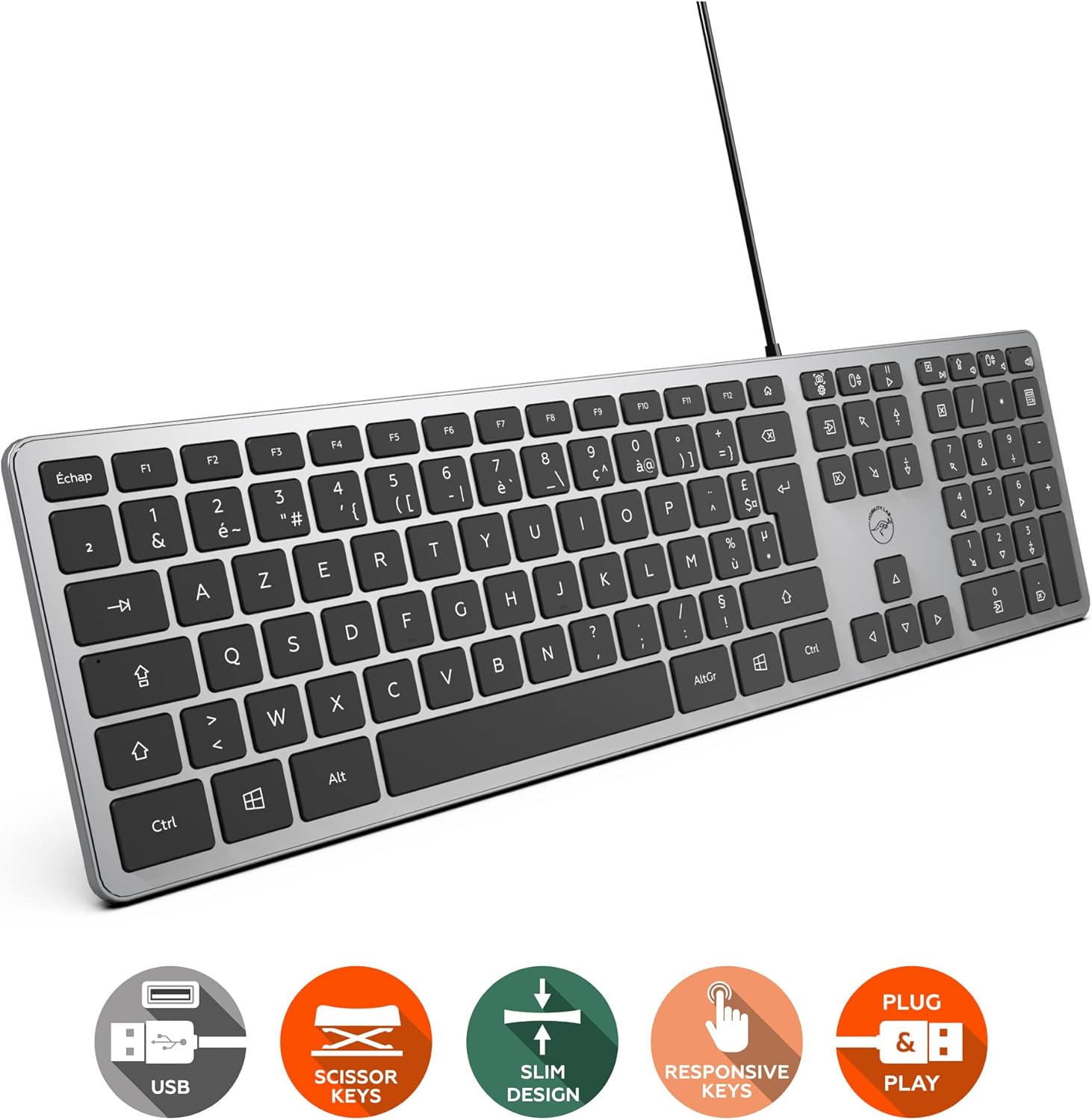
Image: Visual representation of the keyboard's key features: USB connectivity, scissor keys, slim design, responsive keys, and plug & play.

Image: Detailed view of the scissor key mechanism, illustrating the design for light and precise typing.
Maintenance
Cleaning Your Keyboard
- Disconnect the keyboard from your computer before cleaning.
- Use a soft, lint-free cloth slightly dampened with water or a mild cleaning solution to wipe the surface of the keys and the keyboard body.
- Avoid spraying liquids directly onto the keyboard.
- For dust and debris between keys, use compressed air.
- Ensure the keyboard is completely dry before reconnecting it to your computer.
Troubleshooting
Common Issues and Solutions
| Issue | Possible Cause / Solution |
|---|---|
| Keyboard not responding |
|
| Incorrect key output (e.g., @ symbol) |
|
| Keys feel sticky or unresponsive |
|
Specifications
| Feature | Detail |
|---|---|
| Model Number | ML311173 |
| Dimensions (L x W x H) | 436 x 120 x 23 mm (17.16 x 4.72 x 0.9 inches) |
| Weight | 469 ± 10 g (1.03 lbs) |
| Language Layout | French AZERTY |
| Connection Type | Wired USB |
| Cable Length | 1.5 m (4.9 ft) |
| Power Performance | 5V 50mA |
| Compatibility | Windows operating systems |
| Special Features | Ultra slim design, numeric keypad, direct access shortcuts (calculator, volume), scissor keys for sensitive and flat typing. |
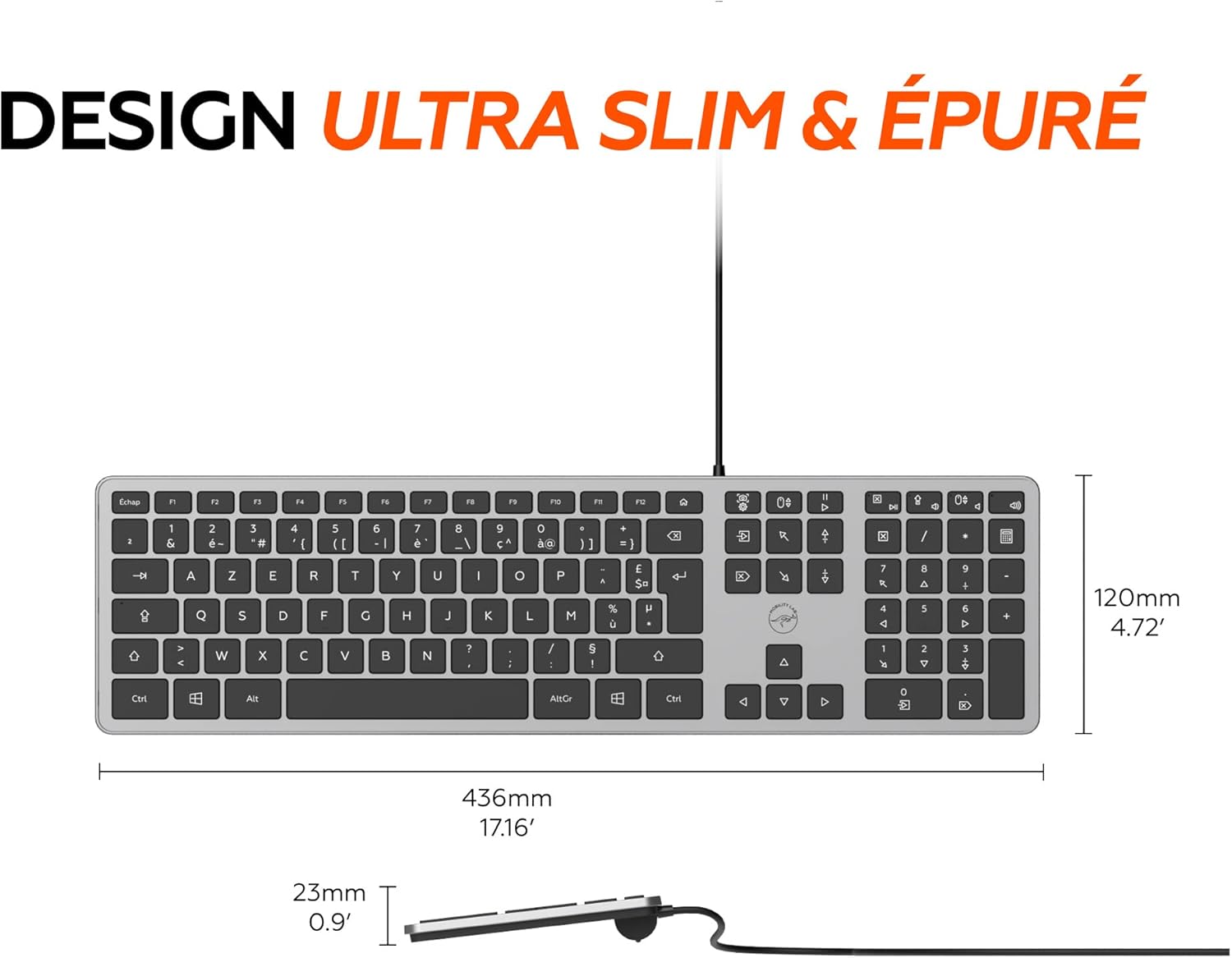
Image: Keyboard dimensions: 436mm length, 120mm width, and 23mm thickness.
Warranty and Support
Mobility Lab products are designed for reliability and performance. This product comes with a standard manufacturer's warranty. For specific warranty details, please refer to the documentation included with your purchase or visit the official Mobility Lab website.
For technical support, troubleshooting assistance, or to inquire about replacement parts, please contact Mobility Lab customer service through their official channels. Contact information can typically be found on the product packaging or the manufacturer's website.