
Razer RZ01-03170200-R3U1
Razer Basilisk Ultimate HyperSpeed Wireless Gaming Mouse User Manual
Model: RZ01-03170200-R3U1
Introduction
This manual provides instructions for the setup, operation, maintenance, and troubleshooting of your Razer Basilisk Ultimate HyperSpeed Wireless Gaming Mouse. Please read this guide thoroughly to ensure proper use and optimal performance of your device.
Package Contents
- Razer Basilisk Ultimate HyperSpeed Wireless Gaming Mouse
- USB Wireless Dongle
- Speedflex Charging Cable
- Important Product Information Guide (Refer to the official PDF user manual for full details)
Device Overview
Familiarize yourself with the components of your Razer Basilisk Ultimate mouse.

- Left Mouse Button
- Right Mouse Button
- Scroll Wheel (with customizable resistance)
- DPI Up Button
- DPI Down Button
- Side Buttons (Programmable)
- Multi-function Paddle (Programmable)
- Razer HyperSpeed Wireless USB Dongle Compartment
- Power Switch
- DPI Cycle Button (bottom)
- Scroll Wheel Resistance Adjuster (bottom)
- Optical Sensor
- Charging Port / Wired Mode Port
Setup
1. Charging the Mouse
For initial use, it is recommended to fully charge the mouse. Connect the Speedflex charging cable to the mouse's charging port and to a USB port on your computer or a USB power adapter. The mouse's lighting will indicate charging status.
2. Connecting the Mouse
The Razer Basilisk Ultimate offers both wireless and wired connectivity.
Wireless Mode (Razer HyperSpeed Wireless)
- Locate the USB wireless dongle stored in the compartment on the underside of the mouse.
- Plug the USB wireless dongle into an available USB port on your computer.
- Turn on the mouse using the power switch located on the underside.
- Your computer should automatically detect the mouse.

Description: This image illustrates the Razer HyperSpeed Wireless technology, emphasizing its low-latency and interference-reduction capabilities for a reliable wireless connection.
Wired Mode
- Connect the Speedflex charging cable to the mouse's charging port and to a USB port on your computer.
- The mouse will automatically switch to wired mode and begin charging.
3. Installing Razer Synapse 3
To unlock advanced customization options, including button remapping, DPI settings, and Chroma RGB lighting, download and install Razer Synapse 3 from the official Razer website (www.razer.com/synapse).
Operating Instructions
DPI Adjustment
The mouse features a 20,000 DPI optical sensor. You can adjust DPI sensitivity using the dedicated DPI Up/Down buttons or the DPI Cycle button on the underside of the mouse. Fine-tune DPI settings and create custom stages via Razer Synapse 3.

Description: This image highlights the Razer Focus+ Optical Sensor, engineered for high accuracy with 20,000 DPI, Smart Tracking, Motion Sync, and seamless lift-off detection.
Programmable Buttons
The Razer Basilisk Ultimate has 11 programmable buttons. These can be remapped to perform various functions, macros, or secondary key settings using Razer Synapse 3. The mouse also supports 5 on-board memory profiles for storing your custom configurations.

Description: This image illustrates the 11 programmable buttons of the mouse, which can be remapped via Synapse 3 for complex macros. It also shows the detachable SpeedFlex Cable and icons representing Onboard Custom DPI Storage, Customizable Macro Controls, and HyperShift Secondary Function Key Settings.
Customizable Scroll Wheel Resistance
Adjust the tactile feedback of the scroll wheel using the resistance adjuster located on the underside of the mouse. This allows you to switch between smooth, free-spinning scrolling and distinct, notched scrolling based on your preference.
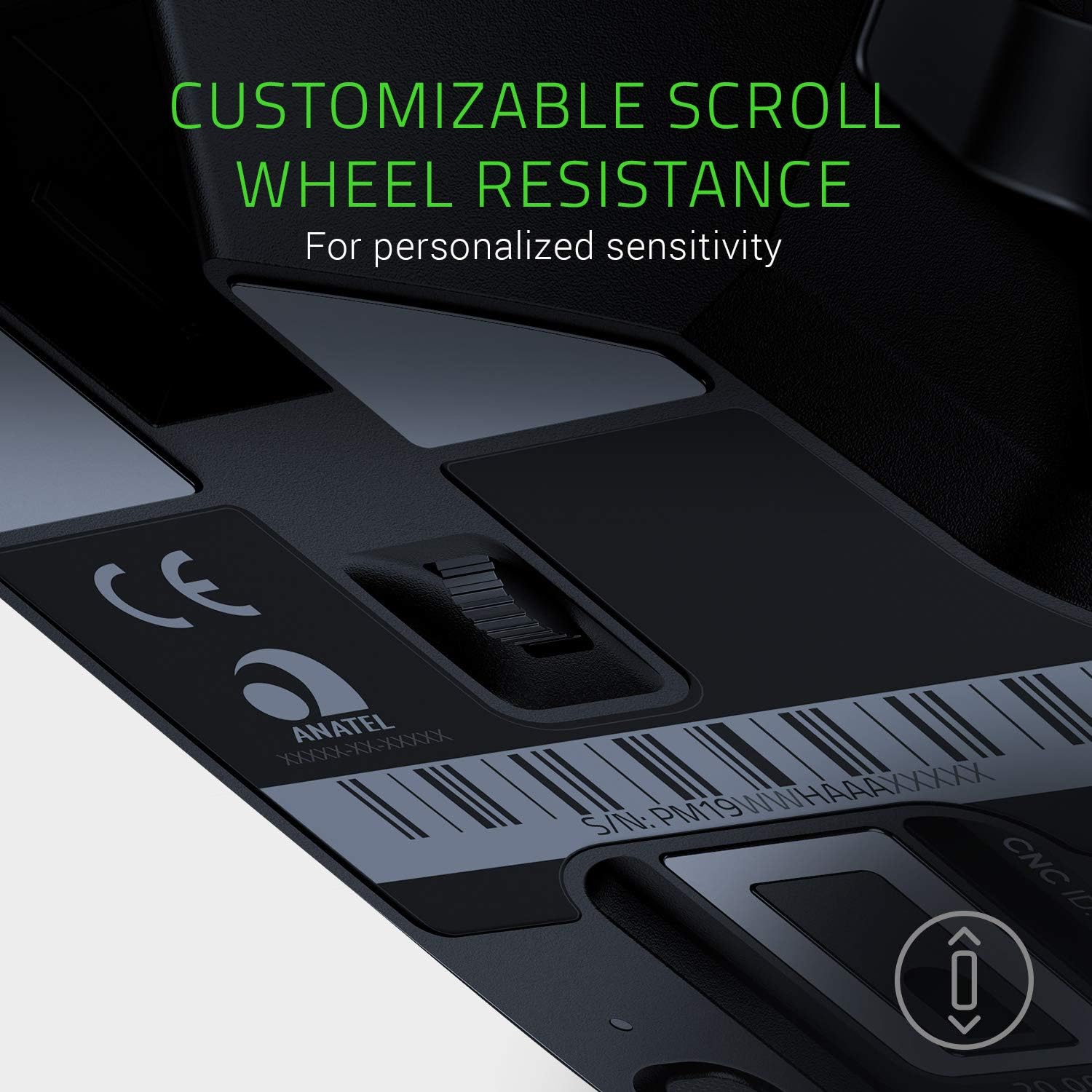
Description: This image displays the underside of the mouse, highlighting the dial for customizing scroll wheel resistance, allowing for personalized sensitivity.
Battery Life and Management
The mouse offers up to 100 hours of battery life. Monitor battery status through Razer Synapse 3. For optimal battery longevity, avoid fully discharging the mouse frequently.
Maintenance
Cleaning
- Use a soft, dry cloth to clean the mouse surface.
- For stubborn dirt, slightly dampen the cloth with water. Avoid harsh chemicals or abrasive materials.
- Clean the optical sensor periodically with a cotton swab to ensure accurate tracking.
Firmware Updates
Regularly check for and install firmware updates via Razer Synapse 3 to ensure your mouse operates with the latest performance enhancements and bug fixes.
Troubleshooting
- Mouse not responding:
- Ensure the mouse is powered on.
- Check if the USB wireless dongle is securely plugged into a working USB port.
- Try connecting the mouse in wired mode to confirm functionality.
- Ensure the mouse battery is charged.
- Intermittent connection issues:
- Move the USB wireless dongle closer to the mouse, ideally using a USB extender if available.
- Avoid placing the dongle near other wireless devices or sources of interference (e.g., Wi-Fi routers, cordless phones).
- Update mouse firmware via Razer Synapse 3.
- Try a different USB port on your computer.
- Tracking issues:
- Clean the optical sensor.
- Ensure you are using the mouse on a suitable surface (a mouse pad is recommended).
- Adjust DPI settings in Razer Synapse 3.
- Buttons not working as expected:
- Verify button assignments in Razer Synapse 3.
- Ensure the correct profile is active.
Specifications
| Feature | Detail |
|---|---|
| Brand | Razer |
| Model Number | RZ01-03170200-R3U1 |
| Connectivity | Razer HyperSpeed Wireless (2.4 GHz), Wired (Speedflex Cable) |
| Sensor | Razer Focus+ Optical Sensor, 20,000 DPI |
| Switches | Razer Optical Mouse Switches |
| Programmable Buttons | 11 |
| On-board Memory Profiles | 5 |
| Battery Life | Up to 100 hours |
| Dimensions (LxWxH) | 5.11 x 2.96 x 1.67 inches (130 x 75 x 42 mm) |
| Weight | 3.84 ounces (109 grams) |
| Operating System | Windows |
Warranty and Support
For detailed warranty information, please refer to the official Razer website or the Important Product Information Guide included with your device. For technical support, driver downloads, and frequently asked questions, visit the Razer Support page:
You can also find the full user manual in PDF format here: Razer Basilisk Ultimate User Manual (PDF)
Related Documents - RZ01-03170200-R3U1
 |
Razer Basilisk V3 Master Guide: Ergonomic Gaming Mouse Configuration and Features Comprehensive master guide for the Razer Basilisk V3 ergonomic gaming mouse. Learn about its features, customization options with Razer Synapse, technical specifications, and safety guidelines. |
 |
Razer Basilisk Master Guide: Setup, Configuration, and Features A comprehensive master guide for the Razer Basilisk gaming mouse, detailing its features, setup process, Razer Synapse 3 software configuration, technical specifications, safety guidelines, and maintenance instructions. |
 |
Razer Naga Pro Master Guide: Wireless Gaming Mouse Configuration and Features Comprehensive guide to the Razer Naga Pro wireless gaming mouse, covering setup, configuration via Razer Synapse, technical specifications, safety, maintenance, and legal information. Learn about its advanced features, customizable buttons, and Chroma RGB lighting. |
 |
Razer Cobra Pro Master Guide: Setup, Features, and Configuration Comprehensive master guide for the Razer Cobra Pro wireless gaming mouse. Learn about setup, connectivity options (HyperSpeed Wireless, Bluetooth, Wired), Razer Synapse configuration, performance settings, lighting customization, safety, and maintenance. |
 |
Razer Mamba Elite Master Guide Comprehensive master guide for the Razer Mamba Elite gaming mouse, detailing its features, Razer Synapse 3 software configuration, device layout, technical specifications, safety guidelines, and maintenance. |
 |
Razer Basilisk V3 Pro Customizable Wireless Gaming Mouse User Manual Comprehensive user manual and master guide for the Razer Basilisk V3 Pro customizable wireless gaming mouse, detailing features, setup, configuration, safety, and maintenance. |
Ask a question about this manual
Ask about setup, troubleshooting, compatibility, parts, safety, or missing instructions. Manuals+ will review the question and use this page’s manual context to help answer it.