
Introduction
This manual provides detailed instructions for the setup, operation, and maintenance of your iHome Bluetooth Mac Mouse. Please read this guide thoroughly before using the device to ensure proper functionality and to prevent damage.
Package Contents
- iHome Bluetooth Mac Mouse
- 2 x AAA Batteries (pre-installed or included separately)
- Instruction Manual
Product Overview
The iHome Bluetooth Mac Mouse features a sleek, modern design optimized for comfort and functionality. It includes a scroll wheel and three buttons, offering precise control with adjustable DPI settings.

Image: Top view of the iHome Bluetooth Mac Mouse in white, showcasing its sleek design alongside a keyboard and smartphone.

Image: Bottom view of the iHome Bluetooth Mac Mouse, highlighting the scroll wheel and the 800/1600 DPI high-performance laser sensor switch. Bluetooth 3.0 wireless technology is indicated.
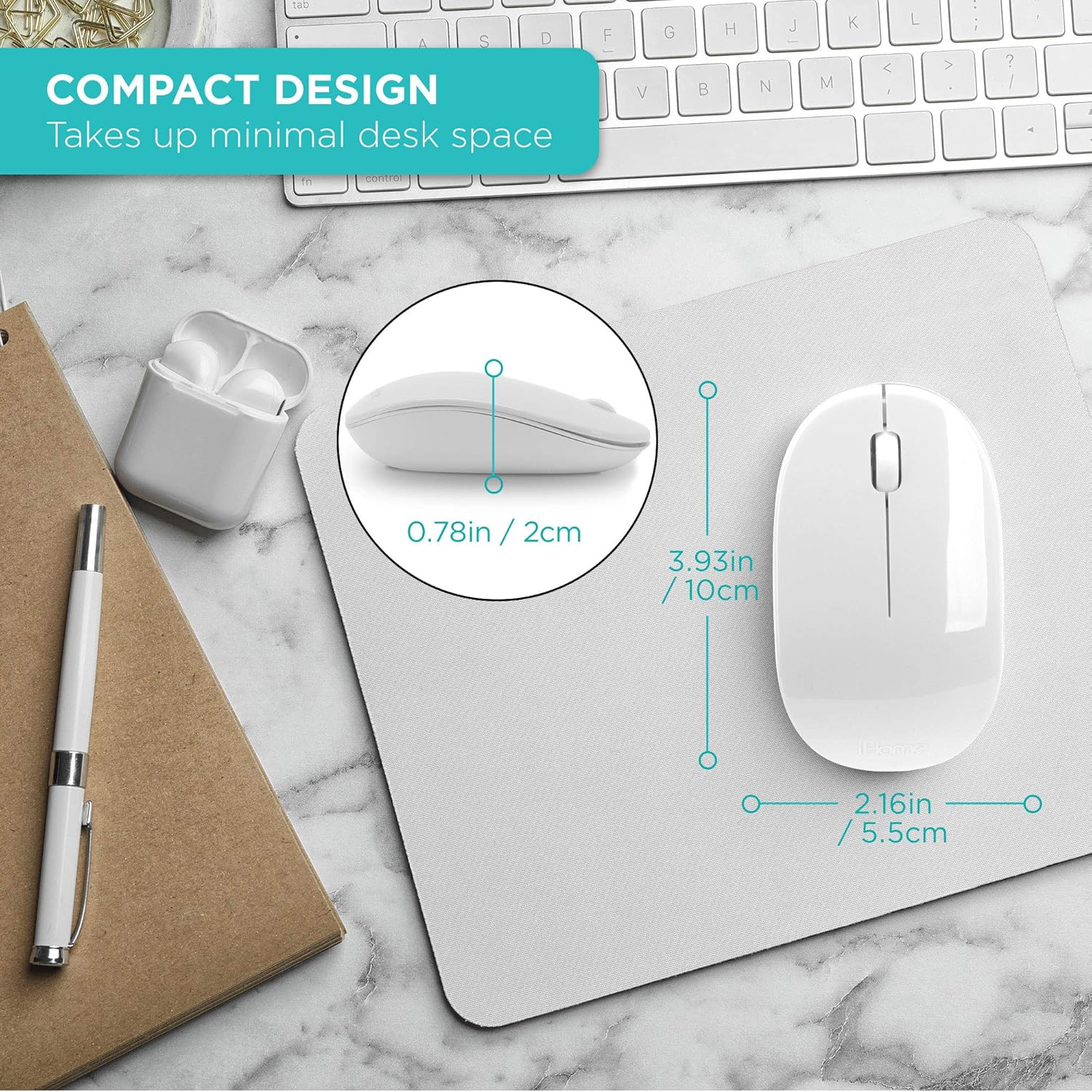
Image: The iHome Bluetooth Mac Mouse shown with its compact dimensions: 3.93 inches (10cm) length, 2.16 inches (5.5cm) width, and 0.78 inches (2cm) height.
Setup
1. Battery Installation
- Locate the battery compartment on the underside of the mouse.
- Gently slide the battery cover open.
- Insert two (2) AAA batteries, ensuring correct polarity (+/-).
- Close the battery cover securely.
2. Bluetooth Pairing
- Ensure the mouse is powered on using the switch on the bottom.
- Press and hold the Bluetooth pairing button on the bottom of the mouse until the indicator light begins to flash, indicating it is in pairing mode.
- On your Mac computer, navigate to System Settings (or System Preferences on older macOS versions).
- Select Bluetooth.
- Ensure Bluetooth is turned on.
- Locate "iHome Mouse" or a similar name in the list of available devices.
- Click Connect or Pair.
- Once connected, the indicator light on the mouse will stop flashing and remain solid or turn off, depending on the model.
System Requirements: Bluetooth enabled computer, Mac: OS X 10.4 or later.
Operating Instructions
Basic Functionality
- Left Click: Primary selection and activation.
- Right Click: Accesses contextual menus.
- Scroll Wheel: Scrolls content vertically. Can also be pressed for middle-click functionality in some applications.

Image: A hand comfortably using the iHome Bluetooth Mac Mouse, demonstrating its contoured shape suitable for both right and left-hand use.
DPI Adjustment
The mouse features an adjustable DPI (Dots Per Inch) setting, allowing you to change cursor sensitivity. Locate the DPI switch on the bottom of the mouse. Press this button to cycle between 800 DPI and 1600 DPI. Select the sensitivity that best suits your preference and task.
Maintenance
- Cleaning: Use a soft, dry cloth to clean the mouse. Avoid using harsh chemicals or abrasive materials.
- Battery Replacement: Replace batteries when the mouse performance degrades or it fails to connect. Always use fresh AAA batteries.
- Storage: When not in use for extended periods, turn off the mouse to conserve battery life. Store in a cool, dry place.
Troubleshooting
| Problem | Solution |
|---|---|
| Mouse does not turn on. | Ensure batteries are correctly installed and are not depleted. Replace with new AAA batteries if necessary. Check if the power switch on the bottom of the mouse is in the 'ON' position. |
| Mouse does not connect via Bluetooth. | Verify Bluetooth is enabled on your computer. Ensure the mouse is in pairing mode (flashing indicator light). Remove the mouse from your computer's Bluetooth device list and attempt to pair again. Move the mouse closer to your computer. |
| Cursor movement is erratic or slow. | Check the DPI setting and adjust if needed. Ensure the mouse sensor is clean and free of debris. Use the mouse on a suitable surface (e.g., a mouse pad). Replace batteries if they are low. |
| Buttons or scroll wheel are unresponsive. | Check battery level. Restart your computer and try reconnecting the mouse. Ensure no physical obstructions are preventing button presses. |
Specifications
- Connectivity: Bluetooth 3.0, Wireless
- Buttons: 3 (Left, Right, Scroll Wheel/Middle Click)
- DPI Settings: 800 / 1600 DPI (adjustable)
- Movement Detection Technology: Laser
- Power: 2 x AAA Batteries (included)
- Color: White
- Dimensions: Approximately 3.93 x 2.16 x 0.78 inches (L x W x H)
- Weight: Approximately 4.5 ounces
- Compatibility: Mac OS X 10.4 or later, Bluetooth-enabled computers
Warranty Information
iHome products are designed with quality and reliability in mind. For specific warranty details, including coverage period and terms, please refer to the warranty card included with your purchase or visit the official iHome support website. Keep your proof of purchase for warranty claims.
Support
If you encounter any issues not covered in this manual or require further assistance, please contact iHome customer support. You can typically find contact information on the iHome website or on the product packaging.
For online resources and frequently asked questions, please visit: www.ihome.com/support


