
NETGEAR AC2200 (RBR20)
Contents
NETGEAR Orbi Whole Home Mesh-Ready WiFi Router
Model: AC2200 (RBR20)
1. Product Overview
The NETGEAR Orbi AC2200 (RBR20) is a high-performance Whole Home Mesh-Ready WiFi Router designed to eliminate WiFi dead zones and provide super-fast, reliable internet connectivity throughout your home. This product has been professionally inspected and tested to work and look like new, ensuring quality performance.
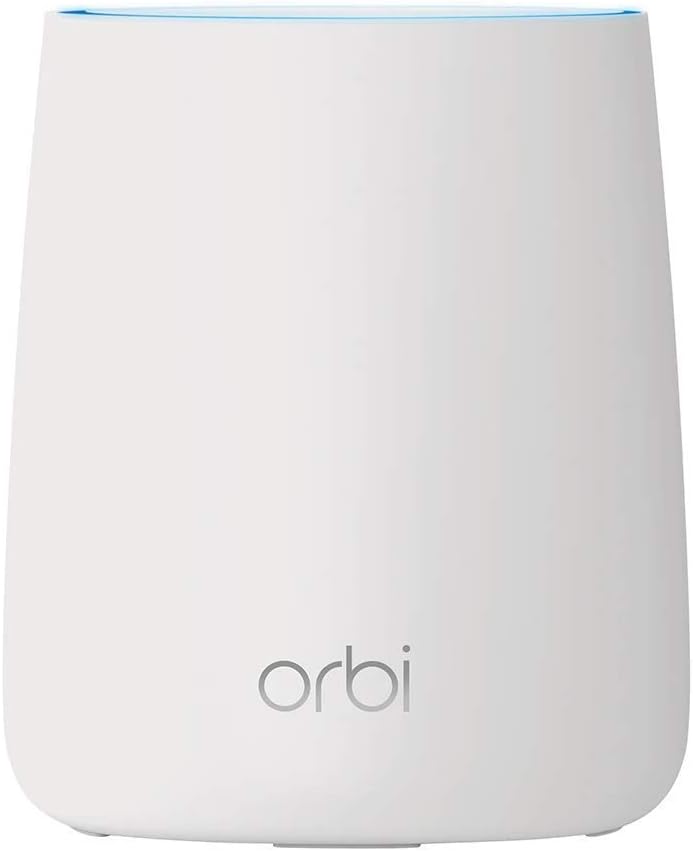
Key Features:
- Extensive Coverage: Eliminates WiFi dead zones and buffering for super-fast, reliable streaming and gaming across 2,000 square feet with speeds up to 2.2 Gbps.
- Expandable System: Expand your coverage indoors and out with Orbi satellite extenders (sold separately) to create a comprehensive whole home mesh WiFi network.
- NETGEAR Armor Security: Built-in anti-virus and data theft protection for all connected smartphones and computers, safeguarding your home from internet threats. Includes a trial for unlimited devices.
- Tri-Band Technology: Maintains speed even with multiple devices connected simultaneously, thanks to advanced tri-band technology.
- Simple Setup: Easy setup and management via the intuitive Orbi app, allowing for guest network creation, parental controls, and speed tests.
- Wired Connectivity: Features 2 Ethernet ports for stable wired connections to devices like Smart TVs and gaming consoles.
- Smart Parental Controls: Filter content, manage screen time, and monitor usage on any connected device, anytime, anywhere.
2. Setup Guide
Setting up your NETGEAR Orbi router is a straightforward process, primarily guided by the Orbi mobile application.
Initial Setup Steps:
- Unpack and Connect: Place your Orbi router in a central location. Connect the router to your modem using the provided Ethernet cable. Plug in the power adapter and power on the router.
- Download the Orbi App: Search for "NETGEAR Orbi" in your device's app store. You can use the QR codes below for direct access:

The Orbi app setup screen, showing QR codes to download the app from the Apple App Store and Google Play Store. Download on the Apple App Store or Google Play.
- Follow In-App Instructions: Open the Orbi app and follow the on-screen prompts to set up your Orbi WiFi system. This typically involves scanning a QR code on the router, creating your WiFi network name (SSID) and password, and connecting your devices.
- Connect Devices: Once setup is complete, connect your smartphones, tablets, computers, and other WiFi-enabled devices to your new Orbi network.

3. Operating Your Orbi System
Your Orbi router is designed for continuous, high-performance operation. Once set up, it will automatically manage your home network to provide optimal WiFi coverage.
Daily Use and Features:
- Seamless Roaming: As you move around your home, your devices will automatically switch to the strongest Orbi signal, ensuring uninterrupted connectivity.
- Ethernet Ports: Utilize the two Ethernet ports on the back of the router for wired connections to devices requiring stable, high-speed access, such as gaming consoles or desktop computers.
- Orbi App Management: Use the Orbi app to monitor connected devices, run speed tests, enable guest WiFi, and manage parental controls.
- NETGEAR Armor: Ensure NETGEAR Armor is active through the Orbi app to protect your network from cyber threats.


4. Maintenance
Regular maintenance helps ensure the longevity and optimal performance of your Orbi system.
- Firmware Updates: Periodically check for and install firmware updates via the Orbi app. Updates often include performance improvements, security patches, and new features.
- Optimal Placement: Ensure your Orbi router is placed in an open, central location, away from large metal objects, thick walls, and other electronic devices that may cause interference.
- Cleaning: Gently wipe the exterior of the router with a soft, dry cloth to remove dust. Do not use liquid cleaners or abrasive materials. Ensure ventilation openings are clear.
- Rebooting: If you experience minor connectivity issues, a simple reboot of the router (unplugging it for 10 seconds and plugging it back in) can often resolve them.
5. Troubleshooting
If you encounter issues with your Orbi system, try the following common troubleshooting steps:
- No Internet Connection:
- Check that your modem is working correctly and has an active internet connection.
- Ensure the Ethernet cable connecting the Orbi router to the modem is securely plugged into the yellow Internet port on the router.
- Reboot both your modem and Orbi router.
- Slow WiFi Speed:
- Run a speed test using the Orbi app to verify your internet speed.
- Ensure your Orbi router is optimally placed and not obstructed.
- Check for any background downloads or streaming on connected devices.
- Consider adding an Orbi satellite if you have a large home or many dead zones.
- Device Cannot Connect to WiFi:
- Verify you are entering the correct WiFi password.
- Reboot the device you are trying to connect.
- Check the Orbi app to ensure the WiFi network is broadcasting and not paused.
- Orbi App Issues:
- Ensure your smartphone or tablet is connected to the Orbi WiFi network.
- Try force-closing and reopening the app.
- Ensure the app is updated to the latest version.
For more detailed troubleshooting or persistent issues, refer to the official NETGEAR support resources.
6. Specifications
| Feature | Detail |
|---|---|
| Product Dimensions | 5.78 x 6.67 x 6.91 inches |
| Item Weight | 1.94 pounds |
| Model Name | NETGEAR Orbi AC2200 (RBR20) |
| Brand | NETGEAR |
| Special Feature | WPS |
| Frequency Band Class | Tri-Band |
| Wireless Communication Standard | 802.11ac |
| Compatible Devices | Gaming Console, Smart Television, Smartphone |
| Frequency | 5 GHz |
| Recommended Uses For Product | Gaming |
| Connectivity Technology | Ethernet, Wi-Fi |
| Included Components | NETGEAR Armor, pre-owned or refurbished product with professional inspection and testing |
7. Warranty and Returns
As a refurbished product, the NETGEAR Orbi AC2200 (RBR20) is covered by the Amazon Renewed Guarantee.
- Amazon Renewed Guarantee: If you are not satisfied with your purchase, renewed products are eligible for replacement or refund under the Amazon Renewed Guarantee.
- Return Policy: This product typically has a 90-day return policy for refund or replacement from the date of purchase. Please refer to your purchase details for specific terms.
- Protection Plans: Optional protection plans may be available for purchase to extend coverage beyond the standard return period. Check product listing for details.
8. Support
For further assistance, technical support, or detailed product documentation, please refer to the following resources:
- NETGEAR Support Website: Visit the official NETGEAR support website for comprehensive FAQs, downloads, and contact options.
- Orbi App: The Orbi app provides in-app support, diagnostics, and direct access to help resources.
- Amazon Renewed Store: For inquiries related to your refurbished product purchase or the Amazon Renewed Guarantee, you can visit the Amazon Renewed Store.
Ask a question about this manual
Ask about setup, troubleshooting, compatibility, parts, safety, or missing instructions. Manuals+ will review the question and use this page’s manual context to help answer it.