
Nokia NOKIA 4.2
Nokia 4.2 User Manual
Model: NOKIA 4.2
Introduction
The Nokia 4.2 is a smartphone designed for everyday use, featuring a premium glass sandwich body and a 5.71-inch HD+ display with a teardrop notch. It runs on Android One, ensuring a clean and up-to-date Android experience. Key features include a dedicated Google Assistant button, a 13MP dual rear camera system, an 8MP front-facing camera, and convenient face unlocking. The power button also incorporates an LED ring for notification alerts.
Setup
Package Contents
Ensure your package contains the following items:
- Nokia 4.2 Smartphone
- Power Adapter
- Quick Start Guide (not included in this manual)
Inserting SIM and Memory Card
Locate the SIM tray on the side of your device. Use the provided SIM ejector tool to open the tray. Carefully place your Nano-SIM card(s) and/or a microSD card into the designated slots. Ensure the cards are correctly oriented as indicated on the tray. Gently push the tray back into the phone until it clicks into place.
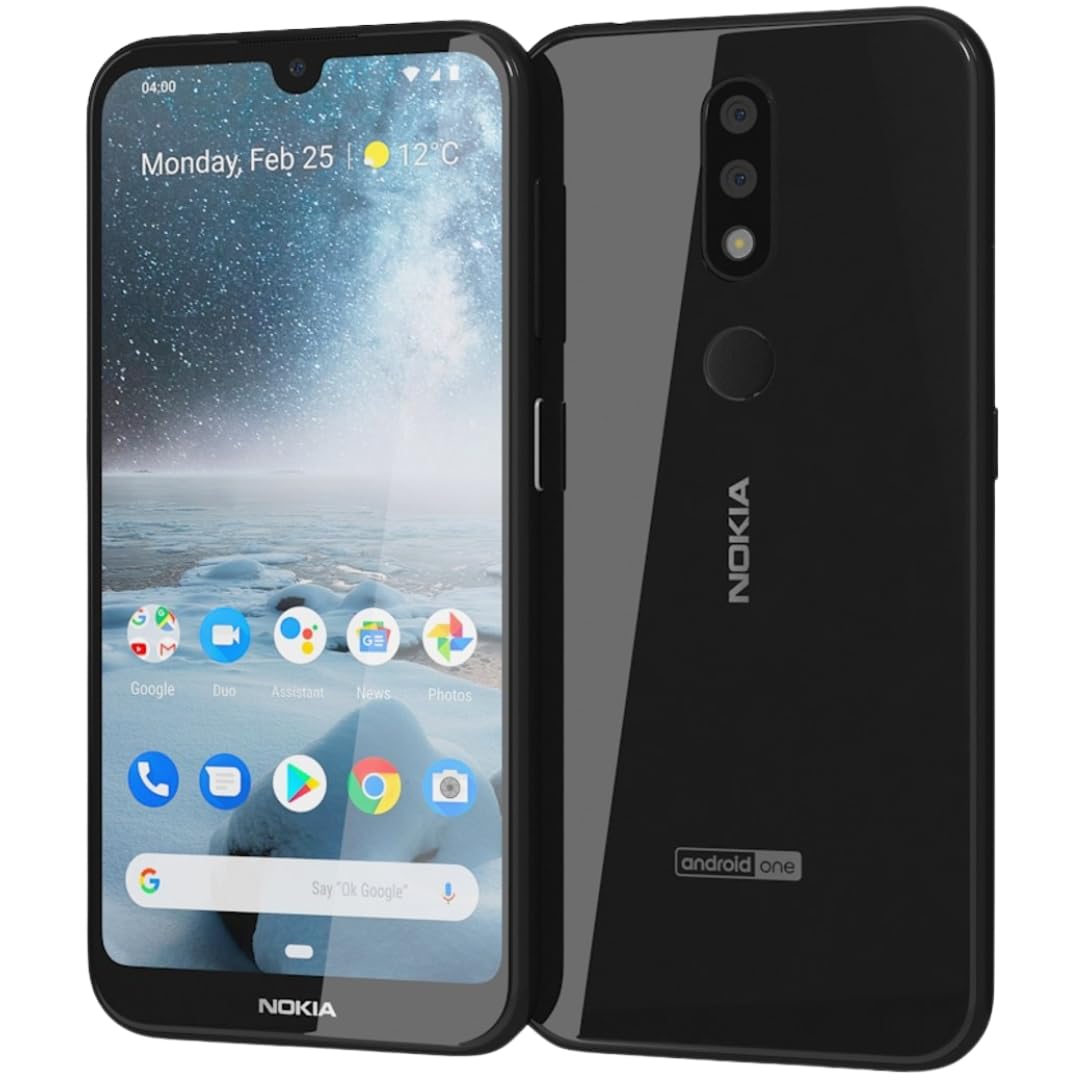
Image: Front and back view of the Nokia 4.2 smartphone. The front displays the home screen with app icons and the date, while the back shows the dual camera setup, fingerprint sensor, and Nokia branding.
Charging the Device
Before first use, it is recommended to fully charge your Nokia 4.2. Connect the supplied power adapter to the charging port at the bottom of the phone. Plug the adapter into a wall outlet. The battery indicator on the screen will show charging progress. A full charge typically takes a few hours.
Initial Power On
Press and hold the power button located on the side of the phone until the Nokia logo appears. Follow the on-screen instructions to complete the initial setup, including selecting your language, connecting to Wi-Fi, and signing in with your Google account. As an Android One device, the setup process is streamlined and intuitive.
Operating Your Nokia 4.2
Basic Navigation
The Nokia 4.2 features a responsive touchscreen for navigation. Use gestures such as tapping, swiping, pinching, and spreading to interact with apps and content. The physical buttons include the power button (with integrated notification LED) and volume buttons on the side.
Google Assistant Button
Your Nokia 4.2 includes a dedicated Google Assistant button on its side. Press it once to quickly launch Google Assistant and ask questions, get directions, or make suggestions using your voice. Double-press for a visual snapshot of your day, and long-press to speak a longer command.
Camera Features
The Nokia 4.2 is equipped with a 13MP main rear camera paired with a 2MP depth-sensing camera for enhanced portrait mode effects. The front features an 8MP selfie camera with a wide 74-degree field of view. Open the Camera app to capture photos and videos. Explore various modes like Portrait, Panorama, and Pro mode for advanced settings.
Security Features
Unlock your phone conveniently and securely using:
- Face Unlocking: Set up face recognition in the security settings to unlock your phone by simply looking at it.
- Fingerprint Sensor: Register your fingerprints in the security settings. The sensor is located on the rear of the device for quick and secure unlocking.
- PIN/Pattern/Password: Standard Android security options are also available.
Notifications
The power button on your Nokia 4.2 features an integrated LED ring that pulsates to indicate unread notifications, missed calls, or charging status. You can also view notifications by swiping down from the top of the screen.
Maintenance
Cleaning Your Device
To clean your Nokia 4.2, use a soft, lint-free cloth. For stubborn smudges, slightly dampen the cloth with water or a screen cleaner specifically designed for electronics. Avoid using harsh chemicals, abrasive materials, or excessive moisture, as these can damage the device.
Battery Longevity
To maximize battery life, avoid exposing your phone to extreme temperatures. Charge the battery regularly, but avoid leaving it fully charged or fully discharged for extended periods. The phone's adaptive battery feature helps optimize usage based on your habits.
Software Updates
As an Android One device, your Nokia 4.2 receives regular security and operating system updates directly from Google. Ensure your phone is connected to Wi-Fi and has sufficient battery life before installing updates. You can check for updates in Settings > System > Advanced > System update.
Troubleshooting
If you encounter issues with your Nokia 4.2, try the following common troubleshooting steps:
- Device Not Responding: Press and hold the power button for about 10-15 seconds to force a restart.
- Charging Issues: Ensure the charging cable and adapter are securely connected and undamaged. Try a different outlet or charger.
- Network Connectivity Problems: Check if Airplane mode is off. Restart the phone. Go to Settings > Network & internet to check Wi-Fi or mobile data settings.
- App Crashing/Freezing: Close the app and reopen it. Clear the app's cache (Settings > Apps & notifications > App info > [App Name] > Storage & cache > Clear cache).
- Slow Performance: Close unused apps. Clear cache and temporary files. Consider performing a factory reset as a last resort (Settings > System > Advanced > Reset options > Erase all data (factory reset) - Note: This will erase all data on your phone. Back up important information first.).
Technical Specifications
| Feature | Specification |
|---|---|
| Model Number | NOKIA 4.2 |
| Operating System | Android 9.0 (Android One) |
| Display Size | 5.71 Inches HD+ |
| Display Resolution | 720 x 1520 |
| Processor | Snapdragon CPU Model |
| RAM | 3 GB |
| Internal Storage | 32 GB |
| Rear Camera | 13 MP + 2 MP Dual Camera |
| Front Camera | 8 MP |
| Battery Capacity | 3000 Milliamp Hours |
| Connectivity | Wi-Fi, 4G LTE |
| Audio Jack | No headphone jack |
| Color | Black |
| Item Weight | 11.2 ounces |
Warranty and Support
For detailed warranty information, please refer to the warranty card included in your product packaging or visit the official Nokia support website. Nokia provides customer support for product inquiries, technical assistance, and warranty claims. Keep your proof of purchase for warranty services.
For further assistance, visit the official Nokia support page or contact their customer service. You can often find support contact details on the Nokia website or within the phone's settings under 'About phone' or 'Support'.
Related documentsNOKIA 4.2


Ask a question about this manual
Ask about setup, troubleshooting, compatibility, parts, safety, or missing instructions. Manuals+ will review the question and use this page’s manual context to help answer it.