Introduction
The FRANKEVER Smart IR Remote Control is a universal infrared blaster designed to centralize control of your home entertainment and smart devices. Compatible with over 50,000 infrared-controlled appliances such as TVs, set-top boxes, DVD players, air conditioners, and fans, this device integrates seamlessly with smart home ecosystems like Alexa and Google Assistant. It operates via a 2.4GHz Wi-Fi network, allowing remote control through the Smart Life app and voice commands.

Figure 1: Two FRANKEVER Smart IR Remote Control units.
Setup Guide
Follow these steps to set up your Smart IR Remote Control and connect it to your devices.
1. Physical Connection
- Unpack the Smart IR Remote Control unit and the provided USB cable.
- Connect the USB cable to the device's Type-C port and plug the other end into a suitable USB power adapter (not included) or a USB port.
- Place the device in a central location within your room, ensuring it has a clear line of sight to the infrared-controlled appliances you wish to manage. The device transmits signals omnidirectionally.
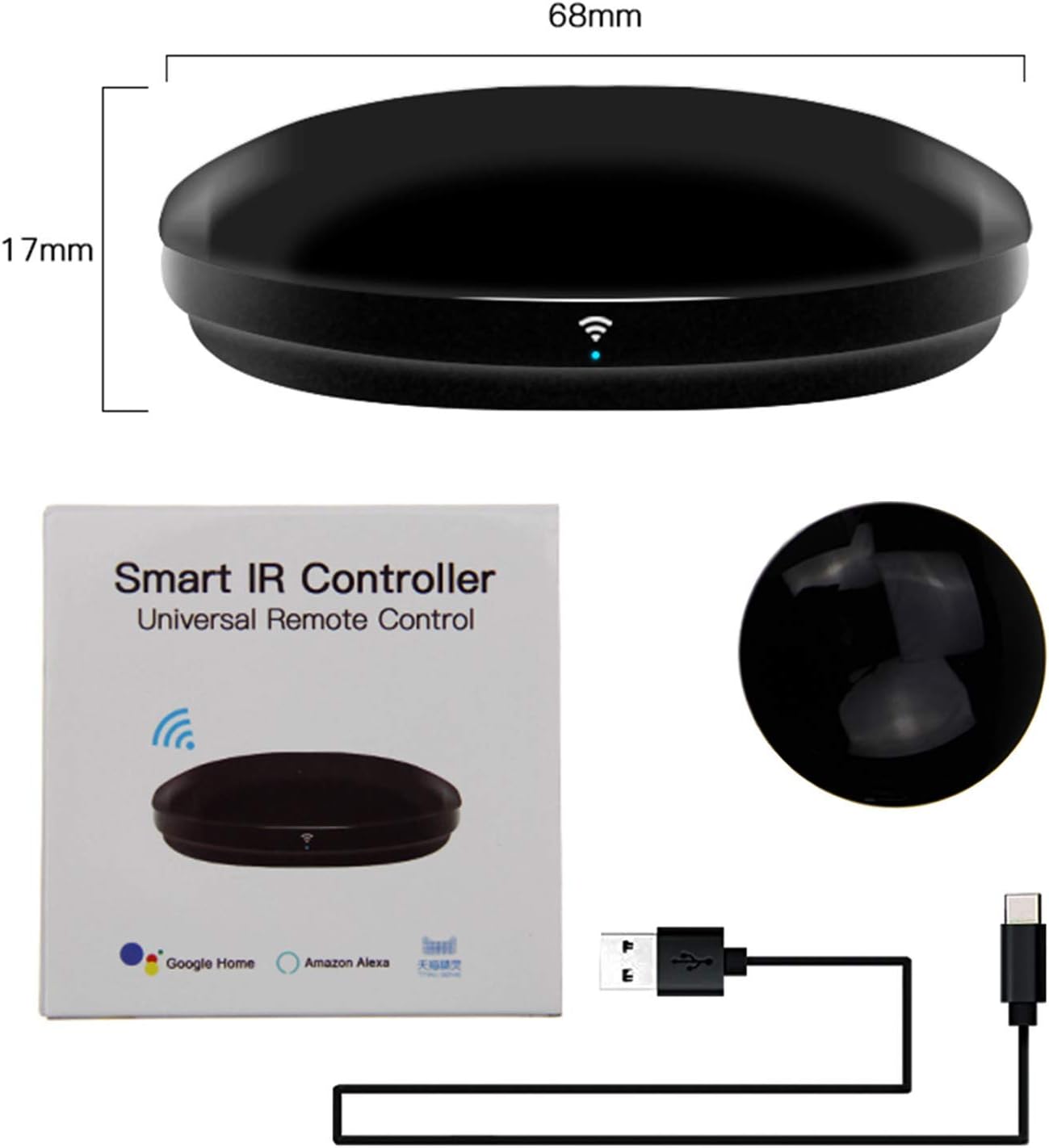
Figure 2: Device components and dimensions.
2. App Installation and Device Pairing
- Download the Smart Life app from your smartphone's app store (available for iOS and Android).
- Register or log in to your Smart Life account.
- In the app, tap the "Add Device" or "+" icon.
- Select "Universal Remote Control" or "Others (Wi-Fi)" from the device list.
- On the Smart IR Remote Control, press and hold the small button on the bottom until the blue indicator light starts blinking rapidly (approximately 20 seconds). This puts the device into pairing mode.
- Confirm the indicator light is blinking rapidly in the app and proceed.
- Enter your 2.4GHz Wi-Fi network password. Note: The device only supports 2.4GHz Wi-Fi networks.
- The app will begin searching for and connecting to the device. Once connected, you can rename the device.
Video 1: Demonstration of Smart IR remote control connection to the Smart Life app.
3. Adding Infrared Devices
After pairing the Smart IR Remote Control, you can add your infrared-controlled appliances.
- In the Smart Life app, select your newly added Smart IR Remote Control.
- Tap "Add Remote Control" and choose the type of device you want to add (e.g., TV, Air Conditioner, STB, DVD, Fan).
- Select the brand of your device from the list. The app has a vast database of infrared codes.
- Follow the on-screen prompts to test the remote functions. If the pre-programmed codes work, select "Select this one."
- If your device's brand is not listed or the pre-programmed codes do not work, you can use the DIY Learning Function. This allows the Smart IR Remote Control to learn signals directly from your original remote control.
- To use DIY Learning, select the "DIY" option or "Copy Button" within the device settings. Point your original remote at the Smart IR Remote Control (within 3cm) and press the desired button. The Smart IR Remote Control will learn and store this signal. Repeat for all necessary buttons.

Figure 3: The Smart IR Remote Control's DIY learning function for various infrared devices.

Figure 4: Detailed view of the DIY learning process in the Smart Life app.
Operating Instructions
Once your devices are added, you can control them using the Smart Life app or voice commands.
1. App Control
- Open the Smart Life app and select the specific device you wish to control (e.g., TV, Air Conditioner).
- Use the virtual remote interface in the app to control functions like power on/off, volume, channel, temperature, and mode settings.
- The app allows remote control from anywhere, as long as your Smart IR Remote Control is connected to Wi-Fi and your phone has internet access.

Figure 5: Remote control functionality from outside the home.
2. Voice Control (Alexa & Google Assistant)
Integrate your Smart IR Remote Control with voice assistants for hands-free control.
- Enable the "Smart Life" skill/service in your Alexa or Google Assistant app.
- Link your Smart Life account to your Alexa/Google Assistant account.
- Discover devices within the Alexa/Google Assistant app. Your IR-controlled devices added in Smart Life will appear as scenes or controllable devices.
- Use voice commands such as "Alexa, turn on the TV" or "Hey Google, set the air conditioner to 22 degrees."
- Siri voice control is also available on iPhone devices.

Figure 6: Voice control integration with Alexa and Google Home.
Video 2: Demonstration of TV control using the Smart IR Remote Control.
3. Creating Timers and Scenes
- The Smart Life app allows you to create schedules and timers for your devices. For example, set your air conditioner to turn on at a specific time before you arrive home.
- Create custom scenes to control multiple devices with a single command or tap. For instance, a "Movie Night" scene could turn on the TV, adjust the sound system, and dim the lights.

Figure 7: Personalized air conditioning mode setup for comfort.
Maintenance
To ensure optimal performance and longevity of your FRANKEVER Smart IR Remote Control, follow these simple maintenance guidelines:
- Cleaning: Use a soft, dry cloth to wipe the device. Avoid using abrasive cleaners, solvents, or strong chemicals, as they may damage the surface.
- Placement: Keep the device in a dry environment, away from direct sunlight, excessive heat, and moisture. Ensure it is placed where its infrared signals can reach your target devices without obstruction.
- Power: Always use the provided USB cable and a compatible power adapter (DC 5V/1A) to power the device.
Troubleshooting
If you encounter issues with your Smart IR Remote Control, refer to the following common problems and solutions:
| Problem | Possible Cause / Solution |
|---|---|
| Device not connecting to Wi-Fi. |
|
| IR signal not working or device not responding. |
|
| Voice control not working. |
|
Specifications
| Feature | Detail |
|---|---|
| Model Number | FK-UFO-R4 |
| Dimensions | Approximately 68mm (diameter) x 17mm (height) |
| Item Weight | 4.9 ounces |
| Connectivity | Wi-Fi 2.4GHz (IEEE 802.11 b/g/n) |
| IR Frequency | 38K kHz |
| IR Range | Up to 8 meters (line of sight) |
| Power Input | DC 5V/1A (via Type-C USB) |
| Compatibility | Infrared controlled devices (TV, DVD, AC, STB, Fan, etc.), Alexa, Google Assistant, Smart Life App |
| Operating Temperature | 0°C to 50°C (32°F to 122°F) |
| Operating Humidity | ≤85% RH (non-condensing) |
| Country of Origin | China |
Warranty and Support
Warranty Information
The FRANKEVER Smart IR Remote Control (Model FK-UFO-R4) comes with a 12-month warranty from the date of purchase, covering manufacturing defects and malfunctions under normal use. Please retain your proof of purchase for warranty claims.
Customer Support
For any questions regarding installation, operation, or troubleshooting, please contact FRANKEVER customer service. Our team is available to provide professional assistance and guidance to ensure you get the most out of your device.
You can find contact information for FRANKEVER customer service on the product packaging or the official FRANKEVER website.