Introduction
This user manual provides comprehensive instructions for operating your Samsung Galaxy S10 smartphone. It covers essential functions, setup procedures, maintenance tips, and troubleshooting guidance to help you maximize your device's capabilities. Please read this manual thoroughly before using your device to ensure safe and optimal performance.
The Samsung Galaxy S10 series includes various models such as SM-G970F, SM-G970F/DS, SM-G973F/DS, SM-G975F, SM-G975F/DS, and SM-G977B. While specific features may vary slightly by region or carrier, the core functionalities described herein apply to all models.
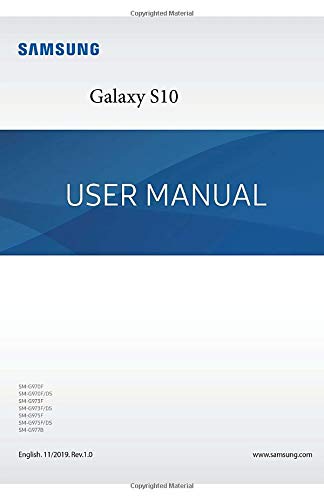
Figure 1: Front cover of the Samsung Galaxy S10 User Manual.
Setup
1. Unboxing and Initial Inspection
Carefully remove all components from the packaging. Verify that the following items are present:
- Samsung Galaxy S10 device
- USB-C cable
- Power adapter
- SIM ejector tool
- Quick Start Guide (if included)
Inspect the device for any physical damage before proceeding.
2. Inserting SIM Card and MicroSD Card
- Locate the SIM card tray on the side of your device.
- Insert the SIM ejector tool into the small hole on the tray to open it.
- Place your Nano-SIM card into the tray with the gold contacts facing down.
- If applicable, insert a microSD card into the designated slot on the same tray.
- Gently push the tray back into the device until it clicks into place.
3. Charging the Device
Before first use, fully charge your Galaxy S10. Connect the USB-C cable to the device's charging port and the power adapter, then plug the adapter into a wall outlet.
4. Initial Power On and Setup Wizard
Press and hold the Power/Side key until the Samsung logo appears. Follow the on-screen instructions to complete the initial setup, including language selection, Wi-Fi connection, Google account setup, and security settings.
Operating Your Device
1. Basic Navigation
- Home Screen: Swipe left or right to access different panels.
- App Drawer: Swipe up from the Home screen to view all installed applications.
- Notifications Panel: Swipe down from the top of the screen to access notifications and quick settings.
- Recent Apps: Tap the Recent Apps button (three vertical lines) to view and switch between recently used applications.
2. Making Calls and Sending Messages
To make a call, open the Phone app, enter the number, and tap the call icon. To send a message, open the Messages app, tap the new message icon, enter the recipient and your message, then tap send.
3. Connecting to Wi-Fi and Mobile Data
Navigate to Settings > Connections > Wi-Fi to connect to a wireless network. For mobile data, ensure your SIM card is active and go to Settings > Connections > Data usage to manage mobile data settings.
4. Camera Usage
Open the Camera app. Tap the shutter button to take a photo. Swipe left or right to switch between camera modes (e.g., Photo, Video, Pro, Live Focus). Tap the camera switch icon to toggle between front and rear cameras.
5. Security Features
Your Galaxy S10 offers various security options:
- Fingerprint Scanner: Register your fingerprints via Settings > Biometrics and security > Fingerprints.
- Face Recognition: Set up face unlock via Settings > Biometrics and security > Face recognition.
- PIN, Pattern, Password: Configure these traditional security methods via Settings > Lock screen > Screen lock type.
Maintenance
1. Cleaning the Device
Use a soft, lint-free cloth to clean the screen and body of your device. Avoid using harsh chemicals or abrasive materials. For stubborn smudges, slightly dampen the cloth with water or a screen cleaner designed for electronics.
2. Software Updates
Regularly check for software updates to ensure your device has the latest features and security patches. Go to Settings > Software update > Download and install.
3. Battery Care
To prolong battery life, avoid extreme temperatures. Do not leave your device fully charged or fully discharged for extended periods. Consider enabling power-saving modes when battery levels are low.
4. Data Backup
Regularly back up your important data to a cloud service (e.g., Samsung Cloud, Google Drive) or a computer to prevent data loss. Go to Settings > Accounts and backup for options.
Troubleshooting
1. Common Issues
- Device not turning on: Ensure the battery is charged. If not, connect to a charger. If still unresponsive, perform a forced restart by holding the Volume Down and Power keys simultaneously for more than 7 seconds.
- Apps crashing or freezing: Clear the app's cache (Settings > Apps > [App Name] > Storage > Clear cache) or reinstall the app.
- Network connectivity issues: Toggle Airplane mode on and off. Restart your device. Check your SIM card insertion.
- Slow performance: Close unused apps, clear cache, and ensure sufficient storage space.
2. Factory Reset
Warning: A factory reset will erase all data from your device. Back up important data before proceeding.
To perform a factory reset, go to Settings > General management > Reset > Factory data reset. Follow the on-screen prompts to confirm.
Specifications
The following table outlines key specifications for the Samsung Galaxy S10 series. Please note that specifications may vary by region and specific model (e.g., S10e, S10, S10+).
| Feature | Detail |
|---|---|
| ASIN | B0851LFP86 |
| Publisher | Independently published |
| Publication date | February 18, 2020 |
| Language | English |
| Print length | 261 pages |
| ISBN-13 | 979-8615359002 |
| Item Weight | 14.2 ounces |
| Dimensions | 5.5 x 0.59 x 8.5 inches |

Figure 2: Back cover of the Samsung Galaxy S10 User Manual, displaying ISBN and barcode.
Warranty and Support
1. Product Warranty
Your Samsung Galaxy S10 device is covered by a limited manufacturer's warranty. The terms and conditions of this warranty vary by region and point of purchase. Please refer to the warranty card included with your device or visit the official Samsung website for detailed information regarding warranty coverage, duration, and claims procedures.
2. Customer Support
For further assistance, technical support, or service inquiries, please contact Samsung Customer Service through one of the following channels:
- Online Support: Visit the official Samsung support website for FAQs, troubleshooting guides, and live chat options. www.samsung.com/support
- Phone Support: Refer to your region-specific Samsung website for local contact numbers.
- Service Centers: Locate authorized Samsung service centers near you for in-person assistance.
When contacting support, please have your device's model number and serial number ready. These can typically be found in Settings > About phone.


