1. Introduction
Thank you for choosing the ToLuLu 1080P HD Webcam. This manual provides detailed instructions for the proper setup, operation, and maintenance of your webcam. Designed for professional-quality video calls, recording, conferencing, and gaming, this webcam delivers crisp images and clear video at 30 frames per second. It features automatic light correction, HDR technology, and a built-in noise-reduction microphone to ensure optimal performance in various lighting conditions.
2. What's in the Box
- ToLuLu 1080P HD Webcam
- User Manual
- Privacy Cover
- Tripod Stand
3. Product Overview
The ToLuLu 1080P HD Webcam is equipped with a full HD glass lens and an integrated digital stereo microphone. It features a flexible clip for mounting on various displays and a standard tripod thread for the included tripod stand. A privacy cover is also provided for enhanced security.

Image 3.1: ToLuLu 1080P Webcam with included privacy cover and tripod.

Image 3.2: Webcam with privacy cover and tripod stand. The privacy cover can be closed when the webcam is not in use.
4. Setup Instructions
- Mounting the Webcam:
The webcam features an adjustable universal clip. You can place it securely on top of your laptop screen, desktop monitor, or any flat surface. For alternative placement, attach the webcam to the included tripod stand using the standard tripod thread at the bottom of the clip. - Connecting to Your Computer:
Connect the USB cable from the webcam to an available USB port on your computer (laptop, desktop, Mac, PC). The webcam is designed for plug-and-play functionality, meaning no additional drivers are typically required for most operating systems. - Initial Recognition:
Your computer should automatically detect and install the webcam. A notification may appear indicating that the device is ready for use. - Software Configuration:
Open your preferred video conferencing or streaming application (e.g., Zoom, Skype, OBS, YouTube, Facetime). Navigate to the video and audio settings within the application and select the "ToLuLu Webcam" as your video input device and its integrated microphone as your audio input device.

Image 4.1: Connecting the webcam via USB for plug-and-play setup.
5. Operating Instructions
- Video Quality: The 1080P Full HD glass lens delivers clear video at 30 frames per second. The webcam features automatic light correction and HDR technology, which adjusts color and brightness for natural lighting, even in dim or poorly backlit environments.
- Audio Quality: The built-in digital stereo microphone includes automatic noise reduction, ensuring your voice is captured clearly from up to 10 feet away.
- Widescreen View: The fixed-focus lens provides a 110-degree wide-angle view, suitable for individual use or group video conferencing.
- Privacy Cover: Use the included privacy cover to physically block the camera lens when not in use. This protects your privacy and prevents unauthorized access to your video feed.

Image 5.1: Comparison illustrating the clarity of the 1080P Full HD webcam.

Image 5.2: The webcam's 110-degree wide-angle view, suitable for multiple participants.
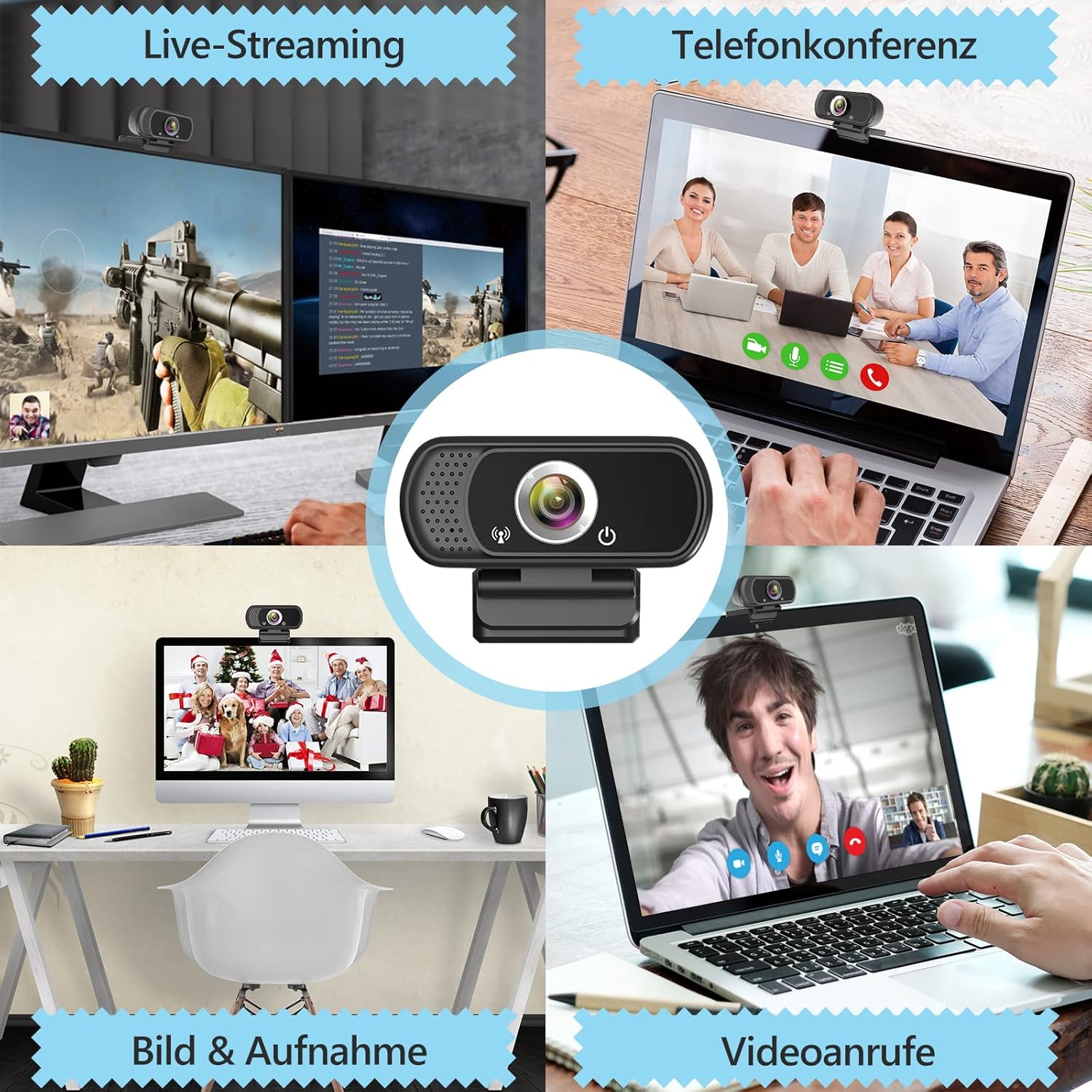
Image 5.3: Examples of webcam use in live streaming, teleconferencing, and video calls.
6. Compatibility
The ToLuLu 1080P HD Webcam offers broad compatibility with various operating systems and applications:
- Operating Systems: Windows 2000, XP, 7, 8, 10 and above; macOS 10.6 and above; Chrome OS 29.0.1547 or above; Android V5.0 or above; Smart TV.
- Hardware Platforms: Mac, PC, Laptops, Desktops, Smart TVs.
- Compatible Applications: Skype, OBS, YouTube, Facebook, Twitch, Facetime, Zoom, Xbox One, Hangouts, and more.

Image 6.1: The webcam is compatible with multiple operating systems and popular communication platforms.
7. Maintenance
- Cleaning the Lens: Use a soft, lint-free cloth specifically designed for optical lenses to gently wipe the webcam lens. Avoid abrasive materials or harsh chemicals, which can scratch or damage the lens.
- General Cleaning: Wipe the body of the webcam with a soft, damp cloth. Ensure no moisture enters the device.
- Storage: When not in use, store the webcam in a clean, dry place. Utilize the privacy cover to protect the lens from dust and scratches.
- Cable Care: Avoid bending or twisting the USB cable excessively to prevent internal damage.
8. Troubleshooting
| Problem | Possible Cause | Solution |
|---|---|---|
| Webcam not detected / No image | USB connection issue, driver conflict, or incorrect software selection. |
|
| Poor image quality (blurry, dark, grainy) | Insufficient lighting, dirty lens, or software settings. |
|
| Microphone not working / Poor audio quality | Microphone not selected, system audio settings, or environmental noise. |
|
| Intermittent connection issues | Loose USB connection, USB port power issues, or system resource conflicts. |
|
9. Specifications
| Feature | Detail |
|---|---|
| Video Capture Resolution | 1080p Full HD (1920 x 1080) at 30fps |
| Lens Type | Full HD Glass Lens, Fixed Focus |
| Field of View | 110 Degrees Widescreen |
| Microphone | Built-in Digital Stereo Microphone with Automatic Noise Reduction |
| Light Correction | Automatic Light Correction, HDR Technology |
| Connectivity | USB Plug & Play (1.8m / 6 feet USB cable) |
| Mounting | Adjustable Universal Clip, Tripod Ready |
| Operating Systems | Windows 2000/XP/7/8/10+, macOS, Chrome OS, Android, Smart TV |
| Dimensions (LxWxH) | 3.8 x 3.1 x 2.5 inches |
| Item Weight | 6.3 ounces |
10. Warranty and Support
ToLuLu is committed to providing quality products and customer satisfaction.
- Return Policy: This product is eligible for return within 30 days for an exchange or refund, subject to the retailer's return policy.
- Technical Support: ToLuLu offers lifetime professional technical team support for this product.
For further assistance or inquiries, please refer to the contact information provided with your purchase or visit the official ToLuLu support channels.


