
1. Introduction
Thank you for choosing the Amazon Basics Eye-caring LED Desk Lamp. This manual provides important information regarding the setup, operation, maintenance, and troubleshooting of your new desk lamp. Please read it thoroughly before use and retain it for future reference.
This LED desk lamp is designed to provide comfortable, non-glaring illumination with 3 adjustable lighting modes and a convenient 40-minute timer. Its flexible gooseneck and touch controls offer ease of use and versatility for various tasks.
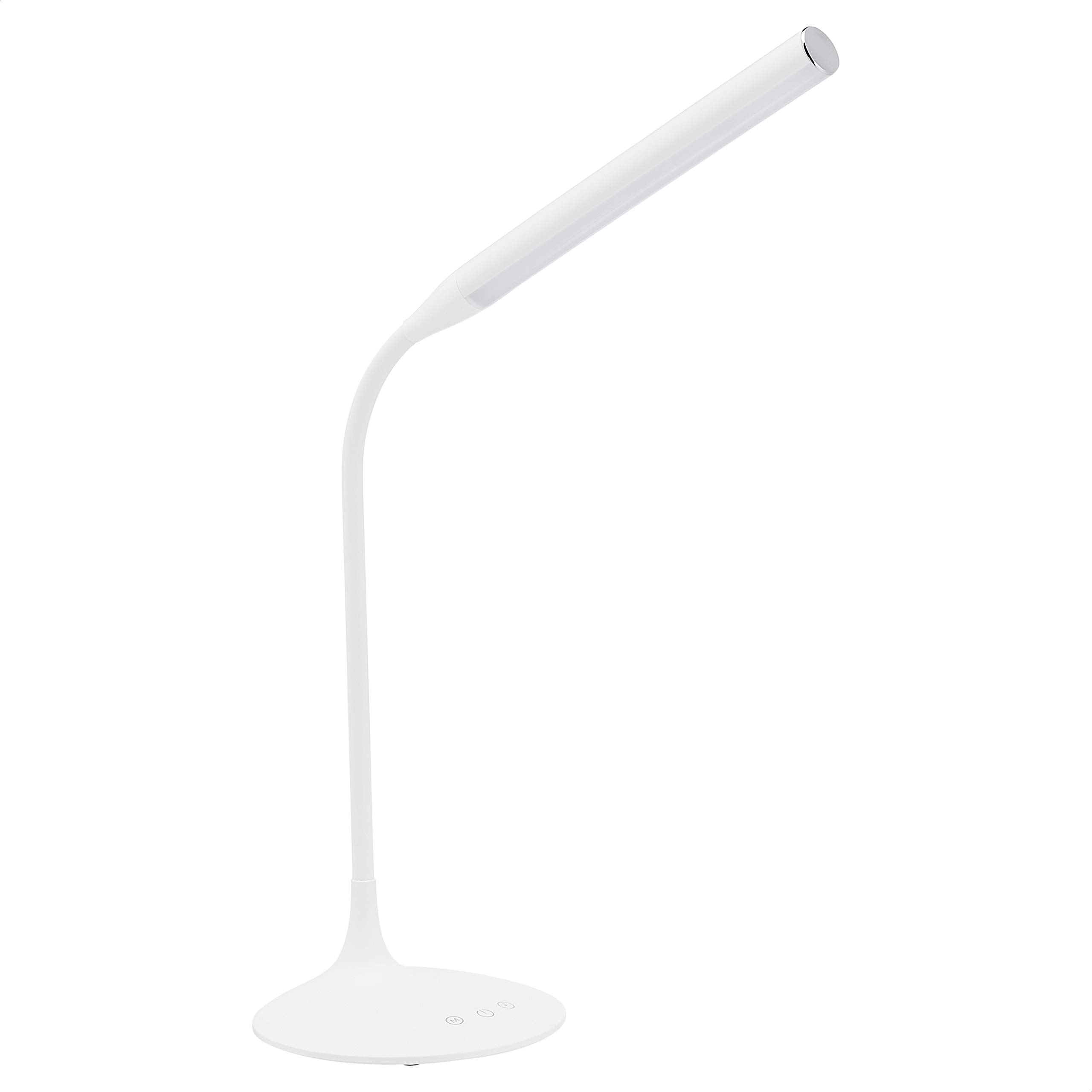
Image 1: The Amazon Basics Eye-caring LED Desk Lamp.
2. Important Safety Instructions
- Read all instructions carefully before using the lamp.
- Do not disassemble, repair, or modify the lamp. This may cause electric shock or damage the product.
- Do not expose the lamp to water or high humidity. Use only in dry indoor environments.
- Ensure the power adapter is compatible with your local power supply (voltage and frequency).
- Keep the lamp away from heat sources, direct sunlight, and flammable materials.
- Unplug the lamp from the power outlet before cleaning or when not in use for extended periods.
- Do not look directly into the LED light source for prolonged periods, as it may cause eye strain.
- This lamp is not a toy. Keep out of reach of children.
3. Package Contents
Please check the package for the following items:
- Amazon Basics Eye-caring LED Desk Lamp
- USB Power Cable
- User Manual (this document)
4. Product Diagram
Familiarize yourself with the components of your LED desk lamp:

Image 2: Labeled diagram of the LED Desk Lamp components.
- Flexible Gooseneck: Allows for easy adjustment of the lamp head's position.
- LED Panel: Contains the 32 energy-efficient LED lights.
- Power Socket: USB input for connecting the power cable.
- Timer Button: Activates the 40-minute automatic shut-off timer.
- Power Button: Turns the lamp on or off.
- Mode Button: Cycles through the three lighting modes.
5. Setup
Follow these steps to set up your desk lamp:
- Unpack: Carefully remove all components from the packaging.
- Placement: Place the lamp on a stable, flat surface.
- Connect Power: Insert the small end of the USB power cable into the power socket on the back of the lamp base. Connect the larger USB end to a compatible USB power adapter (not included) or a powered USB port.
- Plug In: Plug the power adapter into a standard electrical outlet.
The lamp is now ready for operation.
6. Operation
The lamp features touch-sensitive controls located on its base.

Image 3: Close-up of the touch control panel.
6.1. Power On/Off
- To turn the lamp ON, lightly touch the Power Button ().
- To turn the lamp OFF, lightly touch the Power Button again.
6.2. Changing Lighting Modes
The lamp offers three distinct lighting modes:
- Natural Light: A balanced light suitable for general tasks.
- White Light: A brighter, cooler light ideal for focused work.
- Yellow Light: A warmer, softer light for relaxation or reading.
To cycle through the lighting modes, lightly touch the Mode Button (). Each touch will switch to the next mode.
6.3. Adjusting Brightness (Dimming)
To adjust the brightness level within any lighting mode:
- Press and hold the Power Button (). The brightness will gradually increase or decrease. Release the button when the desired brightness is reached.
6.4. Using the 40-Minute Timer
The lamp includes a 40-minute timer function for automatic shut-off.
- To activate the timer, lightly touch the Timer Button (). The lamp will automatically turn off after 40 minutes.
- To deactivate the timer, touch the Timer Button again before the 40 minutes expire.
7. Care and Maintenance
- Always unplug the lamp before cleaning.
- Wipe the lamp with a soft, dry cloth. Do not use abrasive cleaners, waxes, or solvents.
- Avoid getting moisture into any openings.
- Do not attempt to replace the LED light source, as it is integrated into the lamp.
8. Troubleshooting
| Problem | Possible Cause | Solution |
|---|---|---|
| Lamp does not turn on. | No power supply. | Ensure the USB cable is securely connected to the lamp and a powered USB port/adapter. Check if the power outlet is functional. |
| Light flickers or is dim. | Insufficient power supply or loose connection. | Use a compatible USB power adapter. Check all cable connections. |
| Touch controls are unresponsive. | Temporary electronic glitch or dirty sensor. | Unplug the lamp for 10 seconds, then plug it back in. Ensure the touch panel is clean and dry. |
| Timer function does not work. | Timer not activated correctly. | Ensure you lightly touch the Timer Button to activate it. A single touch should enable the 40-minute countdown. |
9. Specifications
- Model Number: HSD9040B
- Light Source: 32 LEDs
- Lighting Modes: 3 (Natural, White, Yellow)
- Control Method: Touch
- Timer: 40 minutes
- Power Source: Corded Electric (USB)
- Product Dimensions: 6.7"D x 15.6"W x 14.17"H (17 cm D x 39.6 cm W x 36 cm H)
- Item Weight: 12.96 ounces (367.4 grams)
- Finish Type: Polished
- Color: White
10. Warranty and Support
For warranty information and customer support, please refer to the official Amazon Basics website or contact Amazon customer service directly.
A PDF version of the user manual and warranty details may also be available for download from the product's support page on Amazon.com.
For additional assistance, please visit: Amazon Customer Service
