
1. Introduction
This manual provides detailed instructions for the installation, operation, and maintenance of your SMONET 5MP 8-Channel DVR Home Security Camera System. This system is designed for both indoor and outdoor surveillance, featuring 5MP cameras, an 8-channel 5-in-1 DVR with a pre-installed 2TB hard drive, night vision capabilities, and remote viewing via a free mobile application.
1.1 Package Contents
Please verify that all items listed below are included in your package. If any items are missing or damaged, please contact SMONET customer support.
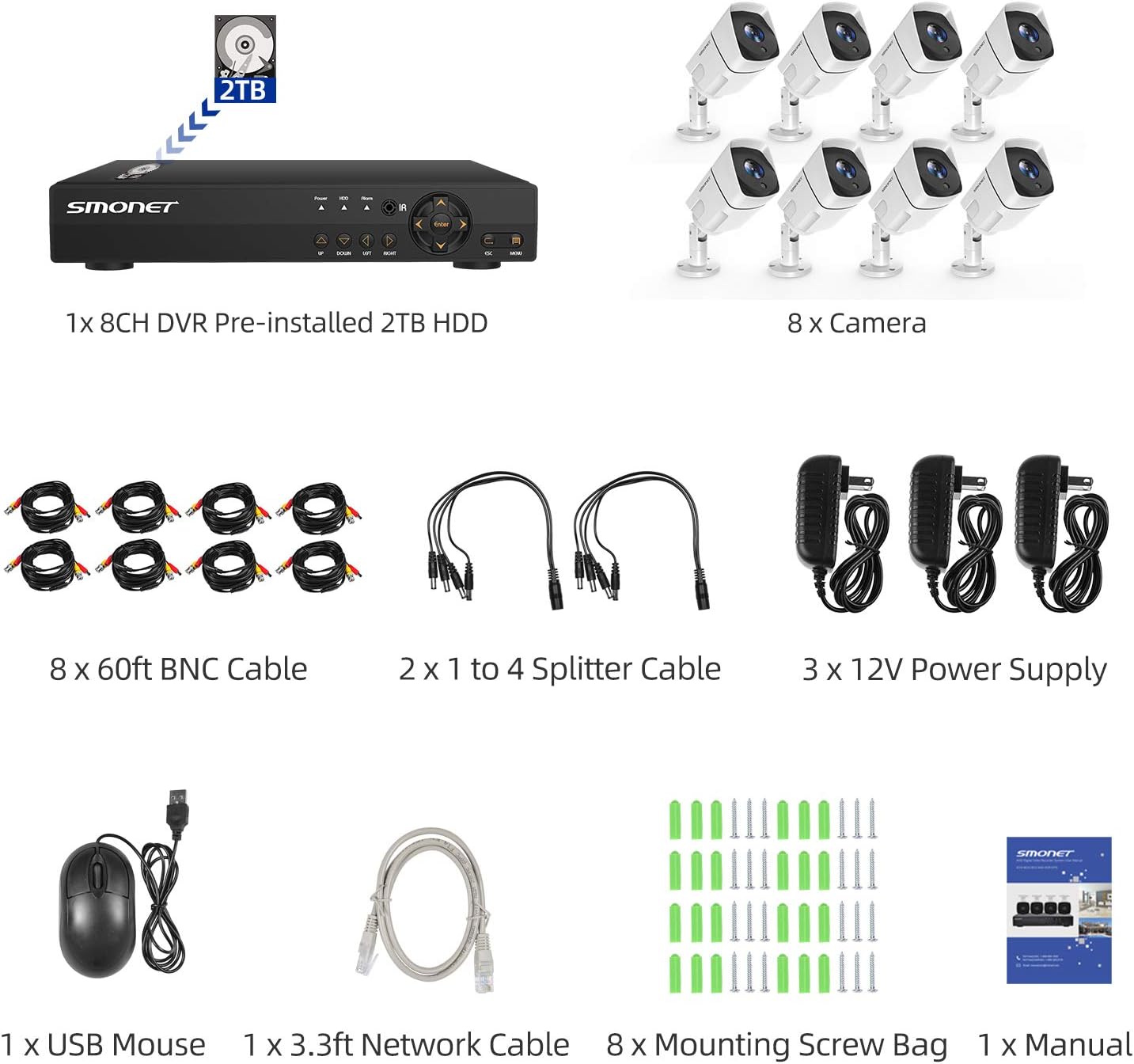
Image: Overview of the system components, including the DVR, 8 cameras, BNC cables, power supplies, splitter cables, USB mouse, network cable, and mounting screws.
- 1 x 8-Channel DVR (Digital Video Recorder) with pre-installed 2TB HDD
- 8 x 5MP FHD Wired Surveillance Cameras
- 8 x 60ft BNC Cables
- 2 x 1 to 4 Splitter Cables
- 3 x 12V Power Supplies
- 1 x USB Mouse
- 1 x 3.3ft Network Cable
- 8 x Mounting Screw Bags
- 1 x User Manual
2. System Setup
Follow these steps to set up your SMONET security camera system. Ensure all components are connected correctly before powering on the system.
2.1 Connection Overview

Image: A visual guide illustrating the connections for the DVR, including monitor (VGA/HDMI), mouse, power supply, router, and camera inputs.
2.2 Step-by-Step Installation
- Connect Monitor to DVR: Connect a PC or TV monitor to the DVR using either a VGA or HDMI cable. Important: The DVR must be connected to a dedicated PC or TV monitor; it cannot be connected directly to a laptop or an all-in-one computer.
- Power and Mouse Connection: Plug in the power supply for the DVR. Connect the USB mouse to one of the USB ports on the DVR.
- Network Connection (Optional for Remote View): Connect the Router LAN Port to the DVR Ethernet port using the provided network cable. Ensure your router is a WAN (Wide Area Network) type for remote viewing functionality.
- Camera Power Setup: Connect the 1 to 4 splitter adapter cable to a 12V power supply.
- Camera Video Connection: Connect the BNC cable from each camera to the splitter. Then, connect the BNC cable from the splitter to a VIDEO IN port on the DVR.
- Camera Power Connection: Connect the power cable from each camera to the 1 to 4 splitter cable.
Video: An official SMONET video demonstrating the step-by-step process of connecting the camera system components, including the DVR, monitor, mouse, network, and cameras.
3. Operating Instructions
Once your system is set up, you can begin monitoring your property. This section covers the primary operational features.
3.1 Live View and Recording

Image: Display of four camera feeds, indicating continuous 24/7 recording capability for both indoor and outdoor environments, under various lighting conditions.
- The system supports 24/7 continuous recording to the pre-installed 2TB hard drive.
- View live feeds directly on your connected monitor.
- Playback recorded footage through the DVR interface.
3.2 Remote Viewing via Mobile App
Access your camera feeds remotely from your smartphone or tablet.
Image: A smartphone showing a live camera view, with icons for downloading the 'Danale' app from the App Store and Google Play, and compatibility with various devices.
- Ensure the DVR is connected to a WAN router via an Ethernet cable.
- Download the free 'Danale' mobile application from the App Store (for iOS) or Google Play (for Android).
- Follow the in-app instructions to add your DVR system and begin viewing live video remotely.
- Remote viewing is also supported on Windows PC, Apple iPad, Android iPad, Apple iPhone, and Android Phone.
3.3 Motion Detection and Alerts
Configure your system to detect motion and send alerts.

Image: A visual representation of motion detection, highlighting a person in a doorway, with a smartphone displaying a 'Motion Detection Alarm' notification.
- Access the DVR's menu to set up motion detection zones and sensitivity for each camera.
- Enable email alerts to receive notifications when motion is detected.
3.4 Night Vision
The cameras are equipped with night vision for clear monitoring in low-light conditions.

Image: A close-up of a SMONET camera, emphasizing its weatherproof design and suitability for both outdoor and indoor use, including night vision functionality.
- Cameras feature IR-LEDs for night vision up to 65ft.
- The IR-Cut filter ensures crisp and clear images in various lighting conditions.
4. Maintenance
Proper maintenance ensures the longevity and optimal performance of your security system.
4.1 Hard Drive Management
- The 2TB hard drive will automatically overwrite the oldest recordings when full.
- Regularly check the DVR settings to ensure proper hard drive management and recording schedules.
- Consider setting the system to reboot periodically and delete recordings older than a specified number of days to prevent the drive from constantly reporting as full.
4.2 Camera Cleaning
- Periodically clean the camera lenses with a soft, dry cloth to remove dust, dirt, or smudges that may affect image clarity.
- For outdoor cameras, ensure no debris or spiderwebs obstruct the view.
4.3 Password Security
- It is crucial to modify the default system administrator password immediately after initial setup to protect your video camera system from unauthorized access.
- Use a strong, unique password.
5. Troubleshooting
This section addresses common issues you might encounter with your SMONET security system.
- No Picture on Monitor: Ensure your DVR is connected to a dedicated PC or TV monitor via VGA or HDMI. Direct connection to a laptop or all-in-one computer will not display a picture. Verify all cables are securely connected.
- Remote View Not Working: Confirm the DVR is connected to a WAN router via an Ethernet cable. Remote viewing requires an internet connection. Ensure the 'Danale' app is correctly configured and the DVR is added.
- Hard Drive Shows Full: The system is designed to overwrite old recordings. If the drive consistently reports as full, check your recording settings and consider scheduling periodic reboots or older data deletion through the DVR menu.
- Camera Image Foggy or Night Vision Not Working: Check the camera lens for dirt, dust, or condensation. Ensure the camera's power and BNC connections are secure. If the issue persists, contact customer support.
- System Stops Recording: Verify that the recording schedule is correctly set in the DVR menu. Ensure the hard drive is functioning properly. If the system is connected to the internet, try disconnecting it temporarily to see if the issue resolves, then re-evaluate network settings.
6. Specifications
Detailed technical specifications for the SMONET 5MP 8-Channel DVR Home Security Camera System.
| Feature | Specification |
|---|---|
| Brand | SMONET |
| Model Number | SN-A88102T-SA-US |
| Connectivity Technology | Wired |
| Video Capture Resolution | 1920p (5MP) |
| Special Features | Night Vision, Waterproof |
| Number of Channels | 8 |
| Memory Storage Capacity | 2 TB (Hard Drive) |
| Power Source | Corded Electric |
| Item Dimensions (L x W x H) | 15.5 x 12 x 10.5 inches |
| Item Weight | 17.96 pounds |
| Low Light Technology | Night Vision |
| Date First Available | February 17, 2020 |
7. Warranty and Support
For warranty information, technical assistance, or any questions regarding your SMONET security system, please contact SMONET customer support. Refer to the contact details provided with your product packaging or visit the official SMONET website.


