
1. Introduction
This manual provides essential information for setting up, operating, and maintaining your Lenovo ThinkCentre Tiny M70q Gen 5 Desktop PC. Designed for business and professional use, this compact desktop offers powerful performance and efficient operation. Please read this manual thoroughly to ensure proper usage and to maximize the lifespan of your device.
2. Product Overview
The Lenovo ThinkCentre Tiny M70q Gen 5 is a high-performance mini desktop PC featuring an Intel 10-Core i5-14400T processor, 32GB DDR5 RAM, and a 1TB NVMe SSD. It comes pre-installed with Windows 11 Pro and offers robust connectivity options including WiFi 6 and Bluetooth 5.1.

Figure 2.1: Lenovo ThinkCentre Tiny M70q Gen 5 highlighting Intel Core i5 14th Gen, 32GB DDR5 Memory, and 1TB NVMe Storage.
Key Features:
- Processor: Intel i5-14400T (10 Cores, 2.5GHz base, up to 4.4GHz turbo, 20MB Cache)
- Memory: 32GB DDR5 RAM for smooth multitasking
- Storage: 1TB NVMe Solid State Drive for rapid boot-up and data access
- Graphics: Integrated Intel UHD Graphics 770
- Operating System: Windows 11 Pro
- Connectivity: WiFi 6, Bluetooth 5.1, RJ-45 Ethernet
Ports and Connectors:

Figure 2.2: Detailed view of the Lenovo ThinkCentre Tiny M70q Gen 5 ports, including USB-A, USB-C, HDMI, DisplayPort, and Ethernet.
The ThinkCentre M70q Gen 5 provides a comprehensive array of ports for all your peripheral needs:
- 3.5mm Audio Jack
- Multiple USB-A (USB 5Gbps and 10Gbps) ports, including one with Smart Power On
- USB-C (USB 5Gbps) port
- Power connector
- DisplayPort 1.4a
- HDMI 2.1 TMDS
- Ethernet (RJ-45)
Video 2.1: An overview of the Lenovo ThinkCentre Tiny Business Computer, showcasing its compact design and features.
3. Setup Guide
Follow these steps to set up your Lenovo ThinkCentre Tiny M70q Gen 5 Desktop PC.
3.1 Unpacking and Placement
- Carefully remove the PC and all accessories from the packaging.
- Place the ThinkCentre Tiny M70q Gen 5 on a stable, flat surface with adequate ventilation. Ensure no vents are obstructed.
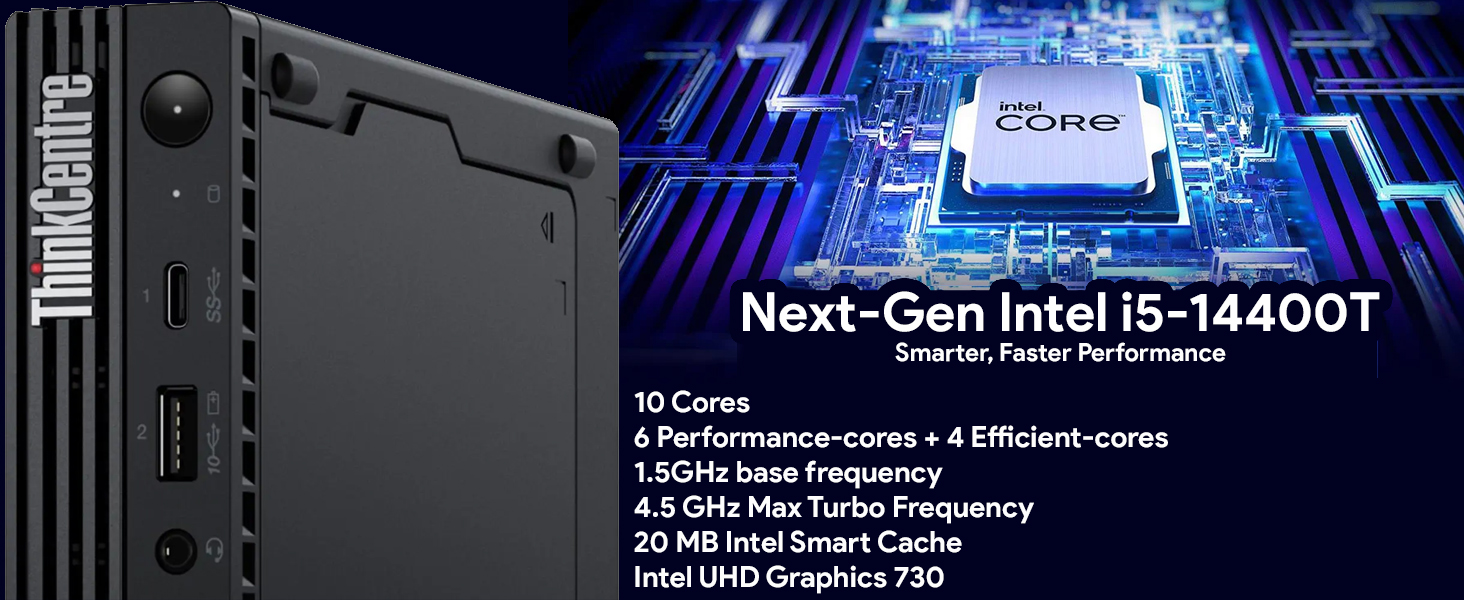
Figure 3.1: The Lenovo ThinkCentre Tiny M70q Gen 5 set up with a monitor, keyboard, and mouse, demonstrating its compact footprint.
3.2 Connecting Peripherals
- Monitor: Connect your monitor to the PC using either the HDMI or DisplayPort.
- Keyboard and Mouse: Connect the included keyboard and mouse to the available USB ports.
- Network: For wired internet, connect an Ethernet cable to the RJ-45 port. For wireless, ensure the Wi-Fi antenna is securely attached (if applicable).
- Power: Connect the power adapter to the PC's power input and then plug it into a power outlet.

Figure 3.2: Front view of the ThinkCentre M70q Gen 5, showing accessible USB and audio ports for easy peripheral connection.
3.3 Initial Power On
- Press the power button located on the front of the PC.
- Follow the on-screen instructions to complete the Windows 11 Pro setup. This may include setting up your user account, network connection, and privacy settings.
4. Operating Instructions
Your ThinkCentre Tiny M70q Gen 5 runs on Windows 11 Pro, offering a user-friendly interface and powerful features for productivity and security.
4.1 Basic Operation
- Power On/Off: Press the power button to turn the PC on. To shut down, click the Start button, then Power > Shut down.
- Restart: To restart the PC, click the Start button, then Power > Restart.
- Sleep Mode: To put the PC into sleep mode, click the Start button, then Power > Sleep.
4.2 Windows 11 Pro Features
- Start Menu: Access all your applications, settings, and files from the redesigned Start Menu.
- Multitasking: Use Snap Layouts and Snap Groups to organize your open windows efficiently.
- Security: Benefit from advanced security features including Windows Defender and BitLocker (if enabled).
- Updates: Ensure your system is always up-to-date by regularly checking for Windows Updates.
5. Maintenance
Regular maintenance helps ensure the longevity and optimal performance of your ThinkCentre Tiny M70q Gen 5.
5.1 Cleaning
- Exterior: Use a soft, lint-free cloth dampened with a mild cleaning solution to wipe the exterior. Avoid harsh chemicals.
- Vents: Periodically clean the ventilation grilles with compressed air to prevent dust buildup, which can affect cooling.
5.2 Software Maintenance
- Operating System Updates: Install Windows updates regularly to ensure security and performance improvements.
- Driver Updates: Keep device drivers updated for optimal hardware compatibility and performance.
- Antivirus Software: Maintain active antivirus protection and perform regular scans.
- Disk Cleanup: Use Windows Disk Cleanup utility to remove unnecessary files and free up storage space.
6. Troubleshooting
This section addresses common issues you might encounter with your ThinkCentre Tiny M70q Gen 5.
6.1 No Power
- Ensure the power adapter is securely connected to both the PC and a working power outlet.
- Test the power outlet with another device to confirm it is functional.
6.2 No Display on Monitor
- Verify that the monitor is powered on and the video cable (HDMI or DisplayPort) is securely connected to both the PC and the monitor.
- Try connecting the monitor to a different video port on the PC, if available.
- Ensure the correct input source is selected on your monitor.
6.3 System Slowdown
- Close unnecessary applications running in the background.
- Check for and install any pending Windows updates.
- Run a disk cleanup and defragmentation (for HDD, not necessary for SSD).
- Scan for malware or viruses.
6.4 Connectivity Issues (Wi-Fi/Bluetooth)
- Ensure Wi-Fi and Bluetooth are enabled in Windows settings.
- Restart your router/modem.
- Update wireless and Bluetooth drivers.
7. Specifications
Detailed technical specifications for the Lenovo ThinkCentre Tiny M70q Gen 5.
| Feature | Specification |
|---|---|
| Processor | Intel i5-14400T (10 Cores, 2.5GHz base - 4.4GHz max turbo, 20MB Cache) |
| RAM | 32GB DDR5 |
| Storage | 1TB NVMe SSD |
| Graphics | Intel UHD Graphics 770 (Integrated) |
| Operating System | Windows 11 Pro |
| Wireless Connectivity | WiFi 6, Bluetooth 5.1 |
| Ethernet | RJ-45 |
| Video Ports | HDMI 2.1, DisplayPort 1.4a |
| USB Ports | USB-A (5Gbps, 10Gbps), USB-C (5Gbps) |
| Audio | 3.5mm Audio Jack |
| Dimensions (LxWxH) | 7.05 x 7.2 x 1.36 inches |
| Weight | 2.91 pounds |
| Color | Black |
8. Warranty and Support
Your Lenovo ThinkCentre Tiny M70q Gen 5 comes with a comprehensive warranty to ensure peace of mind.
8.1 Warranty Information
- Standard Warranty: 3 Year Lenovo Warranty.
- Additional Warranty: 3 Year Oemgenuine Limited Warranty.
For detailed terms and conditions of your warranty, please refer to the documentation included with your product or visit the official Lenovo support website.
8.2 Technical Support
If you encounter any issues that cannot be resolved using the troubleshooting steps in this manual, please contact Lenovo technical support or Oemgenuine support for assistance. Have your product model and serial number ready when contacting support.


