
Thermaltake V250 TG ARGB
Thermaltake V250 Motherboard Sync ARGB ATX Mid-Tower Chassis User Manual
Model: V250 TG ARGB
1. Introduction
This user manual provides comprehensive instructions for the setup, operation, and maintenance of your Thermaltake V250 Motherboard Sync ARGB ATX Mid-Tower Chassis. Designed for both gamers and PC enthusiasts, this chassis features three pre-installed 120mm 5V Addressable RGB front fans, a 4mm tempered glass side panel, and a full-length PSU cover for optimal performance and aesthetics.
Key features include:
- Three pre-installed 120mm 5V Motherboard Sync ARGB fans.
- Built-in dual mode 5V ARGB switch board for lighting control.
- 4mm thick tempered glass side panel.
- Full-length PSU cover for improved cable management and airflow.
- Support for Mini ITX, Micro ATX, and ATX motherboards.

Figure 1.1: Front view of the Thermaltake V250 chassis showcasing its illuminated ARGB fans and tempered glass side panel.
2. Setup
2.1 Unpacking and Inspection
Carefully remove the chassis from its packaging. Inspect for any signs of damage during transit. Ensure all accessories, including screws, cable ties, and the user manual, are present.
2.2 Component Compatibility
The V250 chassis supports a range of components:
- Motherboards: Mini ITX, Micro ATX, ATX (up to 12” x 9.6”).
- CPU Cooler Height: Maximum 160mm.
- VGA Length: Maximum 320mm.
- PSU Length: Maximum 160mm (with HDD Rack), 200mm (without HDD Rack).

Figure 2.1: Detailed dimensions of the V250 chassis, including front, back, left, and right views, to assist with component planning.
2.3 Drive Installation
The chassis offers versatile storage options:
- Accessible Drive Bays: 2 x 3.5” or 2 x 2.5” drives.
- Hidden Drive Bays: 2 x 2.5” drives.
To install drives, locate the designated mounting points behind the motherboard tray and within the PSU shroud area. Secure 2.5-inch SSDs directly to the mounts, and use the drive cages for 3.5-inch HDDs, often with tool-less trays for easy installation.

Figure 2.2: Illustration of the 2+2 drive bay design, highlighting locations for 2.5" and 3.5" storage devices within the chassis.
Video 2.1: An official overview of the V250 Computer Case, demonstrating features including drive installation and cable management.
2.4 Fan and Radiator Installation
The chassis comes with three 120mm 5V ARGB front fans and one black 120mm rear fan pre-installed. Additional cooling options are available:
- Fan Support:
- Front: 3 x 120mm, 2 x 140mm
- Top: 2 x 120mm, 2 x 140mm
- Rear: 1 x 120mm
- Radiator Support:
- Front: 1 x 360mm, 1 x 280mm
- Top: 1 x 240mm
- Rear: 1 x 120mm

Figure 2.3: Air cooling installation options, illustrating fan placements and sizes for optimal airflow within the case.
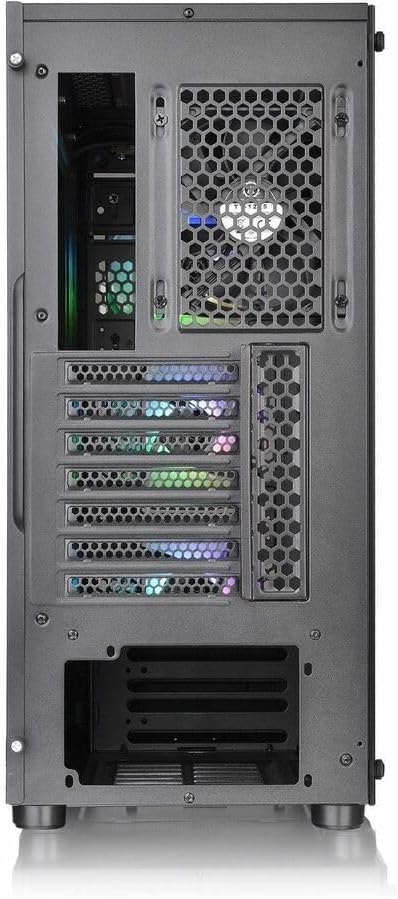
Figure 2.4: Radiator installation options, detailing compatible radiator sizes and their respective mounting locations.
2.5 Cable Management
The V250 chassis features a full-length PSU cover, providing ample space to conceal cables and maintain a clean interior. Utilize the cable routing cutouts and tie-down points behind the motherboard tray to organize and secure your power supply and data cables, ensuring unobstructed airflow.

Figure 2.5: Internal layout highlighting the full-length PSU cover, designed to hide cables and improve internal aesthetics and airflow.
3. Operating
3.1 Powering On
After assembling all components and connecting the power supply, press the power button located on the top I/O panel to start your system. Ensure all cables are securely connected to prevent power issues.
3.2 RGB Lighting Control
The pre-installed ARGB fans offer versatile lighting control:
- I/O Port Button Control: Use the dedicated RGB switch button on the top I/O panel to cycle through 27 different LED modes and 7 colors.
- Motherboard Sync: Connect the ARGB fans to a compatible 5V addressable RGB header on your motherboard (ASUS Aura Sync, Gigabyte RGB Fusion, MSI Mystic Light Sync, ASRock Polychrome) to control lighting via the motherboard's software.

Figure 3.1: RGB lighting control options, detailing the I/O port RGB Light Button and a comprehensive list of 27 available lighting modes.
3.3 I/O Ports
The top I/O panel provides convenient access to:
- 1 x USB 3.0 port
- 2 x USB 2.0 ports
- 1 x HD Audio jack
- 1 x RGB Light button
4. Maintenance
4.1 Cleaning
Regular cleaning helps maintain optimal performance and longevity of your chassis. The V250 features magnetic dust filters on the top and bottom for easy removal and cleaning. Periodically remove these filters and clean them with compressed air or a soft brush to prevent dust buildup.

Figure 4.1: Top view of the chassis, illustrating the magnetic dust filter for easy cleaning and maintenance.
Figure 4.2: Bottom view of the chassis, showing the removable dust filter and sturdy feet that provide optimal airflow clearance.
4.2 Side Panel Removal
The 4mm tempered glass side panel can be easily removed for internal access. Unscrew the four thumb screws located at each corner of the panel, then carefully pull the panel away from the chassis. Exercise caution when handling the glass to prevent damage.

Figure 4.3: The 4mm tempered glass side panel detached from the chassis, providing clear access to internal components for installation or maintenance.
5. Troubleshooting
If you encounter issues with your Thermaltake V250 chassis, consider the following common troubleshooting steps:
- No Power:
- Ensure the power supply is properly connected to the motherboard and all components.
- Verify the power supply switch is in the 'ON' position.
- Check front panel power button connections to the motherboard.
- Fans Not Spinning/RGB Issues:
- Confirm fan power cables are securely connected.
- For RGB, ensure ARGB headers are correctly plugged into the motherboard or the built-in controller.
- Cycle through RGB modes using the I/O button or motherboard software.
- Overheating:
- Ensure all fans are operating correctly and oriented for proper airflow (intake/exhaust).
- Clean dust filters regularly to prevent airflow restriction.
- Verify CPU cooler and GPU cooler are properly seated and functioning.
- Component Fit Issues:
- Refer to the specifications section for maximum component dimensions (CPU cooler, VGA, PSU).
- Ensure proper cable management to avoid interference with components or airflow.
For persistent issues, consult the Thermaltake support website or contact their customer service.
6. Specifications
| Feature | Detail |
|---|---|
| Model Name | V250 TG ARGB |
| Case Type | Mid Tower |
| Dimensions (H x W x D) | 430 x 216.5 x 477 mm (16.9 x 8.52 x 18.78 inch) |
| Net Weight | 6.06 kg / 13.36 lbs |
| Side Panel | 4mm Tempered Glass x 1 |
| Color | Exterior & Interior: Black |
| Material | SPCC, Tempered Glass |
| Cooling System (Pre-installed) | Front: 3 x 120mm 5V Addressable RGB fan (Fixed 1000rpm, 27.2 dBA) Rear: 1 x 120mm fan (Fixed 1000rpm, 16dBA) |
| Drive Bays | Accessible: 2 x 3.5” or 2 x 2.5” Hidden: 2 x 2.5” |
| Expansion Slots | 7 |
| Motherboard Support | 6.7” x 6.7” (Mini ITX), 9.6” x 9.6” (Micro ATX), 12” x 9.6” (ATX) |
| I/O Port | USB 3.0 x 1, USB 2.0 x 2, HD Audio x 1, RGB Button x 1 |
| PSU Support | Standard PS2 PSU (optional) |
| CPU Cooler Height Limitation | 160mm |
| VGA Length Limitation | 320mm |
| PSU Length Limitation | 160mm (With HDD Rack) / 200mm (Without HDD Rack) |
7. Warranty and Support
For detailed warranty information and technical support, please refer to the official Thermaltake website or the warranty card included with your product. You can also find additional resources and FAQs on their support pages.
Related documentsV250 TG ARGB


Ask a question about this manual
Ask about setup, troubleshooting, compatibility, parts, safety, or missing instructions. Manuals+ will review the question and use this page’s manual context to help answer it.