1. Introduction
This manual provides detailed instructions for the installation, operation, and maintenance of your Denver SHC-150 WiFi/IP Indoor Security Camera. Please read this manual thoroughly before using the product to ensure proper functionality and safety. Keep this manual for future reference.

Image 1.1: Front view of the Denver SHC-150 Indoor Security Camera.
2. Product Overview
2.1 Key Features
- Indoor IP dome camera with infrared LEDs for night use.
- 1 Megapixel HD video camera at 12 frames per second.
- WiFi (WEP/WPA/WPA2) and LAN function.
- Compatible with Tuya IoT platform and Denver Smart Home app (iOS/Android).
- Motorized pan (355°) and tilt (90°).
- Integrated speaker and microphone for two-way audio.
- Infrared range up to 10 meters.
- Motion detection with manual access.
- Micro SD card slot for up to 128GB storage (memory card not included).
2.2 Camera Components

Image 2.1: Diagram illustrating the main components of the SHC-150 camera.
The camera features a photoresistance sensor, IR LEDs, HD lens, microphone (MIC), and motorized pan/tilt mechanism on the front. The rear includes a reset hole, TF (Micro SD) card slot, speaker, antenna, and DC power port.
3. Setup
3.1 What's in the Box
- Denver SHC-150 Security Camera
- Power Adapter
- Mounting Accessories (for wall mounting)
- User Manual
3.2 Physical Installation
The Denver SHC-150 camera is designed for indoor use and can be placed on a flat surface or mounted on a wall. Ensure the camera is positioned within range of your WiFi network and has a clear view of the area you wish to monitor.
- Choose a suitable location for the camera.
- If wall-mounting, use the provided mounting accessories to securely attach the camera.
- Connect the power adapter to the DC port on the camera and plug it into a power outlet. The camera will power on and initiate its startup sequence.
3.3 App Installation and Pairing
The SHC-150 camera operates with the Tuya IoT platform, compatible with the Denver Smart Home app.
- Download the Denver Smart Home app from the App Store (iOS) or Google Play Store (Android).
- Register for a new account or log in if you already have one.
- In the app, tap the "+" icon to add a new device.
- Select "Security Camera" or search for "SHC-150".
- Follow the on-screen instructions to connect the camera to your WiFi network. This typically involves scanning a QR code displayed on your phone with the camera lens or entering your WiFi credentials.
- Once connected, the camera will appear in your device list within the app.
4. Operating Instructions
4.1 Live View and Pan/Tilt Control
Access the live video feed from your camera through the Denver Smart Home app. You can remotely control the camera's viewing angle.

Image 4.1: Remote control of camera pan and tilt via smartphone app.
- From the live view screen in the app, use the directional controls to pan the camera horizontally up to 355 degrees and tilt it vertically up to 90 degrees.
4.2 Two-Way Audio
The camera features a built-in microphone and speaker, enabling two-way communication.
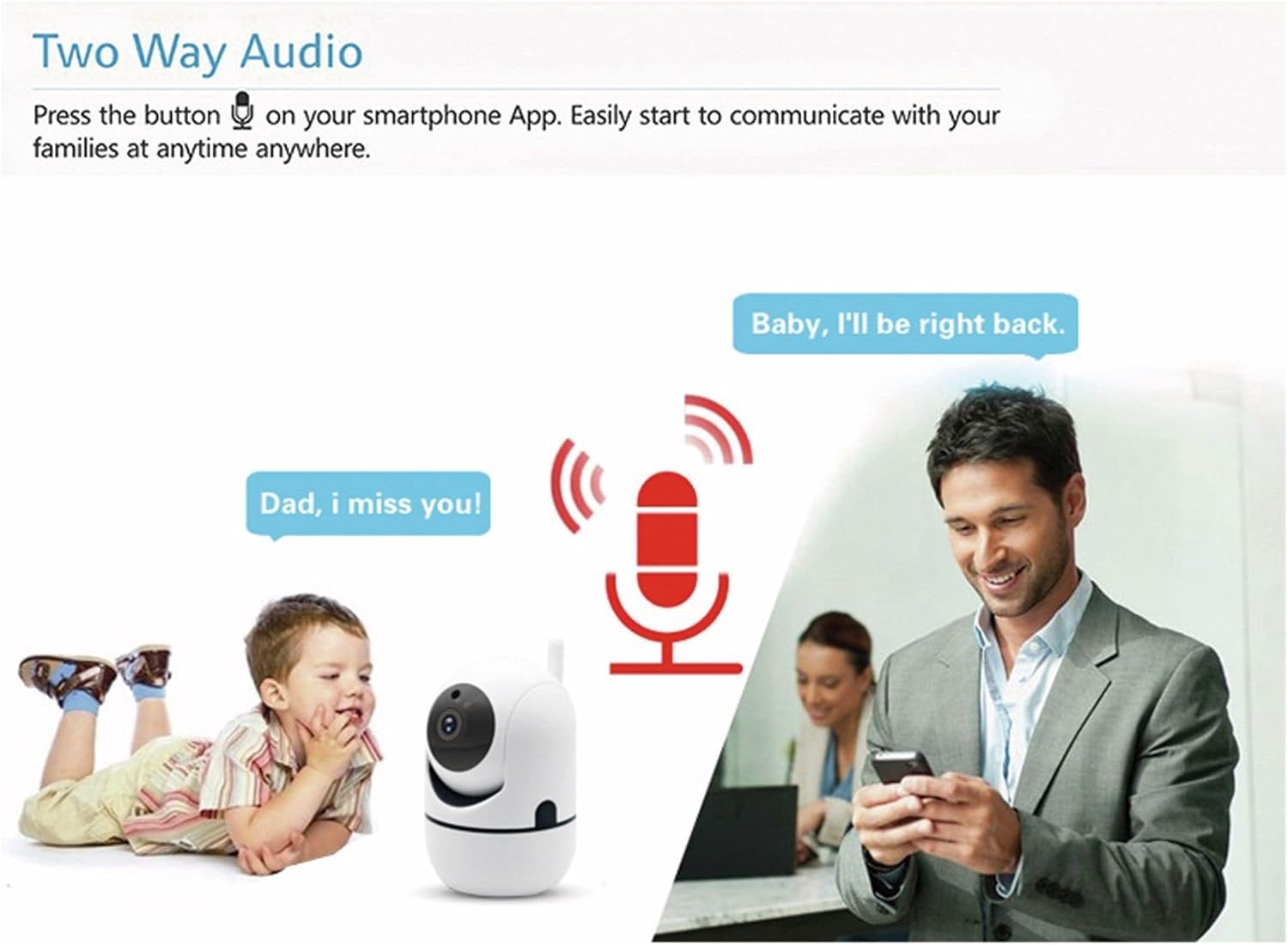
Image 4.2: Two-way audio allows communication through the camera.
- Tap the microphone icon in the app's live view to speak through the camera's speaker.
- The camera's microphone will pick up audio from its surroundings, which you can hear through your smartphone.
4.3 Motion Detection
The camera can detect motion and send alerts to your smartphone.
- Enable motion detection in the Denver Smart Home app settings for your camera.
- Configure alert sensitivity and notification preferences as needed.
- The camera also supports automatic motion tracking, allowing it to follow detected movement within its 355° pan and 120° tilt range.
4.4 Night Vision
The integrated infrared LEDs provide clear video monitoring in low-light or no-light conditions.

Image 4.3: Infrared night vision automatically activates in low light, with a range of up to 10 meters.
- Night vision activates automatically when ambient light levels are low.
- The infrared range extends up to 10 meters.
4.5 Recording and Storage
The camera supports local storage via a Micro SD card.
- Insert a Micro SD card (up to 128GB, not included) into the TF card slot on the camera.
- Configure recording settings (e.g., continuous recording, event-triggered recording) within the Denver Smart Home app.
- Recorded footage can be accessed and reviewed through the app.
5. Maintenance
- Cleaning: Use a soft, dry cloth to clean the camera lens and body. Avoid using harsh chemicals or abrasive cleaners.
- Software Updates: Regularly check the Denver Smart Home app for firmware updates to ensure optimal performance and security.
- Power Cycle: If the camera experiences issues, try unplugging it from the power source for a few seconds and then plugging it back in.
6. Troubleshooting
6.1 Camera Not Connecting to WiFi
- Ensure your WiFi network is 2.4GHz. The camera does not support 5GHz WiFi.
- Verify that the WiFi password entered in the app is correct.
- Place the camera closer to your WiFi router during the initial setup process.
- Reset the camera by pressing the reset button (refer to Image 2.1 for location) and attempt pairing again.
6.2 Poor Video Quality
- Check your internet connection speed. A stable and fast connection is required for HD streaming.
- Ensure the camera lens is clean and free from dust or smudges.
- Adjust the video quality settings within the Denver Smart Home app if available.
6.3 Motion Detection Not Working
- Verify that motion detection is enabled in the app settings.
- Adjust the motion detection sensitivity.
- Ensure there are no obstructions blocking the camera's view.
6.4 Micro SD Card Not Recording
- Ensure the Micro SD card is inserted correctly and fully.
- Check if the Micro SD card is formatted correctly (usually FAT32). Format it via the app if necessary.
- Verify that recording settings are configured in the app.
- The card might be full; consider enabling loop recording or replacing the card.
7. Specifications

Image 7.1: Product label on the back of the SHC-150 camera.
| Feature | Specification |
|---|---|
| Model Name | SHC-150 |
| Product Model Number | 118101020060 |
| Video Resolution | 720p HD (1 Megapixel) |
| Frame Rate | 12 fps |
| Connectivity | Wi-Fi (2.4GHz, WEP/WPA/WPA2), Wired LAN |
| Pan Angle | 355 Degrees |
| Tilt Angle | 90 Degrees |
| Night Vision Range | Up to 10 meters |
| Audio | Two-way audio (built-in speaker and microphone) |
| Storage | Micro SD card slot, up to 128GB |
| Power Input | DC 5V/1A (via power adapter) |
| Dimensions (L x W x H) | 8.5 x 7 x 10.5 cm |
| Weight | 340 grams |
| Material | Metal |
| Color | White |
| Operating Environment | Indoor use only |
8. Warranty and Support
Denver products are manufactured to high quality standards. This product is covered by a warranty period as per local consumer protection laws. For warranty claims, technical support, or service inquiries, please contact your retailer or visit the official Denver support website.
Please retain your purchase receipt as proof of purchase for any warranty claims.


