

1. Introduction
This manual provides detailed instructions for the installation, operation, and maintenance of the Road Top Wireless CarPlay Android Auto Decoder, Model GPBM2022H-NBT. This device integrates wireless CarPlay and Android Auto functionalities into compatible BMW vehicles equipped with the NBT system, while retaining the original car system's features.
2. Vehicle Compatibility
This decoder is designed for specific BMW models and years with the NBT system. Please verify your vehicle's compatibility before proceeding with installation.
2.1 Compatible Vehicles:
- BMW 3 Series (F30/F31/F34/F80): 2012-2015
- BMW 4 Series (F32/F33/F36): 2013-2015
- BMW 5 Series (F07): 2012-2017
- BMW 5 Series (F10/F11/F18): 2012-2016
- BMW 6 Series (F06/F12/F13): 2013-2016
- BMW 7 Series (F01/F02/F03): 2012-2015
- BMW X1 Series (F48): 2015-2018
- BMW X3 (F25), X4 (F26): 2013-2016
- BMW X5 (F15/F85), X6 (F16/F86): 2014-2016
2.2 Compatibility Verification Steps:
- Step 1: Check your original car radio homescreen menu.
The system must display the NBT System interface. This decoder is not compatible with CIC System or EVO System (ID5/ID6) interfaces. However, for 3 Series F30/F31/F34 or 4 Series F32/F33/F36, if your original radio system shows a CIC System Interface but the LVDS port of the factory screen is 6-pin, this decoder is compatible.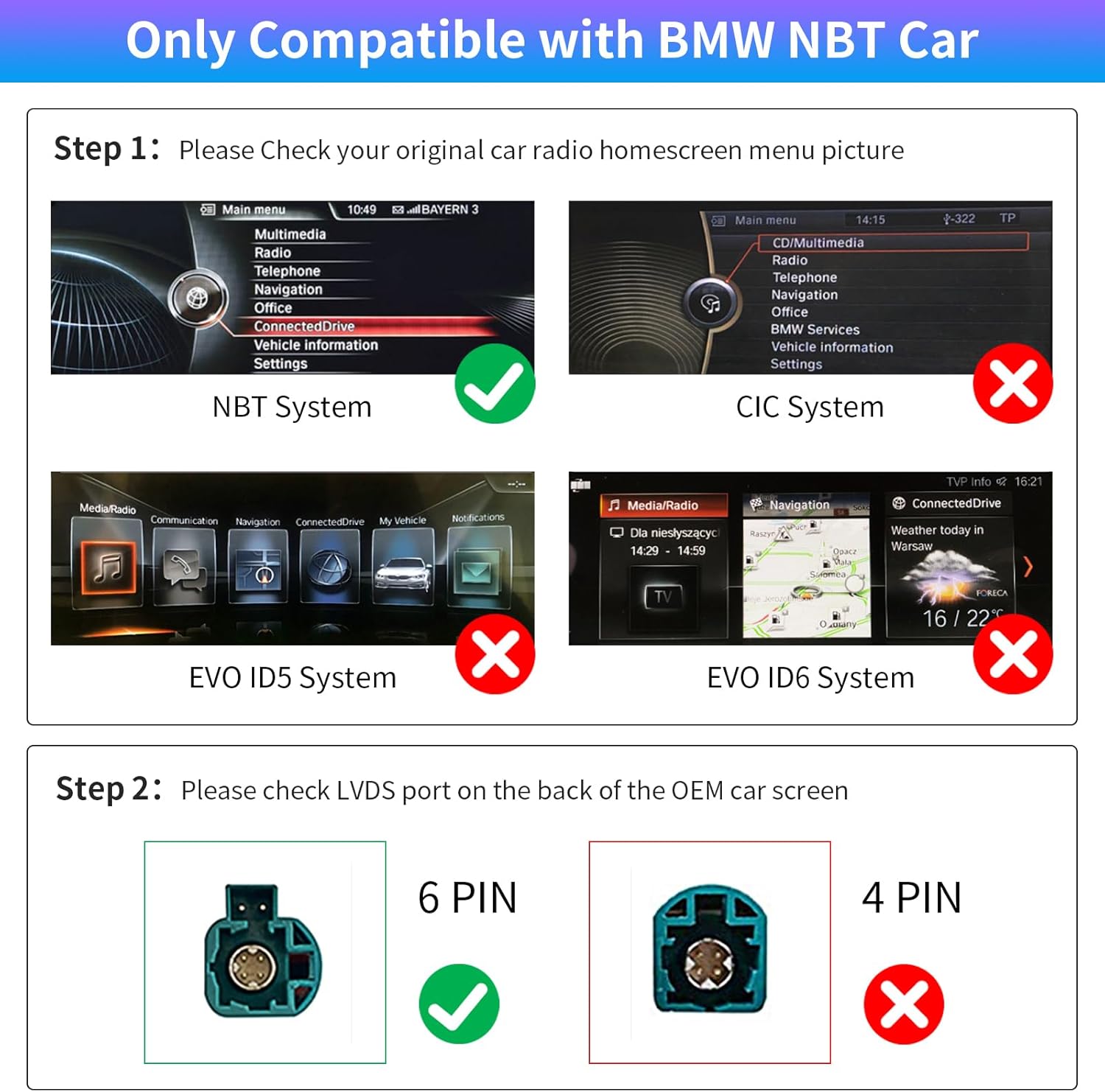
Image: Visual guide for identifying NBT, CIC, and EVO system interfaces. NBT is compatible, while CIC and EVO are generally not, with a specific exception for certain 3 and 4 Series models.
- Step 2: Check the LVDS port on the back of the OEM car screen.
The LVDS port must be a 6-pin connector. A 4-pin connector is not compatible.
Image: Illustration showing the difference between a compatible 6-pin LVDS port and an incompatible 4-pin LVDS port.
Note: Both conditions must be met for compatibility.
3. Setup and Installation
Installation of this decoder requires removing the car dashboard to access and connect wires to the original CD host device. It is recommended to have professional assistance if you are not experienced with car electronics installation.
3.1 Package Contents:
Verify that all components are present in your package:
- Road Top Wireless CarPlay Android Auto Decoder Unit
- Long Power Cable
- RCA / USB Cable
- LVDS Cable (1 pcs)
- Wi-Fi Antenna
- User Manual (this document)

Image: Components included in the product package, such as the main decoder unit, various cables, Wi-Fi antenna, and user manual.
3.2 Installation Overview:
- Ensure your car model and year are compatible as per Section 2.
- Carefully remove the car dashboard to access the car host device.
- Connect the provided wires to the original CD host device according to the wiring diagram (refer to the detailed wiring diagram in the physical user manual or online resources).
- Connect the LVDS cable between the decoder unit and the original screen.
- Connect the Wi-Fi antenna and USB cable to the decoder unit.
- Before reassembling the dashboard, test all functions of the installed unit to ensure proper operation.
Important: Do not finalize installation until you have tested every function on your car. Most issues arise from incorrect cable connections or settings.

Image: Diagram showing the decoder unit with its ports and a warning about testing before final installation.
4. Operating Instructions
The Road Top decoder allows seamless integration of modern smartphone features while preserving your BMW's original system.
4.1 Switching Between Systems:
After installation, your car will retain its original system. To switch between the original NBT system and the CarPlay/Android Auto system, long-press the "MENU" button on your iDrive knob.

Image: Visual representation of switching between the original car system, Wireless CarPlay, and Wireless Android Auto interfaces.
4.2 Wireless CarPlay and Android Auto:
The unit supports both wireless CarPlay for iPhone and wireless Android Auto for Android devices. Once connected, you can access navigation, music, calls, messages, and other compatible apps directly on your car's display.

Image: Screenshots demonstrating the CarPlay and Android Auto interfaces with various applications like navigation, music playback, and voice calls.
4.3 Mirrorlink Functionality:
The decoder supports Mirrorlink, allowing screen mirroring from your smartphone to the car's display. This includes AirPlay for iPhone and Autolink for Android phones.

Image: A smartphone screen being mirrored onto the car's central display via Mirrorlink.
4.4 Control Methods:
- Original Car Knob Control: The iDrive knob can be used to navigate the CarPlay/Android Auto interface.
- Steering Wheel Control: The voice control button, Tel button, and voice +/- buttons are supported for CarPlay/Android Auto functions. Other steering wheel buttons may not be supported.
- Voice Control: Utilize Siri for CarPlay and Google Assistant for Android Auto for hands-free operation, specifically designed for driving scenarios.

Image: Illustrations of the iDrive control knob, supported steering wheel buttons, and examples of voice commands for Siri and Google Assistant.
4.5 Camera Support:
The decoder supports various camera inputs:
- Factory original reverse camera and parking radar.
- Aftermarket reverse camera and 360-degree camera systems.
- Front view camera DVR (CVBS input).

Image: Display showing the reverse camera view with parking guidelines and parking radar indicators on the car's screen.
5. Maintenance
The Road Top Wireless CarPlay Android Auto Decoder is designed for reliable operation with minimal maintenance. Keep the unit and connections free from moisture and extreme temperatures. No user-serviceable parts are inside the decoder unit. For any internal issues, contact customer support.
6. Troubleshooting
If you encounter issues, review the following common problems and solutions. Many problems can be resolved by checking connections and settings.
- No CarPlay/Android Auto display after holding MENU button:
Ensure the DIP switches on the decoder box are set correctly to match your screen size. If the screen remains black, hold down the iDrive back button to reset the MMI box. - Interference between CarPlay/Android Auto and OEM radio:
If menu navigation in the new system also affects the original radio, or if unintended calls occur, set your car's default audio source to AUX. This can help prevent conflicts. - Unreliable phone connection or CarPlay/Android Auto not activating:
Ensure your phone's Bluetooth and Wi-Fi are enabled and correctly paired with the decoder unit. Sometimes, restarting the car or the phone can re-establish the connection. - Loss of OEM functions (e.g., date/time setting, trip info):
Verify all wiring connections are secure and correct. If issues persist, consult the support team. - No dynamic guidelines for aftermarket reverse camera:
Some aftermarket cameras may not support dynamic guidelines. This is a limitation of the camera, not the decoder unit.
If problems persist after attempting these solutions, please contact Road Top customer support for assistance.
7. Specifications
| Feature | Specification |
|---|---|
| Model Number | GPBM2022H-NBT |
| Product Dimensions | 3.7 x 5.83 x 0.91 inches (9.4 x 14.8 x 2.3 cm) |
| Item Weight | 2.42 pounds (1.1 kg) |
| Brand | Road Top |
| Connectivity Technology | Bluetooth, USB |
| Controller Type | Android (compatible with CarPlay/Android Auto) |
| Special Feature | Spotify (via CarPlay/Android Auto) |
| Compatible Devices | Smartphone, Car Speaker System |
| Total HDMI Ports | 1 (for video input, if applicable) |
| Connector Type | USB |
| Audio Output Mode | Stereo, Surround |
| Surround Sound Channel Configuration | 4.0 |
8. Warranty Information
For warranty details, please refer to the specific warranty policy provided at the time of purchase or contact Road Top customer support directly. Keep your proof of purchase for any warranty claims.
9. Customer Support
If you require assistance with installation, troubleshooting, or have any questions regarding your Road Top Wireless CarPlay Android Auto Decoder, please contact our customer support team. It is recommended to reach out for help before attempting complex troubleshooting or making permanent modifications.
9.1 How to Contact Support:
You can typically contact Road Top support through the platform where you purchased the product. For Amazon purchases, follow these steps:
- Navigate to the product page on Amazon.
- Click on the seller's name (e.g., "Road Top Direct") usually located near the "Add to Cart" button.
- On the seller's page, look for an option like "Ask a question" to send a message directly to the support team.

Image: Visual guide demonstrating how to locate and click the 'Ask a question' button on the seller's Amazon page to contact support.