
Introduction
This manual provides detailed instructions for the setup, operation, maintenance, and troubleshooting of your Montech AIR X ARGB-White Midi-Tower PC Case. Please read this manual thoroughly before beginning installation to ensure proper assembly and optimal performance.
Product Overview
The Montech AIR X ARGB-White is a Midi-Tower PC case designed for high airflow and aesthetic appeal. It features a unique diamond mesh front panel, tempered glass side panel, and comes with pre-installed Addressable RGB (ARGB) fans and a controller for customizable lighting.

Figure 1: Front-left view of the Montech AIR X ARGB-White PC Case, showcasing its mesh front panel and tempered glass side panel.

Figure 2: Interior view of the Montech AIR X ARGB-White PC Case, highlighting the spacious layout for components.
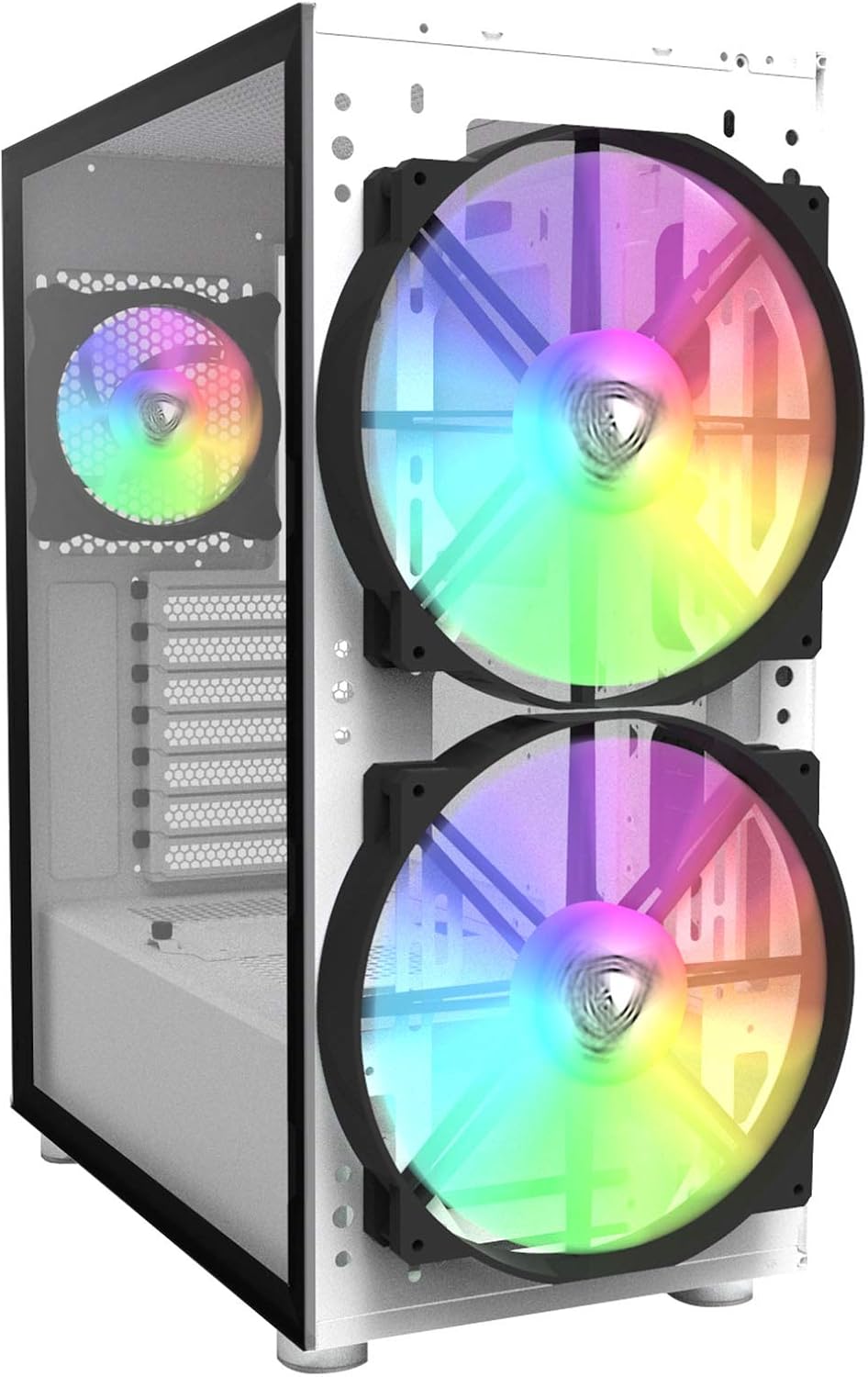
Figure 3: Front view of the Montech AIR X ARGB-White PC Case, showing the two large ARGB fans behind the mesh panel.
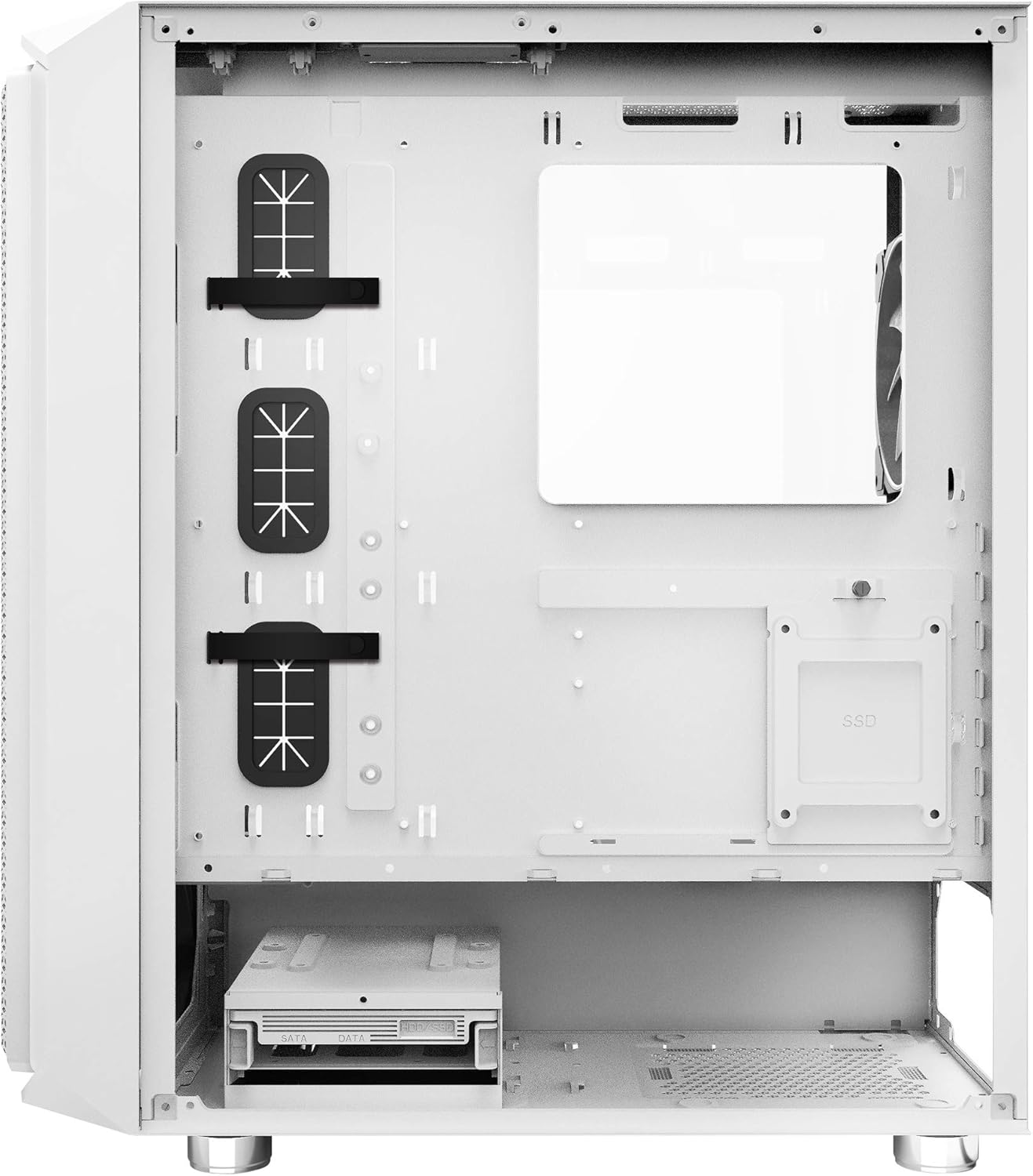
Figure 4: Rear interior view of the Montech AIR X ARGB-White PC Case, illustrating cable management options and drive bays.
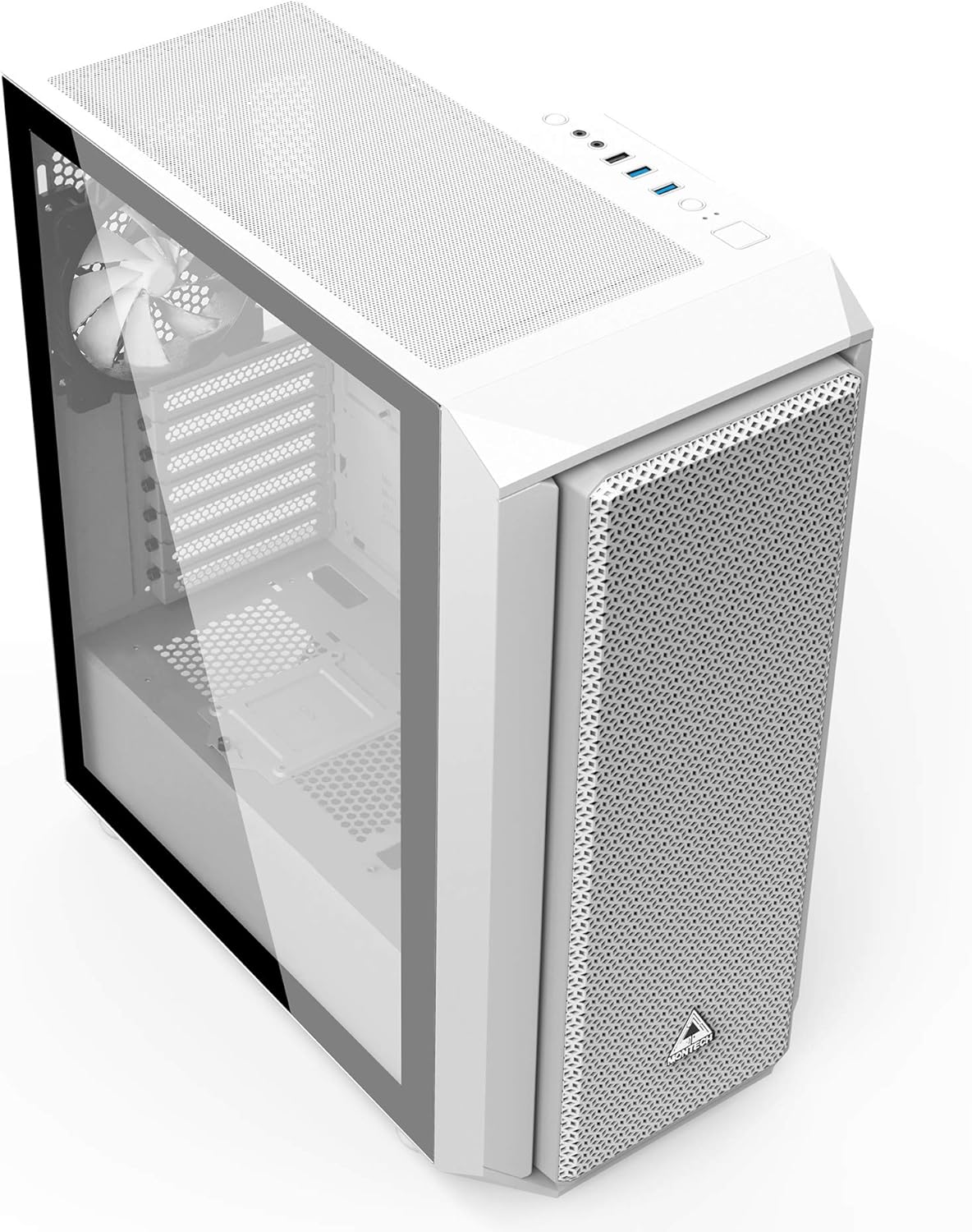
Figure 5: Top-front angled view of the Montech AIR X ARGB-White PC Case, highlighting the top I/O panel and magnetic dust filter.
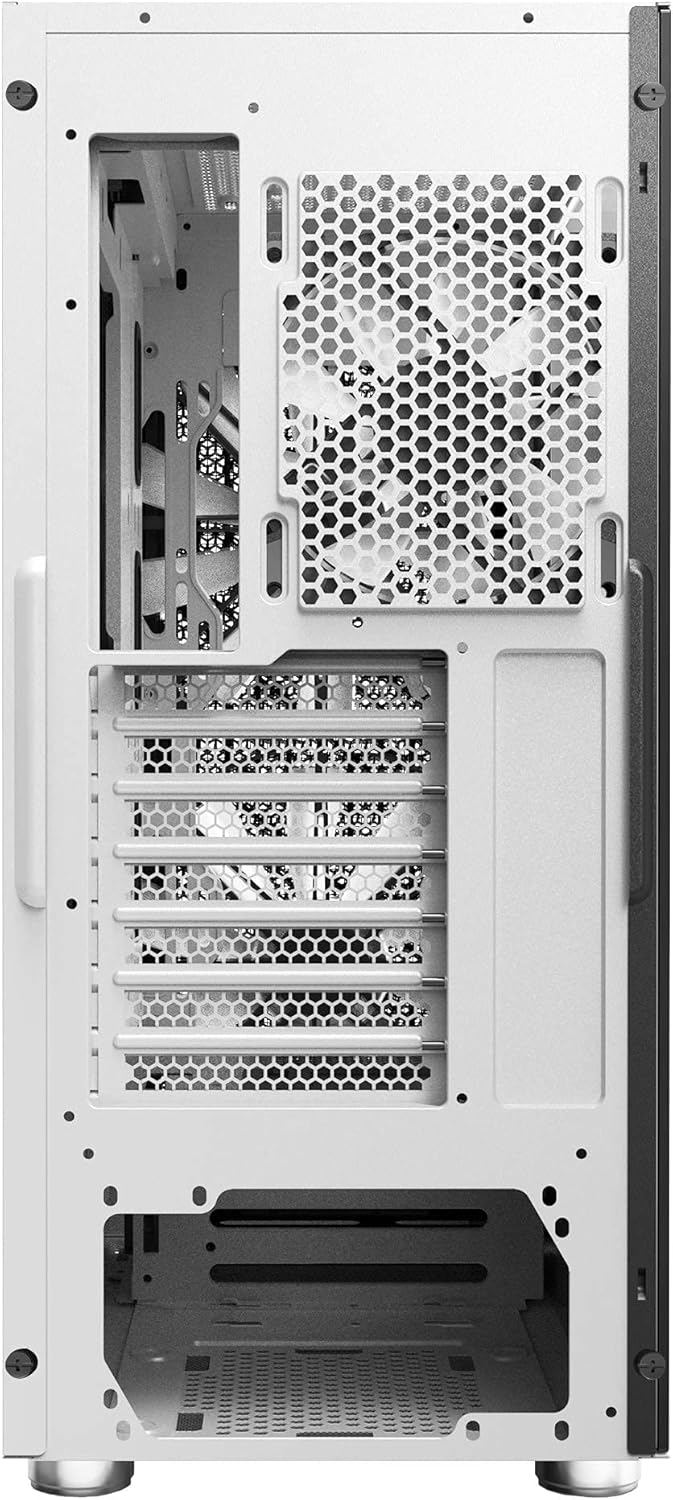
Figure 6: Rear exterior view of the Montech AIR X ARGB-White PC Case, showing the rear exhaust fan and PCIe slots.

Figure 7: Exploded view of the Montech AIR X ARGB-White PC Case, illustrating its modular components including panels, fans, and drive cages.
Video 1: Official Montech AIR X Series overview, demonstrating key features and design elements of the PC case.
Setup & Installation
1. Removing the Side Panel
The tempered glass side panel is secured by two thumbscrews at the rear. Unscrew these, then gently slide the panel backward and lift it off. Place the panel on a soft, flat surface to prevent scratches or damage.
2. Motherboard Installation
The Montech AIR X ARGB-White supports Mini-ITX, Micro-ATX, and ATX motherboards. Ensure the correct standoffs are installed for your motherboard size. The large cutout on the motherboard tray allows for easy installation of CPU coolers without removing the motherboard.
3. Drive Installation
The case includes one 3.5-inch drive slot, which can also accommodate a 2.5-inch SSD/HDD. Additionally, there are dedicated mounts for 2.5-inch SSDs behind the motherboard tray. The 3.5-inch drive cage is removable if not needed, providing more space for power supply cables.
4. Power Supply Installation
The power supply mounts at the bottom of the case. Ensure adequate space for cable routing, especially if using a non-modular power supply. The case supports power supplies up to 200mm in length.
5. Graphics Card (VGA) Installation
The case supports VGA cards up to 340mm in length. Install your graphics card into the appropriate PCIe slot on your motherboard. The rear PCIe slots feature a reusable design.
6. Cable Management
The case offers ample space behind the motherboard tray with rubber grommets and Velcro cable ties to facilitate clean cable routing. Utilize these features to maintain optimal airflow and a tidy interior.
7. Fan/ARGB Hub Connection
The case comes with a pre-installed fan/ARGB hub located behind the motherboard tray. This hub supports up to six fans and six ARGB inputs. The three included ARGB fans are already connected. Connect the hub to your power supply via SATA power and to your motherboard's 5V ARGB header (if desired for software control) or use the case's LED button for control.
Operating Instructions
Power On/Off
Press the power button located on the top I/O panel to turn your PC on or off.
ARGB Lighting Control
The ARGB lighting for the pre-installed fans can be controlled in two ways:
- Case LED Button: Use the dedicated LED button on the top I/O panel to cycle through various lighting modes and colors.
- Motherboard Software: If the ARGB hub is connected to your motherboard's 5V ARGB header, you can control the lighting effects using your motherboard's proprietary RGB software (e.g., ASUS Aura Sync, MSI Mystic Light, Gigabyte RGB Fusion).
Important: When connecting the ARGB hub to your motherboard, ensure you connect either the 3-pin ARGB connector OR the VDG connector, but not both simultaneously. Connecting both can prevent the power supply from switching on.
Front I/O Ports
The top I/O panel provides convenient access to:
- 2 x USB 3.0 Ports
- 1 x USB 2.0 Port
- Headphone Jack
- Microphone Jack
- Power Button
- Reset Button
- LED Control Button
Maintenance
Dust Filter Cleaning
The Montech AIR X ARGB-White is equipped with fine mesh dust screens on the front diamond mesh panel, and magnetic dust filters on the top and bottom vents. Regularly clean these filters to maintain optimal airflow and prevent dust buildup inside your PC.
- Front Panel: The front mesh panel can be carefully removed for cleaning.
- Top/Bottom Filters: The magnetic filters can be easily removed, cleaned with water and mild soap, and then air-dried before reattaching.
General Cleaning
Use a soft, dry cloth to wipe down the exterior of the case. For the tempered glass panel, use a glass cleaner applied to a cloth (not directly to the glass) to avoid streaks.
Troubleshooting
PC Not Powering On
- Ensure all power cables are securely connected to the power supply, motherboard, and components.
- Verify that the power supply switch is in the 'ON' position.
- Check the front panel header connections to the motherboard (Power SW, Reset SW).
- If using the ARGB hub, ensure only one ARGB signal cable (either 3-pin ARGB or VDG) is connected to the motherboard. Connecting both can cause power issues.
Fans Not Spinning or RGB Not Working
- Confirm that the fan/ARGB hub is receiving power via its SATA power connector.
- Check all fan and ARGB connections to the hub.
- If controlling via motherboard software, ensure the hub's ARGB cable is correctly connected to a 5V ARGB header on the motherboard and the software is installed and running.
- If using the case's LED button, try cycling through modes to see if the lights respond.
Poor Airflow/High Temperatures
- Ensure all dust filters are clean and free of obstructions.
- Verify that all fans are spinning correctly and oriented for optimal airflow (front fans as intake, rear/top fans as exhaust).
- Check for any obstructions to airflow inside the case, such as poorly managed cables.
Specifications
| Feature | Specification |
|---|---|
| Model Name | AIR X ARGB |
| Case Type | Midi Tower |
| Dimensions (LxWxH) | 16.73 x 8.27 x 18.7 inches |
| Item Weight | 16 pounds |
| Color | White |
| Material | Tempered Glass |
| Motherboard Compatibility | Mini-ITX, Micro-ATX, ATX |
| Power Supply Mounting Type | Bottom Mount |
| Cooling Method | Air |
| Pre-installed Fans | 2 x 200mm ARGB (Front), 1 x 120mm ARGB (Rear) |
| Fan Size (Front) | 200mm |
| USB 2.0 Ports | 1 |
| USB 3.0 Ports | 2 |
| Drive Bays | 1 x 3.5" HDD/2.5" SSD, Multiple 2.5" SSD mounts |
| VGA Card Length | Up to 340mm |
Warranty & Support
For warranty information and technical support, please refer to the official Montech website or contact your retailer. Keep your proof of purchase for any warranty claims.
For further assistance, visit the Montech Store on Amazon.


