
1. Introduction
The Xfinity XBB1-A Back-Up Battery is designed to provide temporary power to compatible Xfinity wireless gateways, specifically the Arris XB6 and Technicolor Panoramic CGM4141 models, during a power outage. This battery ensures that your voice/phone services remain operational for a limited duration. It is important to note that this battery pack supports voice/phone services only and does not maintain internet connectivity during an outage.
This manual will guide you through the installation, operation, maintenance, and troubleshooting of your XBB1-A Back-Up Battery.
2. Important Safety Information
- Read all instructions before using the battery pack.
- Do not expose the battery to water, fire, or extreme temperatures.
- Do not attempt to open, disassemble, or service the battery pack. Refer all servicing to qualified personnel.
- Ensure the battery is connected to a compatible Xfinity gateway as specified.
- Dispose of used batteries in accordance with local regulations.
- An analog phone must be connected directly to the gateway unit to ensure E911 service functionality during an electrical outage.
3. Package Contents
Verify that your package contains the following items:
- Xfinity XBB1-A Back-Up Battery Unit
- Power Cable (for connecting the battery to the wall outlet)
- Gateway Connection Cable (for connecting the battery to the gateway)

Figure 1: Xfinity XBB1-A Back-Up Battery unit and accompanying power cables.
4. Setup and Installation
Follow these steps to properly install your XBB1-A Back-Up Battery:
- Prepare the Gateway: Ensure your Xfinity wireless gateway (Arris XB6 or Technicolor Panoramic CGM4141) is powered off and unplugged from the wall outlet.
- Connect the Battery to the Gateway: Locate the battery port on your Xfinity gateway. Connect one end of the gateway connection cable to this port on the gateway and the other end to the designated output port on the XBB1-A battery unit.
- Connect Power to the Battery: Plug the power cable into the XBB1-A battery unit's input port. Then, plug the other end of the power cable into a standard electrical wall outlet.
- Power On the Gateway: Reconnect your Xfinity gateway's main power adapter (if separate) and power it on. The XBB1-A battery will begin charging automatically.
- Verify Operation: Check the indicator lights on the XBB1-A battery unit and your gateway to confirm proper connection and charging. Refer to your gateway's manual for specific indicator light meanings.
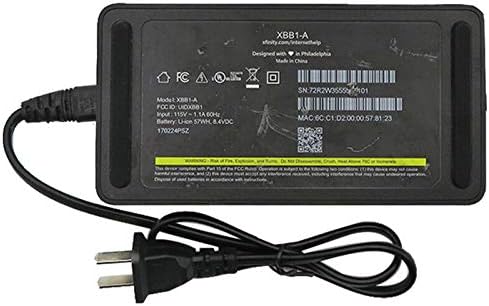
Figure 2: Bottom view of the XBB1-A battery, displaying model information, input/output specifications, and regulatory markings.
5. Operation
5.1 Normal Operation
During normal operation, with utility power available, the XBB1-A battery pack remains connected to your gateway and the wall outlet. It continuously charges, ensuring it is ready for use during a power interruption. The gateway operates normally, drawing power from the wall outlet.
5.2 Power Outage Operation
In the event of a power outage, the XBB1-A battery automatically switches to battery power, providing continuous power to your Xfinity gateway. This allows your voice/phone services to remain active for approximately 5 hours of talk time. Internet service will not be available during this time.
Important: To utilize E911 services during a power outage, an analog phone must be directly connected to your Xfinity gateway.

Figure 3: Top view of the XBB1-A battery unit, featuring the Xfinity branding.
6. Maintenance
The XBB1-A Back-Up Battery is designed for minimal maintenance. However, consider the following to ensure optimal performance and longevity:
- Keep Connected: For continuous readiness, keep the battery pack connected to both the gateway and a power outlet at all times.
- Environmental Conditions: Store and operate the battery in a cool, dry place, away from direct sunlight, heat sources, and excessive moisture.
- Cleaning: Use a soft, dry cloth to clean the exterior of the battery unit. Do not use liquid cleaners or aerosols.
- Battery Life: Like all rechargeable batteries, the XBB1-A's capacity will diminish over time. If you notice a significant reduction in backup time, consider replacing the unit.
7. Troubleshooting
| Problem | Possible Cause | Solution |
|---|---|---|
| Battery indicator light is off. | Battery not receiving power or not connected. | Ensure the power cable is securely plugged into the battery and a working wall outlet. Check the wall outlet with another device. |
| Gateway does not power on during outage. | Battery not charged or not properly connected to gateway. | Verify the battery has been charging. Ensure the gateway connection cable is firmly seated at both ends. The battery may be depleted or faulty. |
| Voice/phone service not working during outage. | Analog phone not connected directly to gateway or service issue. | Confirm an analog phone is plugged directly into the gateway. Contact Xfinity support if the issue persists after confirming battery operation. |
| Internet service is not available during outage. | This is expected behavior. | The XBB1-A battery only supports voice/phone services, not internet, during a power outage. |
8. Specifications
| Feature | Detail |
|---|---|
| Model | XBB1-A |
| Brand | Xfinity |
| Compatible Gateways | Arris XB6, Technicolor Panoramic CGM4141 |
| Supported Services | Voice/Phone services only (during power outage) |
| Backup Time | Approximately 5 hours of talk time |
| Battery Cell Composition | Lithium Ion |
| Reusability | Rechargeable |
| Product Dimensions | 5 x 3 x 2 inches |
| Item Weight | 1 pound |
9. Warranty and Support
For warranty information and technical support regarding your Xfinity XBB1-A Back-Up Battery, please refer to the documentation provided by Xfinity or contact Xfinity customer service directly. Support contact details can typically be found on your monthly bill or on the official Xfinity website.
For general inquiries or to report issues, visit the official Xfinity support page: www.xfinity.com/support