
1. Introduction
This manual provides essential information for the installation, operation, and maintenance of your FORTINET FortiGate-40F Firewall Appliance. The FortiGate-40F is designed to deliver enterprise-grade security and performance in a compact form factor, ideal for small to mid-sized businesses and branch offices. It integrates advanced threat protection with comprehensive network security features.
2. Package Contents
Verify that all items are present in your package:
- 1x FortiGate-40F Firewall Appliance
- 1x Power Adapter (DC+12V)
- 1x USB Cable
- 1x Console Cable
- Documentation (Quick Start Guide, Safety Information)
3. Product Overview
The FortiGate-40F features a robust design with multiple ports for flexible network connectivity and management.

Figure 3.1: Front view of the FortiGate-40F Firewall Appliance.
3.1 Front Panel Indicators
The front panel includes LED indicators for power, status, and network activity for each port, providing quick visual feedback on the device's operational state.

Figure 3.2: Detailed view of the FortiGate-40F front and rear panels, highlighting port labels and LED indicators.
3.2 Rear Panel Ports
The rear panel provides the following connectivity options:
- 1x USB Port (for management or auxiliary functions)
- 1x Console Port (RJ45 for direct management access)
- 1x GE RJ45 WAN Port (for internet connection)
- 1x GE RJ45 FortiLink Port (for connecting to FortiSwitch or FortiAP devices)
- 3x GE RJ45 Ethernet Ports (internal network connections)
- Reset Button
- DC+12V Power Input

Figure 3.3: Close-up of the FortiGate-40F rear panel, showing the various ports and their labels.
3.3 Dimensions and Weight
The FortiGate-40F is designed for compact deployment.
- Product Dimensions: 12 x 9 x 5 inches
- Item Weight: 3.47 pounds
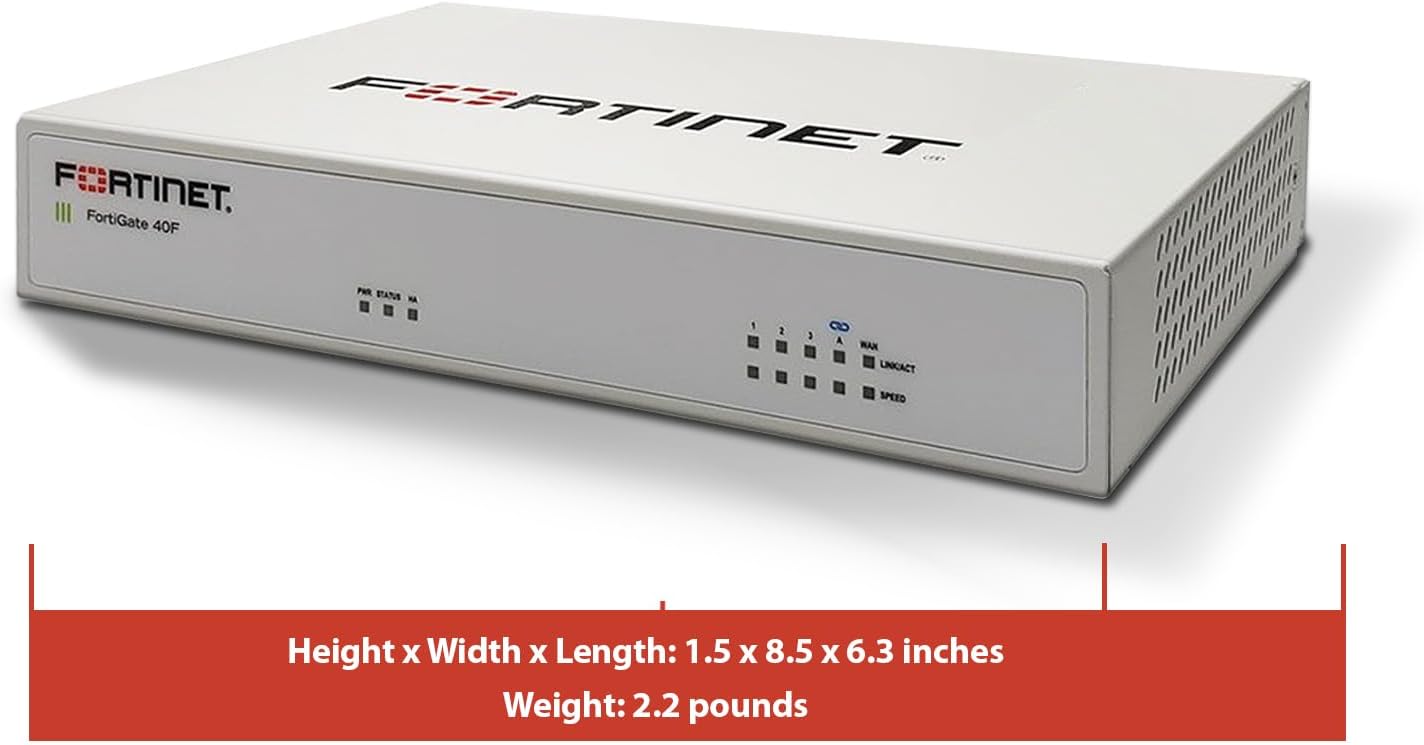
Figure 3.4: FortiGate-40F with its physical dimensions indicated.
4. Features
The FortiGate-40F offers a comprehensive suite of features for robust network security:
- Integrated Firewall Appliance and Security Services: Comes with FortiGate-40F Firewall Appliance, 1 year of FortiCare Premium, and FortiGuard Unified Threat Protection.
- UTP Security Features: Offers protection from advanced threats with DNS filtering, URL filtering, video filtering, and controls against botnets.
- Ideal for Smaller Settings: Best suited for small to mid-sized businesses needing reliable security without the complexity of larger systems.
- Continuous Support and Maintenance: FortiCare Premium ensures that technical help is readily available to manage and troubleshoot issues.
- Compact and Effective: Provides a powerful, yet compact security solution that effectively protects against a wide range of cyber threats.
5. Setup
Follow these general steps for initial setup. For detailed instructions, refer to the Quick Start Guide included in your package or visit the official Fortinet support website.
- Connect to Power: Connect the DC+12V power adapter to the appliance and plug it into a power outlet.
- Connect to Internet (WAN): Connect your internet modem or upstream network device to the WAN port on the FortiGate-40F using an Ethernet cable.
- Connect to Local Network (LAN): Connect your local network switch or a computer directly to one of the internal GE RJ45 Ethernet ports.
- Initial Configuration: Access the device's management interface via a web browser (typically 192.168.1.99 by default) or through the console port for command-line interface (CLI) access. Follow the on-screen prompts to complete the initial setup, including setting up network parameters and registering the device.
Video 5.1: This video provides an overview of the Fortinet FortiGate 40F Firewall, including its features and a general review. It can assist with understanding the device's capabilities during setup.
6. Operating Instructions
Once the initial setup is complete, you can manage your FortiGate-40F through its web-based graphical user interface (GUI) or the command-line interface (CLI).
6.1 Web-based GUI
Access the GUI by entering the device's IP address in a web browser. From the GUI, you can:
- Configure firewall policies and rules.
- Manage VPN connections (IPSec, SSL VPN).
- Monitor network traffic and security events.
- Apply FortiGuard Unified Threat Protection (UTP) services like antivirus, web filtering, and intrusion prevention.
- Manage user authentication and access control.
6.2 Command-Line Interface (CLI)
The CLI provides advanced configuration and troubleshooting options. Access it via the console port using a terminal emulator.
7. Maintenance
Regular maintenance ensures optimal performance and security for your FortiGate-40F appliance.
- Firmware Updates: Regularly check for and apply the latest firmware updates from Fortinet to ensure you have the most current security patches and features.
- Configuration Backups: Periodically back up your device configuration to a secure location.
- Physical Inspection: Ensure the device's vents are clear of obstructions to prevent overheating.
- Security Service Updates: Ensure your FortiGuard UTP subscriptions are active and receiving regular updates for threat intelligence.
8. Troubleshooting
This section addresses common issues you might encounter with your FortiGate-40F.
8.1 Connectivity Issues
- No Internet Access: Verify WAN cable connection, modem status, and FortiGate WAN interface configuration. Check firewall policies to ensure traffic is allowed.
- Local Network Issues: Confirm LAN cable connections, IP address settings on connected devices, and FortiGate internal interface configuration.
8.2 Management Access Problems
- Cannot Access GUI: Ensure your computer is on the correct subnet, try clearing browser cache, or attempt access via the console port.
- Forgot Password: Use the console port to access the CLI and reset the password if necessary, following Fortinet's recovery procedures.
8.3 Device Registration
Some users have reported issues with device registration if Amazon is not listed as an 'approved reseller'. Ensure you follow the registration steps carefully and contact Fortinet support if issues persist.
Video 8.1: This video provides pre-purchase information on router compatibility, which can be helpful for understanding potential setup and integration challenges.
9. Specifications
Key technical specifications for the FortiGate-40F Firewall Appliance:
| Attribute | Value |
|---|---|
| Product Dimensions | 12 x 9 x 5 inches |
| Item Weight | 3.47 pounds |
| Item Model Number | 40F |
| Brand | FORTINET |
| Model Name | FortiGate 40F |
| Special Feature | Network Security |
| Frequency Band Class | Single-Band |
| Wireless Communication Standard | 802.11ac |
| Compatible Devices | Desktop |
| Recommended Uses For Product | Firewall |
| Connectivity Technology | Ethernet |
| Color | Multicolor |

Figure 9.1: A table detailing the performance specifications of the FortiGate-40F, including IPS, NGFW, and Threat Protection throughputs.

Figure 9.2: Diagram illustrating the interfaces and hardware features of the FortiGate-40F series, including port types and hardware capabilities.
10. Warranty and Support
Your FortiGate-40F Firewall Appliance includes 1 year of FortiCare Premium and FortiGuard Unified Threat Protection (UTP).
- FortiCare Premium: Provides comprehensive technical support, hardware replacement, and firmware upgrades. This ensures you have access to expert assistance and the latest software.
- FortiGuard UTP: Delivers real-time threat intelligence updates for services such as antivirus, web filtering, intrusion prevention, and anti-spam, protecting your network from evolving cyber threats.
For detailed information on your warranty and support services, please refer to the documentation provided with your product or visit the official Fortinet website.

Figure 10.1: Overview of FortiGuard Security Services and FortiCare Support Subscriptions, detailing various service offerings and bundles.
11. Important Safety Information
Please read and follow all safety instructions to prevent injury or damage to the device.
- Operate the device within the specified temperature and humidity ranges.
- Do not expose the device to water or excessive moisture.
- Ensure proper ventilation to prevent overheating.
- Use only the power adapter supplied with the device.
- Do not open the device casing; refer all servicing to qualified personnel.


