
1. Introduction
This manual provides detailed instructions for the Insignia 2.0-Channel Soundbar, Model NS-HMSB20. It covers essential information for setting up, operating, and maintaining your soundbar to ensure optimal performance and longevity. Please read this manual thoroughly before using the product.
2. Package Contents
Verify that all items listed below are included in your package:
- Insignia 2.0-Channel Soundbar (Model NS-HMSB20)
- Remote Control
- AAA Batteries (2) for Remote Control
- RCA Audio Cable
- Power Adapter

Image: The Insignia 2.0-Channel Soundbar shown in its retail packaging, indicating included accessories.
3. Product Overview
3.1 Front View

Image: Front view of the Insignia 2.0-Channel Soundbar, featuring the speaker grille and a sleek black finish.
3.2 Top Panel Controls
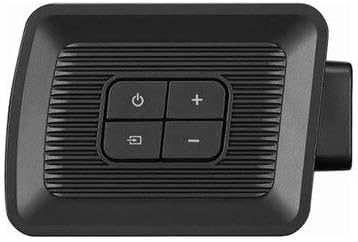
Image: Close-up of the soundbar's top panel, showing the power, volume up/down, and input selection buttons.
- Power Button: Press to turn the soundbar on or off.
- Volume Up (+): Press to increase the audio volume.
- Volume Down (-): Press to decrease the audio volume.
- Input Button: Press to cycle through available audio input sources (e.g., RCA, Optical, Bluetooth).
3.3 Rear Panel Connections

Image: Rear view of the soundbar, displaying the various audio input ports including RCA, Coaxial, Optical, and a USB port, along with the power input.
- Power Input: Connects to the provided power adapter.
- RCA Audio Input (L/R): For connecting to devices with analog RCA audio output.
- Coaxial Audio Input: For connecting to devices with digital coaxial audio output.
- Optical Audio Input: For connecting to devices with digital optical audio output.
- USB Port: For service or firmware updates (not for general audio playback).
4. Setup
4.1 Connecting to Power
- Connect the power adapter to the Power Input port on the rear of the soundbar.
- Plug the other end of the power adapter into a wall outlet.
4.2 Connecting to a Television or Audio Source
Choose one of the following connection methods:
4.2.1 RCA Audio Connection (Analog)
- Connect one end of the RCA audio cable (red and white plugs) to the RCA Audio Input ports on the soundbar.
- Connect the other end of the RCA audio cable to the corresponding audio output ports (usually labeled "Audio Out" or "L/R Audio") on your television or audio source.
- Press the Input button on the soundbar or remote until the RCA input is selected.
4.2.2 Optical Audio Connection (Digital)
- Connect one end of an optical audio cable (not included) to the Optical Audio Input port on the soundbar.
- Connect the other end of the optical audio cable to the optical audio output port (usually labeled "Optical Out" or "Digital Audio Out") on your television or audio source.
- Press the Input button on the soundbar or remote until the Optical input is selected.
- Note: Ensure your television's audio output settings are configured for PCM (Pulse Code Modulation) if you experience no sound or distorted audio via optical connection.
4.2.3 Coaxial Audio Connection (Digital)
- Connect one end of a coaxial audio cable (not included) to the Coaxial Audio Input port on the soundbar.
- Connect the other end of the coaxial audio cable to the coaxial audio output port on your television or audio source.
- Press the Input button on the soundbar or remote until the Coaxial input is selected.
4.3 Bluetooth Pairing
To stream audio wirelessly from a Bluetooth-enabled device:
- Turn on the soundbar.
- Press the Input button on the soundbar or remote until the Bluetooth input is selected. The indicator light will flash, indicating pairing mode.
- On your Bluetooth device (smartphone, tablet, etc.), enable Bluetooth and search for available devices.
- Select "NS-HMSB20" from the list of found devices.
- Once paired, the indicator light on the soundbar will stop flashing and remain solid. You can now stream audio from your device.
5. Operating Instructions
5.1 Power On/Off
Press the Power button on the soundbar or the remote control to turn the unit on or off.
5.2 Volume Control
Use the Volume Up (+) and Volume Down (-) buttons on the soundbar or remote control to adjust the audio level.
5.3 Input Selection
Press the Input button on the soundbar or remote control to switch between connected audio sources (RCA, Optical, Coaxial, Bluetooth).
5.4 Sound Modes
The soundbar features three different sound modes to optimize your audio experience. These modes can typically be cycled through using a dedicated button on the remote control (refer to remote control diagram for specific button). The modes are designed for different content types, such as movies, music, or news.
5.5 Remote Control Usage
The included remote control provides convenient operation from a distance. Ensure the two AAA batteries are correctly installed. Point the remote control towards the front of the soundbar for optimal response.
- Power: Turns the soundbar on/off.
- Input: Selects the audio source.
- Volume +/-: Adjusts the volume.
- Mute: Mutes or unmutes the sound.
- Sound Mode Buttons: Cycles through preset sound modes (e.g., Movie, Music, News).
6. Maintenance
6.1 Cleaning
- Before cleaning, ensure the soundbar is powered off and unplugged from the wall outlet.
- Use a soft, dry, lint-free cloth to wipe the exterior surfaces of the soundbar.
- Do not use liquid cleaners, aerosols, or solvents, as these may damage the finish or internal components.
6.2 Storage
If storing the soundbar for an extended period, unplug it from power and store it in a cool, dry place, away from direct sunlight and extreme temperatures.
7. Troubleshooting
| Problem | Possible Cause | Solution |
|---|---|---|
| No power | Power cable not connected; outlet not active. | Ensure power cable is securely connected to the soundbar and a working power outlet. |
| No sound | Incorrect input selected; volume too low; audio cable not connected properly; TV audio output settings incorrect. |
|
| Bluetooth not pairing | Soundbar not in pairing mode; device too far; device already paired to another unit. |
|
| Remote control not working | Batteries depleted or incorrectly inserted; obstruction between remote and soundbar; remote sensor blocked. |
|
| Soundbar automatically turns off | Auto-standby feature activated due to inactivity. | This is a power-saving feature. Turn the soundbar back on using the power button on the unit or remote. |
8. Specifications
| Model Name | NS-HMSB20 |
| Speaker Type | Soundbar |
| Surround Sound Channel Configuration | 2.0 |
| Connectivity Technology | Bluetooth |
| Wireless Communication Technology | Bluetooth |
| Compatible Devices | Smartphone, Tablet, Television |
| Audio Output Mode | Multiple Modes |
| Control Method | Remote |
| Speaker Maximum Output Power | 200 Watts (Peak Power) |
| Product Dimensions (D x W x H) | 3.27"D x 15.75"W x 2.65"H |
| Item Weight | 2.2 Pounds |
| Power Source | Corded Electric |
| Included Components | Remote, 2 AAA batteries |
| Color | Black |
| UPC | 600603251641 |
9. Warranty and Support
9.1 Limited Warranty
This Insignia 2.0-Channel Soundbar is covered by a limited warranty. For specific terms and conditions of the warranty, please refer to the warranty card included with your product or visit the official Insignia website.
9.2 Customer Support
For technical assistance, troubleshooting, or service inquiries, please contact Insignia customer support. Contact information can typically be found on the official Insignia website or in the product packaging.