
1. Introduction
This manual provides comprehensive instructions for the installation, operation, and maintenance of your Cudy WU1400 AC1300 USB 3.0 Dual Band WiFi Adapter. This device is designed to provide high-speed wireless connectivity to your desktop or laptop computer, supporting both 2.4GHz and 5GHz Wi-Fi bands.

Figure 1: Cudy WU1400 AC1300 USB 3.0 Dual Band WiFi Adapter with its adjustable antenna.
Key Features:
- AC1300 Dual Band: Up to 867Mbps on 5GHz and 400Mbps on 2.4GHz.
- USB 3.0 Interface: Provides faster data transfer speeds compared to USB 2.0.
- 5dBi High Gain Antenna: Enhances signal reception and transmission for wider coverage.
- Wide Compatibility: Supports Windows 7/8/8.1/10, Mac OS, and Linux operating systems.

Figure 2: Overview of Cudy WU1400 key features and compatibility.

Figure 3: The WU1400 utilizes USB 3.0 for enhanced data transfer rates, offering up to 10 times faster speeds than USB 2.0.
2. Setup Guide
2.1 Package Contents
- Cudy WU1400 AC1300 USB 3.0 Dual Band WiFi Adapter
- Quick Installation Guide
- Resource CD (for drivers)
2.2 Hardware Installation
- Insert the Adapter: Locate an available USB 3.0 port on your desktop or laptop computer. Insert the Cudy WU1400 adapter firmly into the USB port. For optimal performance, use a USB 3.0 port (typically identified by a blue interior). If a USB 3.0 port is not available, a USB 2.0 port can be used, but performance may be limited.
- Adjust the Antenna: The adapter features an adjustable 5dBi high-gain antenna. For best signal reception, position the antenna vertically or adjust its angle to optimize signal strength. The antenna can rotate 360 degrees and pivot 90 degrees.

Figure 4: The 5dBi high-gain antenna can be adjusted for optimal signal reception.
2.3 Driver Installation
The Cudy WU1400 adapter requires a driver to function correctly with your operating system. Follow the instructions below based on your operating system:
Windows (7/8/8.1/10):
- Automatic Installation: In most cases, Windows 10 will automatically detect the adapter and install the necessary drivers upon first connection. Wait for the "Device setup complete" notification.
- Manual Installation (from CD): If automatic installation fails or for older Windows versions, insert the provided Resource CD into your computer's CD-ROM drive. Navigate to the driver folder for WU1400 and run the setup executable. Follow the on-screen prompts to complete the installation.
- Manual Installation (from Website): If you do not have a CD-ROM drive or prefer the latest drivers, visit the official Cudy website (www.cudy.com) and navigate to the Support or Download section. Search for "WU1400" and download the latest drivers for your specific Windows version. Run the downloaded installer and follow the instructions.
Mac OS:
- Visit the official Cudy website (www.cudy.com) and download the Mac OS drivers for WU1400.
- Open the downloaded package and follow the installation instructions. You may need to adjust security settings in System Preferences to allow installation from unidentified developers.
Linux:
- Linux compatibility may require manual driver compilation. Visit the official Cudy website (www.cudy.com) and download the Linux drivers for WU1400.
- Refer to the README file or installation script within the downloaded driver package for specific compilation and installation instructions, which typically involve using commands like
makeandmake installin a terminal.
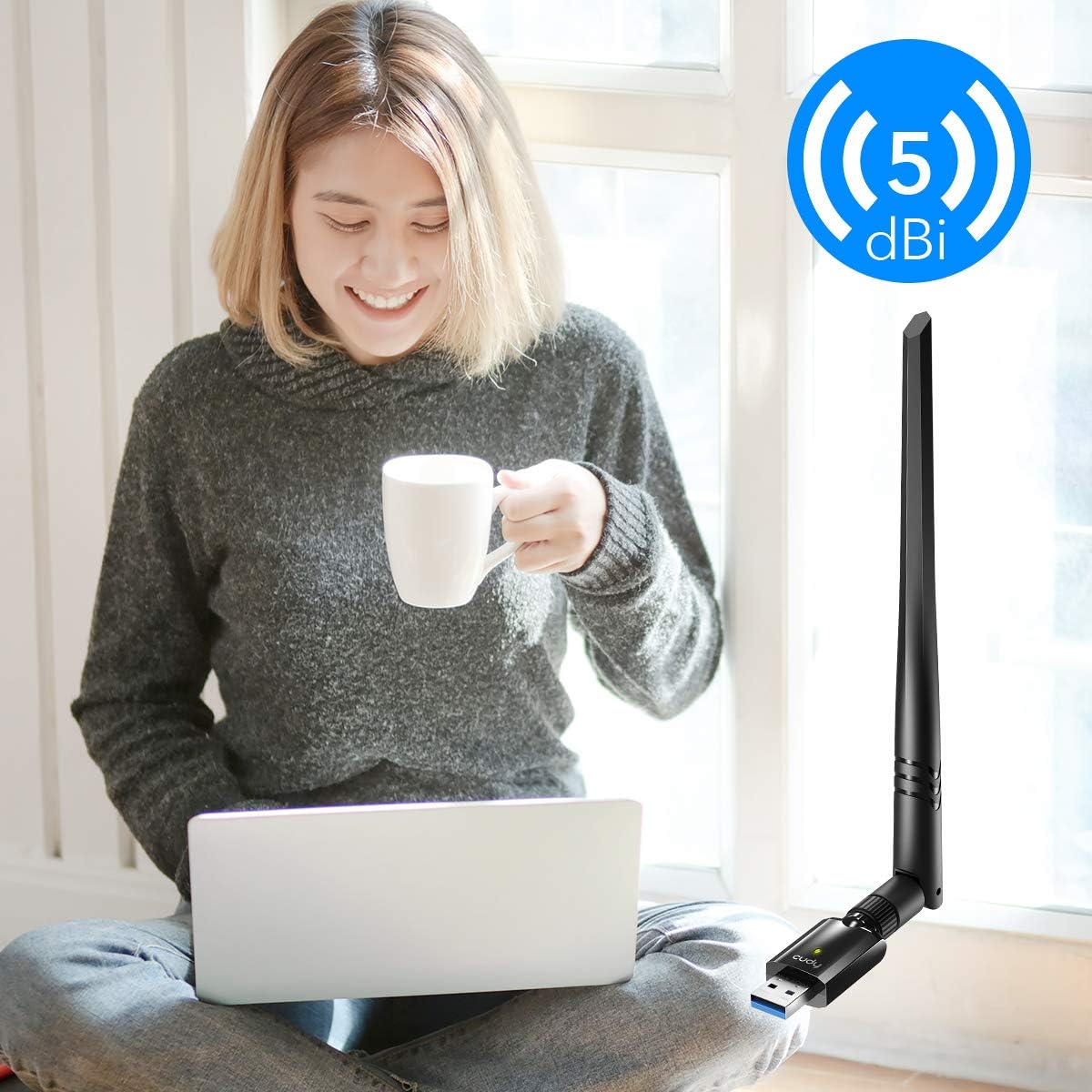
Figure 5: The Cudy WU1400 supports various operating systems.
3. Operating Instructions
3.1 Connecting to a Wi-Fi Network (Windows Example)
- Ensure the Cudy WU1400 adapter is properly installed and its drivers are loaded.
- Click on the Wi-Fi icon in the system tray (usually in the bottom-right corner of your screen).
- A list of available Wi-Fi networks will appear. Select your desired network (SSID).
- Click "Connect". If the network is secured, you will be prompted to enter the Wi-Fi password (security key).
- Once the password is entered, click "Next" or "OK" to establish the connection. The adapter will connect to the network, and the Wi-Fi icon will indicate a successful connection.
3.2 Dual Band Operation (2.4GHz vs. 5GHz)
The Cudy WU1400 supports both 2.4GHz and 5GHz Wi-Fi bands. Your router must also support dual-band operation for you to utilize both.
- 2.4GHz Band: Offers wider coverage and better penetration through walls, suitable for general internet use and devices further from the router.
- 5GHz Band: Provides faster speeds and less interference, ideal for online gaming, 4K video streaming, and other bandwidth-intensive applications, but has a shorter range.
You can choose which band to connect to if your router broadcasts separate SSIDs for each band (e.g., "MyWiFi_2.4G" and "MyWiFi_5G"). If your router uses a single SSID for both bands (band steering), the adapter will automatically select the optimal band.

Figure 6: The WU1400 supports both 2.4GHz (400Mbps) and 5GHz (867Mbps) bands for flexible connectivity.
4. Maintenance
- Keep Drivers Updated: Regularly check the Cudy website (www.cudy.com) for the latest driver updates. Updated drivers can improve performance, stability, and compatibility.
- Physical Care: Keep the adapter clean and free from dust. Avoid exposing it to extreme temperatures or humidity.
- Antenna Position: Periodically check the antenna's position to ensure it is optimally angled for the best signal strength.
5. Troubleshooting
| Problem | Possible Cause | Solution |
|---|---|---|
| Adapter not detected / No Wi-Fi networks found. | Driver not installed or corrupted. Adapter not properly inserted. | Ensure the adapter is fully inserted into a USB port. Reinstall the drivers from the Cudy website. Try a different USB port. |
| Slow connection speed. | Connected to 2.4GHz band instead of 5GHz. Interference. Distance from router. | Try connecting to the 5GHz band if available. Reduce interference by moving away from other electronic devices. Move closer to the Wi-Fi router. Adjust antenna angle. Ensure you are using a USB 3.0 port. |
| Frequent disconnections. | Weak signal. Driver issues. Power management settings. | Adjust antenna for better signal. Update drivers. Disable power saving features for the USB adapter in Device Manager (Windows). Ensure router firmware is up to date. |
| Linux driver installation issues. | Kernel version incompatibility. Missing build tools. | Ensure you have the correct kernel headers and build-essential packages installed. Follow the specific instructions provided with the Linux driver package from Cudy's website carefully. Consult Linux community forums for distribution-specific advice. |
6. Specifications
| Feature | Detail |
|---|---|
| Model Number | WU1400 |
| Hardware Interface | USB 3.0, 802.11 ac/b/g/n |
| Data Link Protocol | IEEE 802.11ac |
| Data Transfer Rate | 1300 Mbps (867 Mbps on 5GHz, 400 Mbps on 2.4GHz) |
| Antenna Type | 5dBi High Gain Antenna |
| Compatible Operating Systems | Windows 7/8/8.1/10, Mac OS, Linux |
| Compatible Devices | Desktop, Laptop |
| Product Dimensions | 8.39 x 0.39 x 0.91 inches |
| Item Weight | 1.02 ounces (29 Grams) |
| Manufacturer | Shenzhen Cudy Technology Co., Ltd. |
| UPC | 644925515159 |
7. Warranty and Support
Cudy provides technical support and warranty services for its products. For detailed warranty information and to access support resources, please visit the official Cudy website.
- Official Website: www.cudy.com
- Driver Downloads: The latest drivers and firmware updates are available on the support section of the Cudy website.
- Technical Support: For technical assistance, troubleshooting, or warranty claims, please refer to the contact information provided on the Cudy website.