
1. Product Overview
The RICOH Aficio MP C3003 is a versatile A3 Color Laser Multifunction Copier designed for fast-paced office environments. It integrates copy, fax, print, and scan functionalities, offering robust performance and connectivity options.
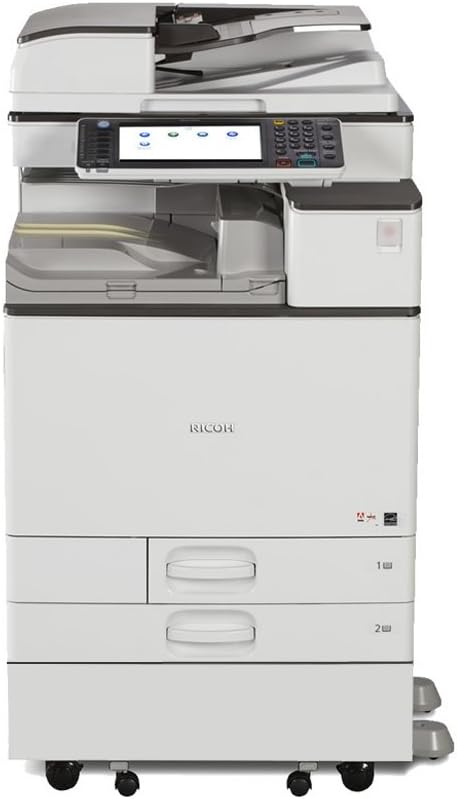
Image: Front view of the RICOH Aficio MP C3003 A3 Color Laser Multifunction Copier, showing its compact design, control panel, and paper trays.
Key Features
- Standard features: Copy, Fax, Print, Scan, Auto Duplex, Network
- Print speed: Up to 30 pages per minute
- Maximum Paper Size: up to 12" x 18" via Bypass Tray
- Paper Input Capacity (std / max.): 1,200 sheets / 4,700 sheets with options
- Comes with Pre-installed PostScript 3 Supplement and full Manual
2. Setup Guide
2.1 Unpacking
- Carefully remove the copier from its packaging. Ensure all packing materials and protective tapes are removed.
- Place the copier on a stable, level surface with adequate space for ventilation and operation.
- Verify all included components are present: Ricoh Aficio MP C3003 unit, Toner Cartridges, Power Cord.
2.2 Initial Power On
- Connect the power cord securely to the copier and then to a grounded electrical outlet.
- Press the power button, usually located on the side or front panel, to turn on the device.
- Follow the on-screen prompts on the control panel to complete the initial setup, including language and date/time settings.
2.3 Network Connection
- Connect an Ethernet cable from the copier's Ethernet port to your network router or switch.
- Access the network settings from the control panel.
- Configure IP address settings (DHCP or Static IP) as per your network administrator's instructions.
- Install necessary printer drivers on your computers. Drivers are typically available on the manufacturer's website or included with the device.
3. Operating Instructions
3.1 Copying Documents
- Place the original document face-down on the scanner glass or face-up in the Automatic Document Feeder (ADF).
- Select the 'Copy' function from the control panel.
- Adjust settings such as number of copies, color/black & white, duplex, and paper tray.
- Press the 'Start' button to begin copying.
3.2 Printing from a Computer
- From your computer, open the document you wish to print.
- Select 'Print' from the application's menu (e.g., File > Print).
- Choose the RICOH Aficio MP C3003 from the list of available printers.
- Adjust print settings as needed (e.g., paper size, orientation, color, duplex).
- Click 'Print'.
3.3 Scanning Documents
- Place the document on the scanner glass or in the ADF.
- Select the 'Scan' function on the control panel.
- Choose your scan destination (e.g., Scan to Email, Scan to Folder, Scan to USB).
- Configure scan settings such as resolution, file format, and color mode.
- Press 'Start Scan'.
3.4 Faxing Documents
- Place the document on the scanner glass or in the ADF.
- Select the 'Fax' function on the control panel.
- Enter the recipient's fax number using the keypad.
- Adjust any necessary fax settings.
- Press 'Start' to send the fax.
3.5 Mobile Connectivity
The RICOH Aficio MP C3003 supports mobile printing and scanning. You can connect to the cloud from your smartphone, tablet, or other mobile device.
- Download the official RICOH mobile app from your device's app store.
- Ensure your mobile device is connected to the same network as the copier.
- Use the app to discover and connect to the copier for printing or scanning tasks.
4. Maintenance
4.1 Toner Replacement
- When a toner cartridge is low or empty, a message will appear on the control panel.
- Open the front cover of the copier.
- Locate the empty toner cartridge and carefully pull it out.
- Unpack the new toner cartridge, shake it gently, and insert it firmly into its slot until it clicks into place.
- Close the front cover.
4.2 Paper Tray Management
- Pull out the desired paper tray.
- Adjust the paper guides to fit the size of the paper you are loading.
- Load the paper stack evenly, ensuring it does not exceed the maximum fill line.
- Gently push the paper tray back into the copier until it locks.
- Confirm the paper size and type on the control panel if prompted.
4.3 Cleaning Procedures
- Exterior: Wipe the exterior surfaces with a soft, damp, lint-free cloth. Do not use abrasive cleaners or solvents.
- Scanner Glass: Gently clean the scanner glass with a soft cloth moistened with glass cleaner. Ensure no residue is left.
- ADF Rollers: Refer to the detailed manual for instructions on cleaning ADF rollers to prevent paper jams and streaks.
5. Troubleshooting
| Problem | Possible Cause | Solution |
|---|---|---|
| Paper Jam | Incorrect paper loading, foreign object, worn rollers. | Open covers as indicated on the control panel. Carefully remove jammed paper. Ensure paper is loaded correctly. |
| No Power | Power cord disconnected, power outlet issue. | Check power cord connection to copier and outlet. Try a different outlet. |
| Poor Print Quality | Low toner, dirty scanner glass, fuser issue. | Replace toner cartridge. Clean scanner glass. If problem persists, contact support. |
| Network Connection Error | Incorrect IP settings, faulty Ethernet cable, network issue. | Verify network cable connection. Check IP settings on copier and network. Restart copier and router. |
6. Specifications
| Feature | Detail |
|---|---|
| Brand | RICOH |
| Model Name | C3003 |
| Printing Technology | Laser |
| Printer Output | Color |
| Print Speed | Up to 30 pages per minute |
| Maximum Paper Size | 12" x 18" (via Bypass Tray) |
| Max Input Sheet Capacity | 1200 (standard) / 4700 (max with options) |
| Duplex Printing | Auto-Duplex |
| Connectivity Technology | Ethernet |
| Scanner Type | Flatbed |
| Maximum Color Print Resolution | 1200 dpi |
| Ink Color | Cyan, Magenta, Yellow, Black |
| Included Components | Ricoh Aficio MP C3003, Toner Cartridges, Power Cord |
| Product Dimensions | 19.29 x 16.5 x 4.09 inches |
| Item Weight | 3.08 pounds (1.4 Kilograms) |
| Date First Available | August 16, 2020 |
7. Warranty Information
The RICOH Aficio MP C3003 comes with a Limited Warranty. Please refer to the warranty documentation included with your product for specific terms, conditions, and duration of coverage. Retain your proof of purchase for warranty claims.
8. Support
For technical assistance, service requests, or further inquiries regarding your RICOH Aficio MP C3003, please contact RICOH customer support.
- Online Support: Visit the official RICOH support website for FAQs, drivers, and digital manuals.
- Phone Support: Refer to the contact information provided in your product's packaging or on the official RICOH website for regional support numbers.
Always ensure you have your product model number (C3003) and serial number ready when contacting support.