1. Introduction
The STEREN Wi-Fi Universal Remote Control allows you to manage various infrared (IR) controlled devices in your home using your smartphone. This device connects to your home Wi-Fi network, enabling control from anywhere via the dedicated mobile application. It is compatible with popular voice assistants like Google Assistant and Alexa, providing a convenient way to integrate your traditional appliances into a smart home ecosystem.

Figure 1.1: The STEREN Wi-Fi Universal Remote Control. This image highlights key features such as multi-phone control, Wi-Fi connectivity, up to 5m range, and 360-degree functionality.
Key Features:
- Universal Compatibility: Controls various IR devices such as TVs, air conditioners, fans, and audio/video players.
- Wi-Fi Connectivity: Connects to your home Wi-Fi network (802.11n) for remote control.
- Smartphone Control: Manage devices using the STEREN Home app on Android and iPhone.
- Voice Assistant Integration: Compatible with Google Assistant and Alexa for hands-free control.
- Wide Coverage: Infrared signal range of up to 5 meters with 360-degree coverage.
- Multi-User Support: Can be synchronized with multiple mobile phones.

Figure 1.2: Universal compatibility diagram. The remote can control devices like fans, air conditioners, audio/video players, and televisions.
2. Setup Guide
2.1 Package Contents
- STEREN Wi-Fi Universal Remote Control
- USB Power Cable
- User Manual (this document)
2.2 Powering On the Device
- Connect the provided USB power cable to the remote control.
- Plug the other end of the USB cable into a standard USB power adapter (not included) or a compatible USB port.
- The device will power on, indicated by an LED light.
2.3 Downloading the STEREN Home App
To control your universal remote, you need to download the STEREN Home application on your smartphone.
- For Android devices, search for "STEREN Home" on the Google Play Store.
- For iOS devices, search for "STEREN Home" on the Apple App Store.
- Install the application on your smartphone.

Figure 2.1: The STEREN Home App interface, showing controls for a television. The app is available on both Apple App Store and Google Play.
2.4 Connecting to Wi-Fi and Pairing Devices
- Open the STEREN Home app and create an account or log in.
- Follow the in-app instructions to add a new device. Select the Universal Remote Control.
- Ensure your smartphone is connected to the 2.4 GHz Wi-Fi network that the remote control will use.
- The app will guide you through connecting the remote to your Wi-Fi network.
- Once connected, you can add IR-controlled devices (e.g., TV, AC) by selecting them from the app's database or using the IR learning function.
- Position the universal remote control within 5 meters of the devices you wish to control, ensuring no obstructions block the infrared signal.
3. Operating Instructions
3.1 Controlling Devices via the App
After successfully pairing your devices, you can control them directly from the STEREN Home app.
- Open the app and select the device you wish to control.
- The app will display a virtual remote control interface specific to the selected device.
- Use the virtual buttons to power on/off, change channels, adjust volume, set AC temperature, and more.
3.2 Voice Control with Google Assistant and Alexa
The STEREN Wi-Fi Universal Remote Control supports voice commands through Google Assistant and Amazon Alexa.
- Ensure your Google Assistant or Alexa device is set up and linked to your STEREN Home account. Refer to the respective voice assistant's setup guide for linking smart home devices.
- Once linked, you can use voice commands such as:
- "Alexa, turn on the TV."
- "Hey Google, set the AC to 22 degrees."
- "Alexa, change channel to 5 on the living room TV."
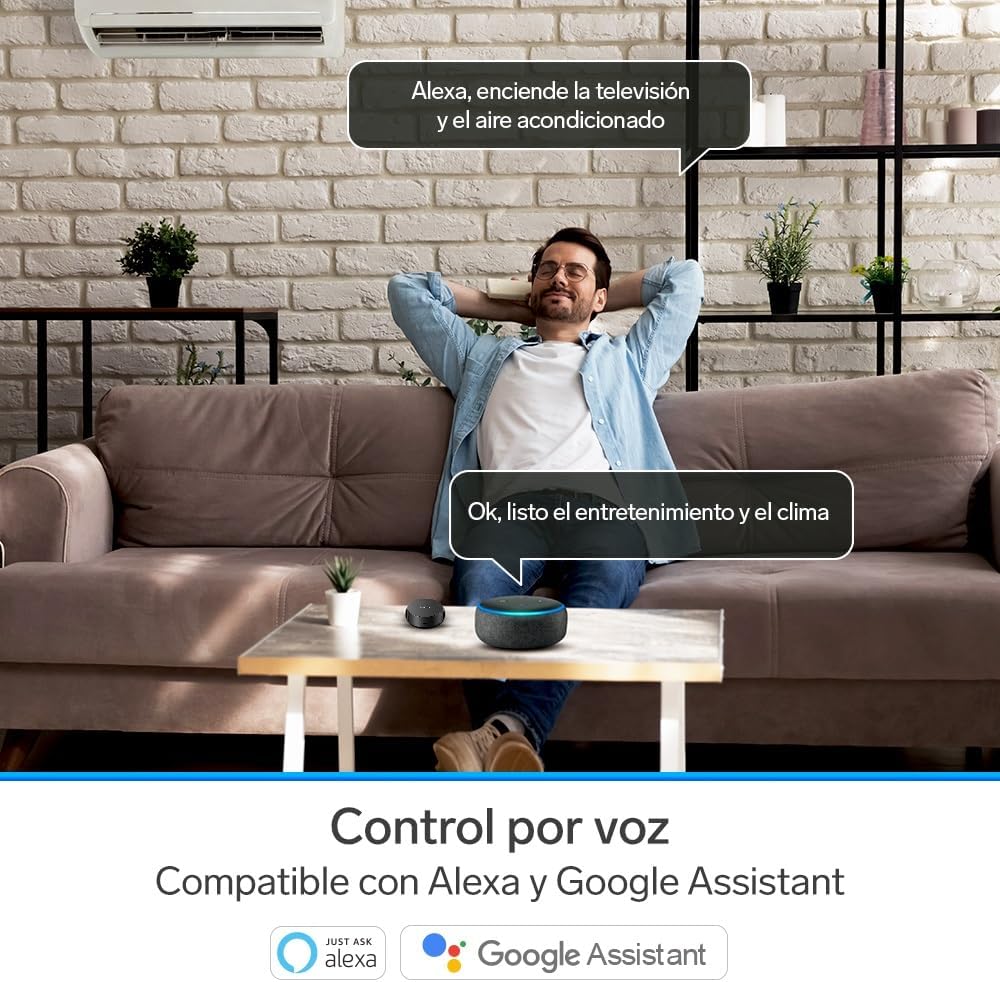
Figure 3.1: Voice control in action. A user issues commands like "Alexa, turn on the television and the air conditioner" to manage home entertainment and climate.
3.3 Multi-User Control
The device can be controlled by multiple users. Simply have each user download the STEREN Home app and log in with the same account credentials used during the initial setup. This allows all family members to control the connected devices.
3.4 Optimal Placement and Range
For optimal performance, place the universal remote control in a central location within the room, ensuring a clear line of sight to the devices it controls. The infrared signal has an effective range of up to 5 meters and operates in a 360-degree radius.

Figure 3.2: The 5-meter range of the STEREN Wi-Fi Universal Remote Control. This image illustrates the effective area for controlling devices.
4. Maintenance
4.1 Cleaning
- Wipe the device with a soft, dry cloth.
- Do not use liquid cleaners, aerosols, or solvents, as these may damage the device.
4.2 Environmental Considerations
- Avoid placing the device in direct sunlight or near heat sources.
- Keep the device away from moisture and extreme temperatures.
5. Troubleshooting
5.1 Device Not Responding
- Check Power: Ensure the universal remote control is properly powered on and its LED indicator is active.
- Line of Sight: Verify there are no obstructions between the universal remote control and the device you are trying to control.
- Range: Ensure the universal remote control is within 5 meters of the target device.
- Re-pair Device: If a specific device is not responding, try deleting it from the STEREN Home app and re-pairing it.
5.2 Wi-Fi Connection Issues
- Router Proximity: Place the universal remote control closer to your Wi-Fi router.
- 2.4 GHz Network: Confirm your Wi-Fi network is 2.4 GHz, as the device does not support 5 GHz networks.
- Router Reboot: Try restarting your Wi-Fi router.
- App Reconnection: In the STEREN Home app, attempt to reconnect the universal remote control to your Wi-Fi network.
5.3 Voice Control Not Working
- Account Linking: Verify that your STEREN Home account is correctly linked to your Google Assistant or Alexa account.
- Device Naming: Ensure the names of your devices in the STEREN Home app are clear and easily recognizable by the voice assistant.
- Internet Connection: Confirm both your voice assistant device and the universal remote control have a stable internet connection.
6. Specifications
| Feature | Specification |
|---|---|
| Brand | STEREN |
| Model Name | Control Remoto Universal Wi-Fi |
| Product Dimensions | 2.5 x 6.5 x 6.5 cm |
| Product Weight | 20 Grams |
| Connectivity Technology | Infrared, Wi-Fi |
| Wireless Communication Standard | 802.11n (2.4 GHz) |
| IR Signal Range | Up to 5 meters |
| IR Coverage | 360 degrees |
| Compatible Devices | Digital media players, TVs, Air Conditioners, Fans, etc. |
| Special Feature | Voice Search (via linked voice assistants) |
| Power Source | USB (5V) |
| Batteries Included | Yes (internal Lithium Polymer) |
| Lithium Battery Energy Content | 5 Watt-hours |
| Lithium Battery Weight | 1.96 Grams |
7. Warranty and Support
7.1 Warranty Information
This STEREN product is covered by a manufacturer's warranty. Please refer to the warranty card included with your purchase or visit the official STEREN website for detailed warranty terms and conditions. Keep your proof of purchase for warranty claims.
7.2 Customer Support
For technical assistance, troubleshooting, or product inquiries, please contact STEREN customer support. Contact details can typically be found on the official STEREN website or on the product packaging.
Online Resources: Visit the STEREN official website for FAQs, product updates, and additional support.


