1. Introduction
This manual provides detailed instructions for the installation, operation, and maintenance of your Yale Wirefree Doorbell and Chime, model YWDC/582/XP. This system is designed for ease of use and reliable performance, offering a convenient solution for your home or office.
Key features include:
- Up to 100m operating range (line of sight)
- 32 selectable chime sounds with adjustable volume control
- LED notification for silent alerts
- Weatherproof push button for outdoor installation
- Easy installation process

Image 1.1: The Yale Wirefree Doorbell and Chime units. The doorbell push button is on the left, and the chime unit is on the right, featuring a blue LED strip.
2. Package Contents
Please ensure all the following items are present in your package:
- 1 x Yale Wirefree Doorbell Push Button
- 1 x Yale Wirefree Door Chime Unit
- Batteries (Lithium type, included for both units)
- Mounting hardware (screws and/or adhesive pad)

Image 2.1: The retail packaging for the Yale Wirefree Doorbell and Chime, highlighting key features such as 100m range, 32 sounds, LED notification, and weatherproof design.
3. Setup and Installation
3.1. Installing the Doorbell Push Button
- Insert Batteries: Open the battery compartment on the back of the push button unit. Insert the provided Lithium batteries, ensuring correct polarity (+/-). Close the compartment securely.
- Choose Mounting Location: Select a suitable location near your door, ensuring it is easily accessible to visitors. Consider the 100m operating range for optimal performance with the chime unit.
- Mount the Push Button:
- Using Adhesive Pad: Clean the mounting surface thoroughly. Peel off the protective backing from the adhesive pad and firmly press the push button onto the desired location for at least 30 seconds.
- Using Screws: Mark the screw holes on the mounting surface. Drill pilot holes if necessary. Secure the push button using the provided screws.
The push button is designed to be weatherproof, suitable for outdoor installation.

Image 3.1: The Yale Doorbell Push Button installed on a white door frame next to a brick wall, demonstrating a typical mounting location.

Image 3.2: The Yale Doorbell Push Button installed on a dark grey door surface with water droplets, illustrating its weatherproof design.
3.2. Installing the Door Chime Unit
- Insert Batteries: Open the battery compartment on the back of the chime unit. Insert the provided Lithium batteries, ensuring correct polarity (+/-). Close the compartment securely.
- Placement: Place the chime unit in a central location within your home or office where the sound can be heard clearly. Ensure it is within the 100m operating range of the push button. Avoid placing it near large metal objects or other electronic devices that may interfere with the signal.
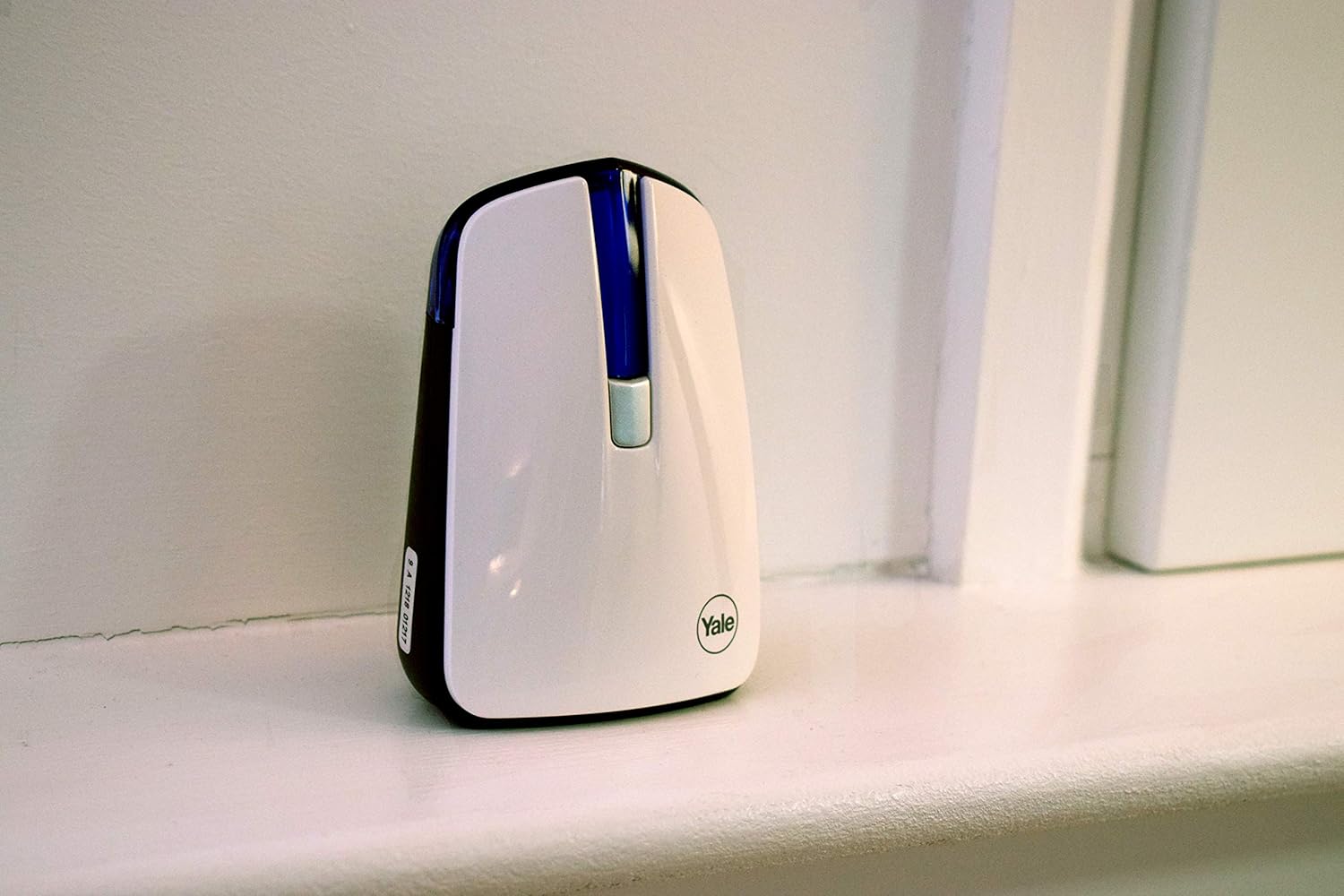
Image 3.3: The Yale Door Chime unit placed on a white shelf or windowsill, demonstrating a typical indoor placement.
4. Operating Instructions
4.1. Initial Test
After installation, press the doorbell push button once. The chime unit should sound, and the LED indicator on the chime unit should illuminate.
4.2. Changing Chime Sounds
The chime unit offers 32 selectable sounds. To change the sound:
- Locate the 'Sound Selection' button on the side or back of the chime unit.
- Press the button repeatedly to cycle through the available chime sounds. Stop when you hear your preferred sound.
4.3. Adjusting Volume
To adjust the volume of the chime:
- Locate the 'Volume Control' button on the side or back of the chime unit.
- Press the button to cycle through the available volume levels (e.g., high, medium, low, mute).
4.4. LED Notification
The chime unit features an LED indicator that illuminates when the doorbell push button is pressed. This provides a visual alert, which is particularly useful in noisy environments or for silent notification.
5. Maintenance
5.1. Battery Replacement
When the chime unit or push button stops functioning, or if the range decreases significantly, it is likely that the batteries need replacement.
- Doorbell Push Button: Open the battery compartment, remove the old Lithium batteries, and insert new ones of the same type, observing correct polarity.
- Door Chime Unit: Open the battery compartment, remove the old Lithium batteries, and insert new ones of the same type, observing correct polarity.
Warning: Dispose of used batteries responsibly according to local regulations.
5.2. Cleaning
To clean the units, use a soft, dry cloth. Do not use abrasive cleaners or solvents, as these can damage the surface. The push button is weatherproof, but avoid submerging it in water.
6. Troubleshooting
- No Sound from Chime Unit:
- Check if the batteries in both the push button and chime unit are correctly inserted and not depleted. Replace if necessary.
- Ensure the chime unit is not set to mute. Adjust the volume.
- Verify that the chime unit is within the operating range of the push button (100m line of sight). Reduce distance if possible.
- Check for significant obstructions (e.g., thick walls, metal structures) between the units.
- Poor Operating Range:
- Replace batteries in both units.
- Relocate the chime unit to a more central position or closer to the push button.
- Ensure there are no strong sources of interference nearby (e.g., Wi-Fi routers, cordless phones).
- LED Notification Not Working:
- Check battery levels in the chime unit.
- If the chime sounds but the LED does not light, there may be a fault with the LED component.
7. Specifications
| Feature | Detail |
|---|---|
| Model Number | YWDC/582/XP |
| Operating Range | Up to 100m (line of sight) |
| Number of Chimes | 32 selectable sounds |
| Volume Control | Yes |
| LED Notification | Yes |
| Push Button Weatherproof | Yes |
| Power Source | Battery (Lithium, included) |
| Item Weight | 168 g |
| Product Dimensions | 3 x 7.5 x 10.5 cm (Chime Unit) |
| Color | White |
| Manufacturer | Yale |
8. Warranty and Support
Your Yale Wirefree Doorbell & Chime is covered by a manufacturer's warranty. Please refer to the warranty card included with your product for specific terms and conditions. For technical support, troubleshooting assistance, or warranty claims, please contact Yale customer service through their official website or the contact information provided in your product packaging.


