1. Introduction
This manual provides detailed instructions for the setup, operation, and maintenance of your HP S1000 Wireless Mouse. Please read this manual thoroughly before using the product to ensure proper functionality and to maximize your user experience.
The HP S1000 Wireless Mouse is designed for reliable and comfortable use, featuring a 2.4 GHz wireless connection, 1600 DPI optical tracking, and a symmetrical design suitable for both left and right-handed users.
2. Package Contents
Please verify that all items are present in your product package:
- HP S1000 Wireless Mouse
- USB Receiver (dongle)
- 1 AA Battery (may be pre-installed or included separately)
- Quick Start Guide (this manual)
3. Setup Instructions
Follow these steps to set up your HP S1000 Wireless Mouse:
- Install the Battery:
Locate the battery compartment on the underside of the mouse. Open the cover, insert the provided AA battery, ensuring correct polarity (+/-), and close the cover securely.
- Connect the USB Receiver:
Remove the USB receiver from its storage slot, usually located within the battery compartment. Plug the USB receiver into an available USB port on your computer. Your computer should automatically detect and install the necessary drivers.

Illustration showing the HP S1000 Wireless Mouse's 2.4 GHz wireless connection and the included USB dongle for stable connectivity.
- Power On the Mouse:
If your mouse has a power switch (usually on the underside), slide it to the 'ON' position. The mouse should now be ready for use.
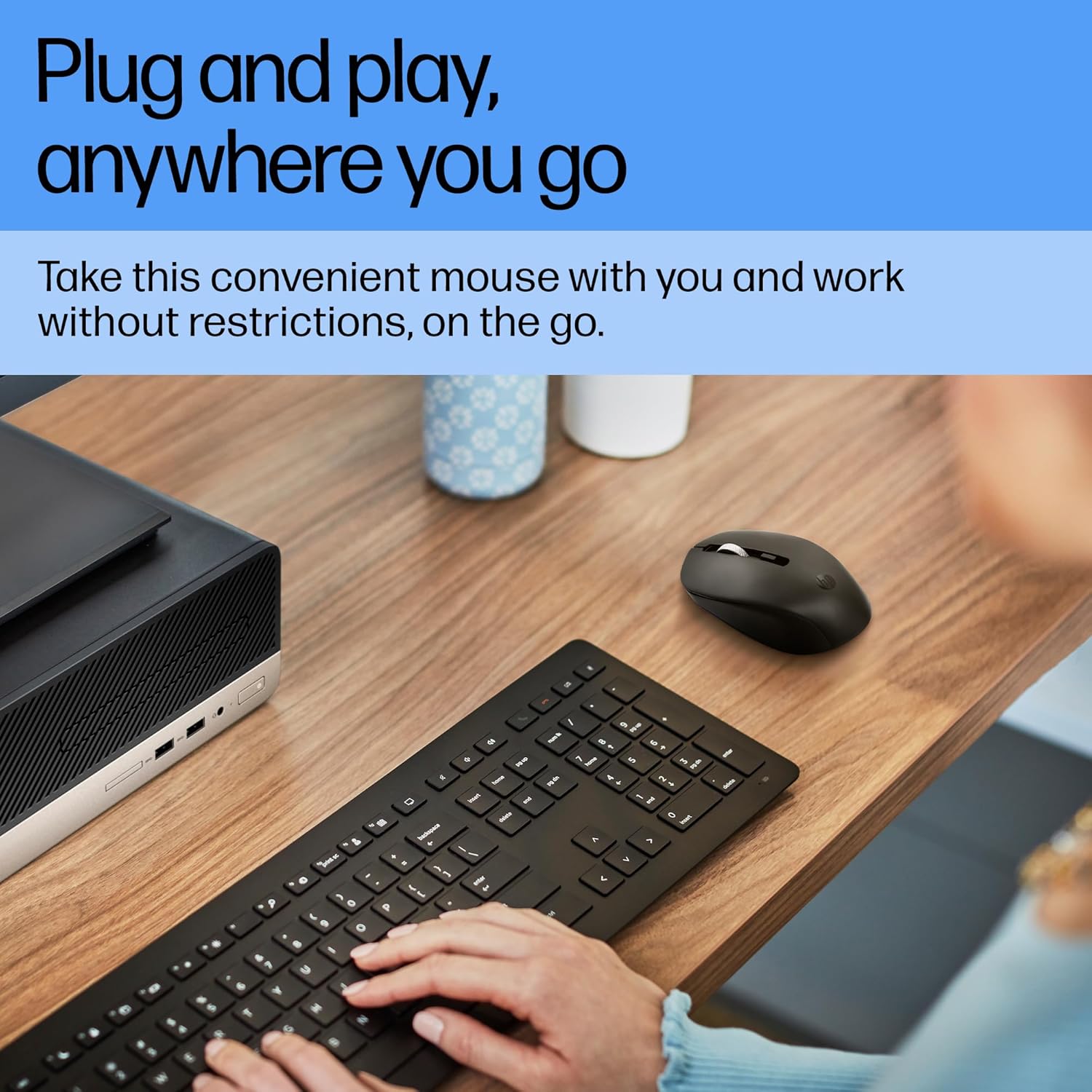
A user operating the HP S1000 Wireless Mouse next to a laptop and keyboard, emphasizing its portability and ease of use.
4. Operating Instructions
The HP S1000 Wireless Mouse offers intuitive control for various tasks:
- Left Click: Press the left button to select items, open files, or activate functions.
- Right Click: Press the right button to access contextual menus or specific options.
- Scroll Wheel: Roll the scroll wheel up or down to navigate through documents and web pages. The scroll wheel also functions as a middle click button.
- DPI Adjustment: The mouse features an optical sensor with up to 1600 DPI for precise tracking. While there isn't a dedicated DPI button, the mouse is optimized for smooth and responsive cursor movement across various surfaces.
- Silent Clicks: The mouse is designed with silent click technology, reducing noise during use.
- Symmetrical Design: Its symmetrical shape ensures comfortable use for both left-handed and right-handed individuals.
- Cross-OS Compatibility: The mouse is compatible with Windows 7, 8, 10, Mac OS, and Chrome OS.

Detailed diagram of the HP S1000 Wireless Mouse, labeling its key features including silent clicks, 1600 DPI optical sensor, USB dongle, cross-OS compatibility, and symmetrical design.
5. Maintenance
Proper care and maintenance will extend the life of your mouse:
- Cleaning: Use a soft, dry cloth to clean the mouse. For stubborn dirt, slightly dampen the cloth with water. Avoid using harsh chemicals or abrasive cleaners.
- Battery Replacement: When the mouse performance degrades or it stops responding, replace the AA battery. Ensure to dispose of old batteries responsibly according to local regulations.
- Storage: When not in use for extended periods, turn off the mouse (if it has a power switch) and store the USB receiver in its designated slot to prevent loss.
6. Troubleshooting
If you encounter issues with your HP S1000 Wireless Mouse, refer to the following common solutions:
- Mouse Not Responding:
- Check if the mouse is powered on.
- Replace the AA battery with a fresh one.
- Ensure the USB receiver is securely plugged into a working USB port on your computer.
- Try plugging the USB receiver into a different USB port.
- Move the mouse closer to the USB receiver to rule out interference or range issues.
- Choppy or Inconsistent Movement:
- Clean the optical sensor on the underside of the mouse.
- Ensure you are using the mouse on a suitable surface. Avoid highly reflective or transparent surfaces.
- Check for potential wireless interference from other devices.
- USB Receiver Not Detected:
- Restart your computer.
- Try the USB receiver in another computer to determine if the issue is with the receiver or the computer's USB ports.
If these steps do not resolve the issue, please contact HP customer support for further assistance.
7. Specifications
| Feature | Specification |
|---|---|
| Brand | HP |
| Model | S1000 |
| Connectivity Technology | 2.4 GHz Wireless (USB Receiver) |
| Movement Detection | Optical |
| DPI | Up to 1600 DPI |
| Special Features | Silent Clicks, Symmetrical Design |
| Power Source | Battery Powered |
| Battery Type | 1 x AA Battery |
| Average Battery Life | Up to 24 Months (varies with usage) |
| Operating System Compatibility | Windows 7, Windows 8, Windows 10, Mac OS, Chrome OS |
| Dimensions (LxWxH) | 13.1 x 8.1 x 0.1 cm (approximate) |
| Item Weight | 100 g |
| Color | Black |
8. Warranty and Support
Warranty Information:
The HP S1000 Wireless Mouse comes with a 1-year limited warranty from the date of purchase. This warranty covers manufacturing defects under normal use. Please retain your proof of purchase for warranty claims.
Customer Support:
For technical assistance, warranty claims, or further inquiries, please visit the official HP support website or contact HP customer service in your region. Refer to the HP website for the most up-to-date contact information and support resources.