
1. Introduction and Overview
The Hercules DJControl Inpulse 500 is a 2-deck USB DJ controller designed for aspiring and performing DJs. It features a built-in audio interface and hardware input mixer, offering comprehensive control for mixing audio. The controller is compatible with Serato DJ and DJUCED software.
Key features include high-definition jog wheels with touch detection, 16 backlit RGB pads for performance, and a dedicated Filter/FX area for smooth transitions. The unit is also designed with retractable feet for improved ergonomics and protection.
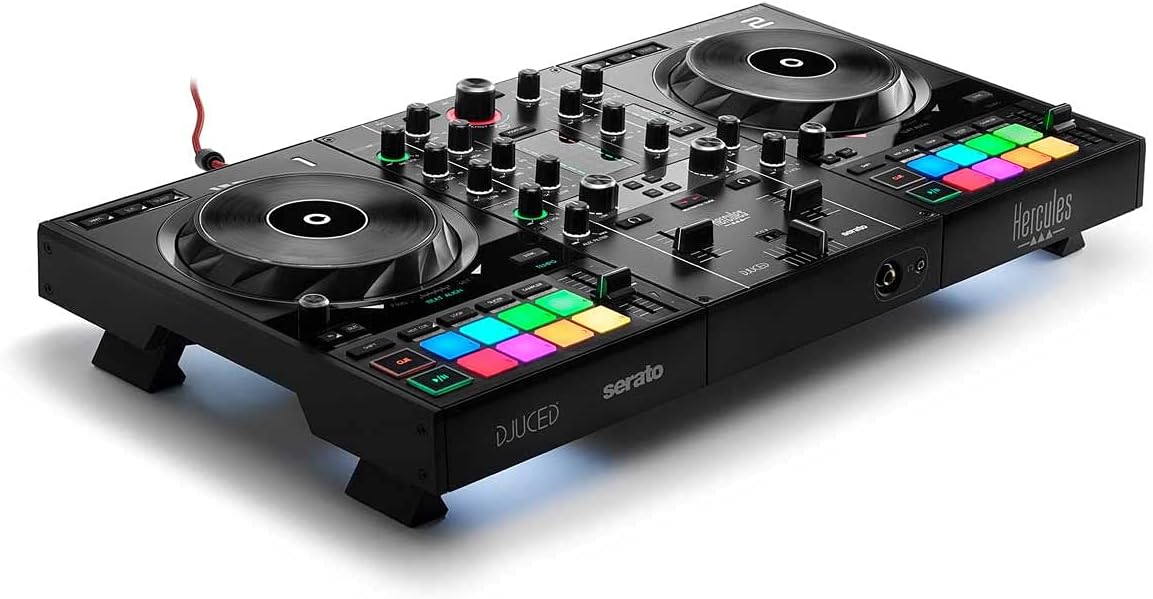
Figure 1: Hercules DJControl Inpulse 500 DJ Controller
This image displays the overall design of the Hercules DJControl Inpulse 500, highlighting its two decks, central mixer, and performance pads.
2. What's in the Box
Upon unboxing your Hercules DJControl Inpulse 500, please ensure all the following items are present:
- DJ Deck (Hercules DJControl Inpulse 500)
- USB Cable
- Owner's Manual
3. Setup
3.1. Connecting the Controller
To begin using your DJControl Inpulse 500, connect it to your computer and audio system as follows:
- Connect the supplied USB cable from the controller's USB port to an available USB port on your computer.
- Connect your speakers to the MASTER output (RCA) on the rear of the controller.
- For monitoring, plug your headphones into the headphone jack on the front of the controller.
- (Optional) Connect a microphone to the unbalanced MIC input on the rear panel.

Figure 2: Rear Panel Connections
This image illustrates the rear panel of the DJControl Inpulse 500, showing the USB, Master (RCA), and Microphone input connections.
3.2. Software Installation
The Hercules DJControl Inpulse 500 is designed for use with Serato DJ and DJUCED software. Please download and install the latest versions of your preferred DJ software from the official websites.

Figure 3: Software Compatibility
This image highlights the compatibility of the DJControl Inpulse 500 with DJUCED and Serato DJ Lite software.
4. Operating Instructions
4.1. Overview of Controls
The DJControl Inpulse 500 features a standard 2-deck layout with a central mixer section. Familiarize yourself with the main components:
- Jog Wheels: Large, touch-sensitive jog wheels for scratching and track navigation.
- Performance Pads: 16 backlit RGB pads for triggering hot cues, loops, samples, and effects.
- Mixer Section: Includes gain, EQ (High, Mid, Low), filter, and volume faders for each deck, along with a crossfader.
- Filter/FX Area: Dedicated controls for applying filters and effects to your mix.
- Beatmatch Guide: Visual guides to assist with manual beatmatching.

Figure 4: Top Panel Layout
This image provides a clear top-down view of the controller, showing the layout of all buttons, knobs, and jog wheels.
4.2. Basic Mixing
- Loading Tracks: Use the Browse knob to navigate your music library in Serato DJ or DJUCED. Press the LOAD buttons (1 or 2) to assign tracks to the respective decks.
- Playing and Pausing: Use the Play/Pause buttons located below each jog wheel.
- Beatmatching: Adjust the tempo faders and use the jog wheels to align the beats of two tracks. The Beatmatch Guide LEDs will assist you in achieving perfect synchronization.
- EQ and Filter: Use the EQ knobs (High, Mid, Low) to adjust the frequency balance of each track. The Filter knob allows for creative frequency sweeps.
- Crossfader: Blend between Deck 1 and Deck 2 using the central crossfader.

Figure 5: Beatmatch Guide on Jog Wheel
This close-up shows the jog wheel and the Beat Align guide, which illuminates to indicate when tracks are synchronized.
4.3. Performance Features
- Hot Cues: Use the performance pads to set and trigger cue points within your tracks.
- Loops: Create instant loops using the dedicated loop buttons (Loop In/Loop Out).
- Sampler: Trigger pre-loaded samples using the performance pads in sampler mode.
- Effects: Apply various effects using the FX paddles and buttons in the Filter/FX area.

Figure 6: Performance Pads and Filter/FX
This image details the multi-colored performance pads and the intuitive Filter/FX controls.
5. Key Features
- Integrated Audio Interface: Provides high-quality audio output directly from the controller, eliminating the need for external sound cards.
- Hardware Input Mixer: Allows for direct connection of external audio sources, such as a microphone, independent of the computer.
- High-Definition Jog Wheels: Large, touch-sensitive jog wheels offer precise control for scratching and track manipulation.
- RGB Performance Pads: 16 backlit pads provide tactile feedback and visual cues for triggering various performance modes.
- Retractable Feet: Unique design feature that elevates the controller, improving ergonomics and protecting it from spills.
Figure 7: Retractable Feet
This image shows the DJControl Inpulse 500 with its retractable feet extended, demonstrating how it can be elevated.
6. Maintenance
- Cleaning: Use a soft, dry cloth to clean the surface of the controller. Avoid abrasive cleaners or solvents.
- Storage: Store the controller in a dry, dust-free environment. If transporting, use a protective case.
- Cable Care: Handle USB and audio cables carefully to prevent damage. Avoid sharp bends or excessive pulling.
7. Troubleshooting
- No Power/Connection: Ensure the USB cable is securely connected to both the controller and your computer. Try a different USB port or cable.
- No Sound: Check all audio connections (Master output to speakers, headphones). Verify that the volume levels on the controller and in your software are not muted or too low. Ensure the correct audio device is selected in your DJ software settings.
- Software Not Recognizing Controller: Restart your computer and DJ software. Ensure the latest drivers (if required) and software updates are installed.
8. Specifications
| Feature | Detail |
|---|---|
| Brand | Hercules |
| Model Number | 4780909 |
| Item Weight | 10.44 pounds |
| Product Dimensions | 10.54 x 20.26 x 5.12 inches |
| Hardware Interface | USB |
| Material Type | Metal, Plastic |
| Power Source | Corded Electric |
| Number of Channels | 2 |
| Connectivity Technology | USB |
9. Official Product Videos
Hercules DJ Lifestyle Video
This video showcases the Hercules DJControl Inpulse 500 in various lifestyle settings, demonstrating its portability and ease of use for different DJ scenarios.
Hercules DJControl Inpulse 500 Overview
This video provides a detailed overview of the Hercules DJControl Inpulse 500, highlighting its features and functionalities for effective DJ performance.
10. Warranty and Support
For detailed warranty information and technical support, please refer to the official Hercules website or contact their customer service. Keep your purchase receipt as proof of purchase.


